Host Settings
In QuillBooking, each host can personalize their profile to better reflect their identity and enhance how they appear to invitees. This section walks you through how to manage and customize your Host/Calendar profile effectively.
Accessing Host Settings
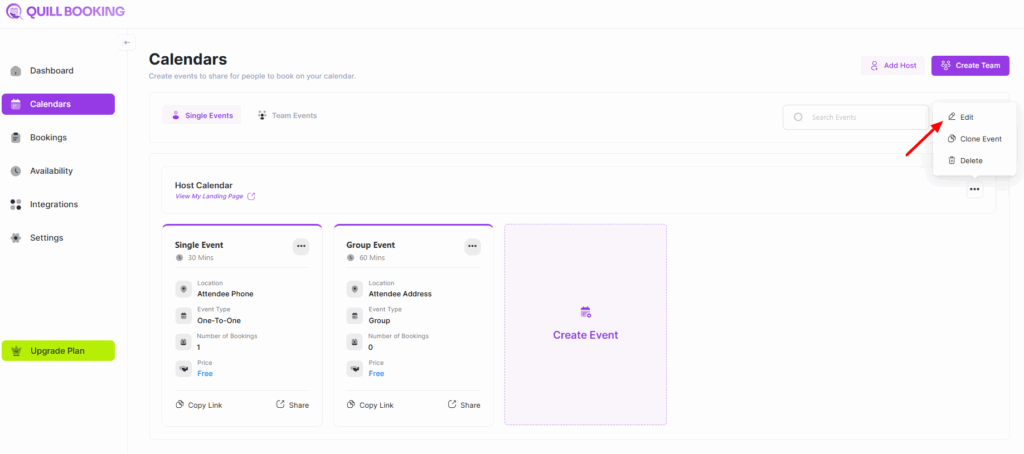
To open the settings for a specific host:
- Go to your QuillBooking Dashboard.
- Navigate to the Calendars section.
- For each host, you’ll find the three-dot menu (⋮)—click on Edit to manage that host’s profile.
Customizing Your Host or Calendar Profile
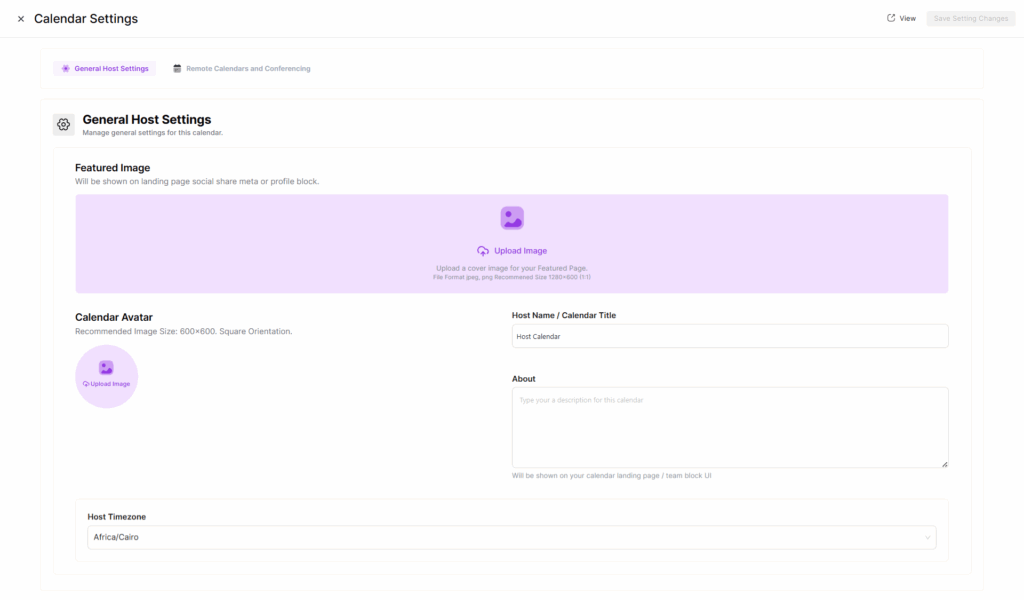
Inside the host settings, you can update various elements to personalize the appearance and functionality of the calendar:
- Avatar: Upload a custom image to represent the host. If no custom avatar is set, the system may fall back to a Gravatar image.
- Featured Image: Add a visually engaging image that will appear when the calendar link is shared on social platforms.
- Host or Calendar Name: Change or add a name that clearly identifies the host.
- About Section: Write a short bio or description to introduce the host or explain what the calendar is for.
- Timezone Selection: Choose the host’s preferred timezone. This ensures that all bookings and availability are accurately reflected based on their local time.
Any changes you make to a host’s profile—whether it’s updating the avatar or changing timezone—will only apply after you click Save Changes.
Cloning Events from Other Calendars
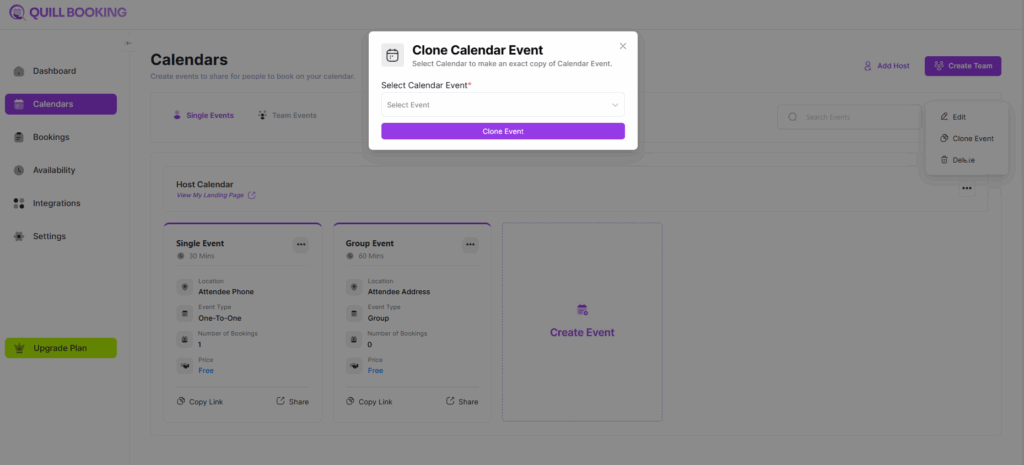
In QuillBooking, you can easily clone events from one calendar to another using the Clone feature. This allows you to reuse existing event configurations across different calendars without setting them up from scratch.
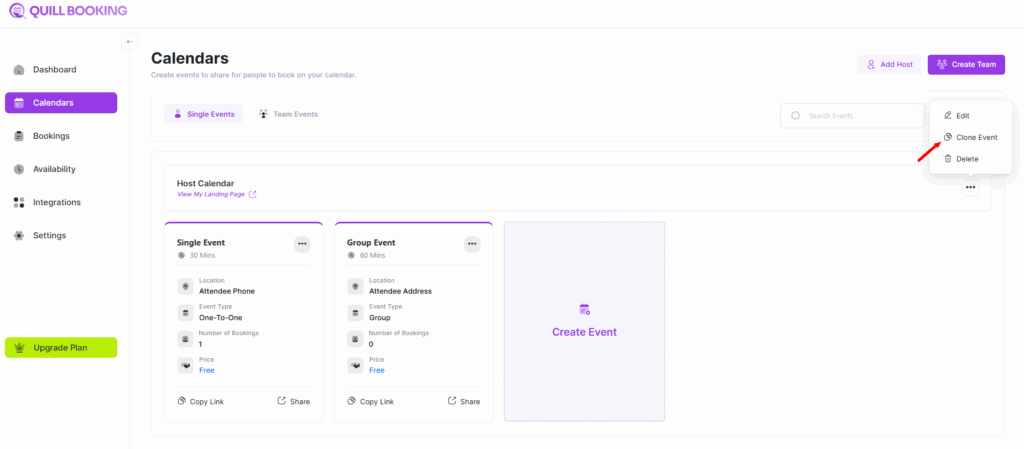
To clone an event:
- Navigate to the Calendars section in your dashboard.
- Select the calendar where you want to add the cloned event.
- Click the three-dot menu (⋮) and choose Delete.
- A modal will open, allowing you to browse and select events from other calendars to clone.
Once you choose the event(s), QuillBooking will copy their configuration (including time slots, duration, and settings) into the current calendar. You can then make any necessary adjustments before saving.
This feature is ideal for maintaining consistency across different hosts or event types.
Deleting a Host Profile
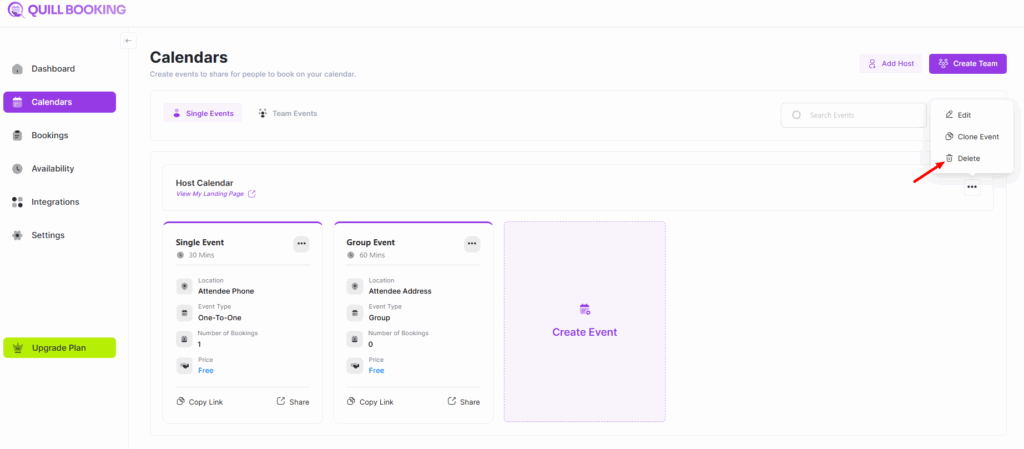
If you need to remove a host or calendar profile:
- Navigate to the Calendars section.
- Locate the host profile you want to remove.
- Click the three-dot menu (⋮) and choose Delete.