Early Bird Launch Special: Save over 70% on our professional scheduling platform • Offer expires in 48 hours View Pricing

QuillBooking Documentation

Get unstuck with our helpful reference material

Create and Manage Services

This guide walks you through creating, editing, and managing services in Quill Booking.

Accessing the Services Page

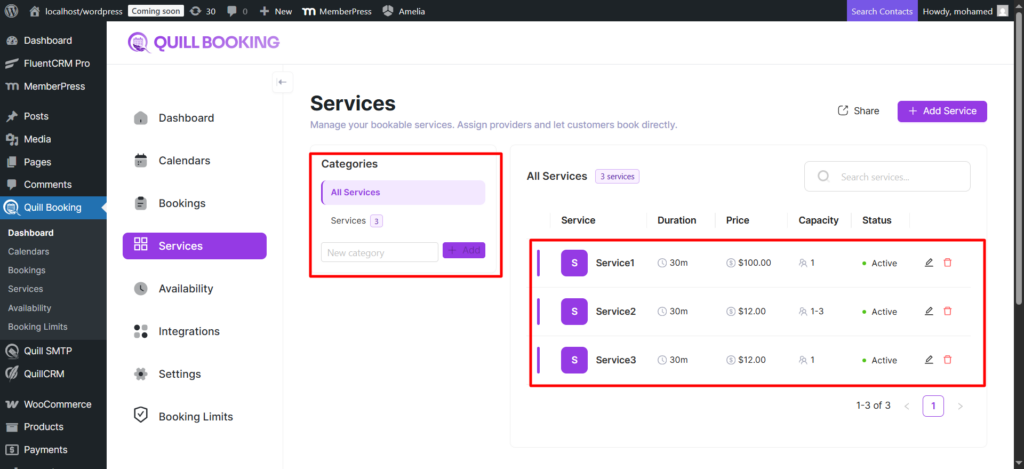
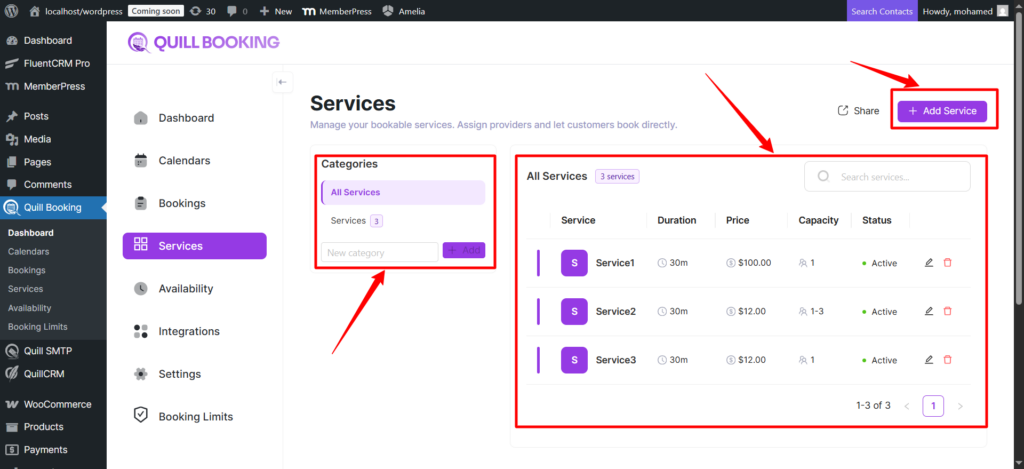
Navigate to Quill Booking → Services. You will see a two-column layout:

  • Left sidebar — Service categories for filtering and organizing.
  • Right panel—the services table showing all services with name, duration, price, capacity, and status.
Creating a New Service
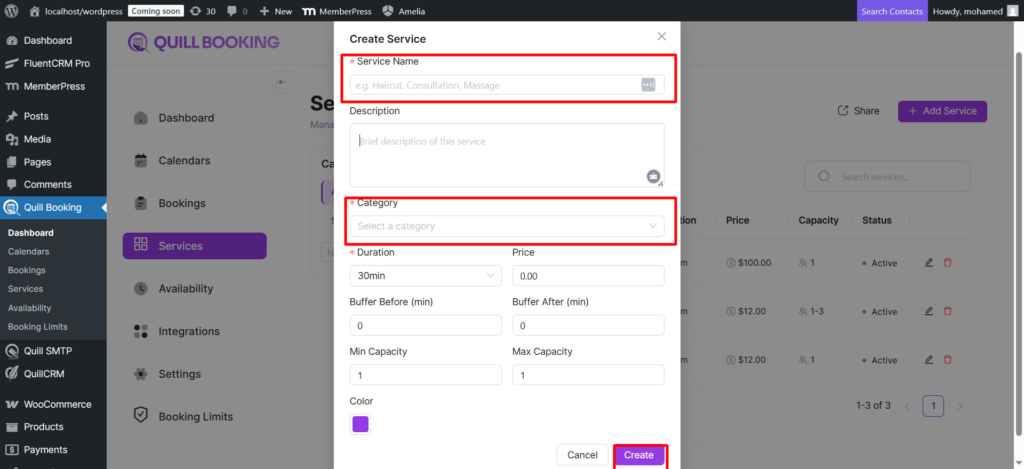
  1. Click the “Add Service” button in the top right corner.
  2. Fill in required fields: Name, Duration, and Category (required).
  3. Optionally configure: Description, Price, Color, Capacity (min/max), Buffer times, and Providers.
  4. Click “Create”. Your host calendar is automatically linked as a provider.

Service Setup Tabs

TabDescription
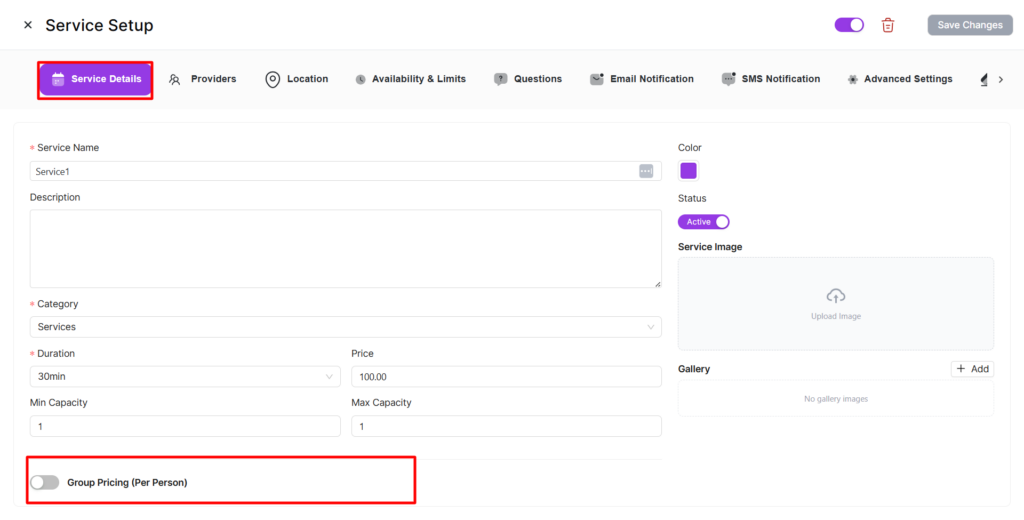
Service DetailsEdit name, description, duration, price, color, category, capacity, picture, gallery, and group pricing.
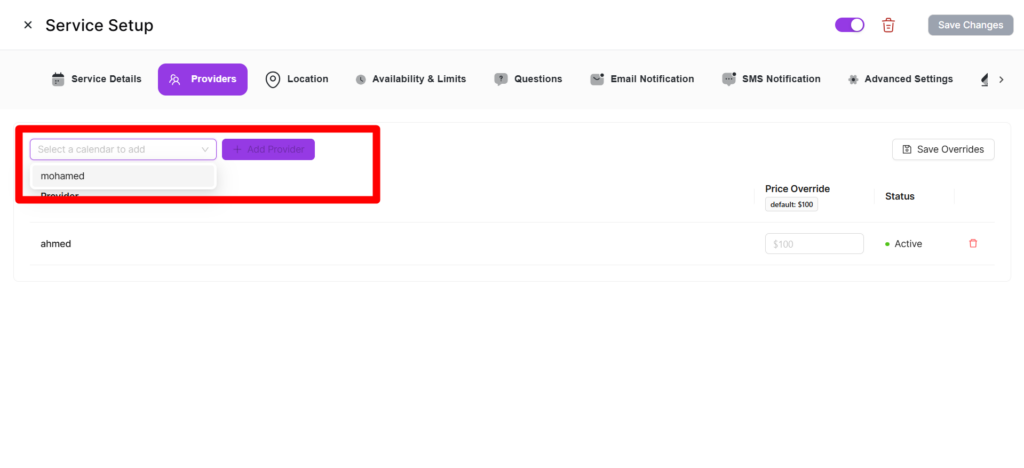
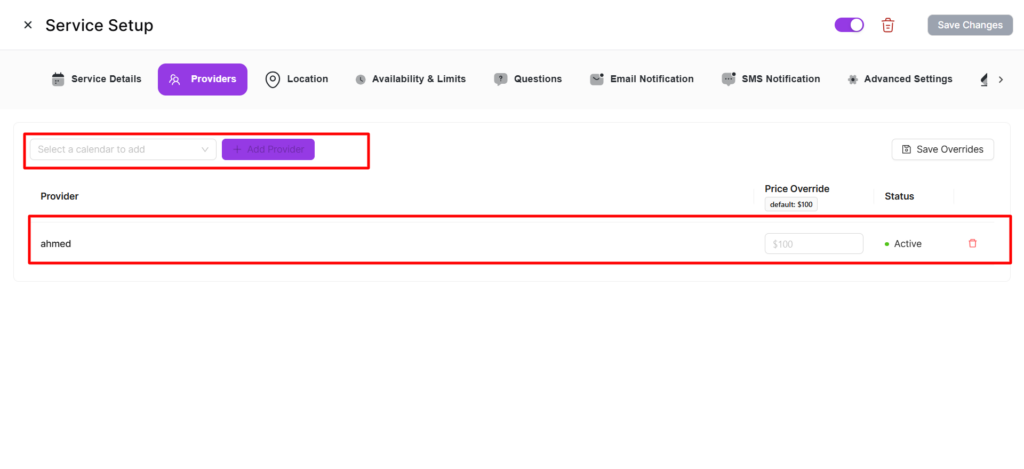
ProvidersManage linked host calendars with per-provider price, capacity overrides, and status.
LocationAdd locations (in-person, phone, Zoom, Google Meet, Teams, custom).
Availability & LimitsView provider schedules, set buffer times, minimum notice, time slot intervals, and scheduling window.
QuestionsManage booking form fields — system, location, and custom questions.
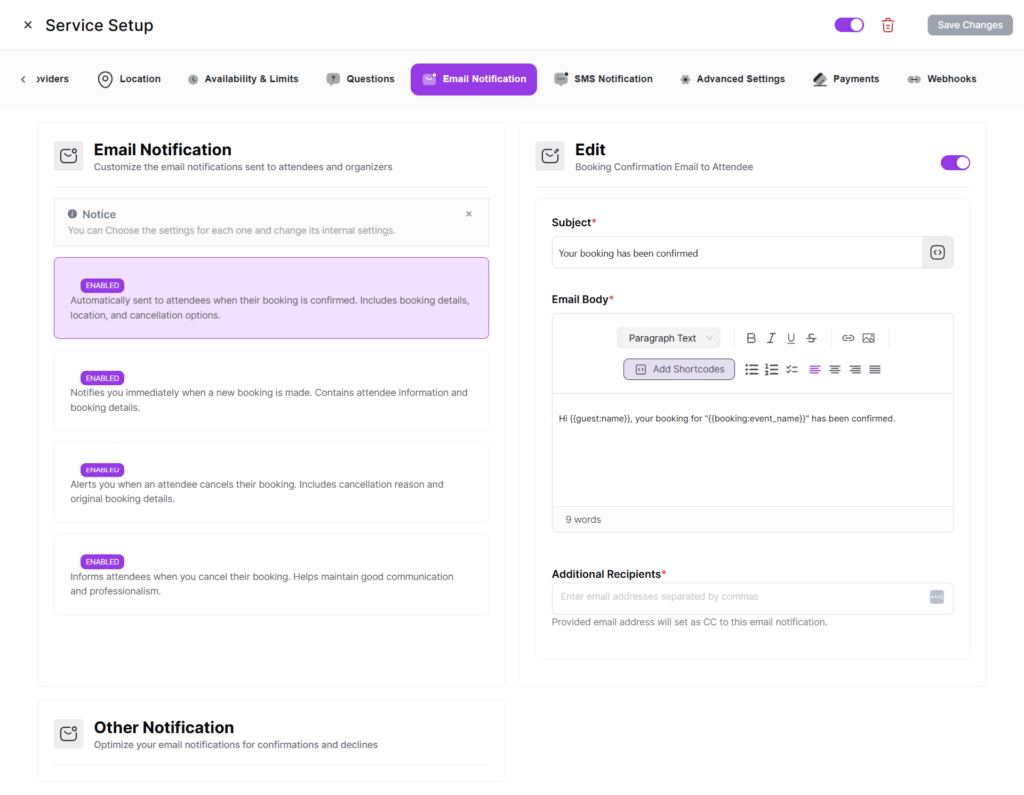
Email NotificationConfigure email notifications for confirmations, cancellations, rescheduling, and reminders.
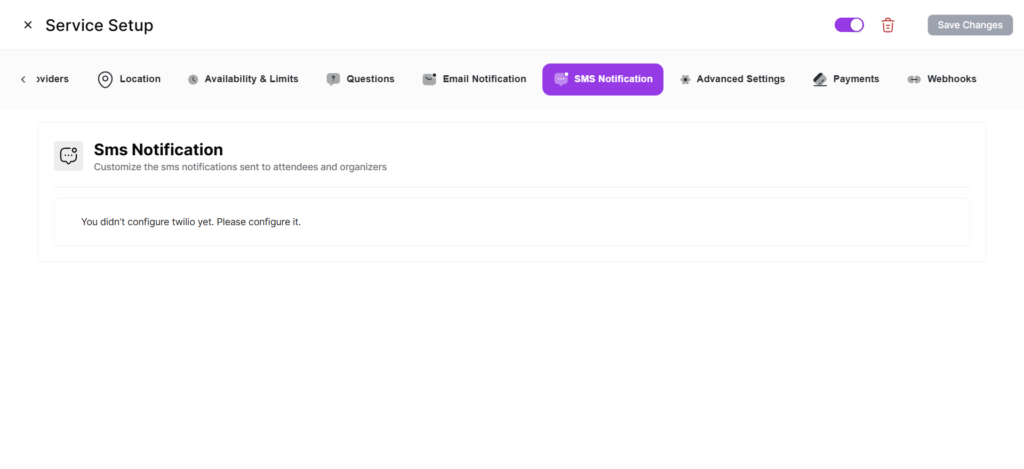
SMS NotificationSet up SMS notifications via Twilio.
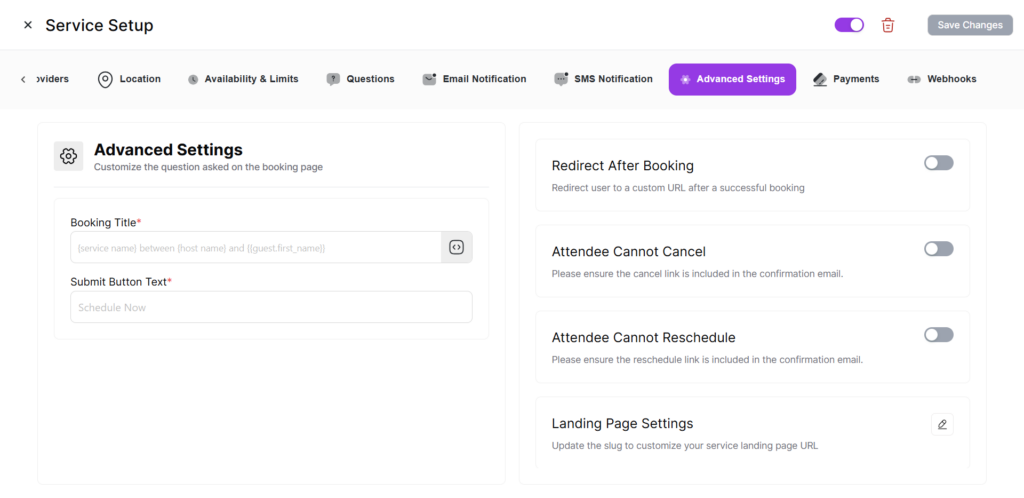
Advanced SettingsConfigure redirect URLs, custom CSS, require confirmation, and service slug.
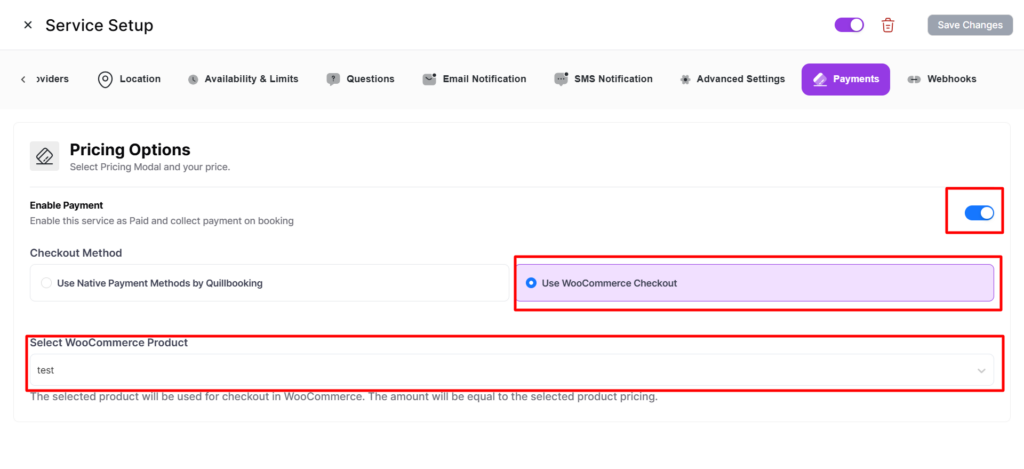
PaymentsEnable payments, configure items, and set up Stripe, PayPal, or WooCommerce.
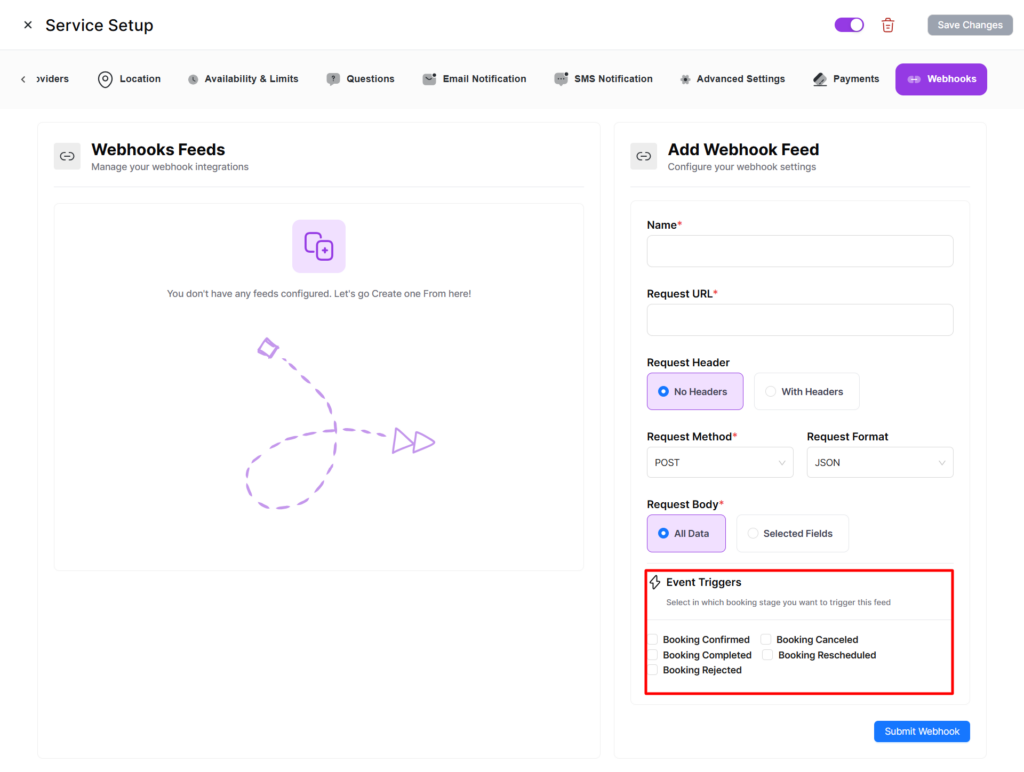
WebhooksConfigure webhook feeds for booking events.

Service Details Tab

  • Service Picture — Upload a featured image displayed on the booking page.
  • Gallery — Add multiple images to showcase the service.
  • Name & Description — Public-facing title and description.
  • Duration — Appointment length in minutes (5-minute increments).
  • Price — Base price, synced bi-directionally with payment items.
  • Color — Visual identifier in the table and calendar.
  • Category — Assign to a category (create new ones inline).
  • Capacity — Min/max guests per booking. Set max > 1 for group bookings.
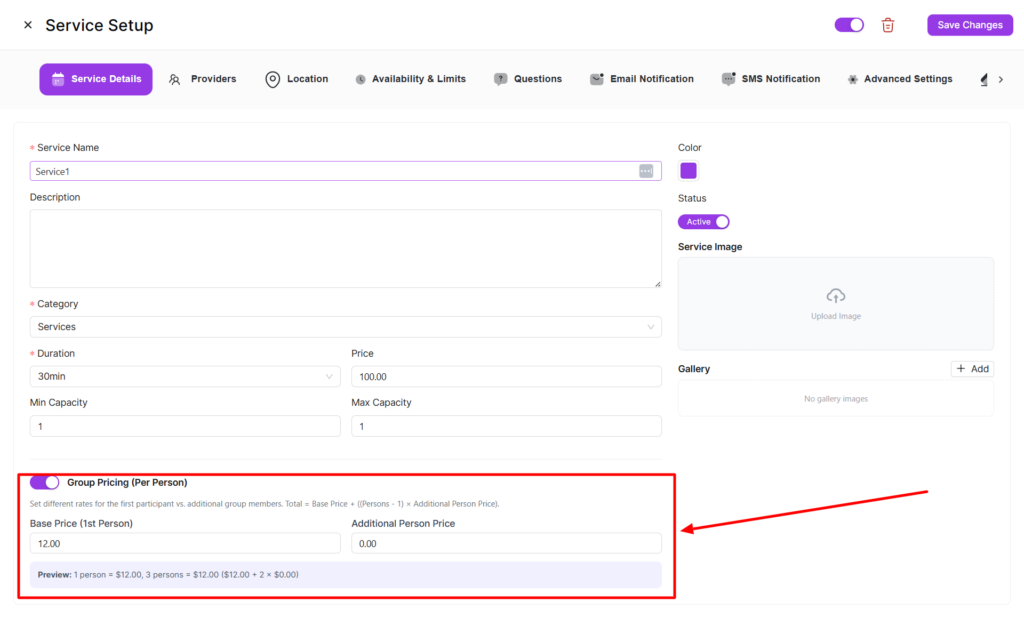
  • Group Pricing — Enable per-person pricing: base_price + ((guests - 1) × additional_person_price).

Enabling / Disabling a Service

Use the toggle switch in the Service Setup header. Disabled services are hidden from the public booking page.

Deleting a Service

Delete from the services table or the Service Setup header. This removes all meta data and provider links. Existing bookings are preserved.

Sharing Services

Click “Share” to get the public service selection URL (yoursite.com?quillbooking_services).
Introduction to Service-Based Booking

Quill Booking’s Service-Based Booking feature lets you define bookable services (such as consultations, haircuts, massages, or classes) independently from individual host calendars. Instead of creating an event tied to a single host, you create a service, assign one or more providers (hosts), and let customers pick a provider and time slot — all from a single, shareable booking page.

How Service-Based Booking Differs from Event-Based Booking

FeatureEvent-Based BookingService-Based Booking
OwnershipTied to a single host calendarShared across multiple providers
Provider SelectionNot applicableCustomer chooses a provider at booking time
PricingSet per eventSet per service with optional per-provider overrides
CategoriesNo built-in categorizationOrganized by service categories
Public PageIndividual event linkService selection page showing all services
Group PricingNot availableSupported with per-person pricing
Membership LimitsNot availableSubscription-based booking limits per service

Key Concepts

Services

A service represents a bookable offering — for example, “30-Minute Consultation,” “Deep Tissue Massage,” or “Guitar Lesson.” Each service has a name, description, duration, price, color, picture, gallery, and configurable options including availability limits, payment settings, notifications, webhooks, and custom fields.

Service Categories

Services are organized into categories (e.g., “Hair Services,” “Wellness,” “Consulting”). Categories make it easy for customers to browse related services. Each category can have its own picture.

Providers

A provider is a host calendar linked to a service. One service can have many providers, and each provider’s availability is calculated independently. Providers can have per-provider price overrides and capacity settings.

Service Booking Page

The service booking page is a public-facing page where customers browse all active services, select one, choose a provider, and book a time slot. The URL format is yoursite.com?quillbooking_services.

When to Use Service-Based Booking

  • Multi-provider businesses — salons, clinics, agencies where multiple staff offer the same service.
  • Service catalogs — when you want to display a categorized menu of offerings.
  • Membership-based access — when you want to restrict certain services to paying subscribers.
  • Group bookings with per-person pricing — when a service can accommodate multiple guests at different price points.
  • Centralized management — when admins need to manage services, pricing, and providers from one place.

Getting Started

  1. Navigate to Quill Booking → Services in your WordPress admin panel.
  2. Create at least one service category using the sidebar panel.
  3. Click “Add Service” to create your first service.
  4. In the service setup, configure details, assign providers, set locations, availability limits, payment settings, and notifications.
  5. Share the service booking page link with your customers.

Managing Service Providers

Providers are the team members (hosts) who deliver a service. Each provider is represented by a host calendar. A service can have multiple providers, and each provider’s availability is calculated independently.

How Providers Work

  • When you create a service, your host calendar is automatically linked as a provider.
  • Available time slots are computed per-provider using each provider’s personal availability schedule.
  • Customers see slots from all active providers and can select which provider they want.
  • Booking conflict checks are done per-provider — one provider being fully booked doesn’t affect others.

Adding Providers (Admin)

  1. Open the service and go to the Providers tab.
  2. Select a host calendar from the dropdown.
  3. Click “Add Provider”.
  4. Click “Save Changes”.

Join / Leave a Service (Team Members)

  • Join — Click “Join Service” to add your host calendar as a provider.
  • Leave — Click “Leave Service” to remove yourself from new bookings.

Per-Provider Overrides

OverrideDescription
PriceCustom price for this provider. Leave empty to use service base price.
Min CapacityOverride minimum booking capacity.
Max CapacityOverride maximum booking capacity.
Status“Active” or “Inactive” to control bookings.

Removing a Provider

Admins can remove providers from the Providers tab. Existing bookings are not affected.

Provider Integrations

A service’s connected integrations (Google Calendar, Zoom, Outlook, Apple Calendar, Twilio) are aggregated across all active providers. An integration is “connected” if any provider has it configured.

Membership Booking Limits for Services

Quill Booking supports membership-based booking limits, restricting how many bookings a subscriber can make per service within a given period. Ideal for membership sites, gyms, clinics, and subscription-based businesses.

How It Works

  1. Admin configures limits—Set booking limits per membership level, per service (or globally for all services).
  2. Customer books a service — The system checks whether the customer has an active membership and quota.
  3. Usage is tracked—Every successful booking increments the counter atomically (race-condition safe).
  4. Cancellation restores quota—Cancelled bookings decrement the counter.

Configuring Booking Limits

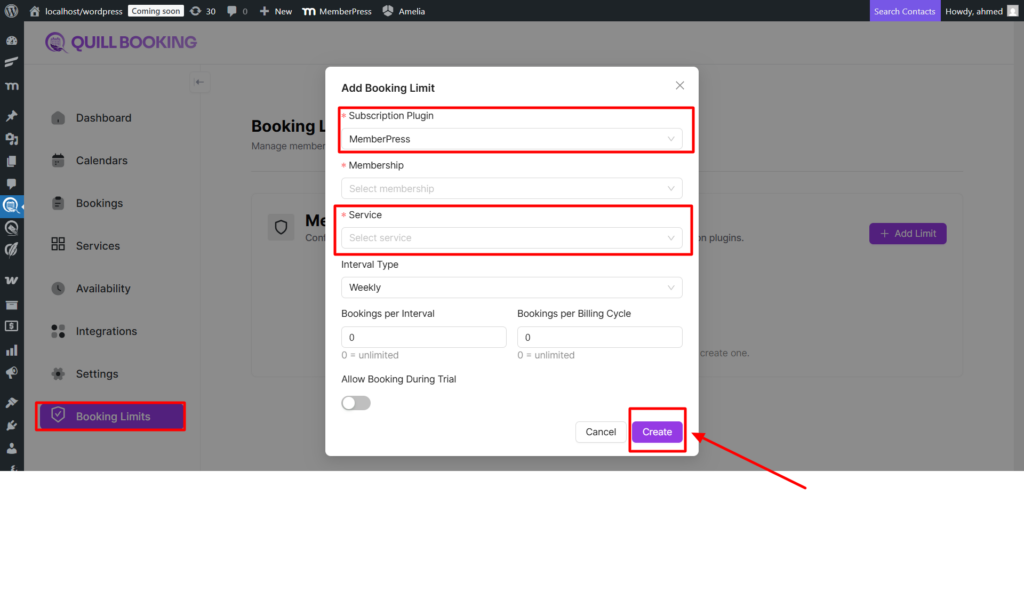
Navigate to Quill Booking → Booking Limits. Here you can add limit rules by selecting a membership plan, a service (or “All Services”), and defining limits.

Limit TypeDescriptionExample
Interval LimitMax bookings per week/month/quarter/year4 bookings per month
Cycle LimitMax bookings per billing cycle10 bookings per cycle
Trial AccessAllow or block bookings during trial periodsBlock trial members

Service Access Control

When membership limits are configured, the public booking page automatically filters services based on the logged-in user’s active memberships. Inaccessible services are hidden. Non-logged-in users won’t see membership-protected services. If no services are accessible, a “subscription required” message is shown.

Remaining Quota

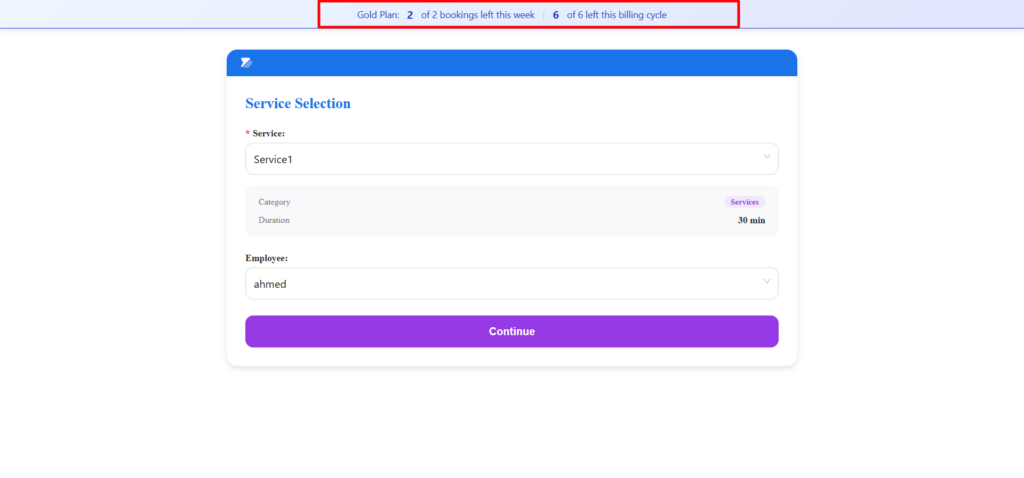
The system provides quota information, including membership name, interval remaining (e.g., 3 bookings left this month), cycle remaining (e.g., 7 bookings left this billing cycle), and total used vs. limit.

Supported Membership Plugins

MemberPress is supported out-of-the-box. Other plugins can be integrated via the qb_resolve_active_memberships filter. Trial access logic can be customized via qb_check_trial_access.

Service Availability and Booking Limits

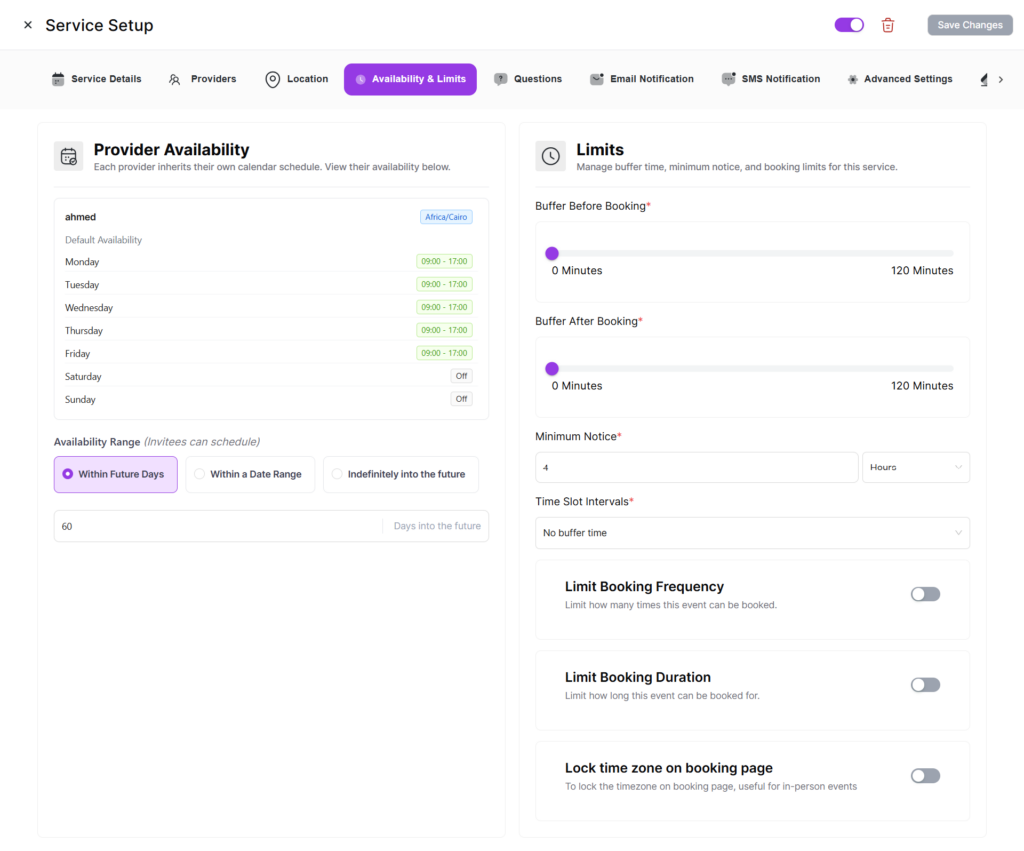
The Availability & Limits tab lets you view provider schedules and configure booking constraints.

Provider Availability Overview

See a read-only overview of each provider’s weekly schedule including provider name, schedule name, timezone, and weekly hours.

Note: Provider availability is configured from each provider’s own settings. The service respects each provider’s personal schedule.

Buffer Times

Buffer Before Booking adds a gap before a booking starts. Buffer After Booking adds a gap after a booking ends. This prevents back-to-back appointments.

Minimum Notice Period

Set minimum advance notice required (configurable in minutes, hours, or days). Default is 4 hours. For example, 4 hours means customers cannot book slots within the next 4 hours.

Time Slot Intervals

Override default duration-based intervals. For example, a 60-minute service can show slots every 30 minutes (9:00, 9:30, 10:00…).

Booking Frequency

Limit how many bookings a customer can make within a specific period.

Scheduling Window (Event Range)

  • Days — Allow bookings up to X days ahead (default: 60).
  • Date Range — Only allow bookings within a specific range.
  • Infinity — No future limit.

Timezone Display

Configure timezone display: auto-detect customer timezone, lock to specific timezone, or let customer choose.

Service Categories

Service categories help you organize your services into logical groups, making it easier for customers to find and book the right service.

Managing Categories

Categories are managed from the left sidebar on the Services page. View all categories with names, images, and service counts; filter by clicking a category; click “All Services” to remove the filter.

Creating a Category

  1. At the bottom of the sidebar, type the name in the “New category” input.
  2. Click “Add” or press Enter.
  3. The category appears immediately.

You can also create categories inline while creating or editing a service.

Editing a Category

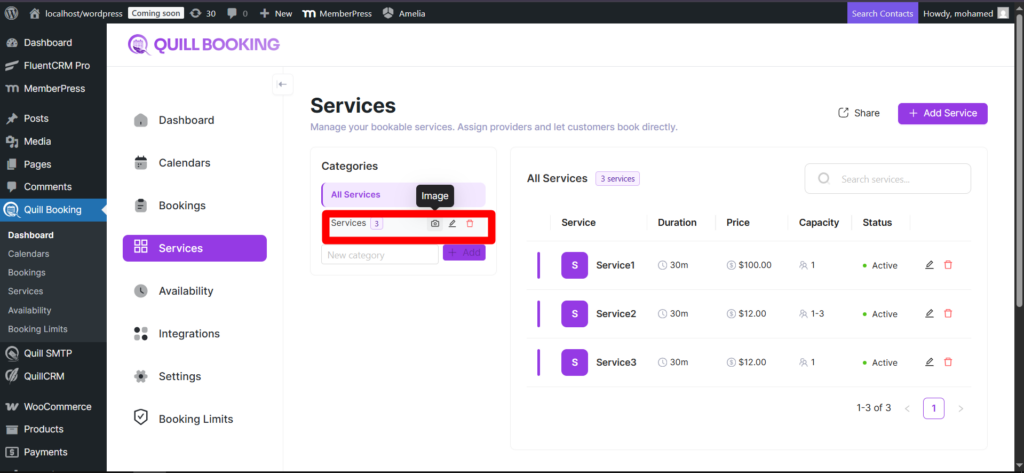
Hover over a category to reveal action icons:

  • Camera icon — Upload or change the category picture.
  • Edit icon — Edit the name inline.
  • Delete icon — Remove the category. Services become uncategorized.

Category Pictures

Each category can have a picture displayed on the public booking page. Hover over the category, click the camera icon, and select an image from the Media Library.

Categories on the Public Booking Page

On the public service selection page, categories group and filter services, making navigation intuitive for businesses with many offerings.

Service Locations

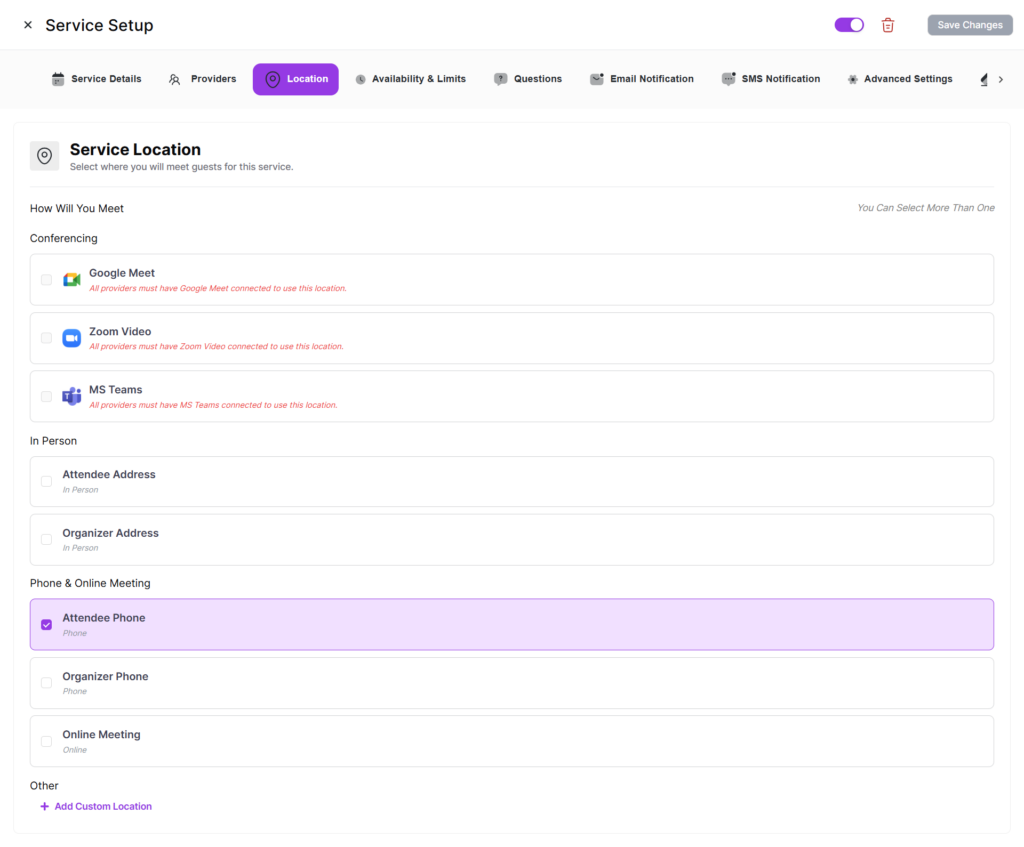
Configure where your service takes place using the Location tab. Services support multiple locations, and customers choose their preferred one when booking.

Supported Location Types

TypeDescription
In PersonPhysical address where the service is delivered.
Phone CallInvitee or host provides a phone number.
Google MeetAuto-generates a Google Meet link (requires Google Calendar integration).
ZoomAuto-generates a Zoom meeting link (requires Zoom integration).
Microsoft TeamsGenerates a Teams meeting link (requires Outlook with Teams enabled).
CustomAny custom location with label and optional link.

Adding Locations

  1. Open the service and navigate to the Location tab.
  2. Click to add a location and select the type.
  3. Fill in required fields.
  4. Click “Save Changes”.

Multiple Locations

When a service has multiple locations, a location selection radio button is automatically added to the booking form. Customers must choose one before confirming.

Integration Requirements

Virtual meeting locations (Google Meet, Zoom, Teams) require at least one provider to have the corresponding integration configured. The service’s connected integrations panel shows availability across all providers.

Service Notifications, Webhooks, and Advanced Settings

Services support the same notification, webhook, and advanced configuration options as events, allowing full customization of the booking experience.

Email Notifications

Configure from the Email Notification tab:

  • Booking Confirmation — Sent when a booking is confirmed.
  • Booking Cancellation — Sent when cancelled.
  • Booking Rescheduled—Sent when the time changes.
  • Reminder Notifications — Sent before the appointment.
  • Host Notifications — Notify the provider about booking events.

All templates support merge tags for dynamic content — invitee name, service name, date/time, location, and more.

SMS Notifications

Send SMS via Twilio. Configure in the SMS Notification tab. Requires Twilio integration in Integrations → SMS.

Webhook Feeds

TriggerDescription
Booking CreatedFired when a new booking is created.
Booking RescheduledFired when rescheduled.
Booking CancelledFired when cancelled.
Payment CompletedFired when payment is processed.

Configure each webhook with a URL and triggers. Works with Zapier, Make, n8n, or any custom endpoint.

Zapier Integration

Quill Booking has a dedicated Zapier integration configurable in Integrations → Automation. This works with service bookings to trigger Zaps with structured booking data.

Advanced Settings

  • Require Confirmation — New bookings are “pending” until manually confirmed.
  • Redirect URL — Custom redirect after successful booking.
  • Cancel Redirect URL — Custom redirect after cancellation.
  • Custom CSS — Style the booking form for this service.
  • Service Slug — Customize the URL-friendly identifier.

Booking Form Questions

  • System Fields — Name and Email (always required and enabled).
  • Location Fields — Auto-generated based on configured locations.
  • Custom Fields — Add your own questions (text, textarea, select, radio, checkbox, phone, etc.).
  • Other Fields — Built-in fields like phone number, company name, and notes.

Service Payments and Group Pricing

The Payments tab lets you collect payments when customers book your service. Quill Booking supports Stripe, PayPal, and WooCommerce as payment gateways for services.

Enabling Payments

  1. Navigate to the Payments tab.
  2. Toggle “Enable Payment” on.
  3. Configure payment items (the service price auto-syncs as the first item).
  4. Select payment gateways to offer.
  5. Click “Save Changes”.

Price Synchronization

Service price and payment items stay in sync automatically. Changing the price in Details updates the payment item, and vice versa. This bi-directional sync ensures consistency everywhere.

Group Pricing

For services with capacity > 1, enable Group Pricing in the Details tab for per-person pricing.

Formula: Total = Base Price + ((Guests - 1) × Additional Person Price)

Example: Yoga class with $50 base and $20/additional person. For 3 guests: $50 + (2 × $20) = $90.

Configuring Group Pricing

  1. Set Max Capacity > 1 in the Details tab.
  2. Toggle “Enable Group Pricing” on.
  3. Set the Base Price and Additional Person Price.
  4. Save changes.

Per-Provider Pricing

Each provider can have a custom price override in the Providers tab. This is useful when different team members charge different rates.

Payment Gateways

  • Stripe — Credit card payments with Stripe integration.
  • PayPal — Accept PayPal payments.
  • WooCommerce — Process through WooCommerce checkout with proper cart item price override for service bookings.

Each gateway resolves the correct booking amount, prioritizing per-provider pricing when applicable.