
Service Locations
Configure where your service takes place using the Location tab. Services support multiple locations, and customers choose their preferred one when booking.
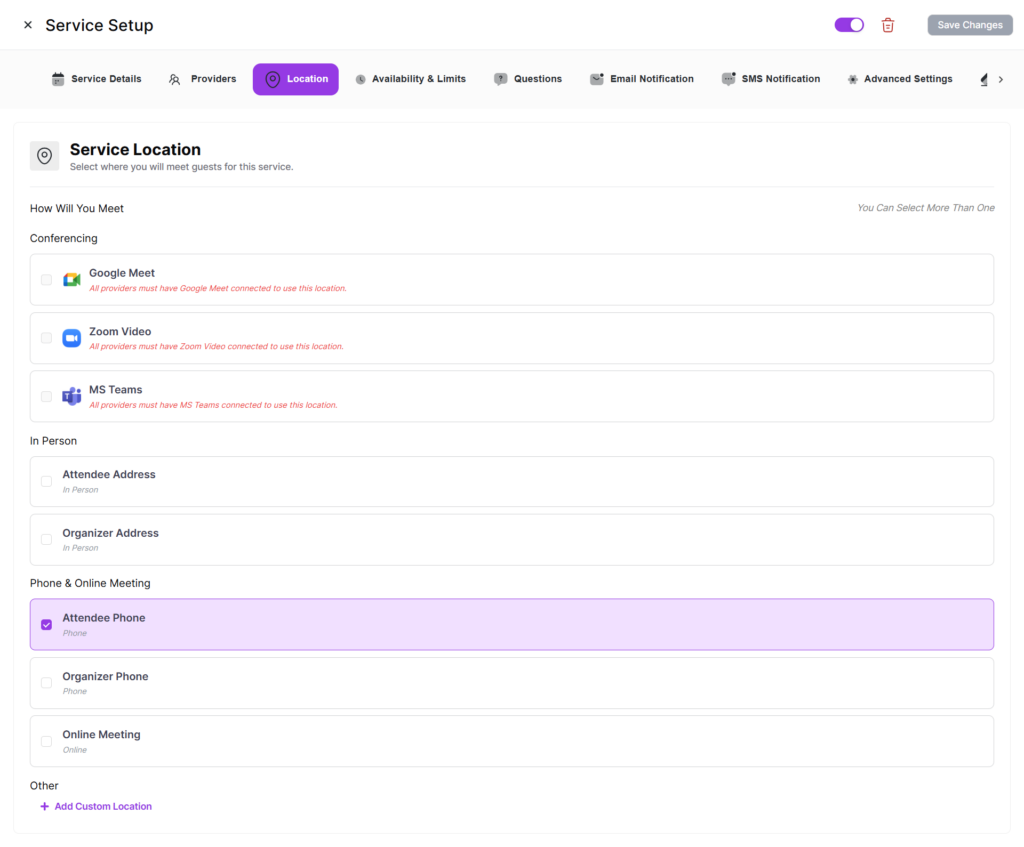
Supported Location Types
| Type | Description |
|---|---|
| In Person | Physical address where the service is delivered. |
| Phone Call | Invitee or host provides a phone number. |
| Google Meet | Auto-generates a Google Meet link (requires Google Calendar integration). |
| Zoom | Auto-generates a Zoom meeting link (requires Zoom integration). |
| Microsoft Teams | Generates a Teams meeting link (requires Outlook with Teams enabled). |
| Custom | Any custom location with label and optional link. |
Adding Locations
- Open the service and navigate to the Location tab.
- Click to add a location and select the type.
- Fill in required fields.
- Click “Save Changes”.
Multiple Locations
When a service has multiple locations, a location selection radio button is automatically added to the booking form. Customers must choose one before confirming.
Integration Requirements
Virtual meeting locations (Google Meet, Zoom, Teams) require at least one provider to have the corresponding integration configured. The service’s connected integrations panel shows availability across all providers.