
Create and Manage Services
This guide walks you through creating, editing, and managing services in Quill Booking.
Accessing the Services Page
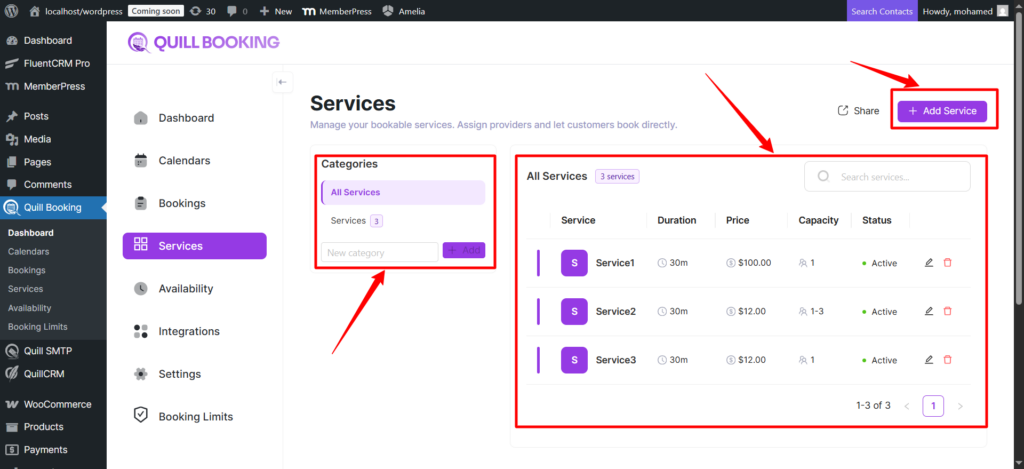
Navigate to Quill Booking → Services. You will see a two-column layout:
- Left sidebar — Service categories for filtering and organizing.
- Right panel—the services table showing all services with name, duration, price, capacity, and status.
Creating a New Service
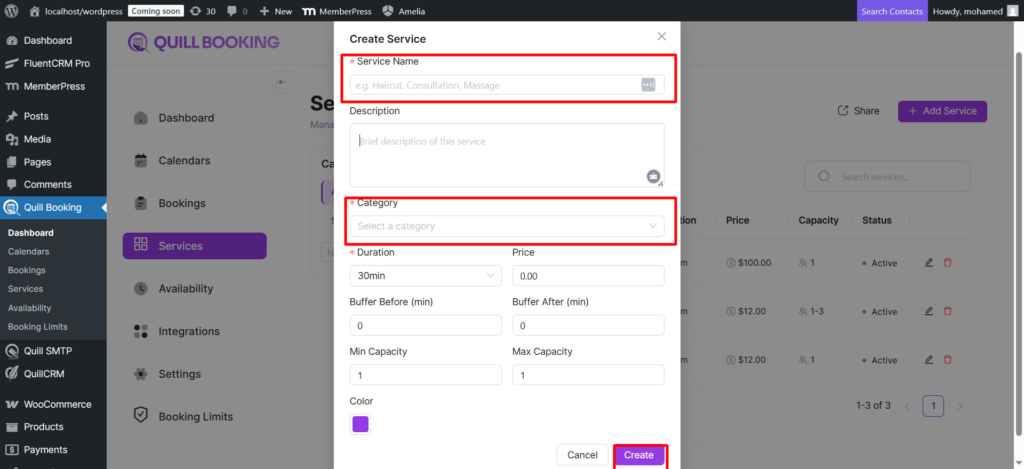
- Click the “Add Service” button in the top right corner.
- Fill in required fields: Name, Duration, and Category (required).
- Optionally configure: Description, Price, Color, Capacity (min/max), Buffer times, and Providers.
- Click “Create”. Your host calendar is automatically linked as a provider.
Service Setup Tabs
| Tab | Description |
|---|---|
| Service Details | Edit name, description, duration, price, color, category, capacity, picture, gallery, and group pricing. |
| Providers | Manage linked host calendars with per-provider price, capacity overrides, and status. |
| Location | Add locations (in-person, phone, Zoom, Google Meet, Teams, custom). |
| Availability & Limits | View provider schedules, set buffer times, minimum notice, time slot intervals, and scheduling window. |
| Questions | Manage booking form fields — system, location, and custom questions. |
| Email Notification | Configure email notifications for confirmations, cancellations, rescheduling, and reminders. |
| SMS Notification | Set up SMS notifications via Twilio. |
| Advanced Settings | Configure redirect URLs, custom CSS, require confirmation, and service slug. |
| Payments | Enable payments, configure items, and set up Stripe, PayPal, or WooCommerce. |
| Webhooks | Configure webhook feeds for booking events. |
Service Details Tab
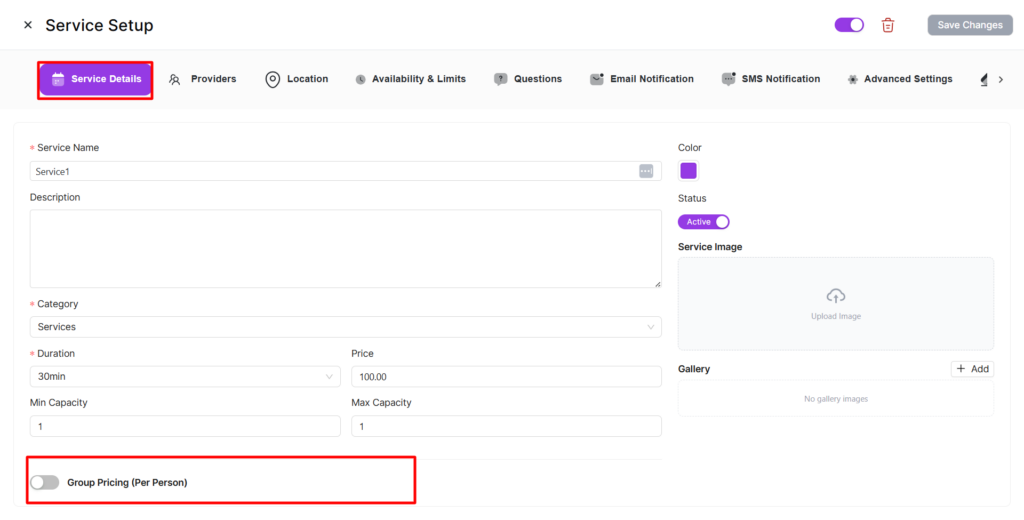
- Service Picture — Upload a featured image displayed on the booking page.
- Gallery — Add multiple images to showcase the service.
- Name & Description — Public-facing title and description.
- Duration — Appointment length in minutes (5-minute increments).
- Price — Base price, synced bi-directionally with payment items.
- Color — Visual identifier in the table and calendar.
- Category — Assign to a category (create new ones inline).
- Capacity — Min/max guests per booking. Set max > 1 for group bookings.
- Group Pricing — Enable per-person pricing:
base_price + ((guests - 1) × additional_person_price).
Enabling / Disabling a Service
Use the toggle switch in the Service Setup header. Disabled services are hidden from the public booking page.
Deleting a Service
Delete from the services table or the Service Setup header. This removes all meta data and provider links. Existing bookings are preserved.
Sharing Services
Click “Share” to get the public service selection URL (yoursite.com?quillbooking_services).