
Matomo Analytics
Matomo Analytics (formerly Piwik) is an open-source web analytics platform that helps you track, measure, and analyze visitor behavior on your websites and apps. Unlike Google Analytics, Matomo gives you full data ownership, privacy compliance (GDPR, HIPAA, etc.), and the option to self-host on your own server or use their cloud service.
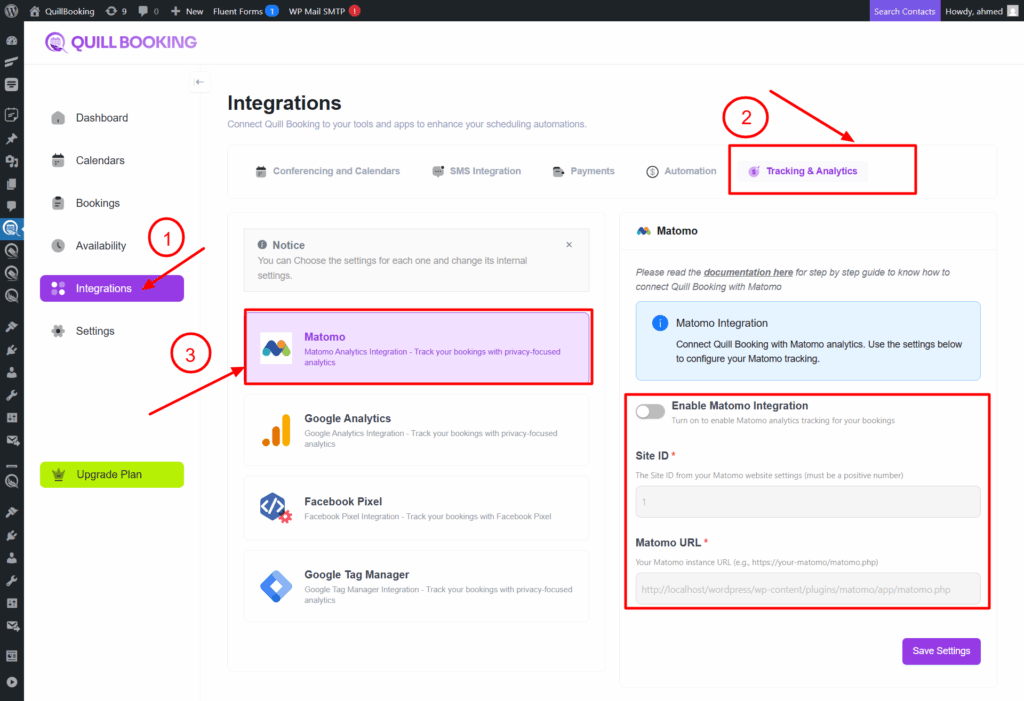
First you have to get your SITE ID , TRACKER URL and insert it in Matomo settings page:
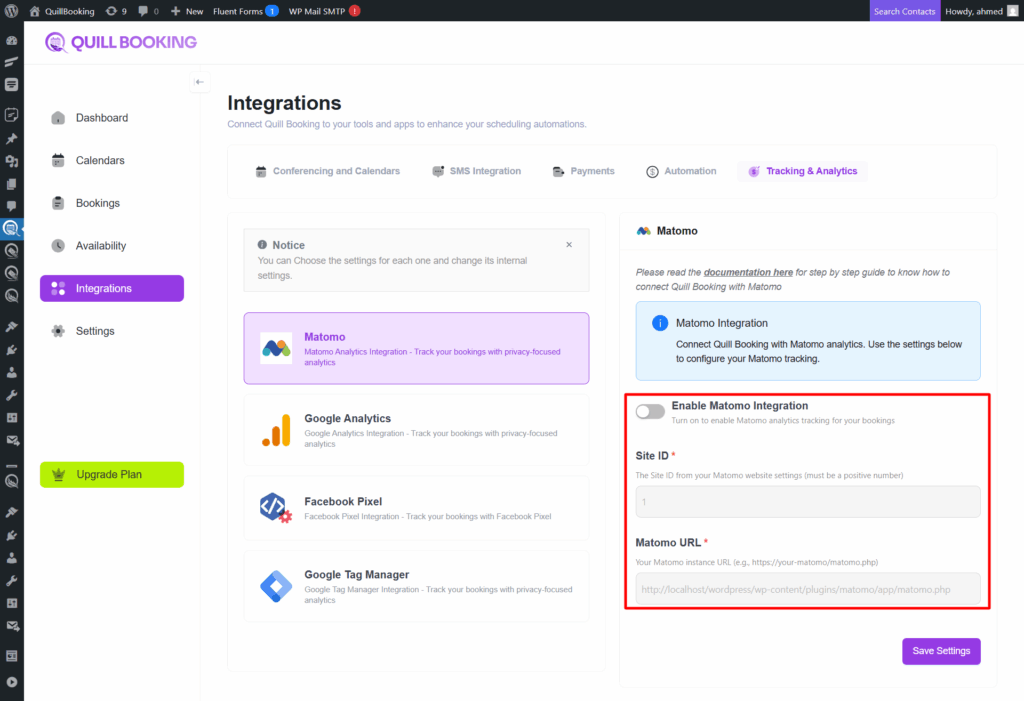
You have two ways to get the Matomo SITE ID and TRACKER URL
- You can download the WordPress plugins for Matomo or use Matomo Cloud instead of downloading them from WordPress.
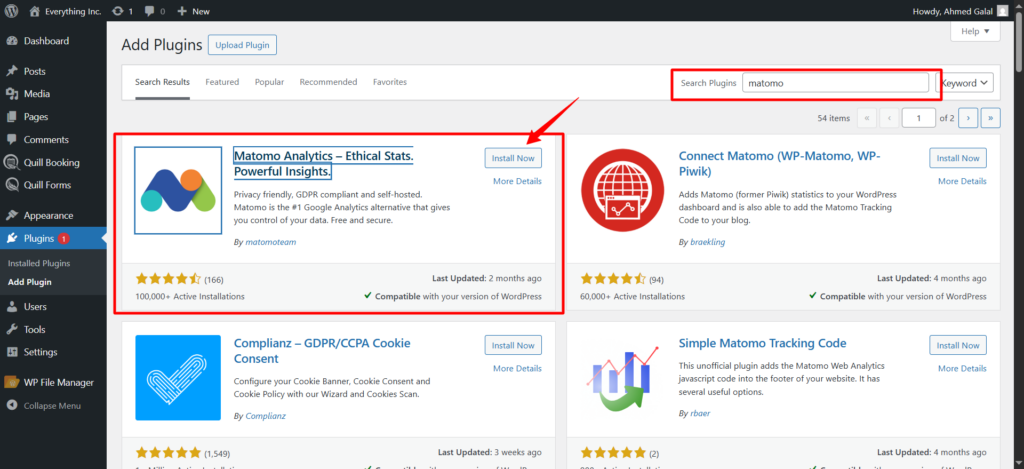
- Download from WordPress as a plugin.
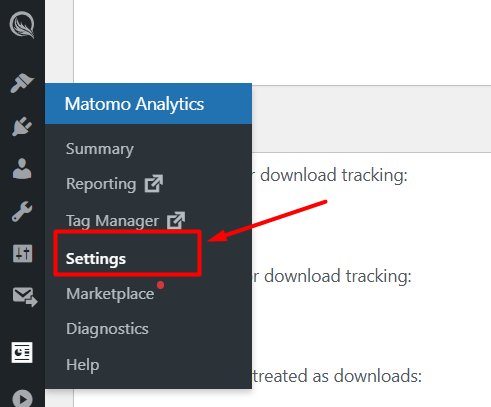
After installing, you’ll see the Matomo icon in the WordPress toolbar. Click on Settings and scroll down.
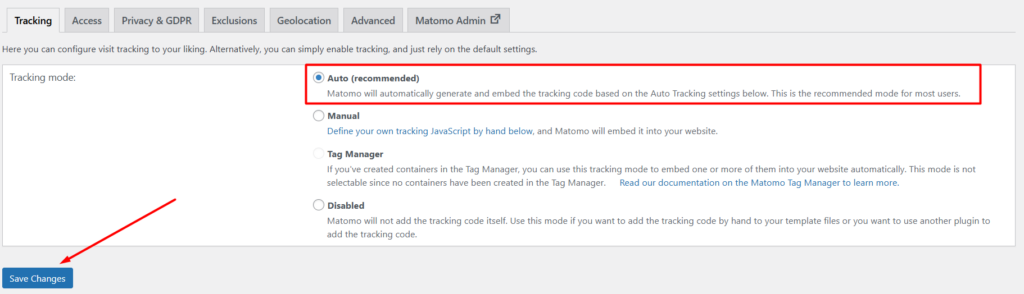
Next, go to Tracking Mode, select Auto, and click the Save Changes button.
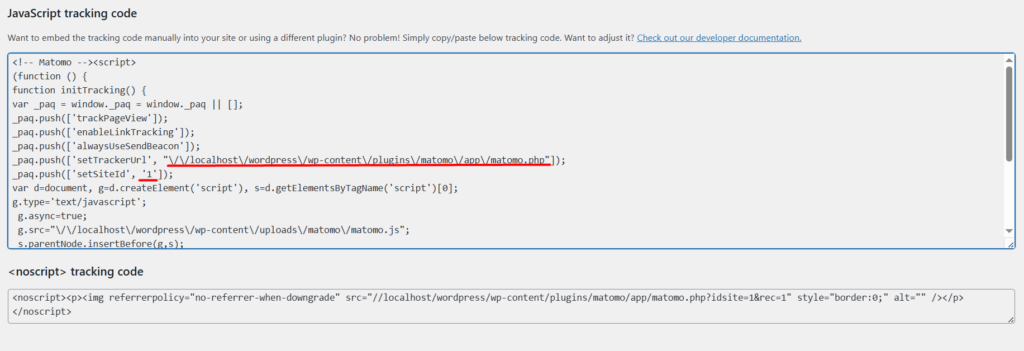
Next, scroll down to the JavaScript Tracking Code section. Copy the setTrackerUrl value as the Tracker URL, and the setSiteId value as the Site ID.
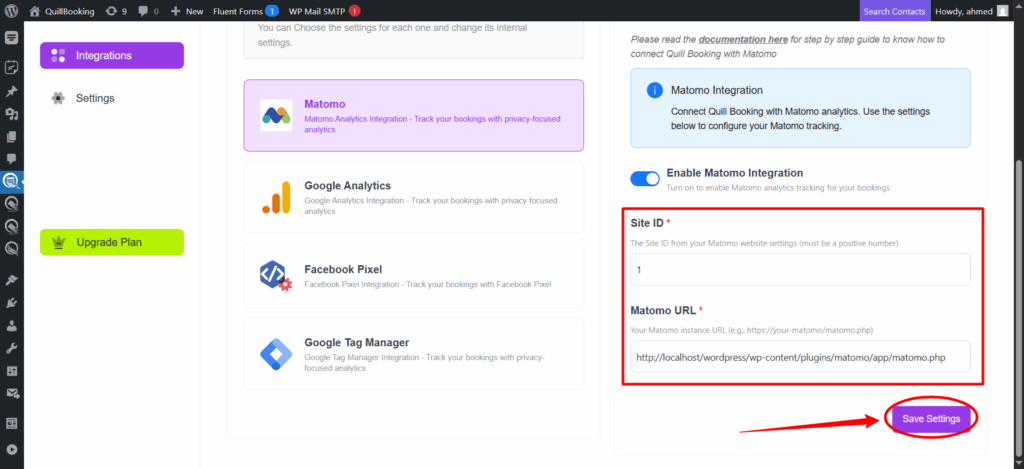
Then, set these values in the fields and click Save Settings.
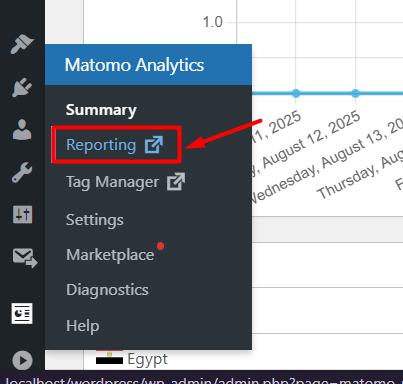
Finally, click on Reports to view all your analytics.
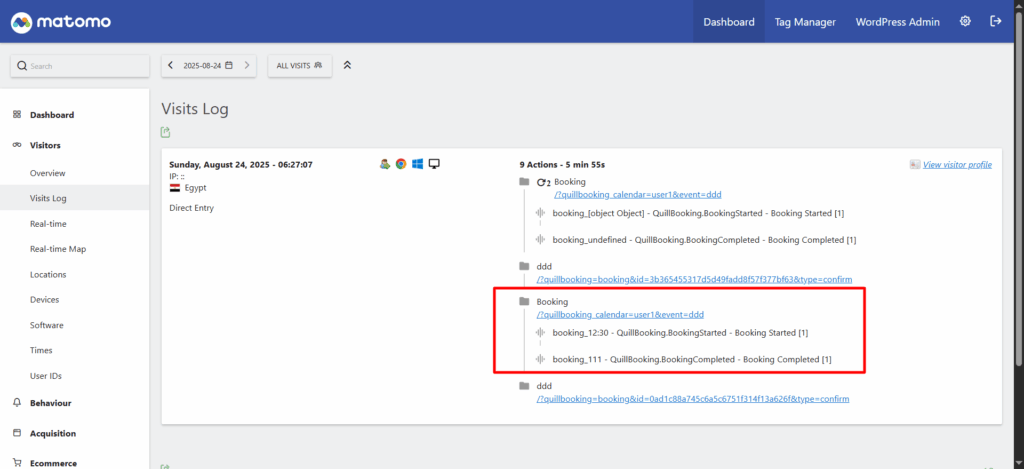
Then, go to Visits Log to see all actions for each booking, displayed with images.
2. Use Matomo Cloud instead of the self-hosted version.
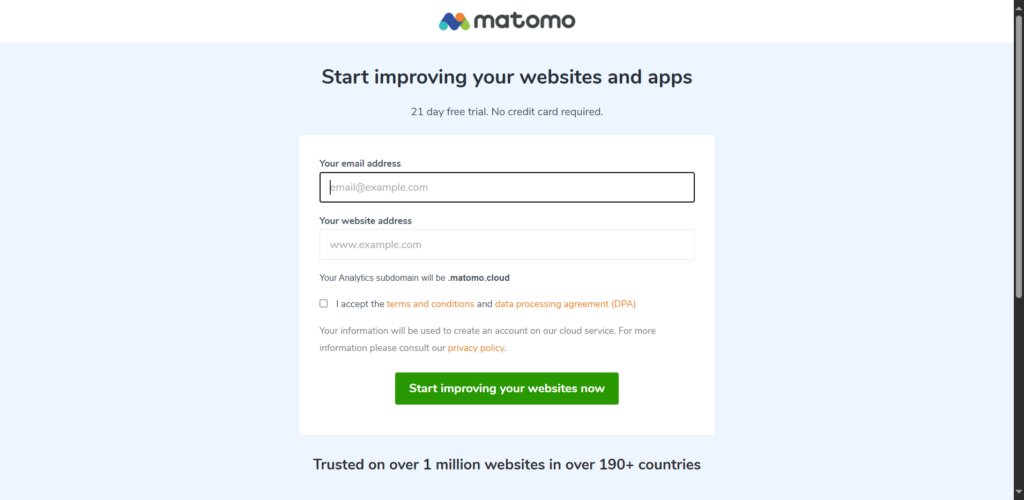
First log in to Matomo. Start Your Free Analytics Trial – Analytics Platform – Matomo , set your email, and the website URL.
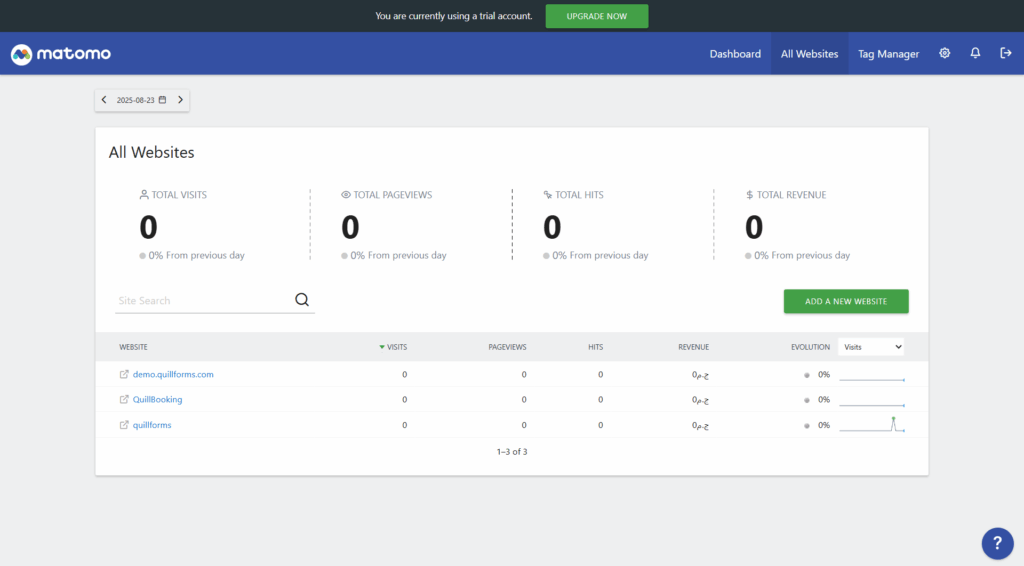
Next, go to the All Websites tab, click the Add New Website button, and add your website.
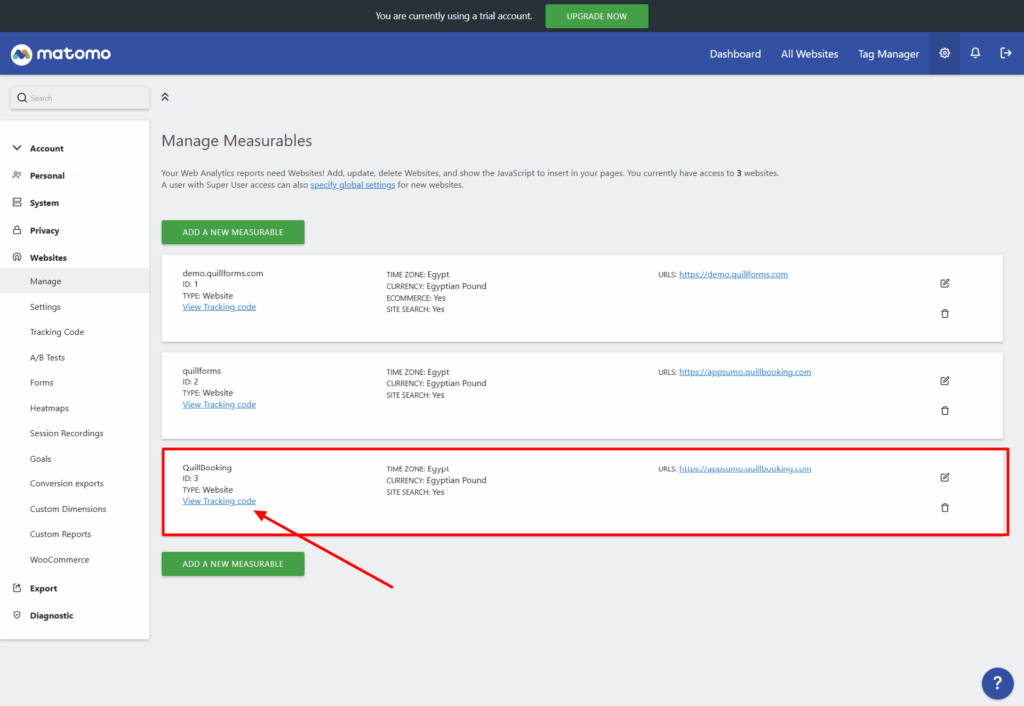
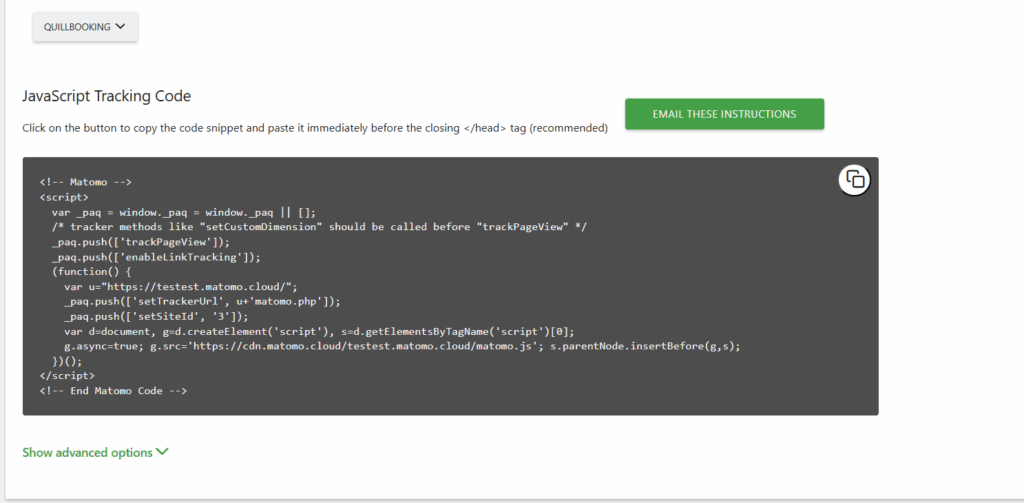
After this, go to Websites, open the Manage subtab, choose your website, and click on View Tracking Code.
Next, scroll down to the JavaScript Tracking Code section. Copy the setTrackerUrl value as the Tracker URL, and the setSiteId value as the Site ID.
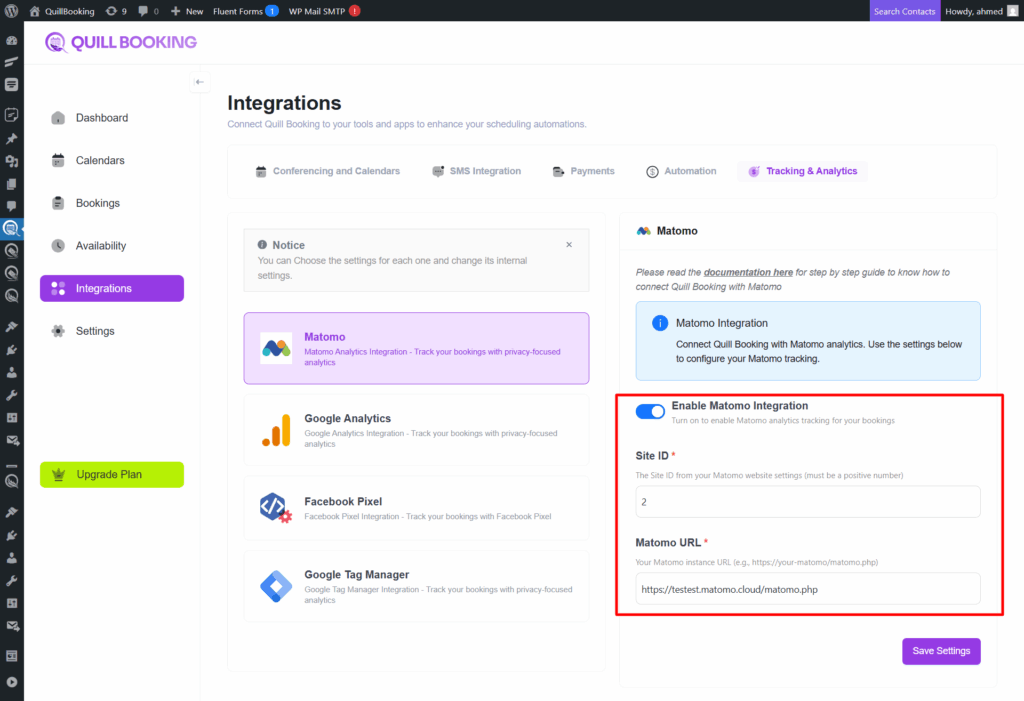
Then, set these values in the fields and click Save.
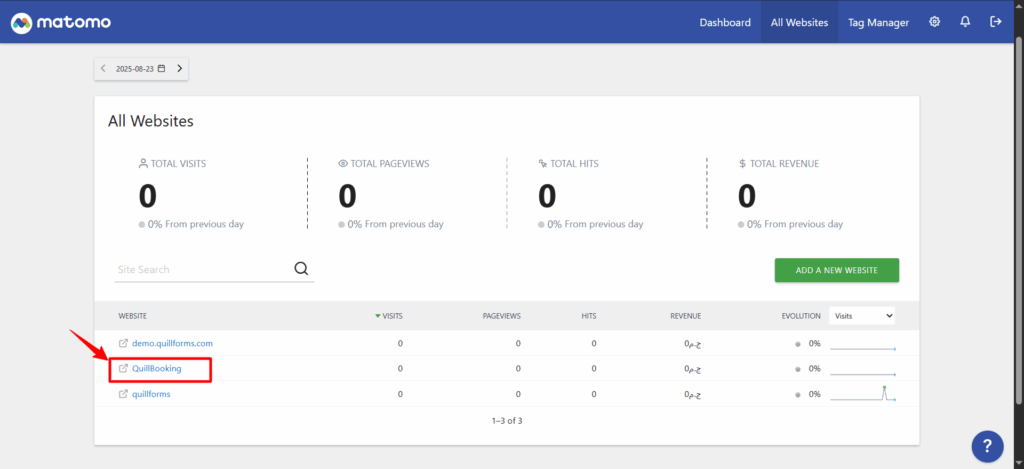
After this, click on the link to view the reports.
Then, go to Visits Log to see all actions for each booking, displayed with images.
QuillBooking sends 2 types of event actions to Matomo Analytics:
1. QuillBooking.BookingCompleted
This event action fires after clicking the submit button.
- Category – calendar_{calendar_id}_event_{event_id}.
- Action – QuillBooing.BookingCompleted.
- Label—Booking Completed.
2. QuillBooking.BookingStarted
This event action fires after choosing a time slot.
Label—Booking Started.
Category – calendar_{calendar_id}_event_{event_id}.
Action – QuillBooing.BookingStarted.