
Twilio
Intro
Want to enhance your booking experience with real-time SMS notifications? Introducing the QuillBooking Twilio, a seamless integration that enables automatic SMS alerts for every booking made through your WordPress site. QuillBooking is a modern and flexible booking system built on top of QuillForms, designed to make scheduling simple and efficient. Twilio, a powerful communications platform, allows you to send reliable SMS messages to keep clients informed and engaged.
With the QuillBooking Twilio, you can instantly send SMS confirmations, reminders, and updates to both clients and team members. Whether you’re managing appointments, consultations, or service bookings, this integration ensures that everyone stays in the loop—no missed messages, no confusion.
By connecting QuillBooking with Twilio, you reduce no-shows, improve client communication, and create a more professional and responsive experience. Automate your notifications and build stronger relationships—all with just a few clicks.
In this guide, we’ll walk you through how to set up the QuillBooking Twilio and show you how to use it to send real-time SMS alerts, boost reliability, and enhance your booking workflow.
How to setup
1. Go to the Integrations tab, select the calendar you want to connect to your Twilio account, and click the Edit button.
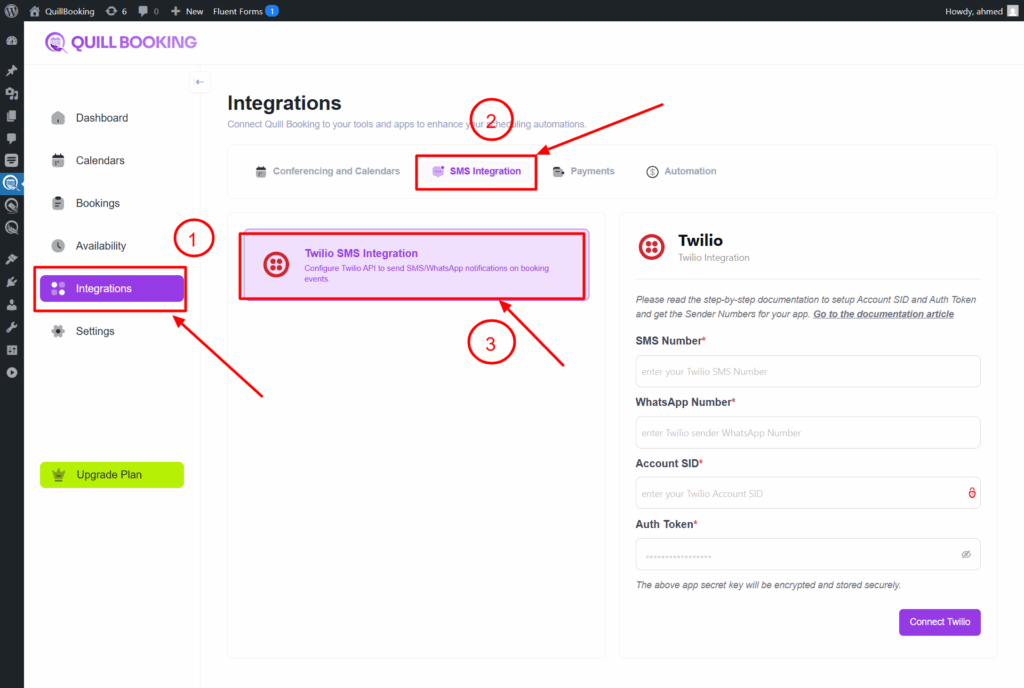
Here’s the improved version of your sentence:
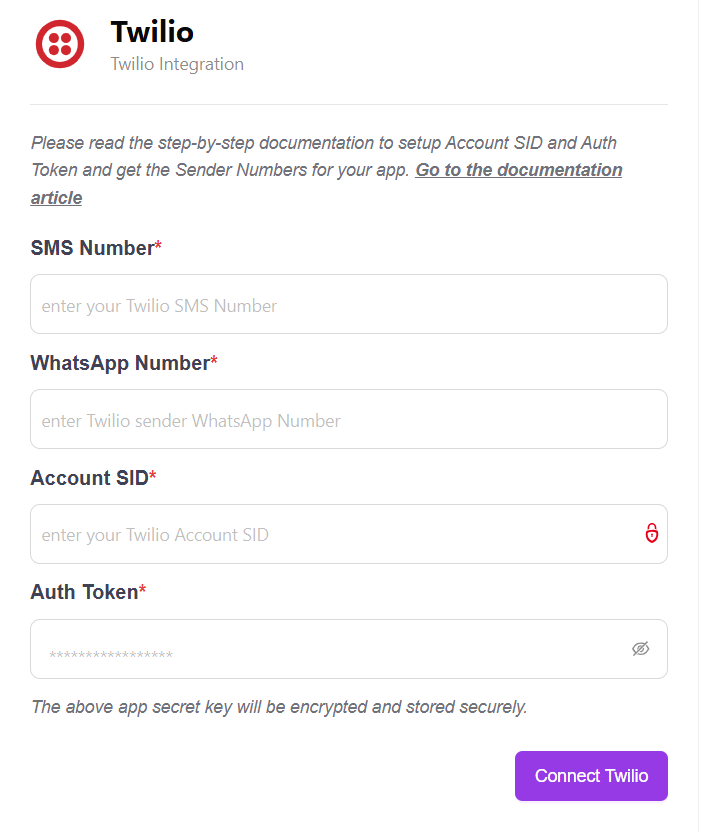
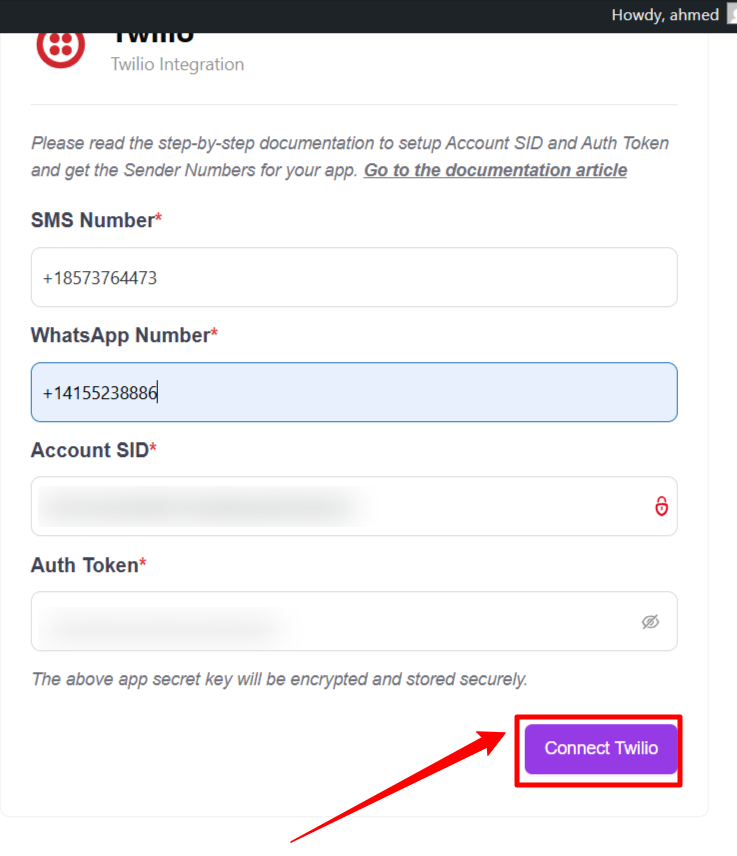
2. To get this information (SMS Number, WhatsApp Number, Account SID, and Auth Token), follow the steps below.
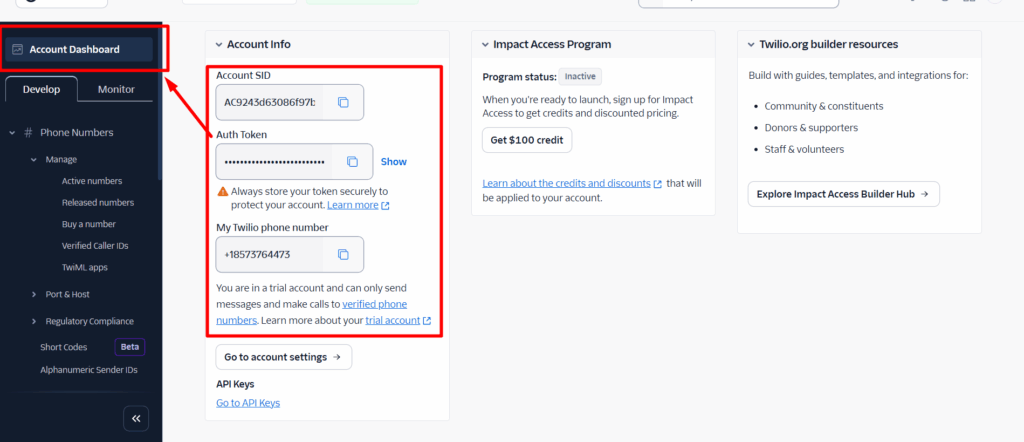
3. Go to this link: https://console.twilio.com/, then copy the required information.
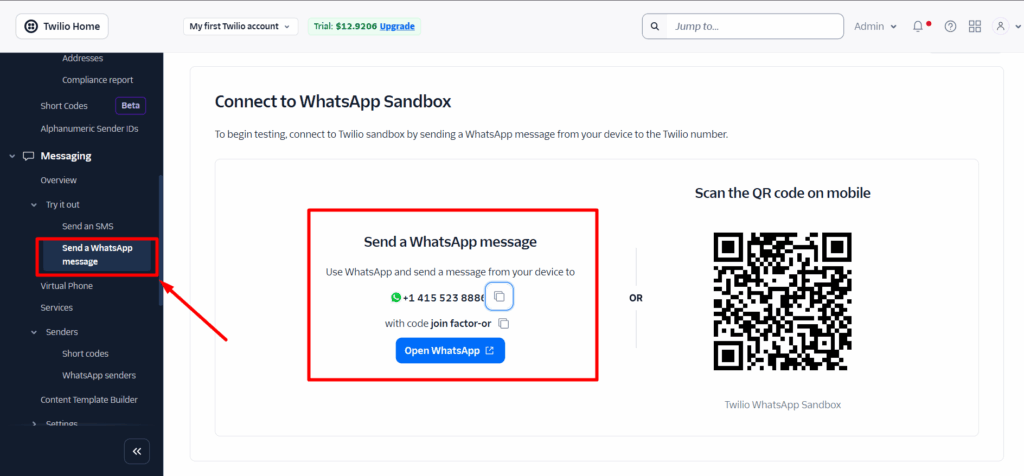
4. to get the WhatsApp number.
5. Paste the information into the form, then click the Connect Twilio button.
Here’s the corrected version of your sentence:
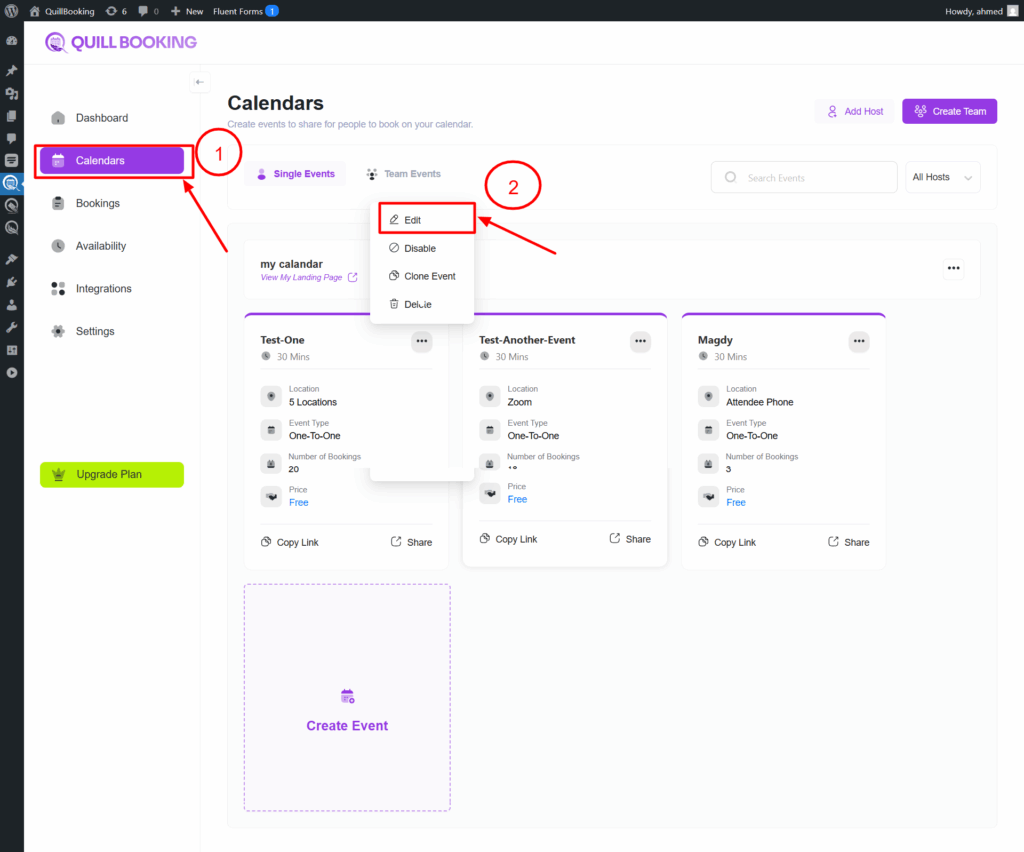
6. To configure Twilio settings for a specific event, go to the Calendars tab, click the three dots next to the event you want to modify, then click the Edit button.
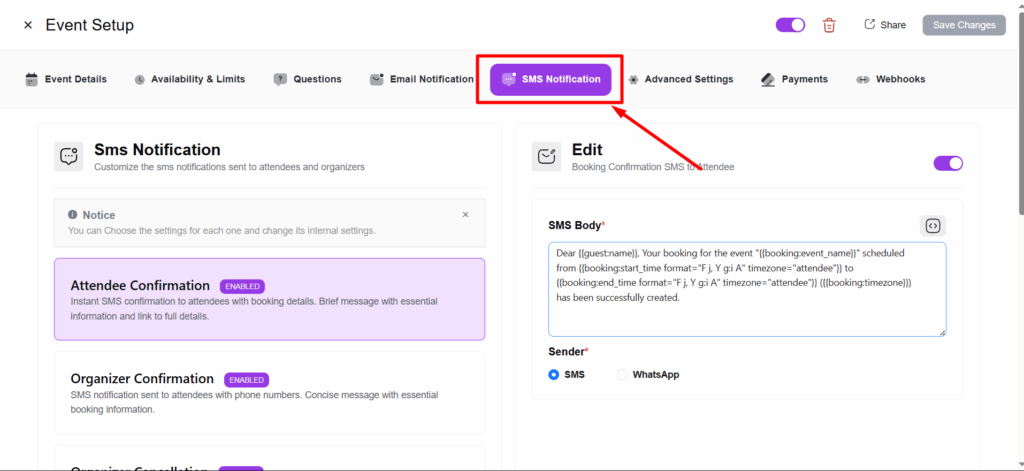
7. Then, go to the SMS Notification tab where you can manage the type of message (SMS or WhatsApp) and customize the message body.
Here’s the corrected version of your sentence:
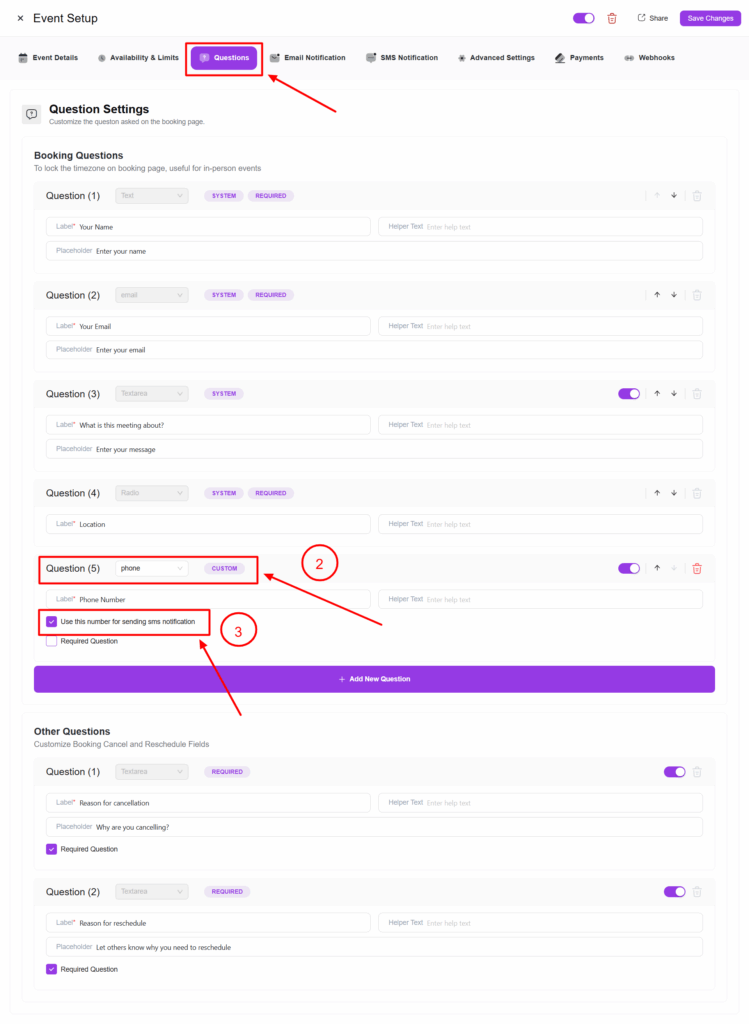
8. Lastly, go to the Questions tab, add a new question, and select the Phone type. Then, check the option “Use this number for sending SMS notifications.”
Conclusion
With the QuillBooking Twilio , communication becomes instant, automated, and more effective. By seamlessly connecting your booking system to Twilio, you can send real-time SMS and WhatsApp notifications for every appointment—no more manual follow-ups, missed messages, or client confusion. This powerful integration improves client communication, reduces no-shows, and ensures your workflow stays on track. Stay connected, enhance your customer experience, and keep everything running smoothly—all through the trusted power of Twilio.