
Outlook
Intro
Want to simplify your booking process and keep your schedule perfectly organized? Introducing the QuillBooking Outlook Calendar, a seamless integration that automatically syncs your bookings from WordPress to Outlook Calendar. QuillBooking is a modern and flexible booking system built on top of QuillForms, designed to make appointment and event management effortless. Outlook Calendar, a trusted tool used by professionals and businesses worldwide, helps you manage your time efficiently and stay on top of every commitment.
With the QuillBooking Outlook Calendar, every new booking is instantly added to your Outlook Calendar—complete with event details, client information, and time slots. Whether you’re managing consultations, meetings, or service appointments, this integration ensures your calendar stays accurate and up-to-date.
By connecting QuillBooking with Outlook Calendar, you eliminate manual scheduling, reduce the risk of double bookings, and streamline your entire workflow—giving you more time to focus on what matters.
In this guide, we’ll walk you through how to set up the QuillBooking Outlook Calendar and show you how to use it to automate your schedule, improve client communication, and boost your overall efficiency.
How to setup
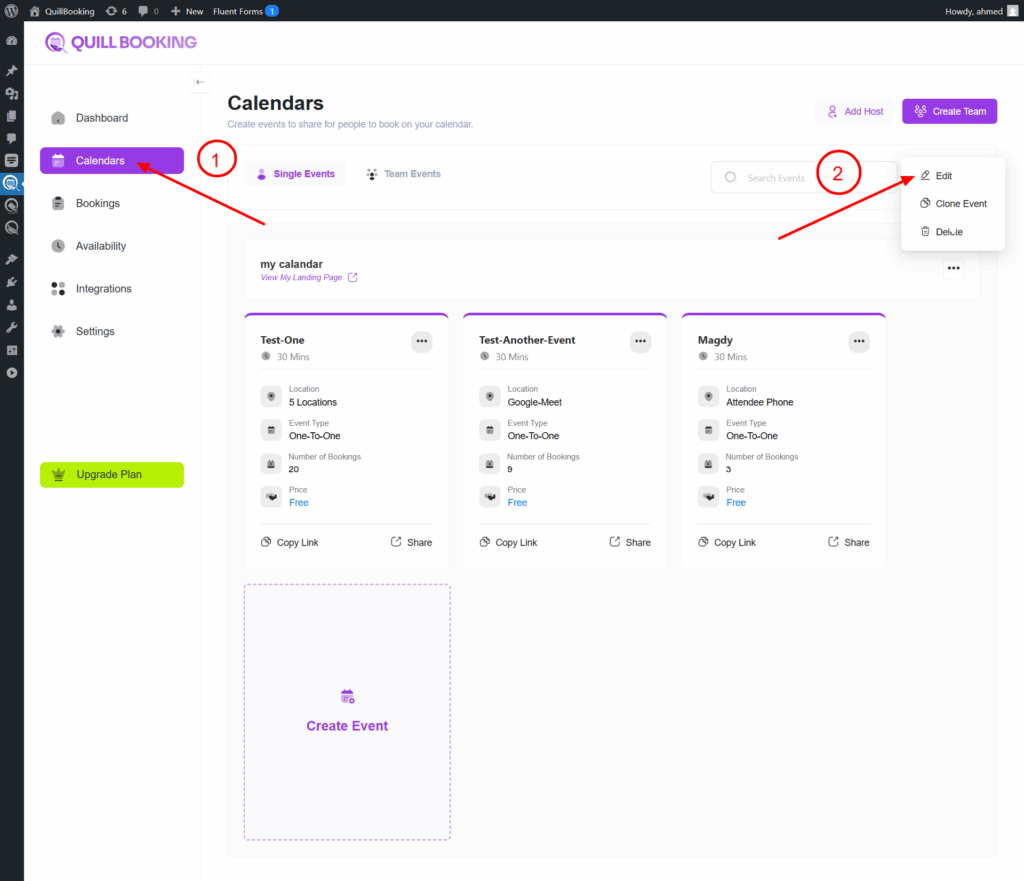
1. Go to the Calendars tab, select the calendar you want to connect to your Outlook account, and click the Edit button.
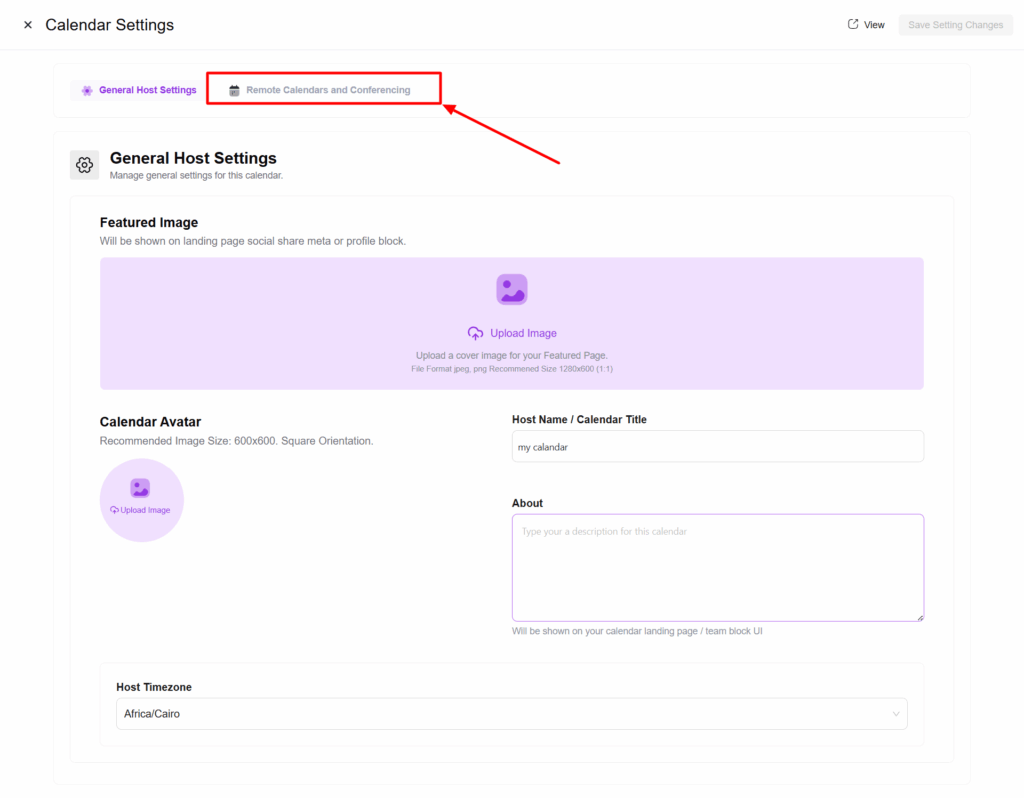
2. Select the Remote Calendars and Conferencing tab. A new section will appear showing all the integrations you can connect with.
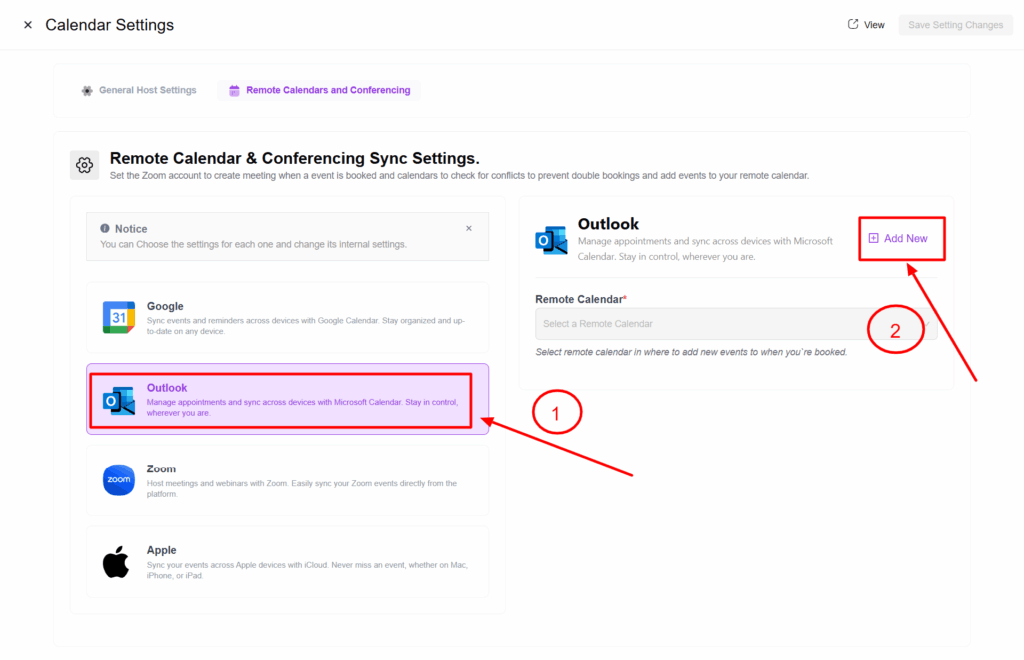
3. Select the Outlook tab, then click the Add New button. This will take you to the Outlook authentication page.
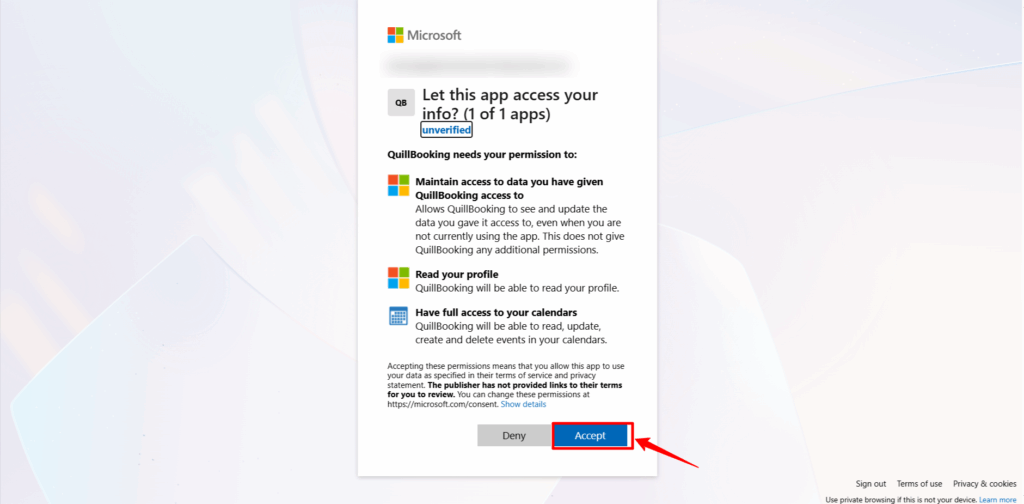
4. Select your email, then allow all permissions so that QuillBooking can create events and meetings.
5. From the Remote Calendar dropdown menu, select the calendar where you want to create the event.
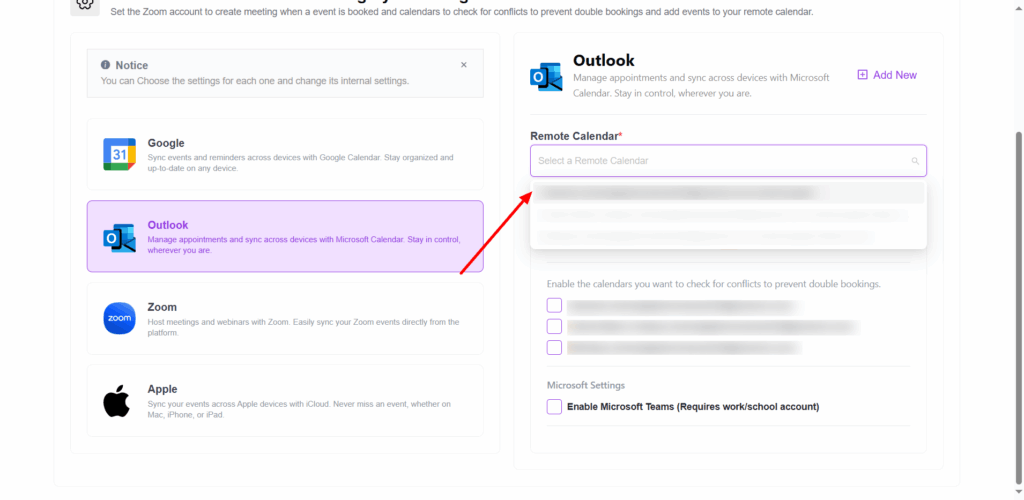
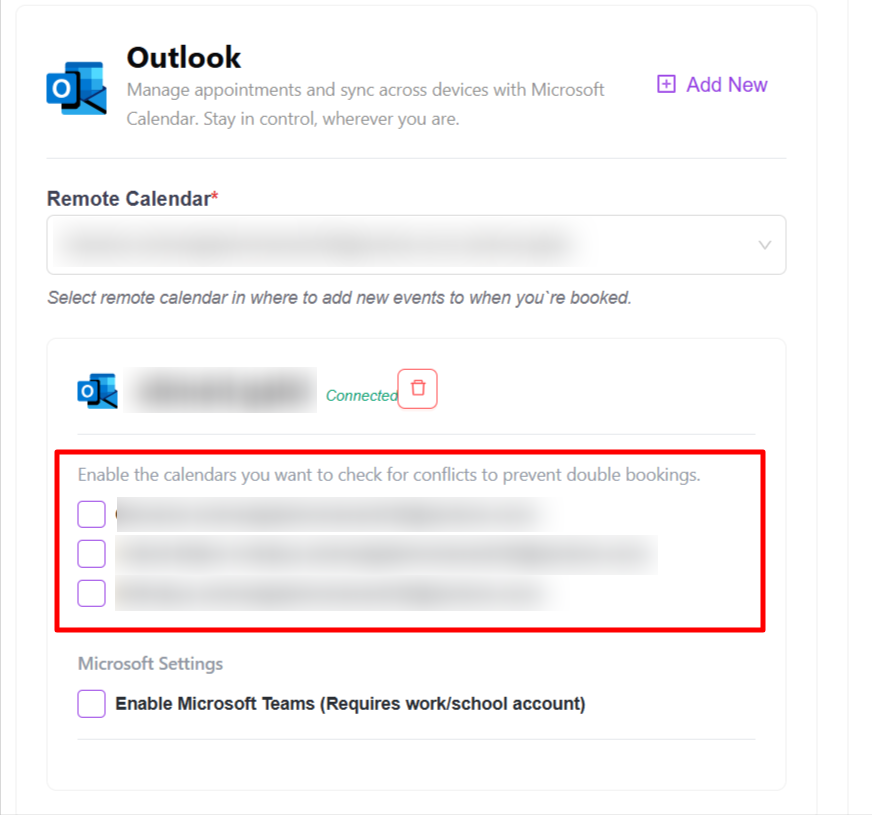
6. In the checkbox fields, you can enable the calendars you want to check for conflicts to prevent double bookings.
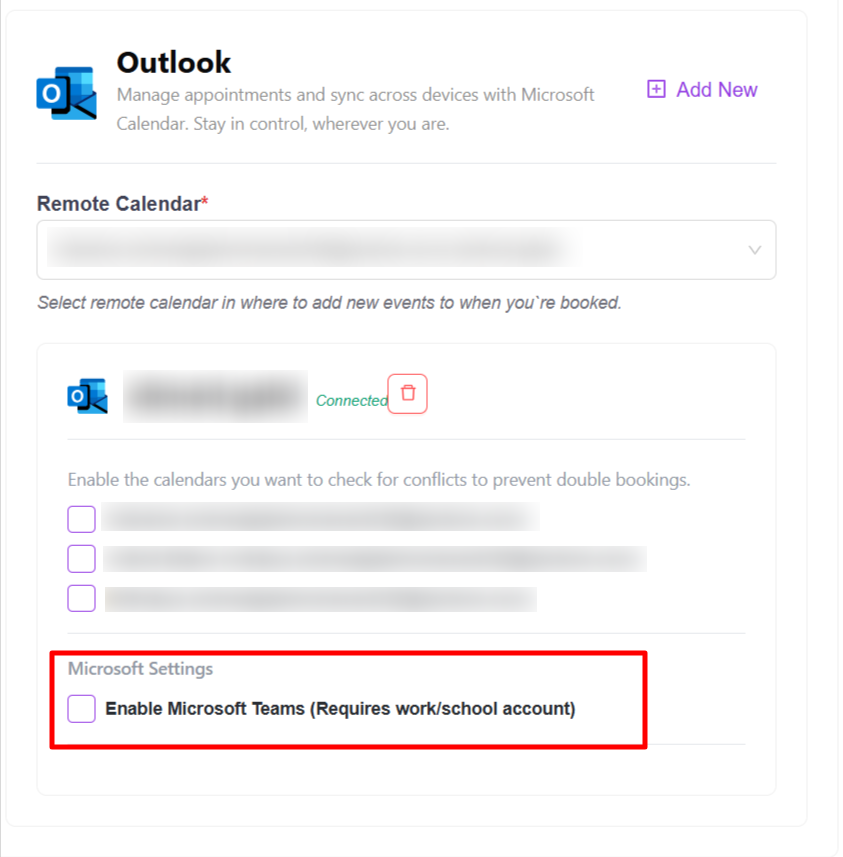
7. For this option, your account must belong to a company or organization in order to create meetings in Microsoft Teams.
Conclusion
With the QuillBooking Outlook Calendar, managing your schedule becomes effortless and automated. By seamlessly connecting your booking forms to Outlook Calendar, you ensure that every appointment is instantly added to your calendar—no more missed bookings, double entries, or time-consuming manual updates. This powerful integration keeps your calendar organized, improves time management, and helps you deliver a smoother experience for both you and your clients. Stay on top of your bookings, reduce no-shows, and keep your workflow running seamlessly—all within the tools you already rely on.