Quick answer
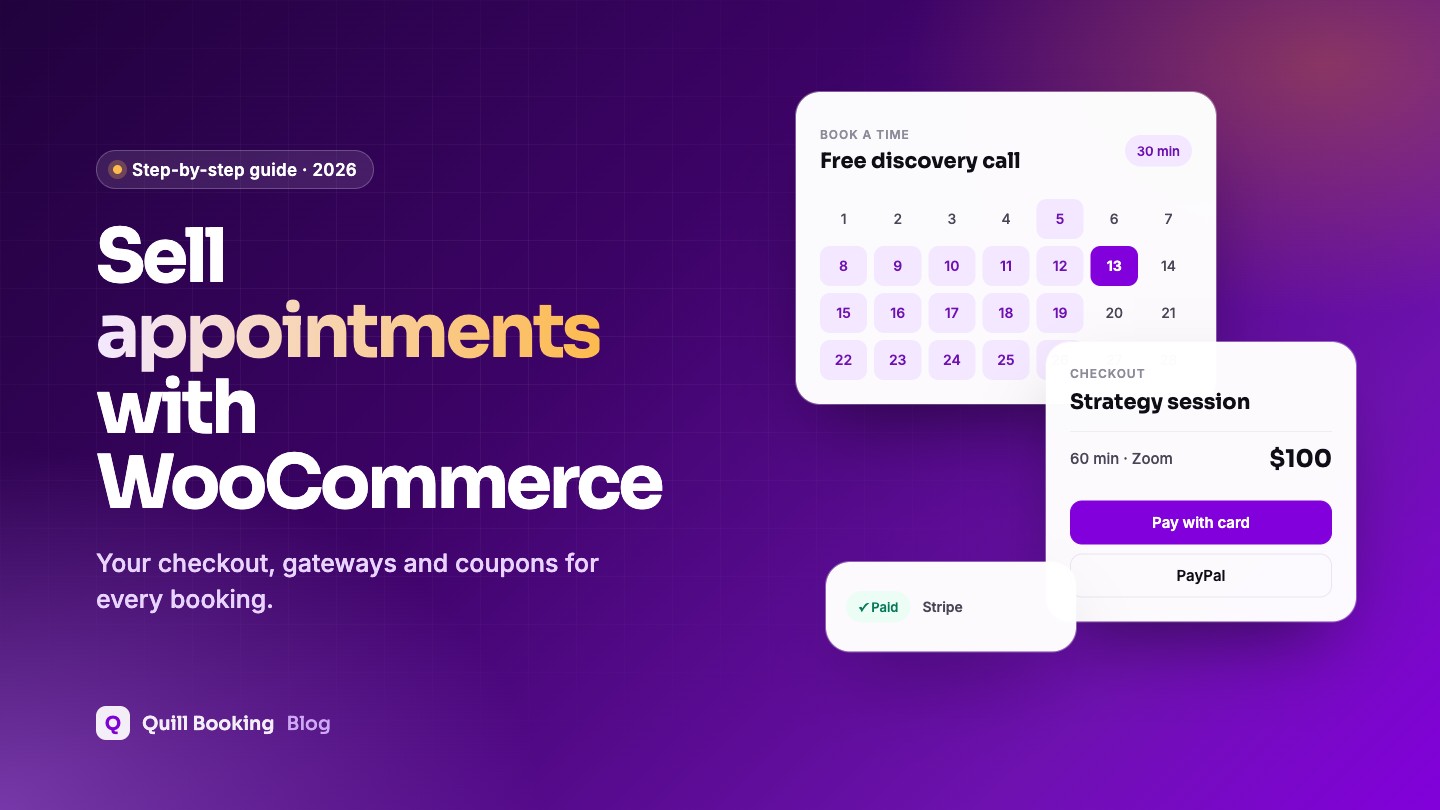
To sell appointments with WooCommerce, create a WooCommerce product for the service (its price becomes the booking price), then link a booking event to it. In Quill Booking Pro, open the event’s Payments tab, switch on Enable Payment, choose Use WooCommerce Checkout and pick the product. Clients choose a time, pay through your normal WooCommerce checkout, and the booking is confirmed.
If you already run a WooCommerce store, it makes sense to sell appointments the same way you sell everything else: same checkout, same payment gateways, same order emails, coupons and tax rules. This guide shows the two main ways to do it and how to set up the simplest one.
Disclosure: We make Quill Booking, so we use it for the screenshots and examples. The advice works with most booking plugins and scheduling tools.
Two ways to sell bookings with WooCommerce
| Approach | How it works | Best for |
|---|---|---|
| Booking plugin + WooCommerce checkout | A booking plugin handles availability and calendars; WooCommerce takes the payment | Appointments, consultations, lessons, services |
| WooCommerce Bookings extension | The product itself becomes bookable, with resources and per-person pricing | Rentals, rooms, equipment and classes sold as products |
WooCommerce Bookings costs $249 a year and has no free version (WooCommerce marketplace, checked November 5, 2026). For services where clients book a person’s time, a booking plugin with WooCommerce checkout is usually simpler and cheaper, and adds features like video links and calendar sync.
Step 1: Create a product for the service
In Products → Add New, create a simple product named after the service, such as “60-minute strategy session”. Set the price, mark it as Virtual (no shipping), and add a short description. You can hide it from your shop catalogue if clients should only reach it through the booking page.
Step 2: Link the booking event to the product
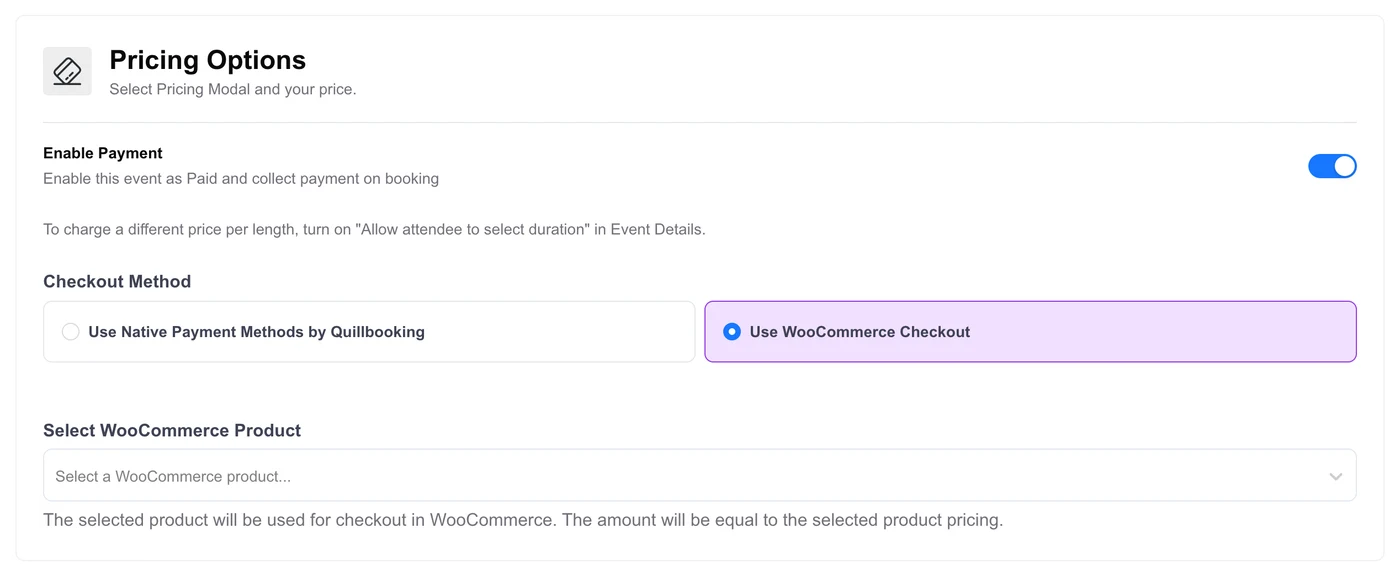
In Quill Booking, edit the event and open the Payments tab. Switch on Enable Payment, select Use WooCommerce Checkout and choose the product from the list. The booking price will match the product price.
Step 3: Test the checkout
- Book a time on the event’s booking page; you should land on the WooCommerce checkout with the product in the cart.
- Pay with a test gateway or a test card.
- Check the order appears in WooCommerce → Orders and the booking is confirmed.
- Check both the WooCommerce order email and the booking confirmation arrive.
What you get by using WooCommerce checkout
- Every gateway you already use, including local payment methods.
- Coupons for discounts and promotions.
- Tax settings and invoices handled by WooCommerce.
- One order history for products and services.
If you do not run a store, connecting Stripe or PayPal directly is quicker; see how to take payments for appointments.
Frequently asked questions
Do I need WooCommerce Bookings to sell appointments?
No. A booking plugin with WooCommerce checkout, such as Quill Booking Pro, handles availability and sends clients to your WooCommerce checkout to pay. WooCommerce Bookings is better suited to rentals and bookable products.
Can I use WooCommerce coupons for bookings?
Yes, when the booking is paid through the WooCommerce checkout, your normal coupon rules apply.
Does the booking price come from WooCommerce?
In Quill Booking, yes: the booking price matches the linked product’s price.
How much does WooCommerce Bookings cost?
On November 5, 2026 it was listed at $249 a year with no free version.
Related guides
- How to take payments for appointments in WordPress
- How to add a booking calendar to WordPress
- Appointment cancellation policy template
Sell appointments through WooCommerceQuill Booking Pro connects events to WooCommerce products, from $39 a year.
See pricing