Quick answer
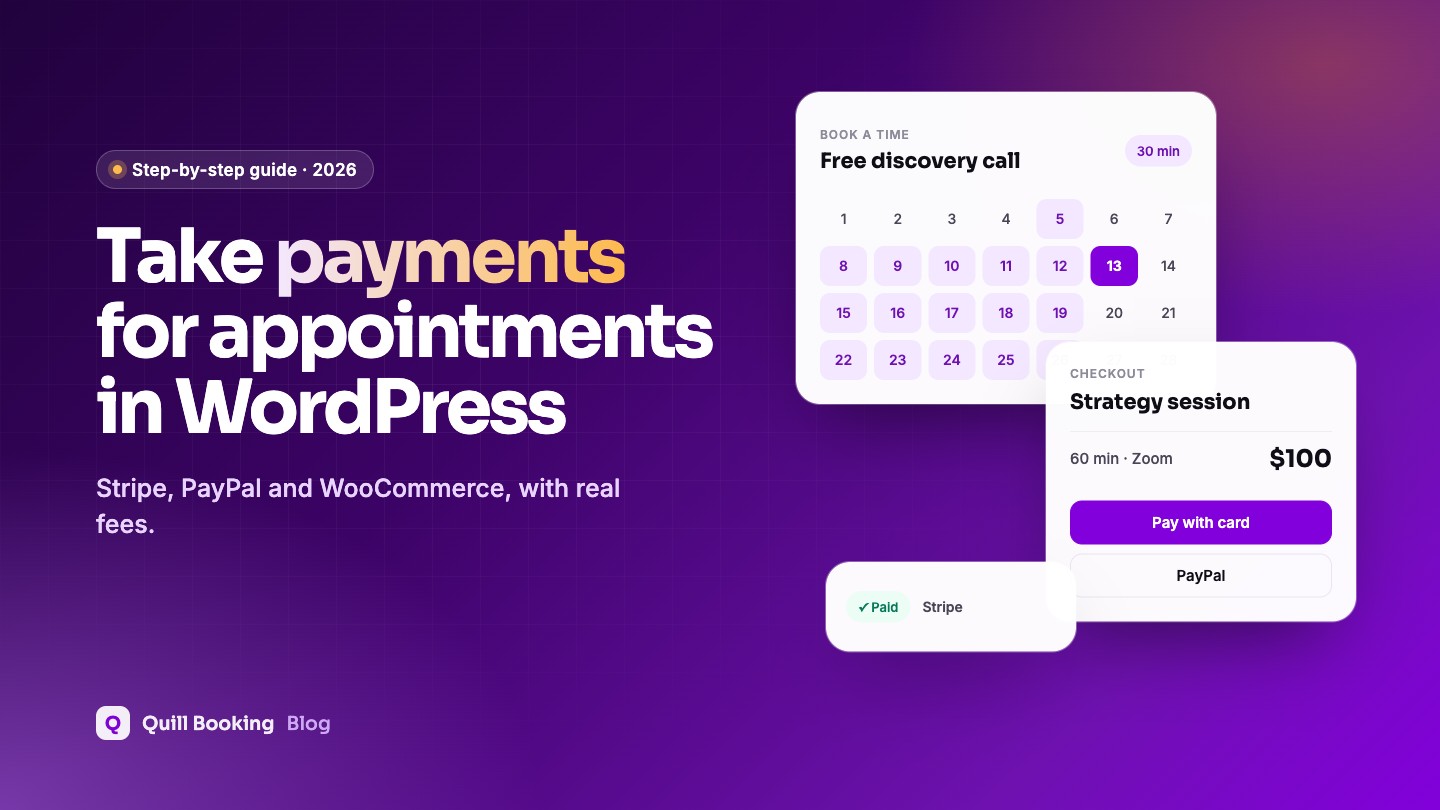
To take payments for appointments in WordPress, use a booking plugin that charges at the moment of booking. In Quill Booking Pro: set your currency, connect Stripe or PayPal under Integrations → Payments (or use WooCommerce checkout), then open an event’s Payments tab, switch on “Enable Payment” and set the price. Test it in Stripe test mode or PayPal sandbox before going live.
Taking payment when clients book does three things at once: you get paid on time, you stop chasing invoices, and no-shows drop, because people rarely skip something they have already paid for. This guide shows how to set it up on a WordPress site, which payment option to choose, and what it costs.
Disclosure: We make Quill Booking, so we use it for the screenshots and examples. The advice works with most booking plugins and scheduling tools.
Key takeaways
- Stripe suits most businesses: card payments go through on your site, for 2.9% + 30¢ per US card charge.
- PayPal adds a trusted checkout that many clients already use; US PayPal Checkout costs 3.49% + 49¢.
- WooCommerce checkout makes sense if you already run a store and want its gateways, coupons, taxes and order emails.
- Always run a test booking in test or sandbox mode, including a refund, before you switch to live.
Which payment option should you use?
| Option | Best for | US fees (standard) |
|---|---|---|
| Stripe | Card payments on your own site, international clients | 2.9% + 30¢ per domestic card charge |
| PayPal | Clients who prefer PayPal, cross-border buyers | 3.49% + 49¢ for PayPal Checkout |
| WooCommerce checkout | Sites that already sell products with WooCommerce | Whatever your WooCommerce gateway charges |
You can offer Stripe and PayPal together and let clients choose. Quill Booking supports more than one payment method on the same event.
Step 1: Choose your currency
Go to Quill Booking → Settings, scroll to Payment Settings, pick your currency and click Save. Every paid event uses this currency.
Step 2: Connect Stripe or PayPal
Go to Quill Booking → Integrations and open the Payments tab.
- Stripe: tick the box to enable Stripe, choose Test mode first, and add your Stripe API keys from the Stripe dashboard. Switch to Live mode once your test booking works. See the Stripe setup guide.
- PayPal: enable PayPal, choose Sandbox for testing or Live, and enter your PayPal business email. If payments are not being marked as complete, the docs explain the IPN verification option. See the PayPal setup guide.
Step 3: Make an event paid
Open Calendars, edit the event, and go to the Payments tab. Switch on Enable Payment, choose Use Native Payment Methods by QuillBooking, tick PayPal, Stripe or both, and add a payment item with its price. Click Add More Items if the booking includes several charges, such as a session and a materials fee.
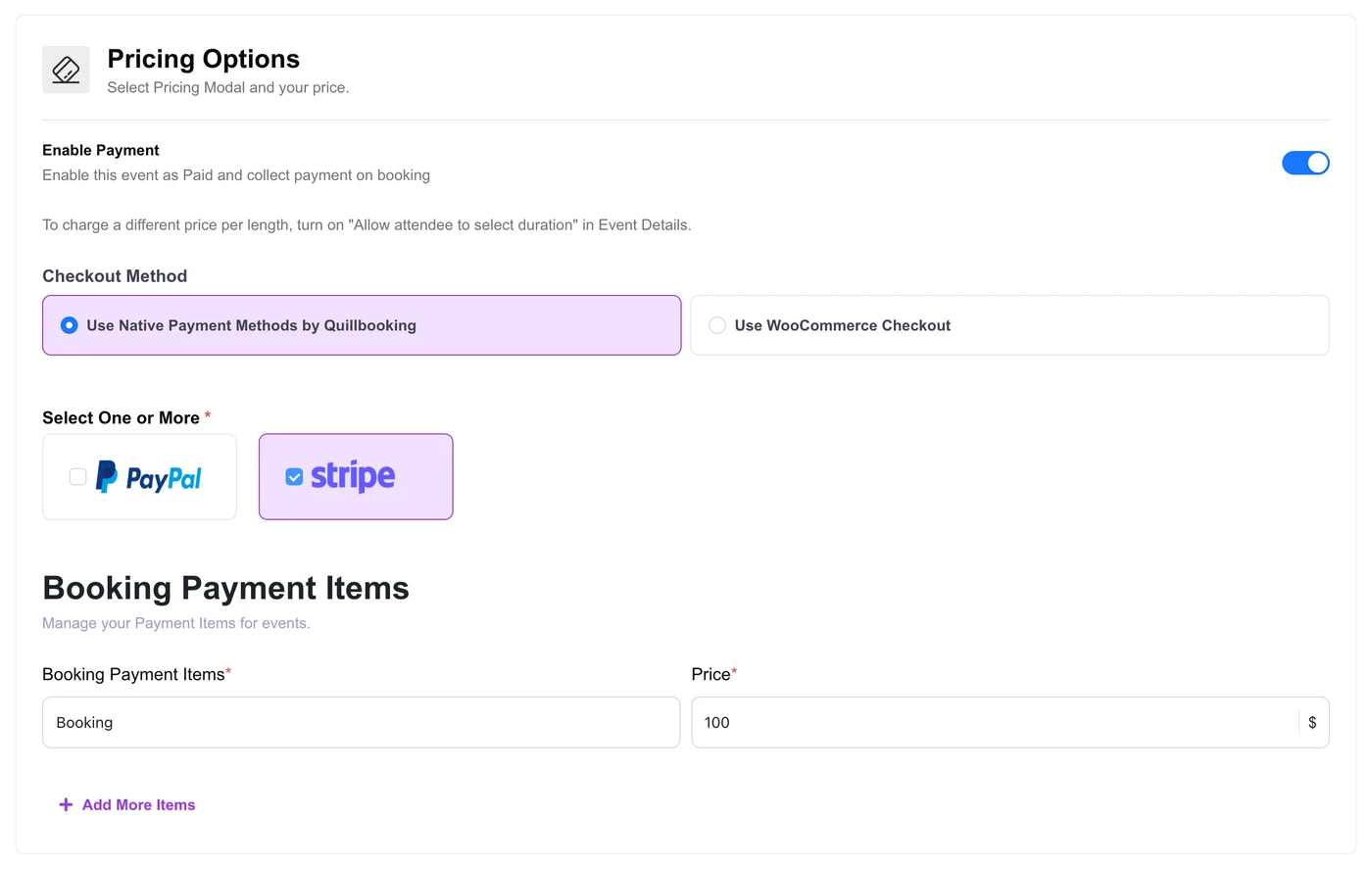
Want different prices for different lengths, such as $60 for 30 minutes and $100 for 60 minutes? Turn on Allow attendee to select duration in the Event Details tab, then set a price for each duration (multi-duration pricing guide).
Alternative: use WooCommerce checkout
If WooCommerce is active on your site, choose Use WooCommerce Checkout on the Payments tab and pick an existing product. The booking price matches the product price, and clients pay through your normal WooCommerce checkout with any gateway you have installed. This also gives you WooCommerce orders, tax settings and coupon codes for bookings (WooCommerce guide).
Step 4: Test a payment before going live
- Stripe is in Test mode or PayPal is in Sandbox.
- Book the event as a client and pay with a test card. Stripe’s standard test card is 4242 4242 4242 4242 with any future date and any CVC.
- The booking shows as paid, and both confirmation emails arrive.
- A refund works from your Stripe or PayPal dashboard.
- Switch to live mode, then make one small real payment and refund it.
Full payment, deposit or pay later?
| Approach | Good for | Watch out for |
|---|---|---|
| Full payment at booking | Fixed-price sessions, online calls, classes | Clear refund rules are essential |
| Deposit at booking | Long or expensive services, new clients | Explain when the deposit is refunded |
| Pay at the appointment | Regular clients, variable pricing | No protection against no-shows |
Whatever you choose, write it into your cancellation policy and show it on the booking page, so clients know what happens to their money if they cancel.
Tips to get paid without losing bookings
- Show the price on the booking page before clients pick a time. Surprises at checkout cause drop-offs.
- Offer two methods (card and PayPal) where you can.
- Keep a free option, such as a short discovery call, so new clients can meet you before paying.
- Send a receipt and include the payment details in the confirmation email.
- Refund quickly when someone cancels in time. It builds trust and repeat bookings.
Frequently asked questions
Can I accept payments for appointments in WordPress for free?
The booking plugin feature usually needs a paid plan; Quill Booking includes payments in Pro from $39 a year. Stripe and PayPal charge no monthly fee for standard accounts, only a fee per transaction.
Is Stripe or PayPal better for appointment payments?
Stripe is usually cheaper for card payments in the US (2.9% + 30¢ versus 3.49% + 49¢ for PayPal Checkout) and keeps clients on your site. PayPal is familiar to many buyers. Offering both covers the most clients.
Can I take a deposit instead of the full price?
Yes. Set the payment item to the deposit amount and explain in the event description and cancellation policy that the rest is paid at the appointment.
Can I use WooCommerce for bookings?
Yes. In Quill Booking, choose “Use WooCommerce Checkout” on an event’s Payments tab and link it to a WooCommerce product. Clients then pay through your WooCommerce checkout with any of your gateways.
Can clients pay with Apple Pay or Google Pay?
Quill Booking’s feature list includes Google Pay and Apple Pay alongside Stripe and PayPal. Which wallets clients see depends on your payment provider settings and their device.
Related guides
- Appointment cancellation policy template
- How to reduce no-shows
- How to add a booking calendar to WordPress
- 9 best WordPress appointment booking plugins
Get paid when clients bookQuill Booking Pro adds Stripe, PayPal and WooCommerce payments from $39 a year, or $109 for life.
See pricing