Quick answer
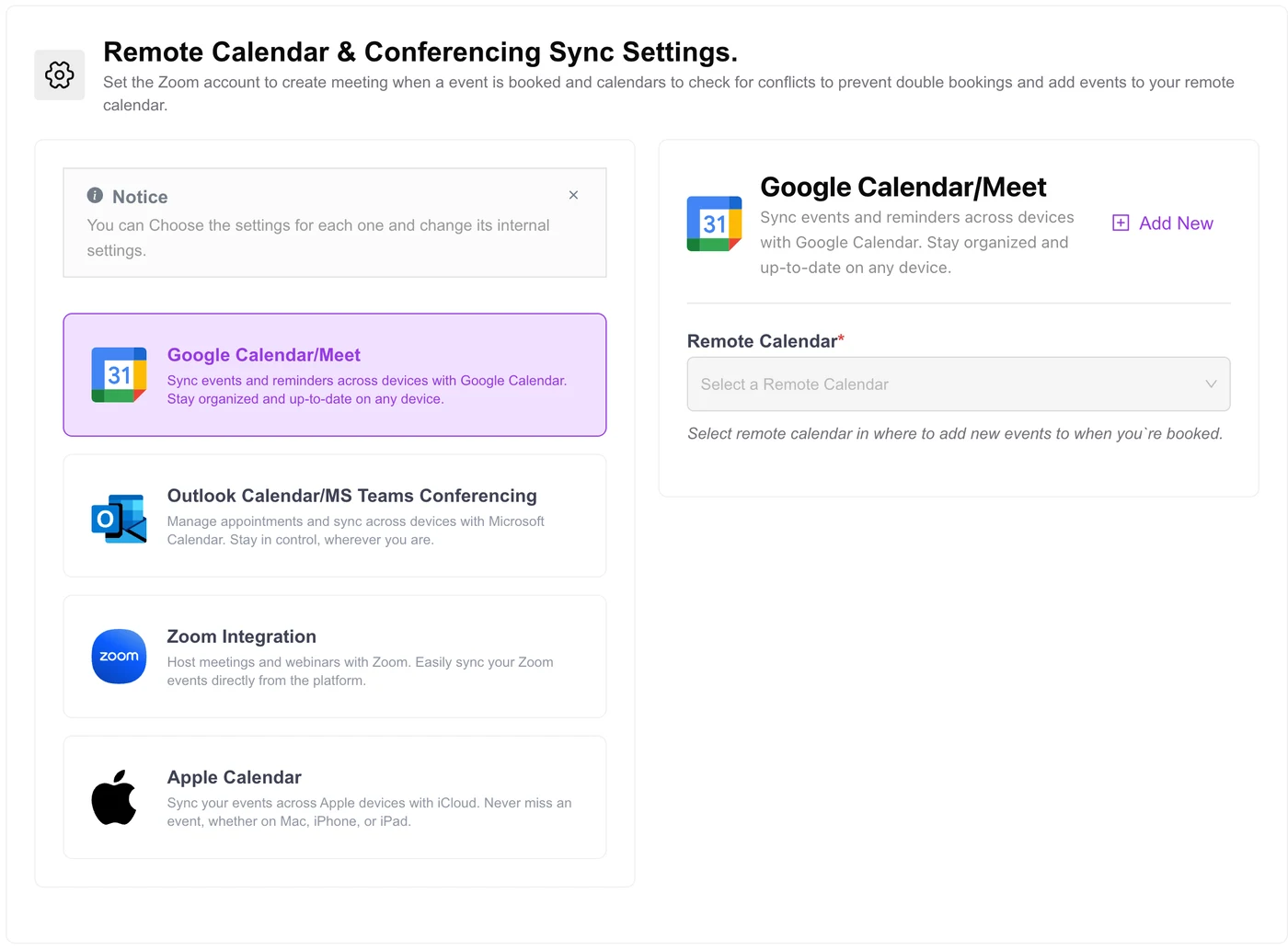
To prevent double bookings, connect every calendar you use to your booking plugin so busy times are hidden, add buffers between appointments, use booking limits per day, and make sure each person has a single source of availability. In Quill Booking Pro, tick each calendar under “check for conflicts” in the host’s Remote Calendars and Conferencing settings.
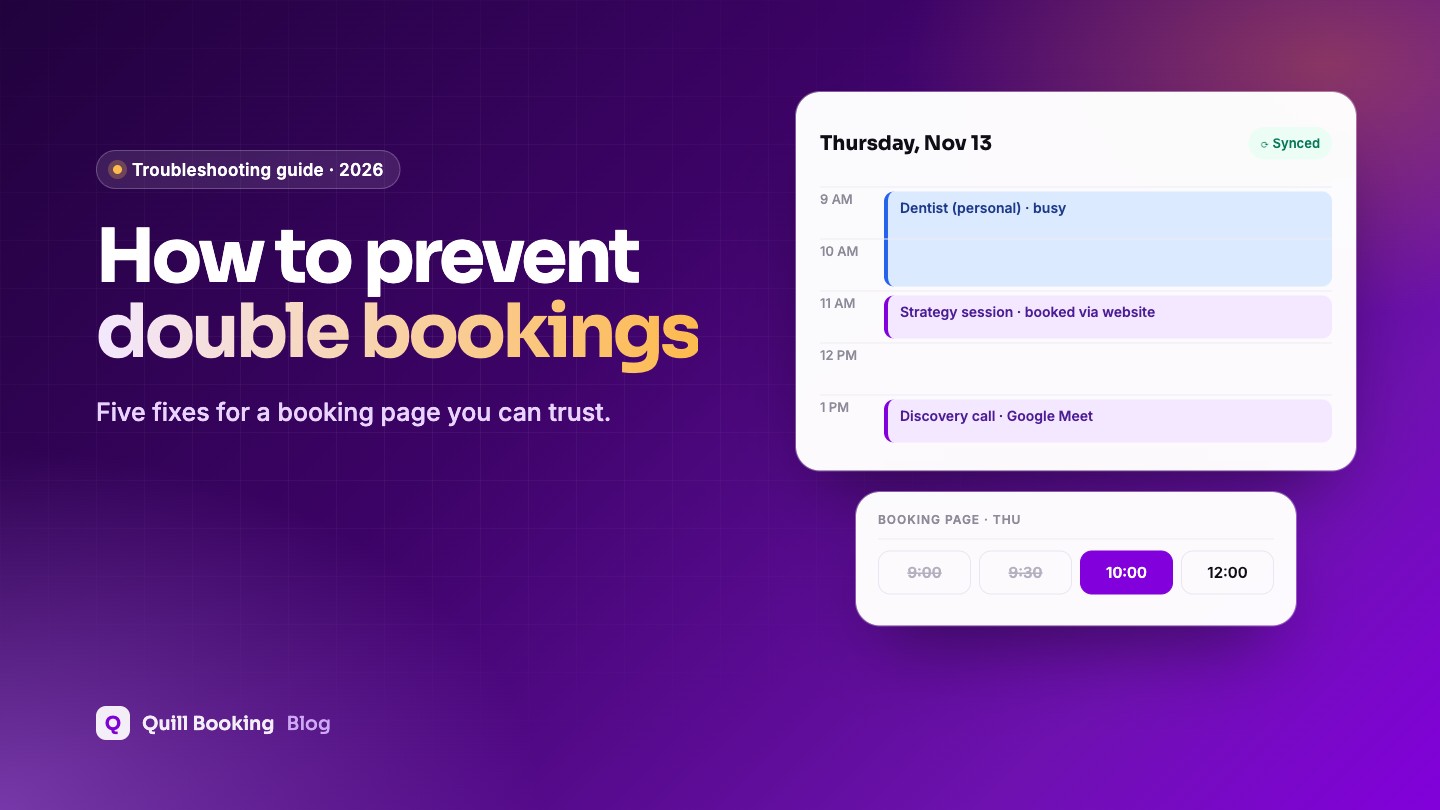
A double booking is the fastest way to lose a client’s trust. It almost always comes from one of four causes: a calendar the booking page cannot see, back-to-back slots with no breathing room, several booking tools for the same person, or a time-zone mismatch.
Disclosure: We make Quill Booking, so we use it for the screenshots and examples. The advice works with most booking plugins and scheduling tools.
The four causes and their fixes
| Cause | Fix |
|---|---|
| Personal or work events the booking page cannot see | Connect Google, Outlook or Apple Calendar and check every calendar for conflicts |
| Back-to-back appointments that overrun | Add buffers before and after events |
| Several booking pages or tools for the same person | Use one booking system, or connect each tool to the same calendar |
| Wrong time zone on the host or site | Check the host time zone and WordPress time zone match |
1. Connect and check every calendar
In Host Settings, open Remote Calendars and Conferencing, connect your Google, Outlook or Apple calendar, choose where new bookings go and tick every calendar to check for conflicts, including personal ones. See the full calendar sync guide.
2. Add buffers and limits
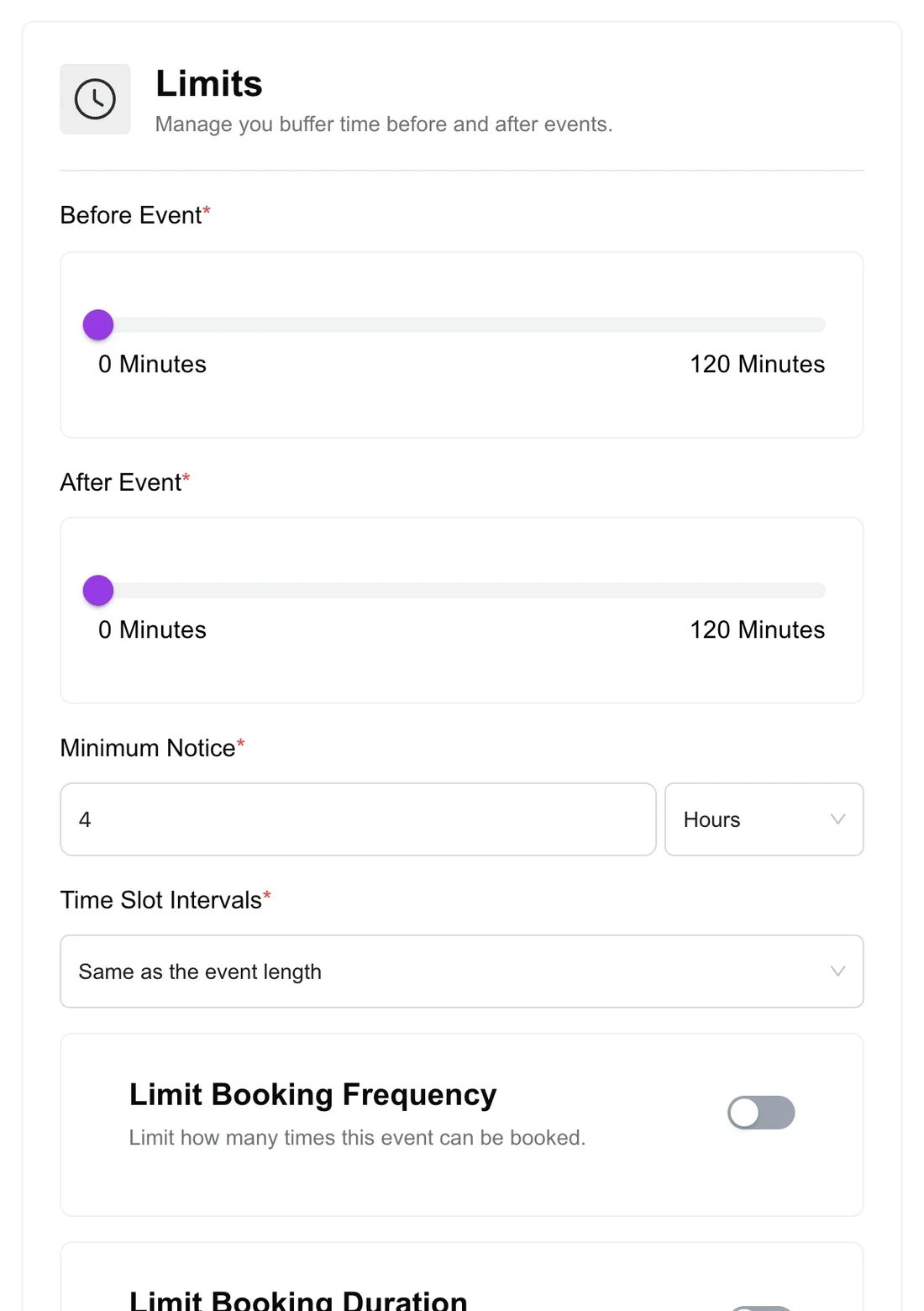
Buffers before and after each event stop overruns from colliding with the next client, and daily or weekly limits stop you from being booked solid. See buffer time, minimum notice and booking windows explained.
3. Use one system per person
If someone takes bookings through two tools, say a booking plugin and a hosted scheduler, connect both to the same calendar so each sees the other’s bookings, or retire one of them. For teams, round-robin events only assign hosts who are free.
4. Check time zones
Set the host time zone in Host Settings and the site time zone in Settings → General. A mismatch can shift availability by hours.
5. Watch group and shared resources
For group events, set a seat limit so a slot closes when it is full. If two people share a room, give the room its own calendar and check it for conflicts.
Frequently asked questions
Why am I getting double booked?
Usually because a calendar with your other events is not connected or not ticked for conflict checking, or because you take bookings in more than one tool.
Does Google Calendar sync stop double bookings?
Yes, if the plugin checks your Google calendars for conflicts. Events marked “Free” in Google may not block time, so mark them “Busy”.
How much buffer time should I add?
Ten to fifteen minutes suits most appointments; add more if you travel between clients or need time for notes.
Can two clients book the same slot at the same moment?
A well-built booking plugin re-checks availability when the booking is submitted, so the second client is asked to pick another time.
Related guides
- How to sync WordPress bookings with Google Calendar
- Buffer time, minimum notice and booking windows
- How to add a booking calendar to WordPress
A booking page you can trustQuill Booking Pro checks Google, Outlook and Apple calendars for conflicts, from $39 a year.
See pricing