Quick answer
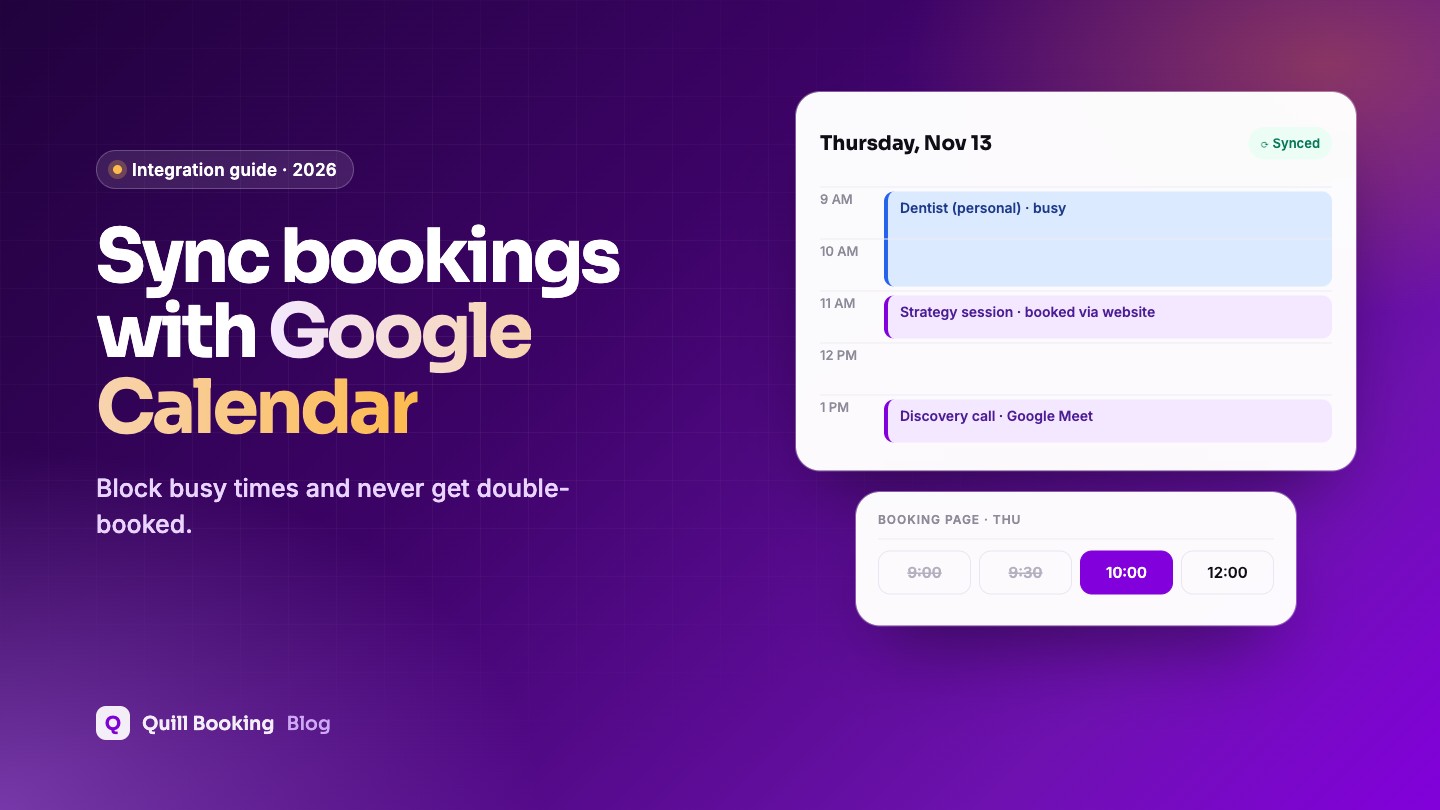
To sync WordPress bookings with Google Calendar, connect your Google account to your booking plugin and choose two things: which calendar new bookings are added to, and which calendars to check for conflicts. In Quill Booking Pro, open the host’s Host Settings → Remote Calendars and Conferencing → Google Calendar/Meet → Add New. Busy times in Google then disappear from your booking page, and every booking appears in Google Calendar.
Calendar sync is what makes online booking safe. Without it, a client can book you at 3 pm while you are at the dentist, because your booking page has no idea. With it, your personal and work events block booking times automatically, and every new booking lands in the calendar you already check.
Disclosure: We make Quill Booking, so we use it for the screenshots and examples. The advice works with most booking plugins and scheduling tools.
Key takeaways
- Sync works in two directions: bookings are added to Google Calendar, and busy events in Google hide those times on your booking page.
- You can check several calendars for conflicts, for example your work and personal calendars, while adding bookings to just one.
- Outlook (with Microsoft Teams) and Apple iCloud calendars work the same way; Apple uses an app-specific password.
- Each host connects their own calendar. Team events need every member connected.
Step 1: Open your host’s calendar settings
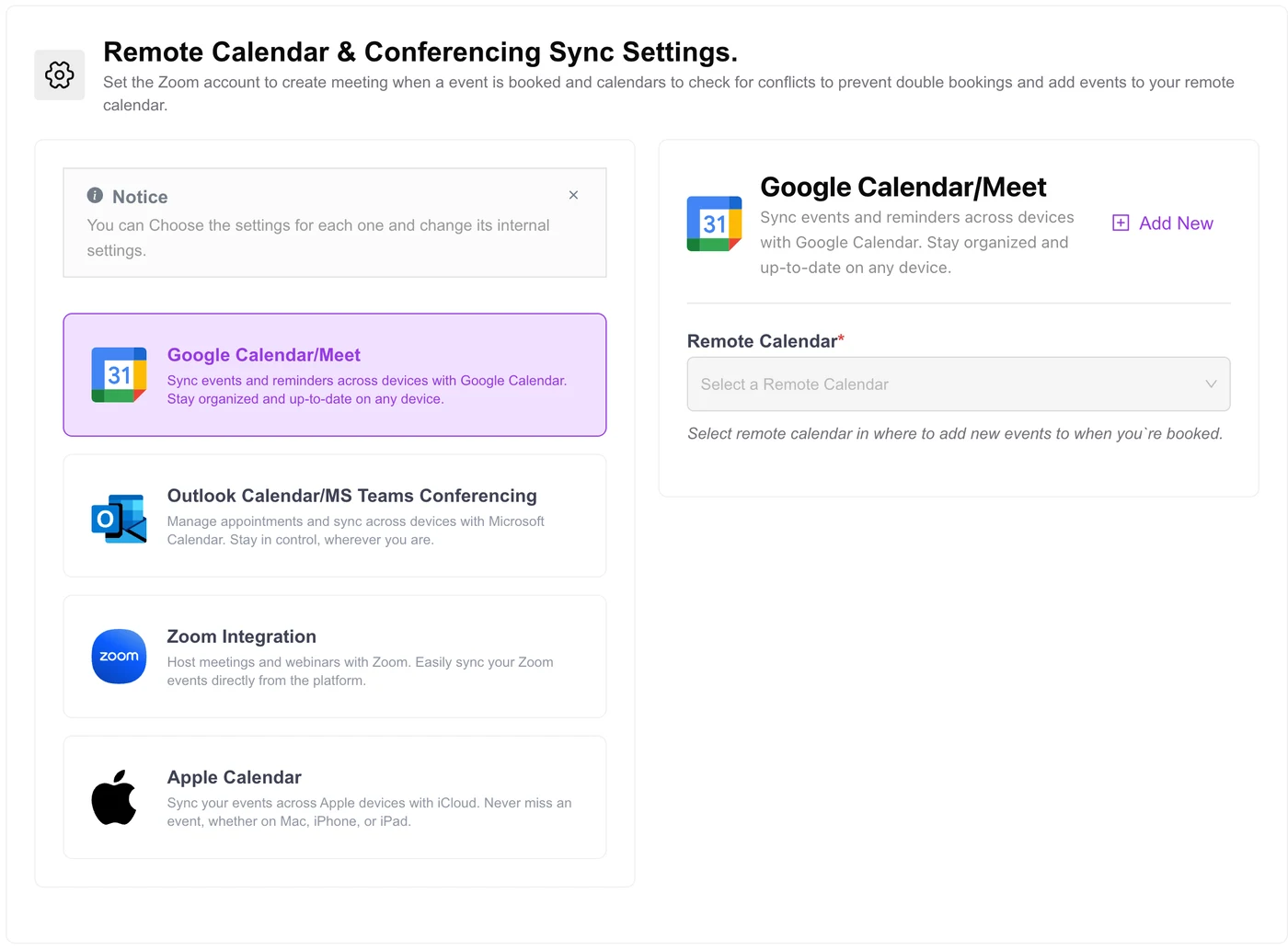
Go to Quill Booking → Calendars, find your host and click Host Settings. Open the Remote Calendars and Conferencing tab. You will see Google Calendar/Meet, Outlook Calendar/MS Teams, Zoom and Apple Calendar.
Step 2: Connect your Google account
Select Google Calendar/Meet and click Add New. Sign in with the Google account that holds your calendar and allow the requested permissions, so Quill Booking can read your free/busy times and create events and Meet links. If Google shows an extra confirmation screen, the Google Calendar setup guide explains what to click.
Step 3: Choose where bookings go
In the Remote Calendar menu, pick the calendar where new bookings should be created. Many people create a separate “Bookings” calendar in Google so client appointments get their own colour.
Step 4: Choose which calendars block your availability
Tick every calendar that should count as “busy”: your main calendar, a personal calendar, a shared family calendar. Events in those calendars hide the matching times on your booking page, which prevents double bookings.
Step 5: Test the sync
- Add a test event in Google Calendar, then check that the time disappears from your booking page.
- Book a test appointment and check that it appears in the chosen Google calendar with the client’s details.
- If you use Google Meet, check that the event includes a Meet link.
- Reschedule and cancel the test booking, and check that Google Calendar updates.
Outlook and Microsoft Teams
Choose Outlook Calendar/MS Teams Conferencing, click Add New and sign in with Microsoft. As with Google, pick the calendar for new bookings and tick the calendars to check for conflicts. To create Teams meetings automatically, your account must be a Microsoft 365 work or school account (Outlook guide).
Apple iCloud Calendar
Apple does not use a sign-in pop-up. Instead you create an app-specific password:
- Go to account.apple.com and sign in.
- Under Sign-In and Security, open App-Specific Passwords and generate one named “Quill Booking”.
- In Quill Booking, select Apple Calendar, click Add New, and enter your Apple ID email and the app-specific password.
- Choose the calendar for new bookings and tick the calendars to check for conflicts.
You can revoke the app-specific password at any time from your Apple account. See the Apple Calendar guide.
Troubleshooting calendar sync
| Problem | Likely cause and fix |
|---|---|
| Busy times still show as available | The calendar is not ticked for conflict checking, or the event is marked “Free” in Google |
| Bookings appear at the wrong time | Host time zone in Host Settings differs from your Google Calendar time zone |
| Bookings go to the wrong calendar | Change the Remote Calendar selection |
| Team member’s times are wrong | Each member must connect their own calendar |
| No Teams link created | You signed in with a personal Microsoft account, not a work or school account |
Is calendar sync worth it?
If you take more than a handful of bookings a week, yes. It is the difference between a booking page you can trust and one you have to double-check. It is also what makes round-robin team scheduling and automatic meeting links work smoothly. Calendar sync is part of Quill Booking Pro, from $39 a year or $109 for a lifetime licence.
Frequently asked questions
Can WordPress bookings sync with Google Calendar?
Yes. Booking plugins such as Quill Booking Pro connect to your Google account, add each booking to a chosen Google calendar, and check your other calendars for conflicts so busy times are hidden.
Is the sync one-way or two-way?
Both directions matter. Bookings are written to Google Calendar, and events already in your Google calendars block those times on the booking page.
Can I check more than one calendar for conflicts?
Yes. Tick every calendar that should count as busy, such as work and personal calendars, while adding new bookings to just one.
Does it work with Outlook and iCloud?
Yes. Outlook connects with a Microsoft sign-in, and iCloud connects with your Apple ID and an app-specific password.
Why do booked times still show as available?
Usually the calendar containing the event is not ticked for conflict checking, or the event is marked as “Free” rather than “Busy” in Google Calendar.
Related guides
- How to book Zoom, Google Meet and Teams meetings in WordPress
- What is round-robin scheduling?
- How to add a booking calendar to WordPress
Never get double-booked againQuill Booking Pro syncs with Google, Outlook and Apple Calendar from $39 a year.
See pricing