Quick answer
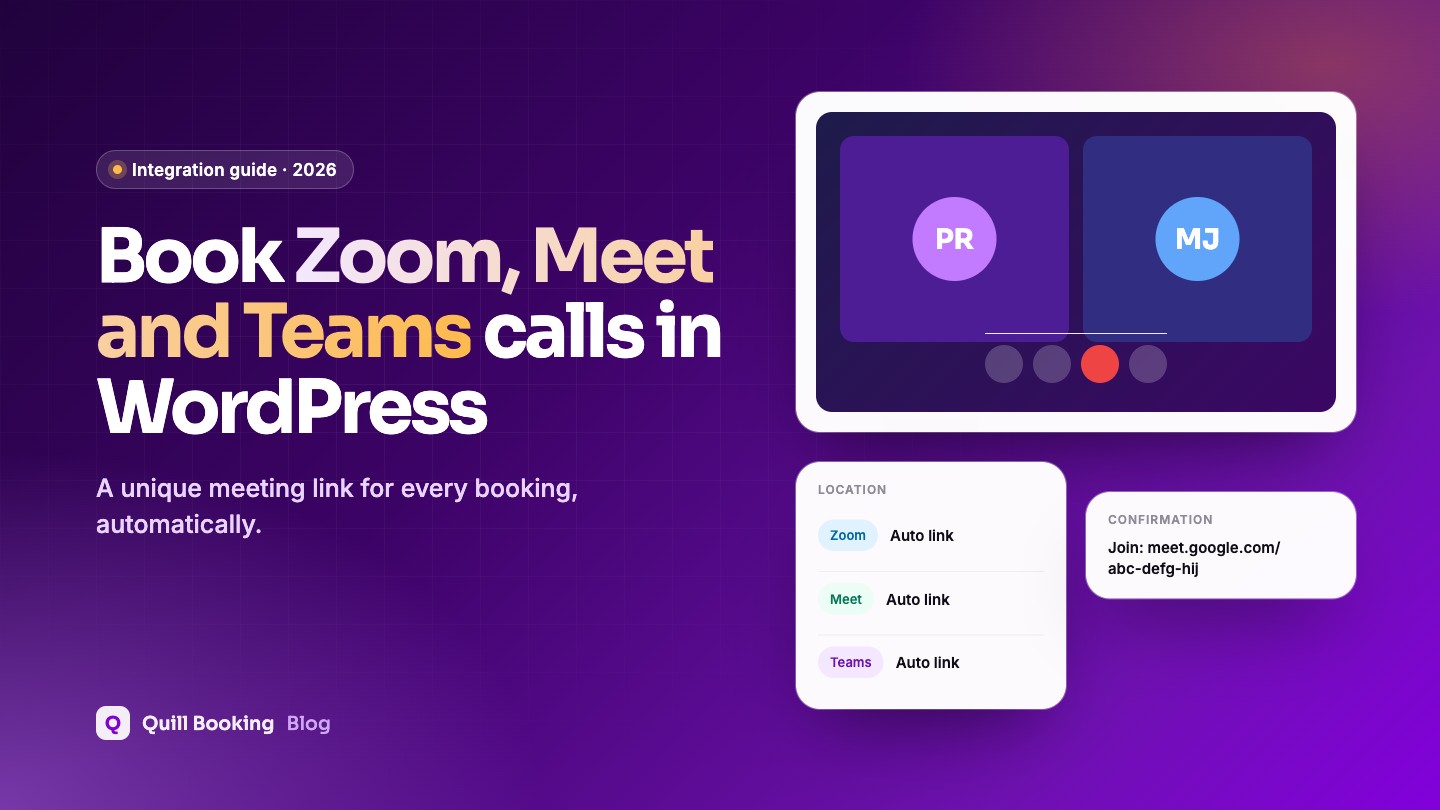
To let clients book online meetings from WordPress, connect your video account to a booking plugin and choose it as the event location. In Quill Booking Pro: open your host’s Remote Calendars and Conferencing tab, connect Google (for Meet), Outlook (for Teams) or Zoom, then tick that platform under Event Location. Every booking then gets its own meeting link, added to the confirmation email and both calendars.
Copying a meeting link into every confirmation by hand is slow and error-prone. Send the wrong link once and you have a no-show you caused yourself. A booking plugin that creates a unique Zoom, Google Meet or Microsoft Teams meeting for each booking removes that job completely.
Disclosure: We make Quill Booking, so we use it for the screenshots and examples. The advice works with most booking plugins and scheduling tools.
Key takeaways
- Google Meet links come from your Google Calendar connection, and Teams links from a Microsoft 365 work or school account.
- Zoom connects through a Server-to-Server OAuth app that you create once in the Zoom App Marketplace.
- Free plans have limits: Zoom Basic stops meetings at 40 minutes, and free Google Meet calls with 3 or more people at 60 minutes.
- You can offer several locations, for example Zoom or phone, and let the client choose.
Zoom, Google Meet or Teams: which should you use?
| Platform | Free plan limit | Good to know |
|---|---|---|
| Zoom | 40 minutes per meeting on the free Basic plan, up to 100 participants | Most familiar to clients; paid plan needed for longer calls |
| Google Meet | One-to-one calls up to 24 hours; 3+ people up to 60 minutes | Best if you already use Google Calendar or Workspace |
| Microsoft Teams | Free personal accounts can host calls, but booking tools need a work or school account to create links | Best for businesses on Microsoft 365 |
For one-to-one client calls, free Google Meet is hard to beat. If your sessions run longer than 40 minutes, Zoom’s free plan will cut them off, so use a paid Zoom licence or another platform.
Connect Google Meet
- Go to Quill Booking → Calendars, open the host and click Host Settings.
- Open the Remote Calendars and Conferencing tab and select Google Calendar/Meet.
- Click Add New, sign in with Google and allow the permissions, so Quill Booking can create events and meetings.
- Choose the Remote Calendar where bookings should be added, and tick the calendars to check for conflicts.
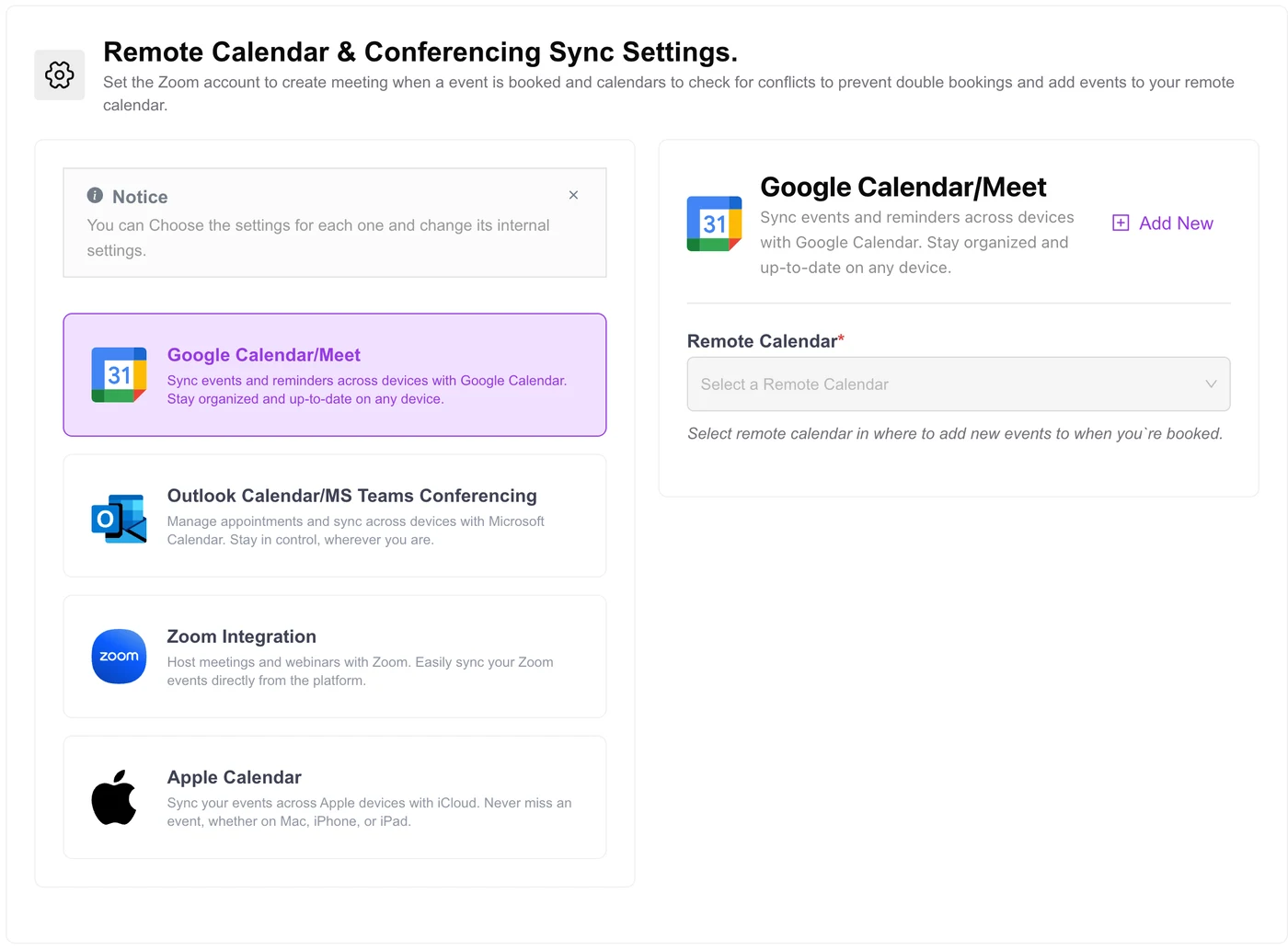
Connect Microsoft Teams
Teams meetings are created through the Outlook Calendar/MS Teams Conferencing option on the same tab. Click Add New, sign in with Microsoft and approve the permissions. Your account must belong to a company or organisation (a Microsoft 365 work or school account): Microsoft’s API for creating online meetings does not support personal accounts.
Connect Zoom
Zoom uses a private Server-to-Server OAuth app that only your site uses. It takes about 10 minutes:
- Go to the Zoom App Marketplace, open Develop → Build App and choose Server-to-Server OAuth.
- Name the app (for example “Quill Booking”), then fill in the required information.
- In Scopes, add the permissions for reading, writing and deleting meetings and reading users, as listed in the Zoom setup guide.
- Activate the app, then copy the Account ID, Client ID and Client Secret.
- In Quill Booking, open Remote Calendars and Conferencing → Zoom Integration, paste the three values and click Save & Validate Credentials.
Site admins can also manage Zoom accounts globally from Quill Booking → Integrations → Zoom.
Choose the video platform for each event
Edit the event and find Event Location on the Event Details tab. Tick Google Meet, Zoom Video or MS Teams. You can tick more than one, and add in-person or phone options, so the client picks what suits them on the booking page.
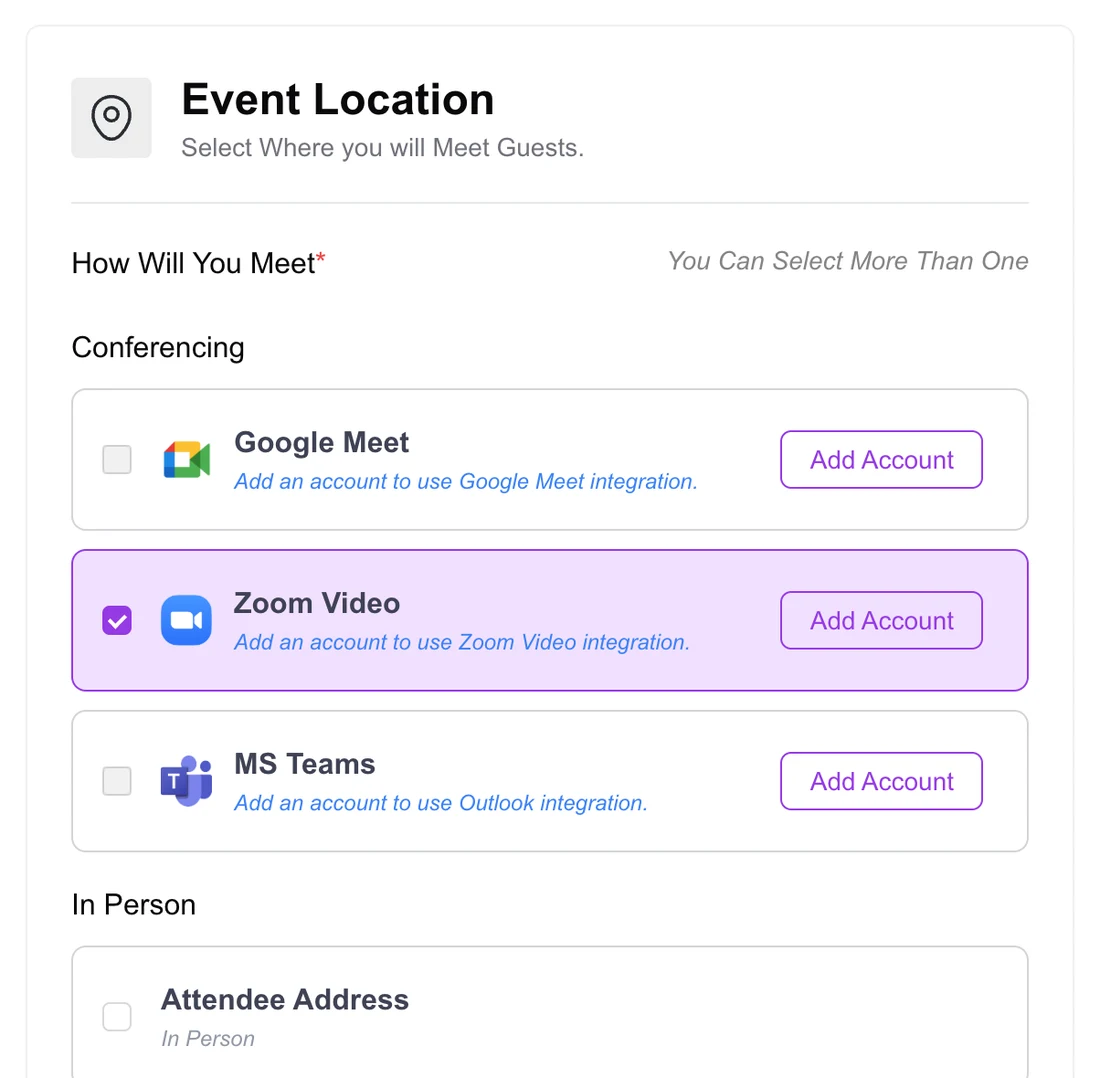
What clients see
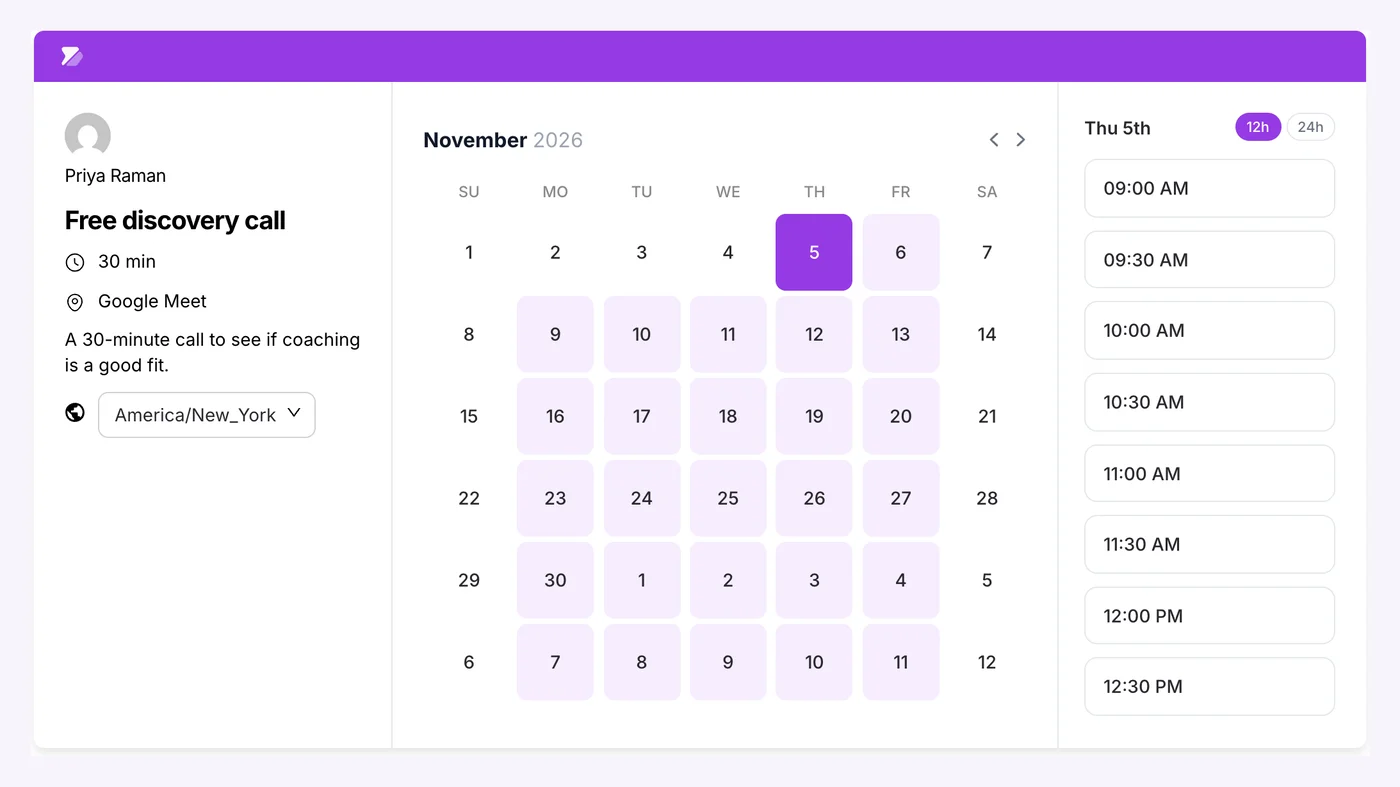
The booking page shows the platform under the event name. After booking, the client gets a confirmation email with the meeting link, and the event appears in your connected calendar with the same link. Add the link to your reminder messages too; our reminder templates include versions for online meetings.
Troubleshooting
- “Add an account” message on the event: the platform is not connected for this host yet. For team events, every host needs their own connection.
- No Teams link created: check you signed in with a Microsoft 365 work or school account, not a personal one.
- Zoom validation fails: make sure the app is activated and has all the required scopes, then copy the credentials again.
- Wrong time in the invite: check the host time zone in Host Settings and your WordPress time zone.
Frequently asked questions
Can I create Zoom links automatically from WordPress bookings?
Yes. Connect Zoom to your booking plugin with a Server-to-Server OAuth app, then choose Zoom as the event location. Each booking gets its own Zoom meeting and link.
Do I need a paid Zoom account?
Not to connect, but Zoom’s free Basic plan ends meetings at 40 minutes. If your sessions are longer, you need a paid Zoom licence.
How do I add Google Meet links to bookings?
Connect your Google account in the Remote Calendars and Conferencing tab, then tick Google Meet as the event location. Meet links are created with the calendar event.
Why can’t I create Microsoft Teams meetings?
Automatic Teams links require a Microsoft 365 work or school account. Microsoft’s API for creating online meetings does not support personal Microsoft accounts.
Can clients choose between Zoom and a phone call?
Yes. Tick several locations on the event and the client chooses one when booking.
Related guides
- How to sync WordPress bookings with Google Calendar
- How to add a booking calendar to WordPress
- 30 appointment reminder templates
A meeting link for every bookingQuill Booking Pro creates Zoom, Google Meet and Teams links automatically, from $39 a year.
See pricing