
Create Round Robin Events
QuillBooking offers a powerful Round Robin feature that simplifies team scheduling by distributing bookings across multiple hosts. If one host is unavailable, QuillBooking will automatically assign the next available host—ensuring a seamless experience for your attendees.
This guide walks you through setting up Round Robin booking events step by step.
Before You Begin
Ensure you’ve already created at least one host in QuillBooking—teams must be linked to a host.
Create a New Team
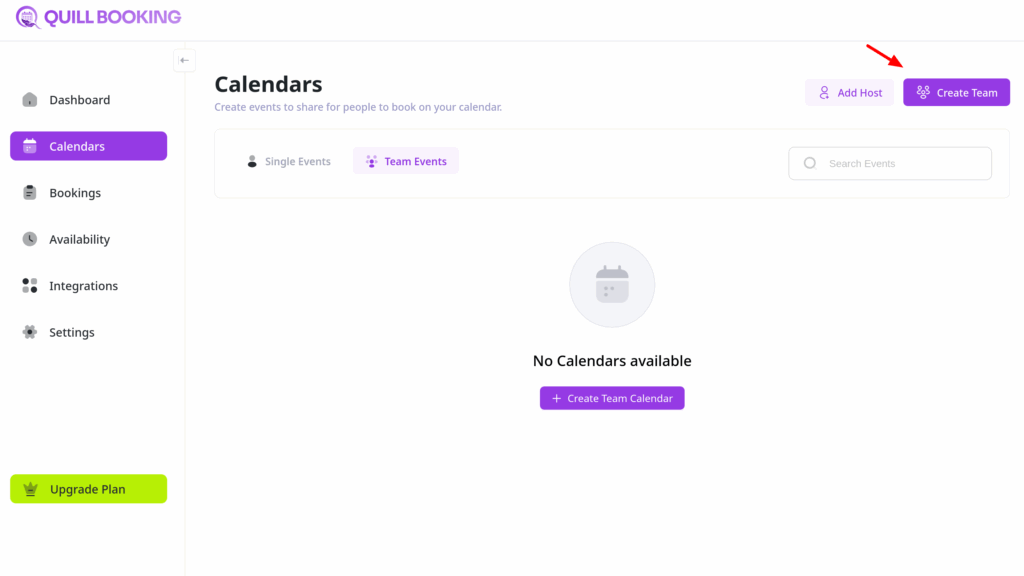
- Go to the Calendars section.
- Click the “Create Team” button.
Team Configuration
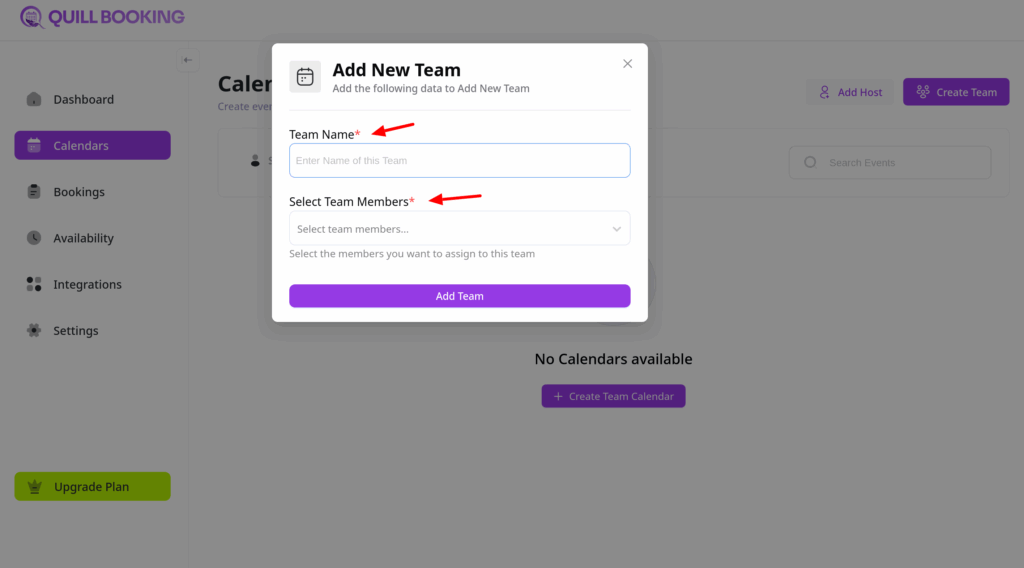
A pop-up window will appear:
- Enter a Team Name.
- Select the Team Members you want to include.
Create a Round Robin Event
After creating the team, proceed to create your event:
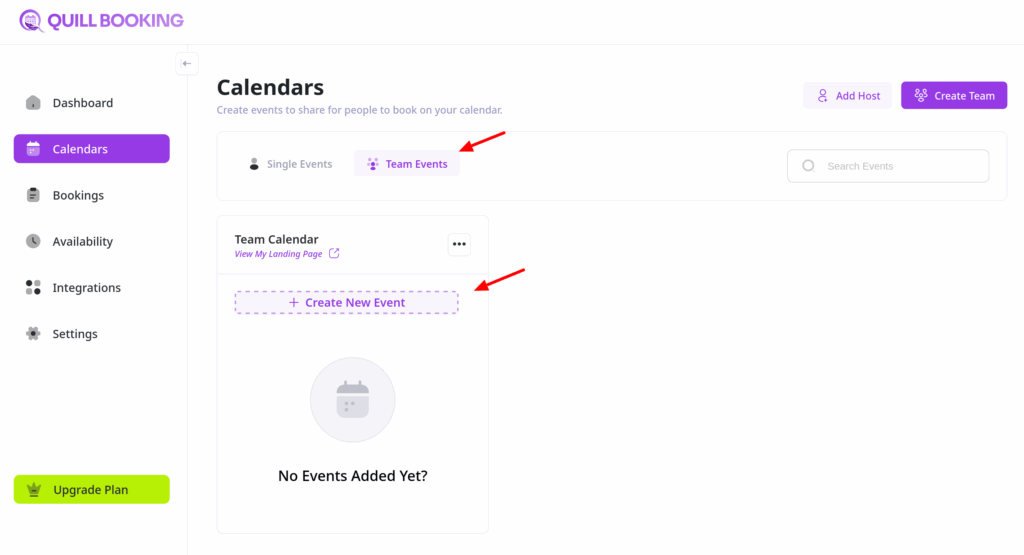
- Go to “Team Events” tab.
- Click the “Create New Event” button.
Enter Event Details
After creating the team, proceed to set up your event details:
- Select Team members and click on Round Robin.
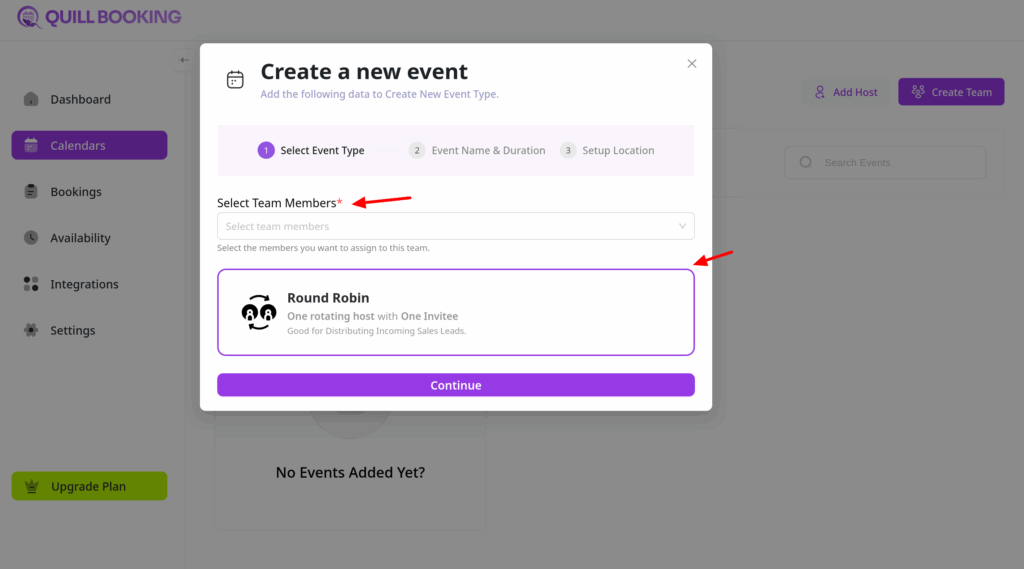
- Input event name, description and duration, as you would with any booking event.
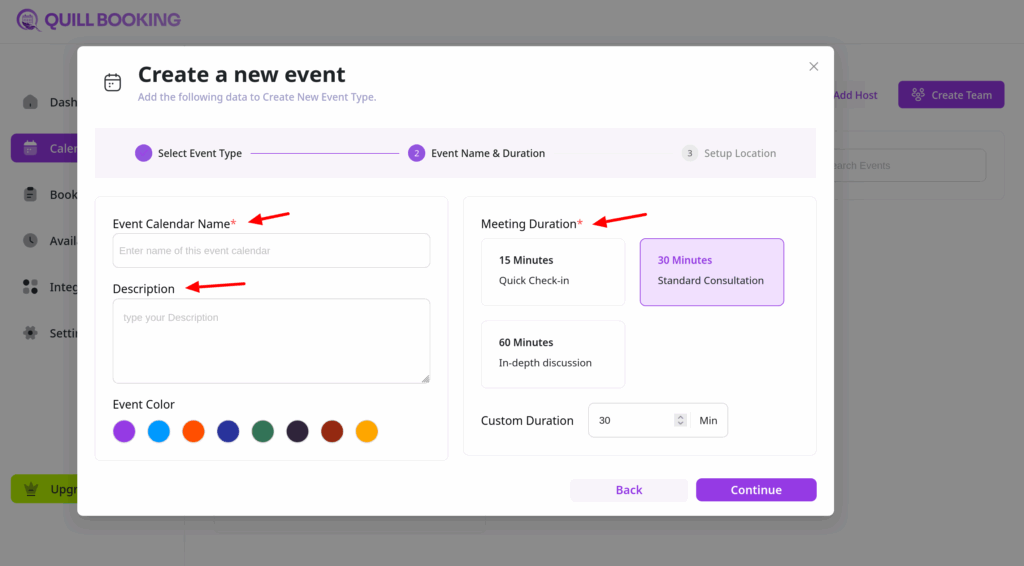
- Click Continue to setup your locations. Ensure each team member has integrated their Zoom, Google Meet, or other meeting platforms for smooth scheduling.
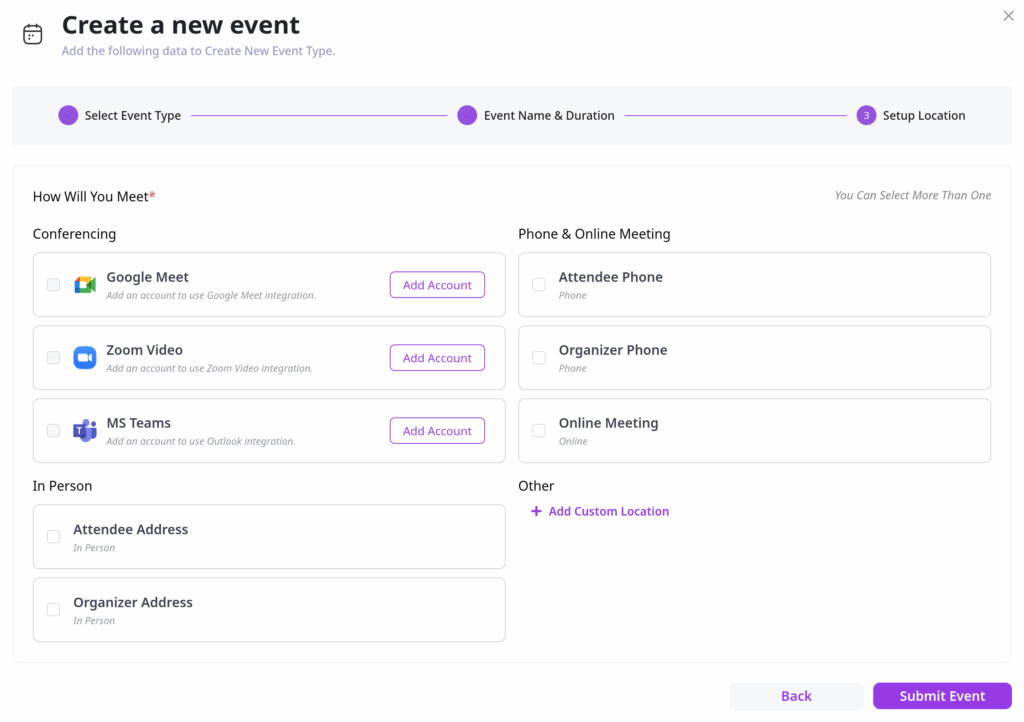
Availability Settings
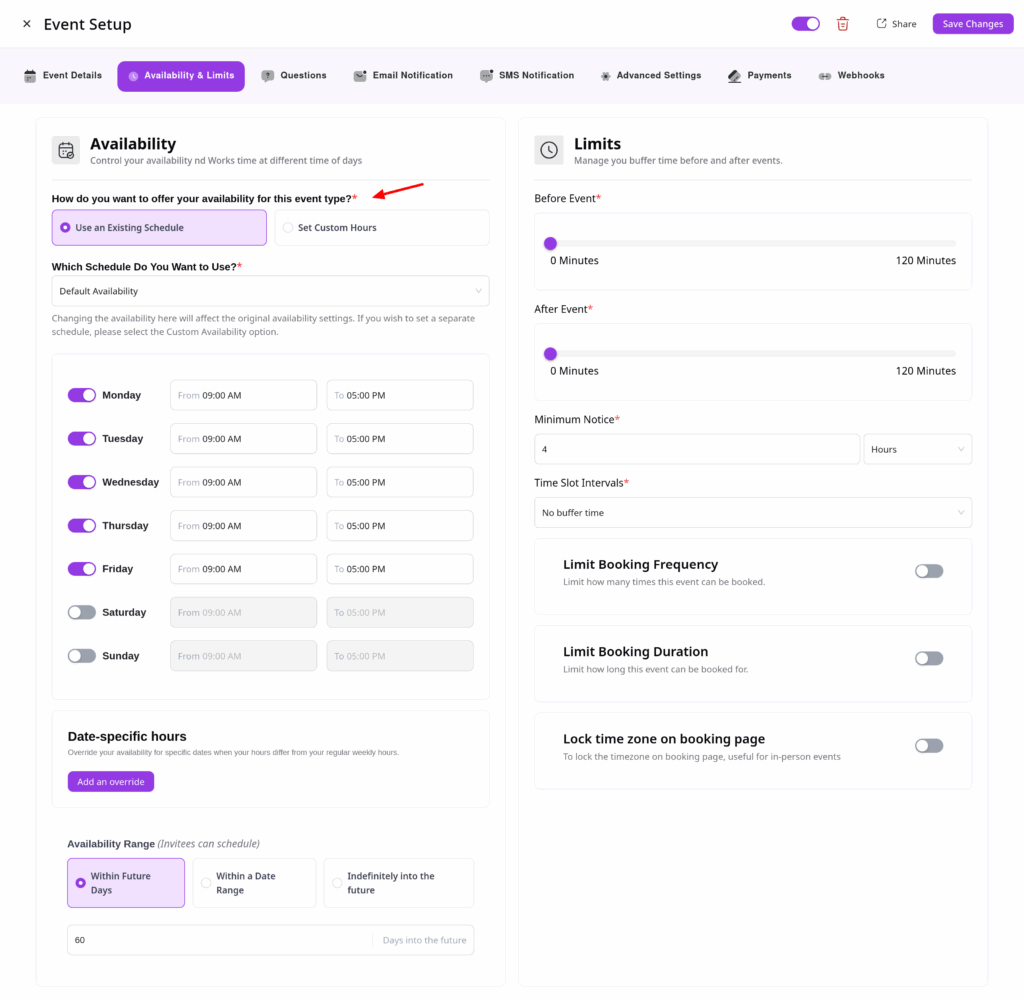
You have two scheduling options for your team:
- Use An Existing Schedule: Uses a host’s schedule.
- Set Custom Hours: Set a new schedule for this event.
Host Assignment
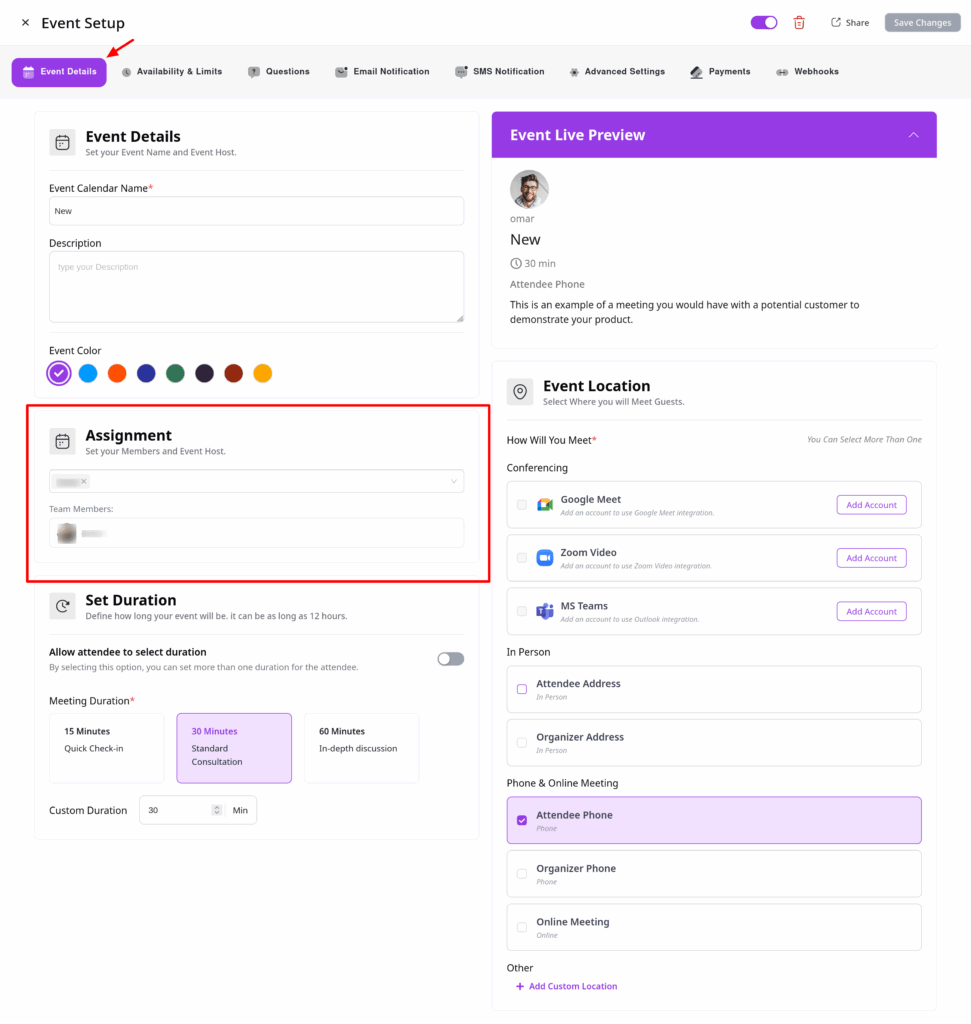
Manage your Round Robin team members easily from the Assignment section in the Event Details tab.
Additional Settings
Round Robin booking events support all standard event settings, including:
- Availability
- Booking limits
- Notifications (email/SMS)
- Payment settings
- Advanced options
To create more Round Robin events for the same team, go back to Calendars and click “Add New Event ”