Early Bird Launch Special: Save over 70% on our professional scheduling platform • Offer expires in 48 hours View Pricing

QuillBooking Documentation

Get unstuck with our helpful reference material

Facebook Pixel

If you’re using QuillBooking and want to leverage Facebook ads to track user interactions, you can integrate Facebook Pixel to gain insights into how many people view, open, and submit your QuillBooking booking Facebook sources. Follow these simple steps to add Facebook Pixel tracking to your QuillBooking:

You should have a Facebook Business account with Pixel set up (here’s how to set up Facebook Pixel)

Let’s get started:

Step 1: Find your Pixel ID in Facebook

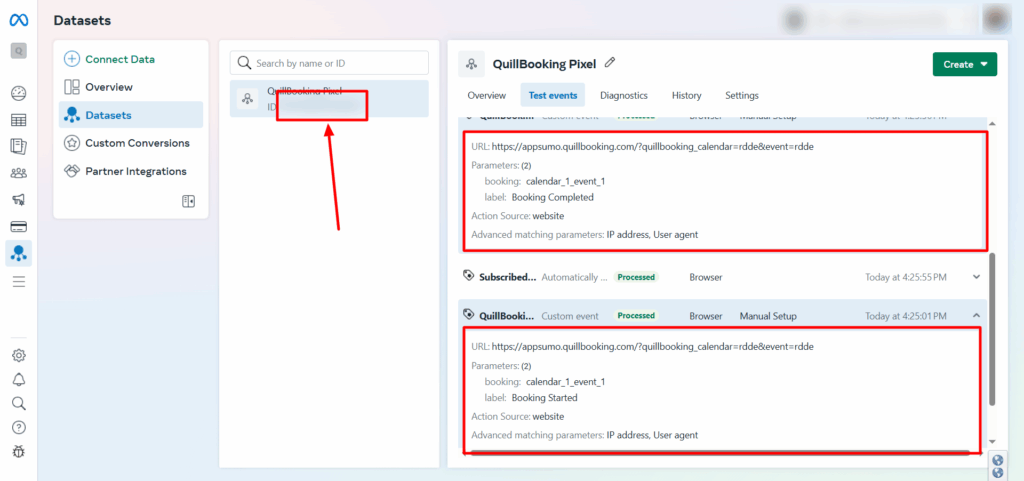
  • Open your Facebook Business account and click the hamburger menu icon, then select Events Manager.
  • In the Events Manager interface, you’ll see your pixels named, along with their corresponding ID numbers.
Step 2: Get the Pixel ID from Facebook, paste it here, and then click the Save Settings button.
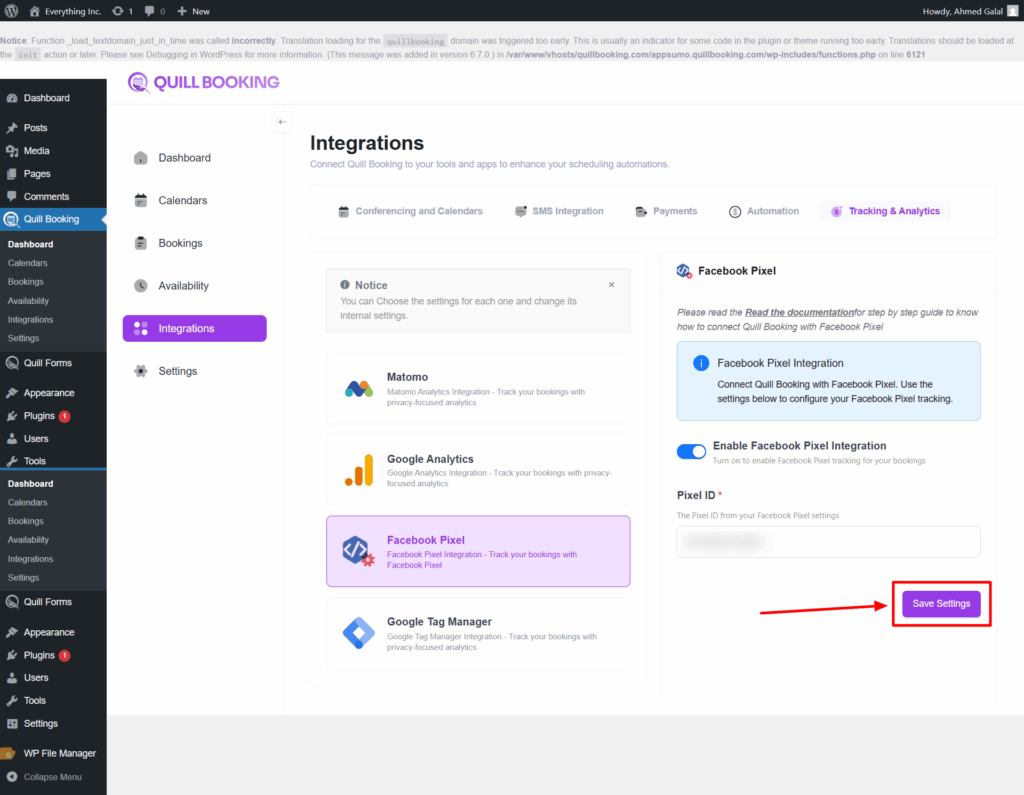
QuillBooking sends 2 types of event actions to Google Analytics:
1. QuillBooking.BookingCompleted
This event action fires after clicking the submit button.

  • Category – calendar_{calendar_id}_event_{event_id}.
  • Action – QuillBooing.BookingCompleted.
  • Label—Booking Completed.

2. QuillBooking.BookingStarted
This event action fires after choosing a time slot.

  • Category – calendar_{calendar_id}_event_{event_id}.
  • Action – QuillBooing.BookingStarted.
  • Label—Booking Started.
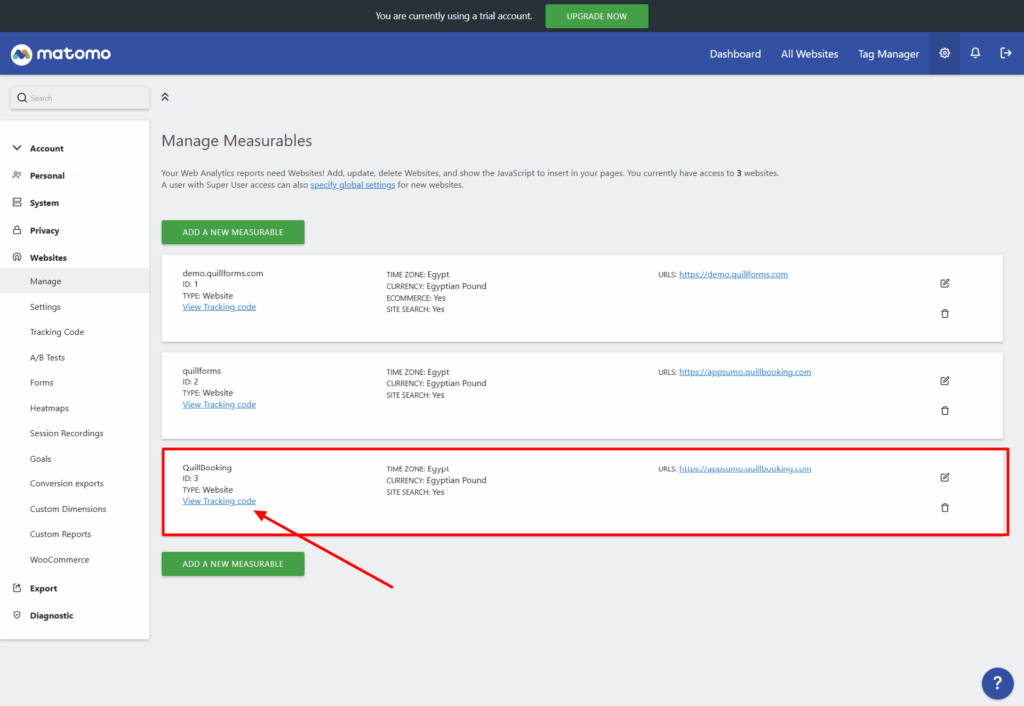
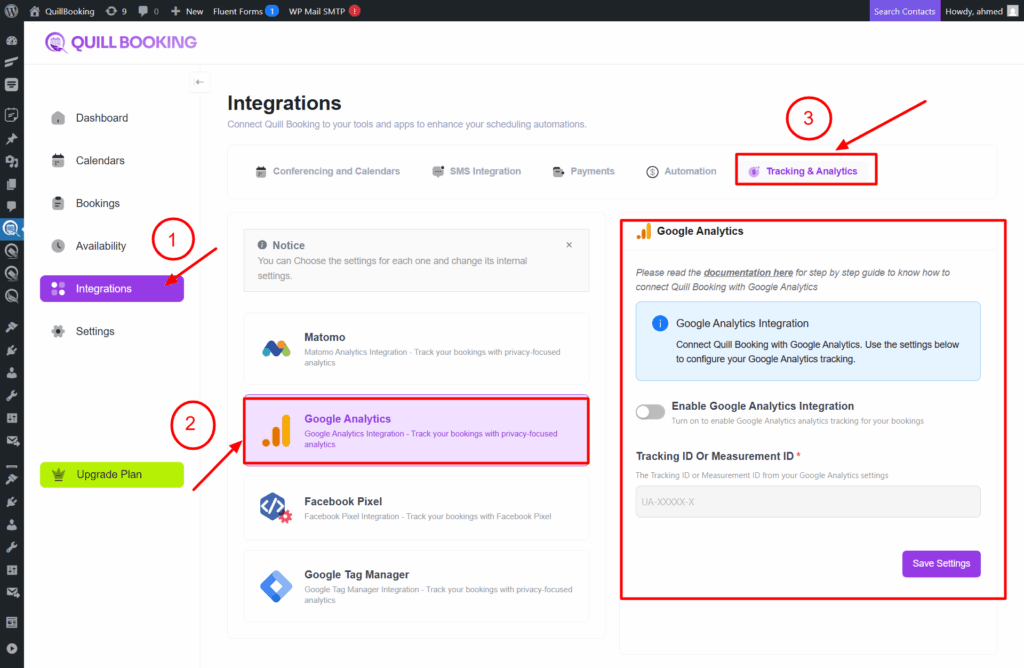
Google Analytics

Google Analytics is a free web analytics tool from Google that helps you track and analyze how visitors interact with your website or app. It collects data such as the number of visitors, their geographic location, the devices they use, the pages they visit, and how long they stay. This information helps businesses and website owners understand user behavior, measure performance, and make data-driven decisions to improve content, marketing, and overall user experience.

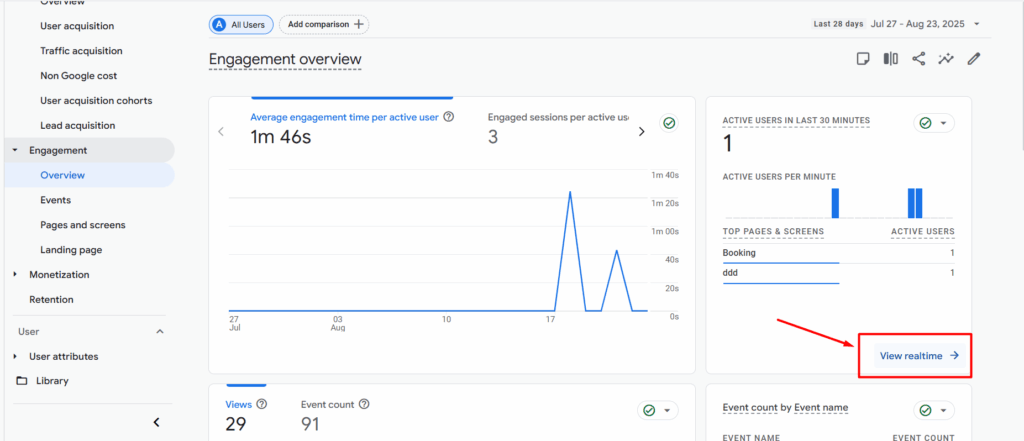
Go to View realtime link.

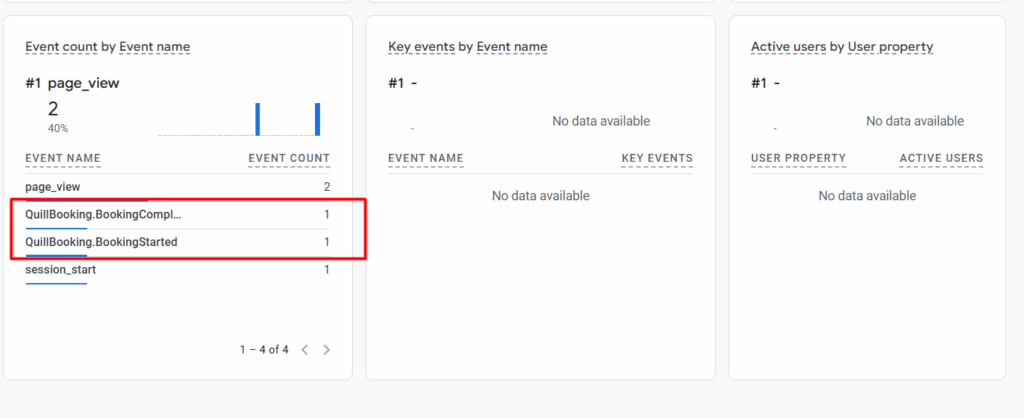
You see all events.


QuillBooking sends 2 types of event actions to Google Analytics:
1. QuillBooking.BookingCompleted
This event action fires after clicking the submit button.

  • Category – calendar_{calendar_id}_event_{event_id}.
  • Action – QuillBooing.BookingCompleted.
  • Label—Booking Completed.

2. QuillBooking.BookingStarted
This event action fires after choosing a time slot.

  • Category – calendar_{calendar_id}_event_{event_id}.
  • Action – QuillBooing.BookingStarted.
  • Label—Booking Started.
Google Tag Manager

Welcome to the documentation guide for integrating QuillBooking with Google Tag Manager (GTM). This guide will walk you through the process of setting up and utilizing Google Tag Manager to track user interactions and events within QuillBooking.

What is Google Tag Manager?

Google Tag Manager is a tag management system that simplifies the process of deploying and managing various tracking codes, scripts, and snippets on your website. It provides a centralized platform to add, update, and remove tags without modifying the website’s code directly.

Why Integrate QuillBooking with Google Tag Manager?

Integrating QuillBooking with Google Tag Manager offers several benefits:

  1. Efficient Tracking: By using Google Tag Manager, you can streamline the process of implementing tracking codes and scripts within QuillBooking. It provides a user-friendly interface that simplifies tag management and reduces dependency on developers.
  2. Flexibility: With Google Tag Manager, you can easily add and modify tracking tags without editing the QuillBooking code directly. It gives you the flexibility to adapt your tracking requirements as your needs evolve.
  3. Advanced Tracking Capabilities: Google Tag Manager offers a wide range of built-in tags and triggers to track various user interactions and events within QuillBooking. You can track form submissions, welcome screen passing and field answering.
  4. Third-Party Integrations: Google Tag Manager integrates seamlessly with various third-party analytics tools, such as Google Analytics, Facebook Pixel, and many others. You can leverage these integrations to gain deeper insights into user behavior and optimize your forms accordingly.

Getting Started

To integrate QuillBooking with Google Tag Manager, you will need to perform the following steps:

1- Create a Google Tag Manager Account: If you don’t already have a Google Tag Manager account, you’ll need to create one. Visit the Google Tag Manager website (tagmanager.google.com) and follow the instructions to set up your account.

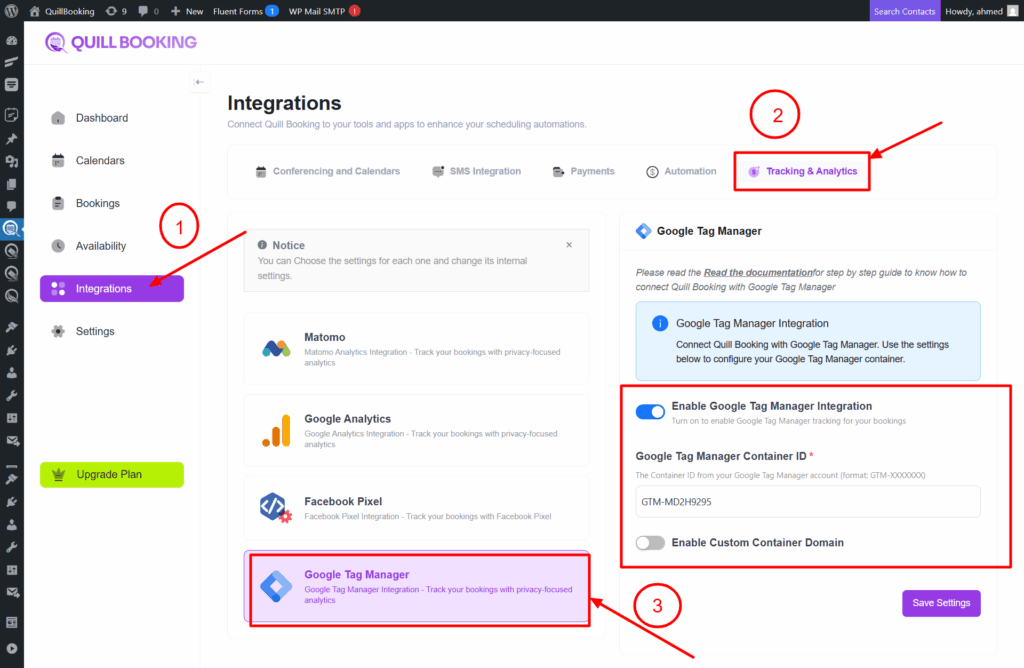
2- Configure Google Tag Manager in QuillBooking: Once you have your Google Tag Manager account, you’ll need to install and configure the Google Tag Manager container on QuillBooking.
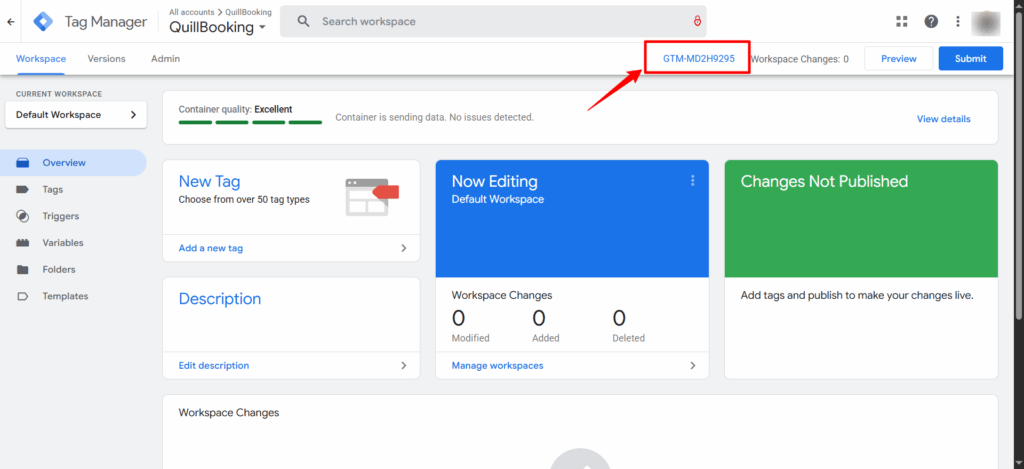
To get your container ID, navigate to your Google Tag Manager dashboard and get it from there like in the following screenshot:

Copy this container id and insert it in QuillBooking and click save:

QuillBooking sends 2 types of event actions to Google Tag Manager:
1. QuillBooking.BookingCompleted
This event action fires after clicking the submit button.

  • Category – calendar_{calendar_id}_event_{event_id}.
  • Action – QuillBooing.BookingCompleted.
  • Label—Booking Completed.

2. QuillBooking.BookingStarted
This event action fires after choosing a time slot.

Label—Booking Started.
Category – calendar_{calendar_id}_event_{event_id}.

Action – QuillBooing.BookingStarted.

Matomo Analytics

Matomo Analytics (formerly Piwik) is an open-source web analytics platform that helps you track, measure, and analyze visitor behavior on your websites and apps. Unlike Google Analytics, Matomo gives you full data ownership, privacy compliance (GDPR, HIPAA, etc.), and the option to self-host on your own server or use their cloud service.

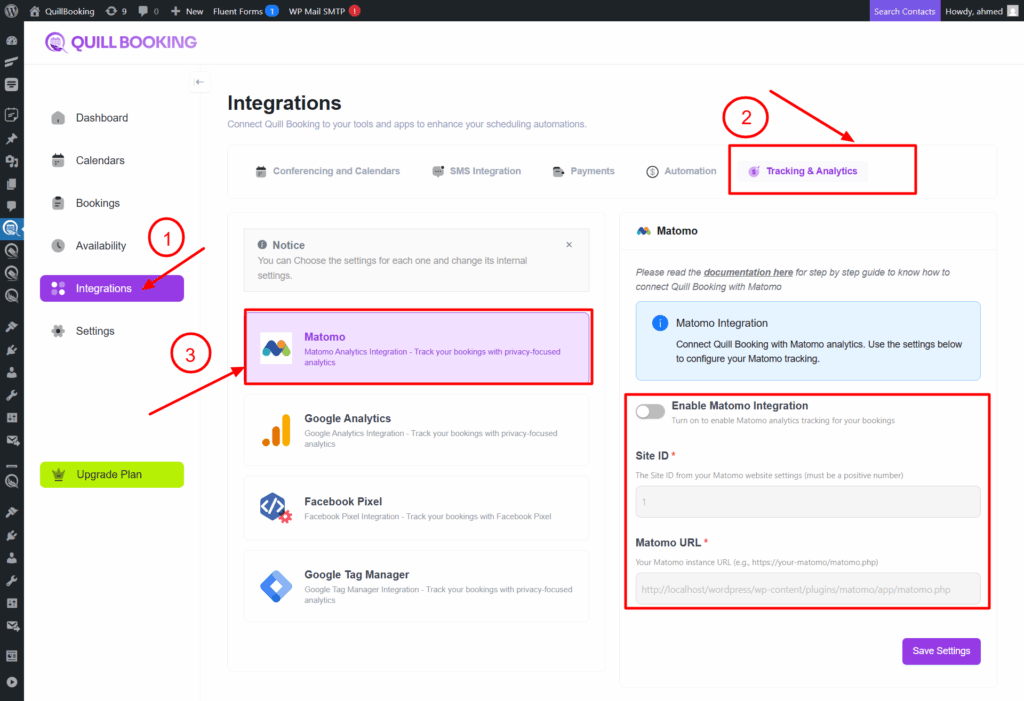
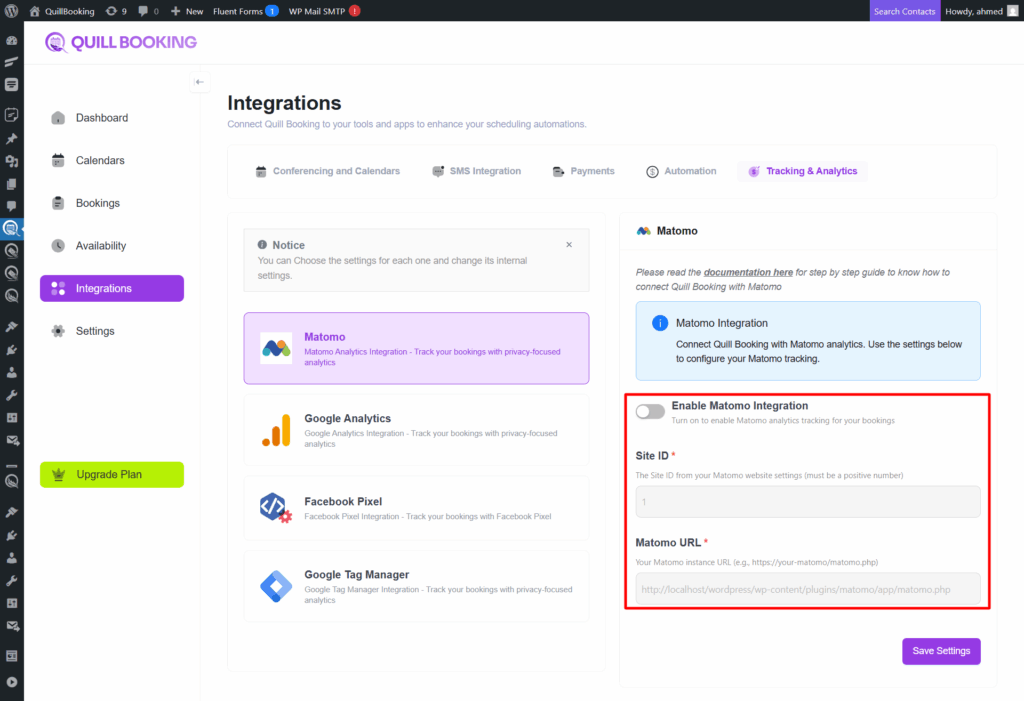
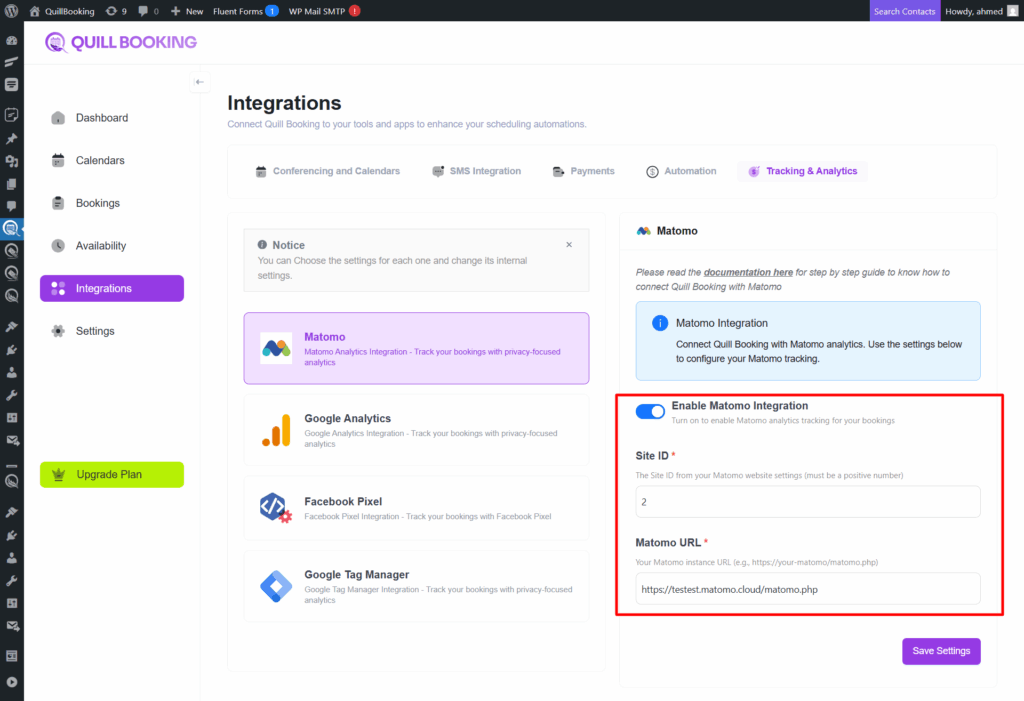
First you have to get your SITE ID , TRACKER URL and insert it in Matomo settings page:

You have two ways to get the Matomo SITE ID and TRACKER URL

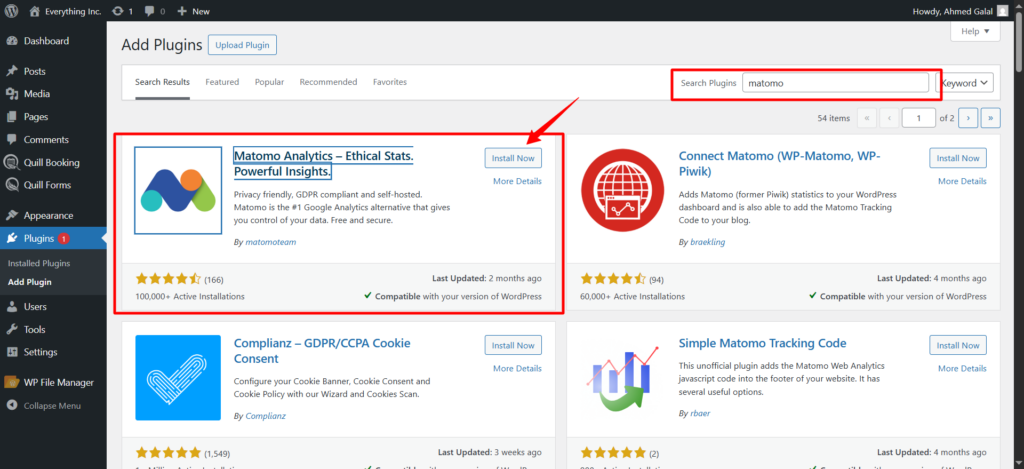
  • You can download the WordPress plugins for Matomo or use Matomo Cloud instead of downloading them from WordPress.
  1. Download from WordPress as a plugin.

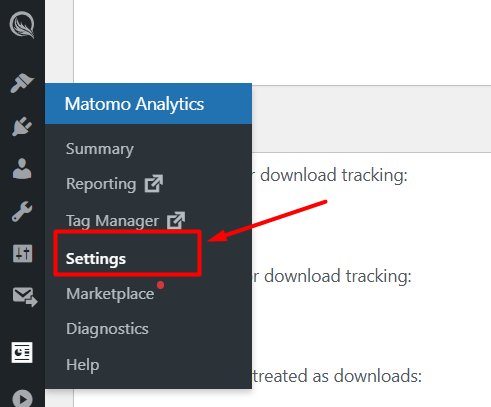
After installing, you’ll see the Matomo icon in the WordPress toolbar. Click on Settings and scroll down.

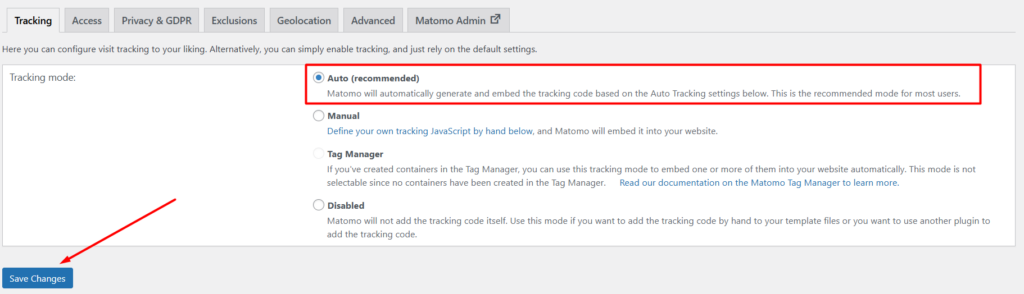
Next, go to Tracking Mode, select Auto, and click the Save Changes button.

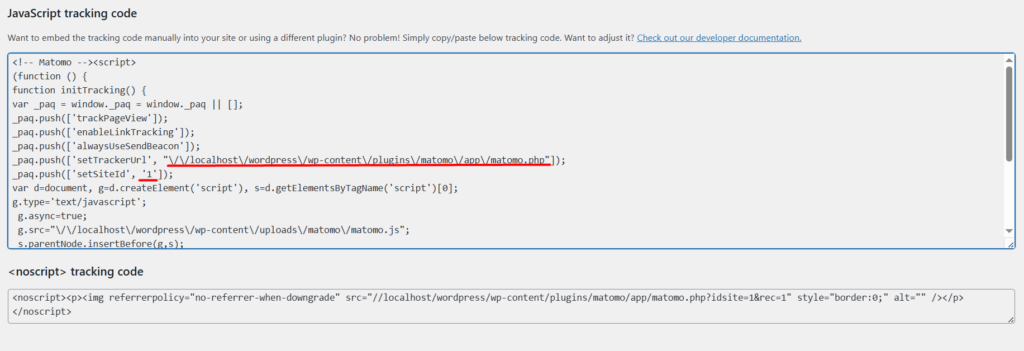
Next, scroll down to the JavaScript Tracking Code section. Copy the setTrackerUrl value as the Tracker URL, and the setSiteId value as the Site ID.

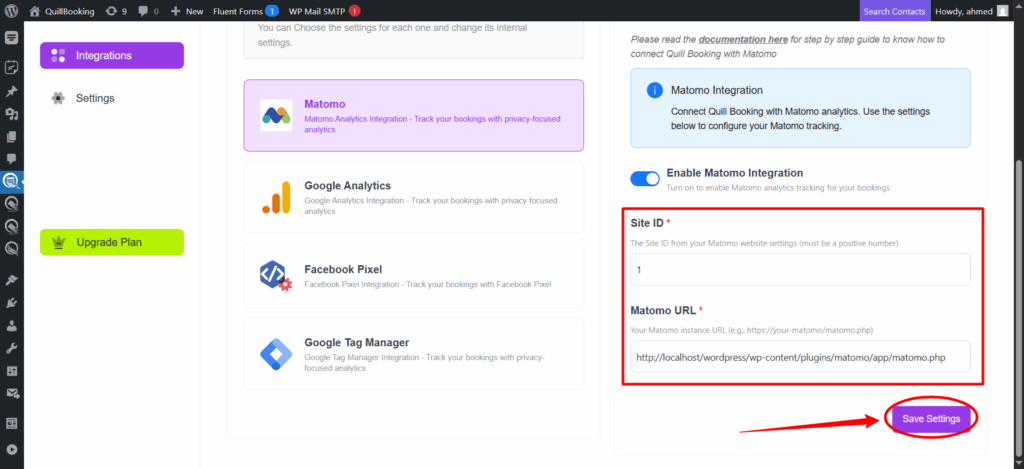
Then, set these values in the fields and click Save Settings.

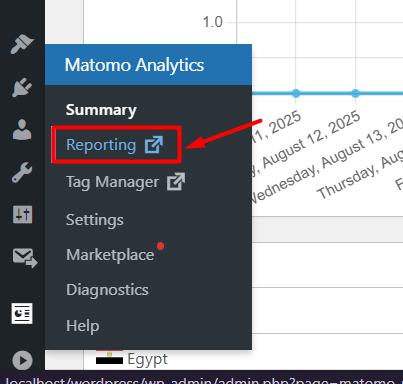
Finally, click on Reports to view all your analytics.

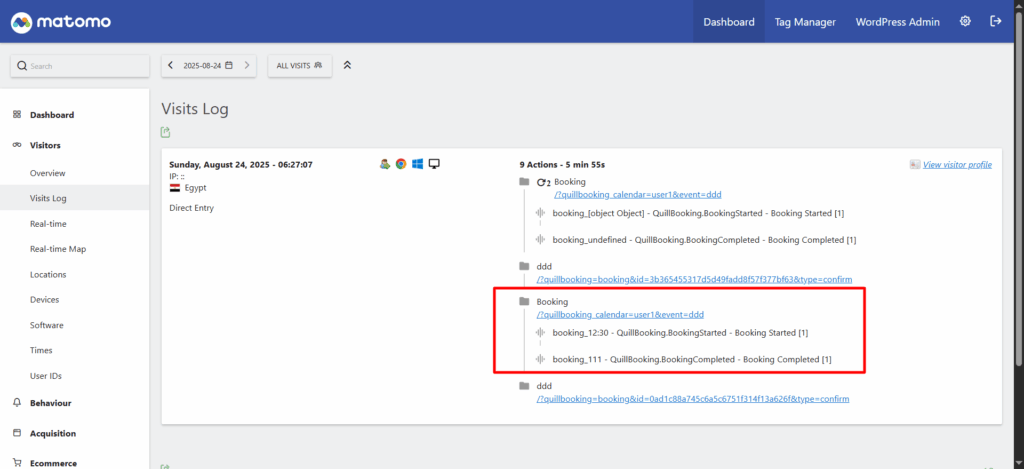
Then, go to Visits Log to see all actions for each booking, displayed with images.

2. Use Matomo Cloud instead of the self-hosted version.

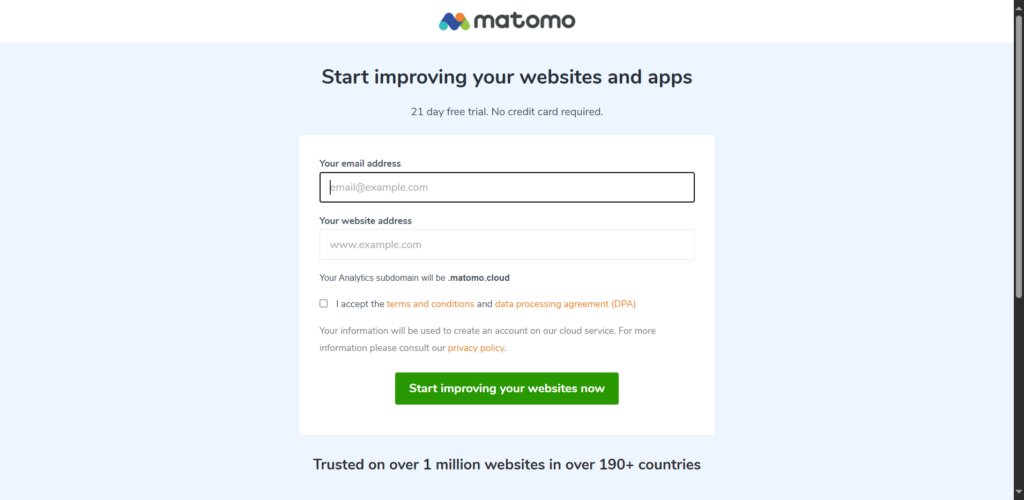
First log in to Matomo. Start Your Free Analytics Trial – Analytics Platform – Matomo , set your email, and the website URL.

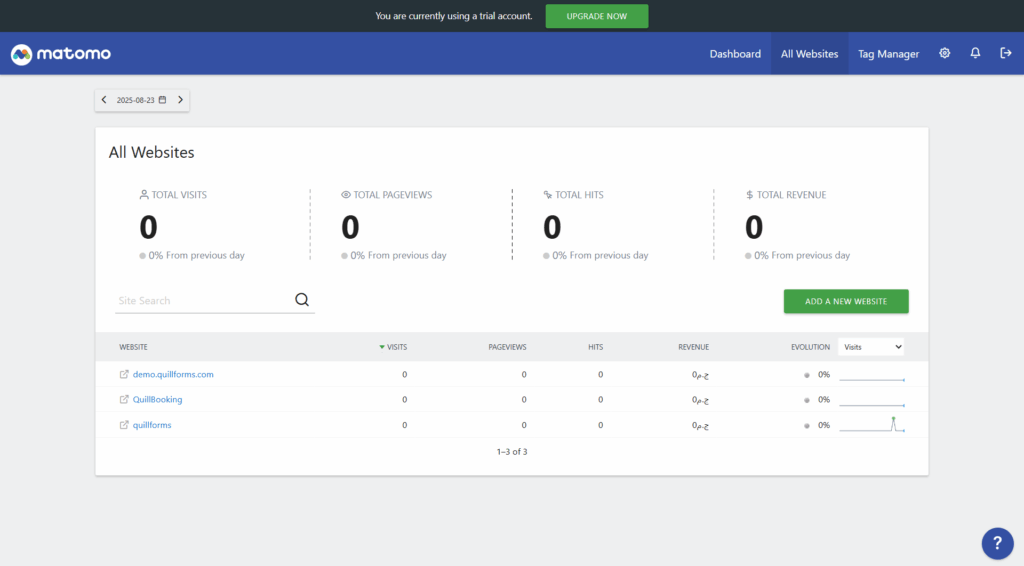
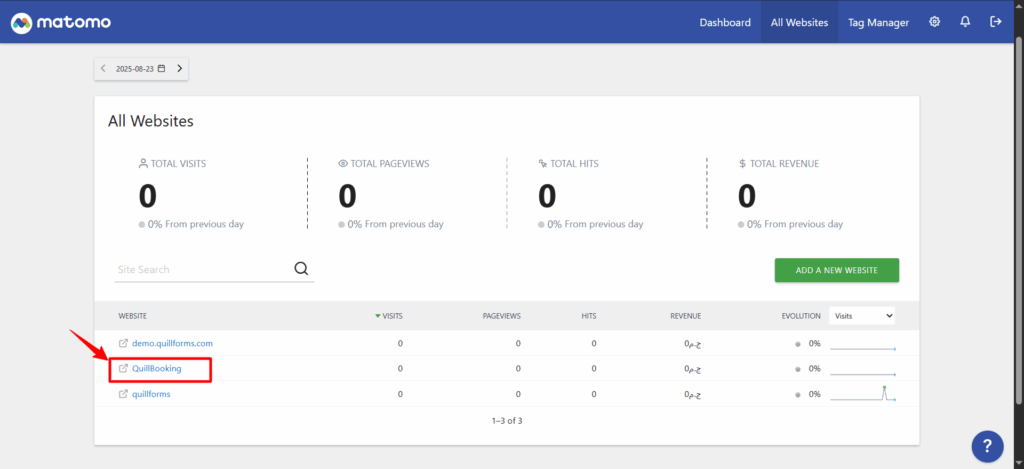
Next, go to the All Websites tab, click the Add New Website button, and add your website.

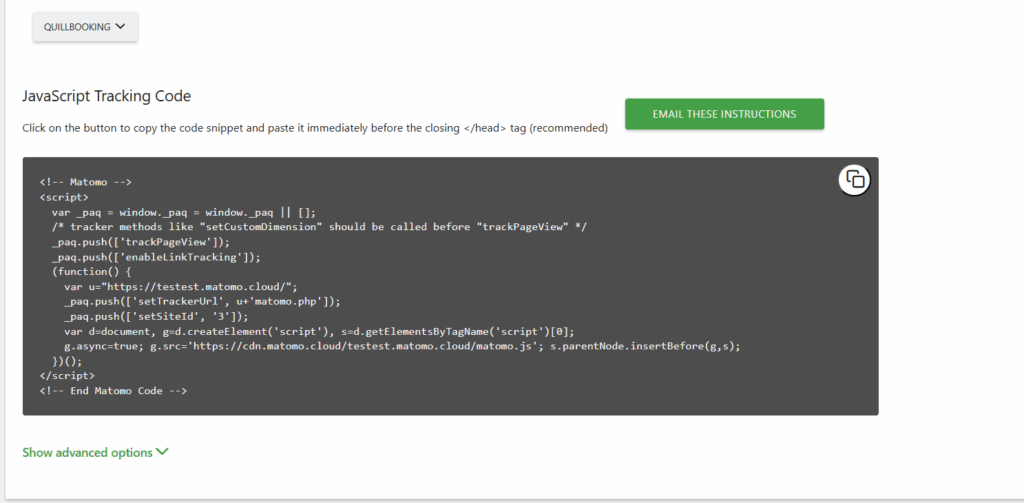
After this, go to Websites, open the Manage subtab, choose your website, and click on View Tracking Code.

Next, scroll down to the JavaScript Tracking Code section. Copy the setTrackerUrl value as the Tracker URL, and the setSiteId value as the Site ID.

Then, set these values in the fields and click Save.

After this, click on the link to view the reports.

Then, go to Visits Log to see all actions for each booking, displayed with images.


QuillBooking sends 2 types of event actions to Matomo Analytics:
1. QuillBooking.BookingCompleted
This event action fires after clicking the submit button.

  • Category – calendar_{calendar_id}_event_{event_id}.
  • Action – QuillBooing.BookingCompleted.
  • Label—Booking Completed.

2. QuillBooking.BookingStarted
This event action fires after choosing a time slot.

Label—Booking Started.
Category – calendar_{calendar_id}_event_{event_id}.

Action – QuillBooing.BookingStarted.