Early Bird Launch Special: Save over 70% on our professional scheduling platform • Offer expires in 48 hours View Pricing

QuillBooking Documentation

Get unstuck with our helpful reference material

Apple

Intro

Want to simplify your booking process and stay perfectly in sync across all your Apple devices? Introducing the QuillBooking Apple Calendar, a seamless integration that automatically syncs your bookings from WordPress to Apple Calendar. QuillBooking is a modern and flexible booking system built on top of QuillForms, designed to make managing appointments and events effortless. Apple Calendar, the built-in scheduling tool across macOS, iOS, and iPadOS, helps you keep your schedule organized and accessible from anywhere.

With the QuillBooking Apple Calendar, every new booking is automatically added to your Apple Calendar—complete with event details, client information, and time slots. Whether you’re managing personal appointments, business meetings, or service bookings, this integration ensures your calendar is always up-to-date and synced across all your devices.

By connecting QuillBooking with Apple Calendar, you eliminate manual calendar entries, reduce scheduling errors, and keep your workflow efficient and mobile-friendly—so you can focus more on what matters.

In this guide, we’ll walk you through how to set up the QuillBooking Apple Calendar and show you how to use it to automate scheduling, enhance accessibility, and improve your productivity across the Apple ecosystem.

How to setup

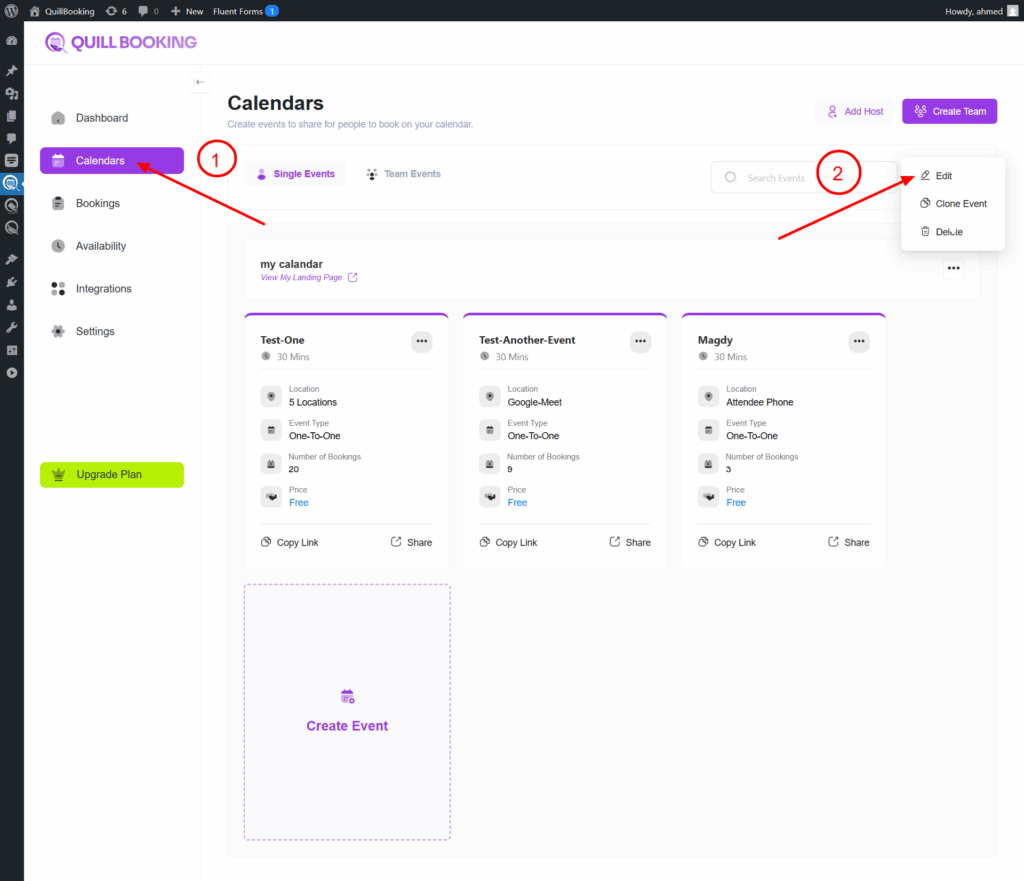
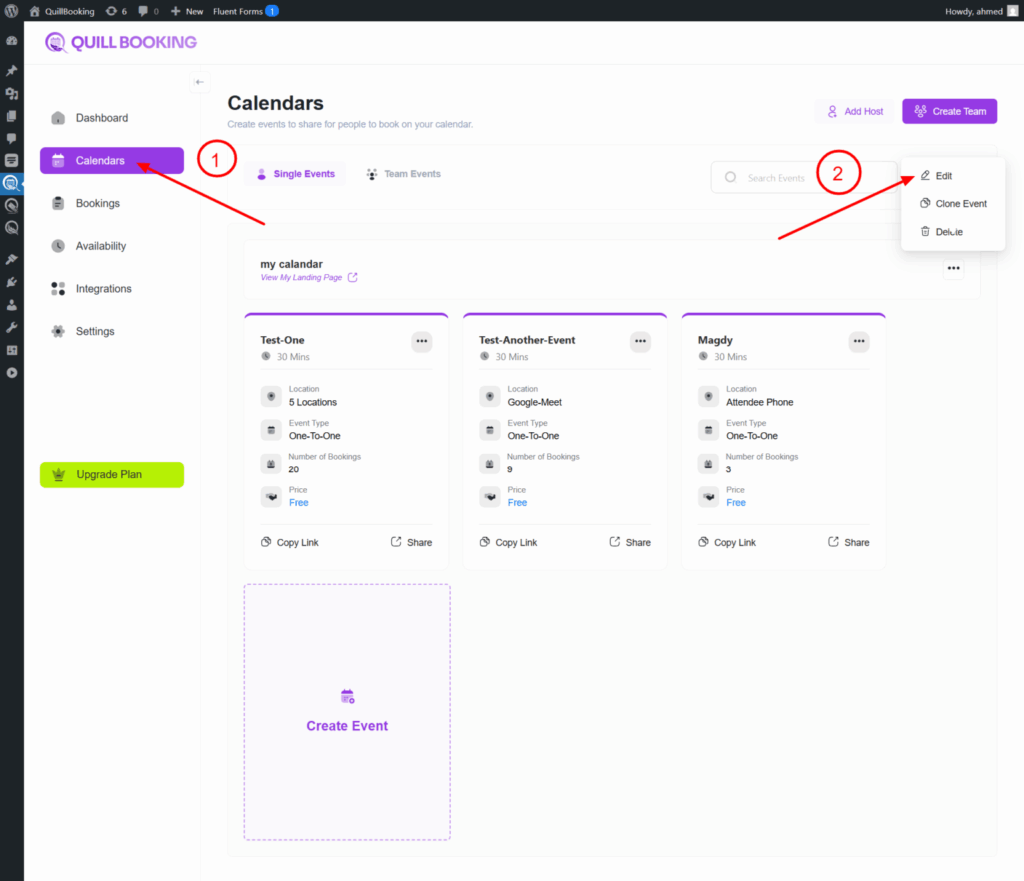
1. Go to the Calendars tab, select the calendar you want to connect to your Apple account, and click the Edit button.
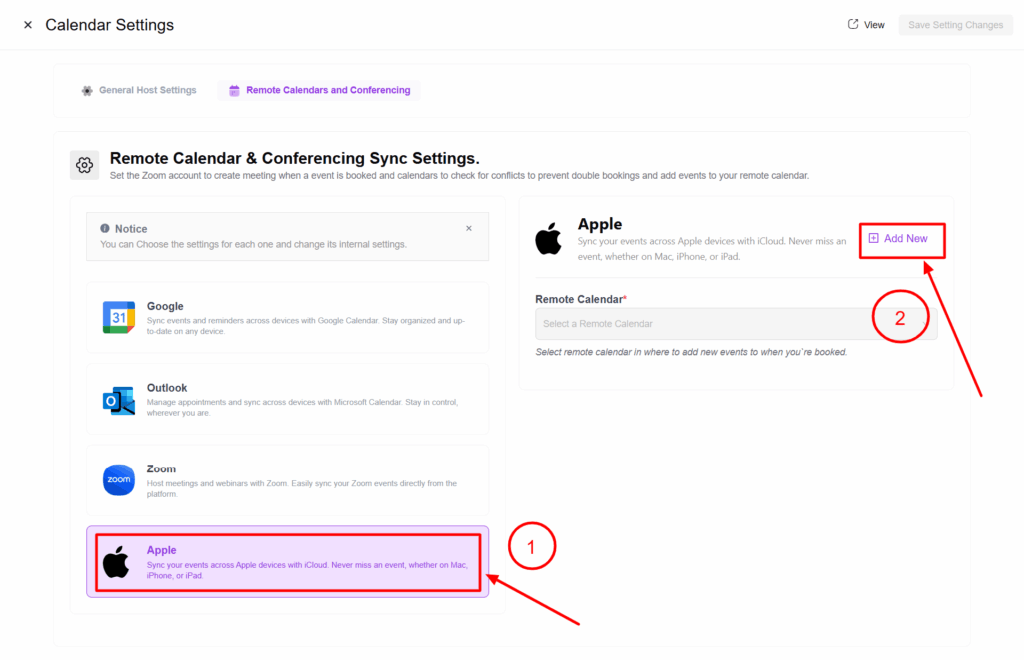
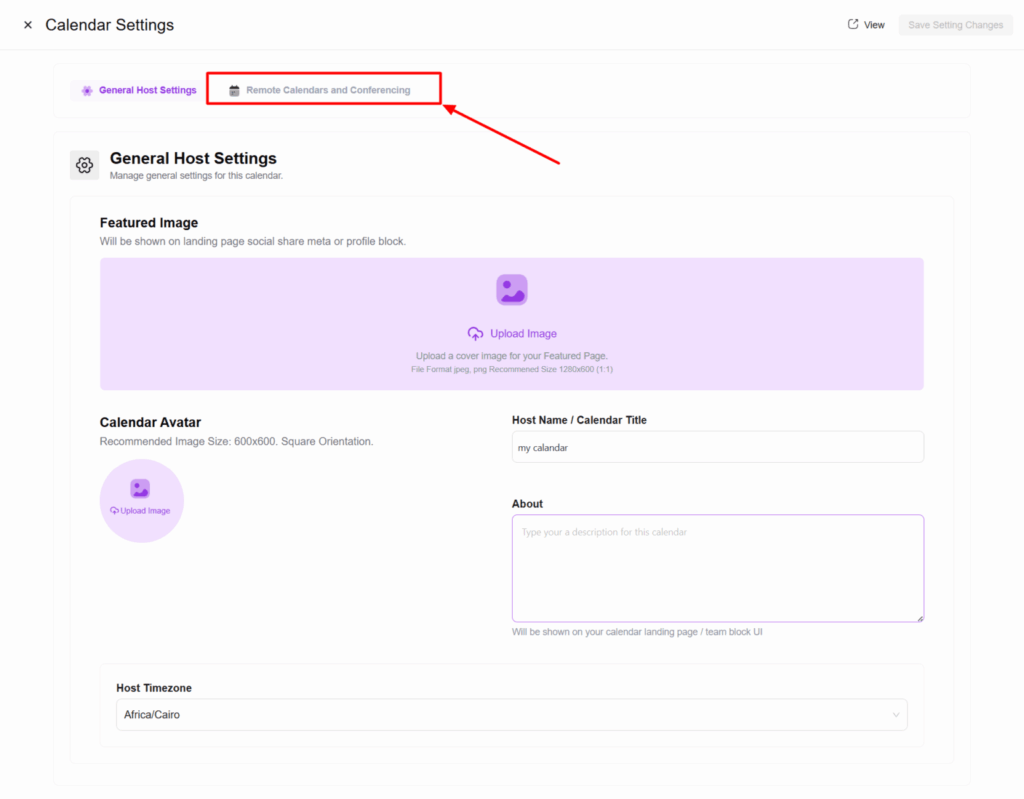
2. Select the Remote Calendars and Conferencing tab. A new section will appear showing all the integrations you can connect with.

Here’s the corrected version of your sentence:

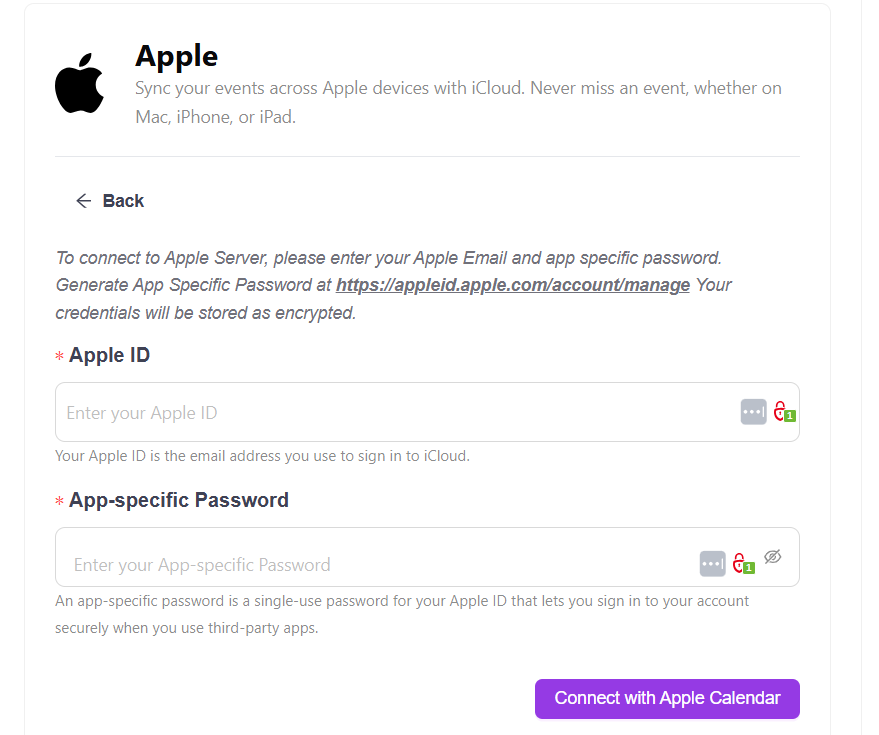
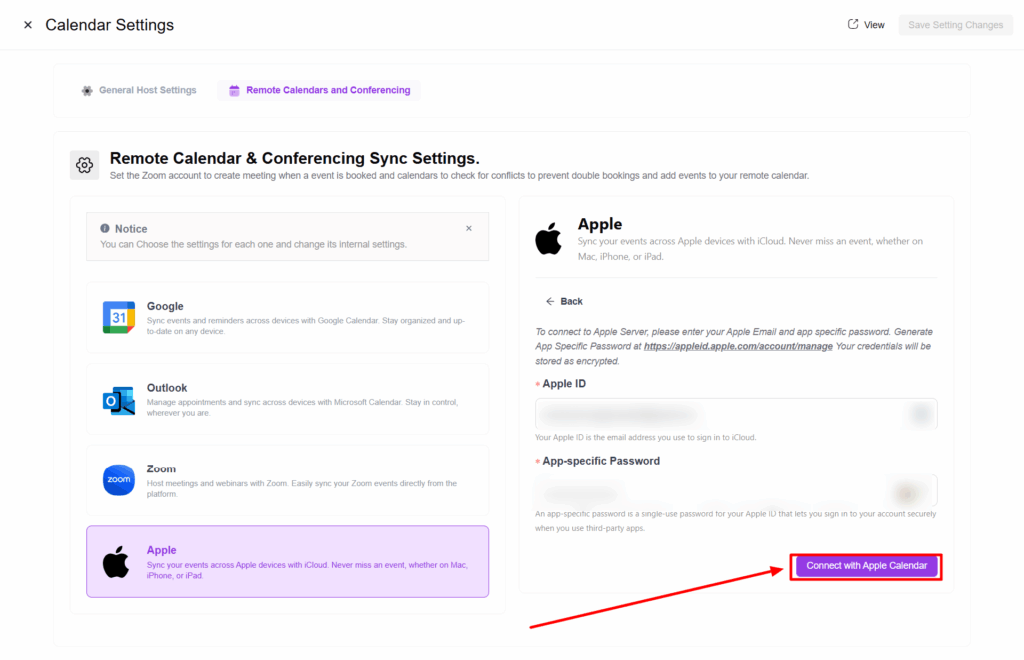
3. Select the Apple tab, then click the Add New button. This will prompt you to enter your Apple ID and App-Specific Password.

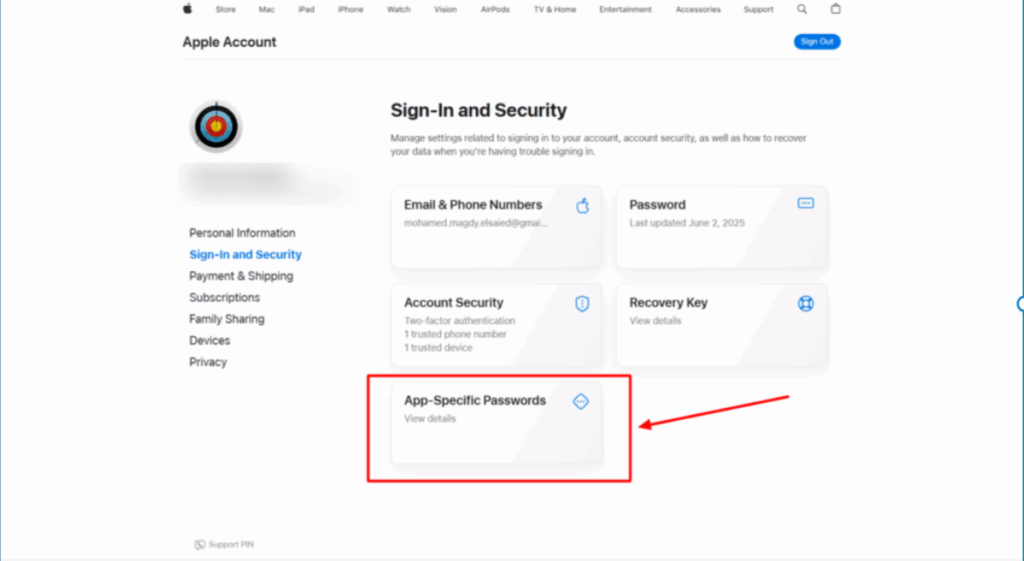
5. To get this information, go to the link: Manage your Apple Account.

6. From the Sign-In and Security section, click on the App-Specific Passwords card.

Here’s the corrected version of your sentence:

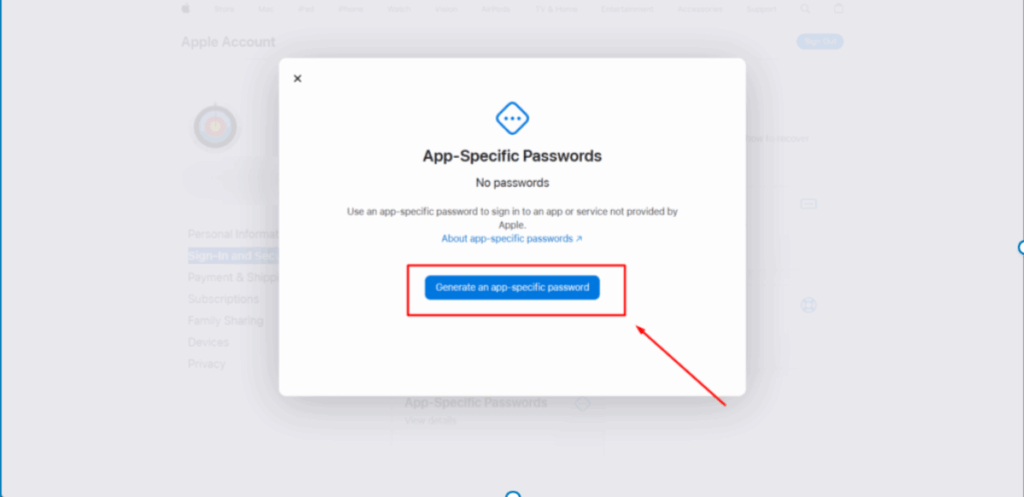
7. Click the Generate an app-specific password button.

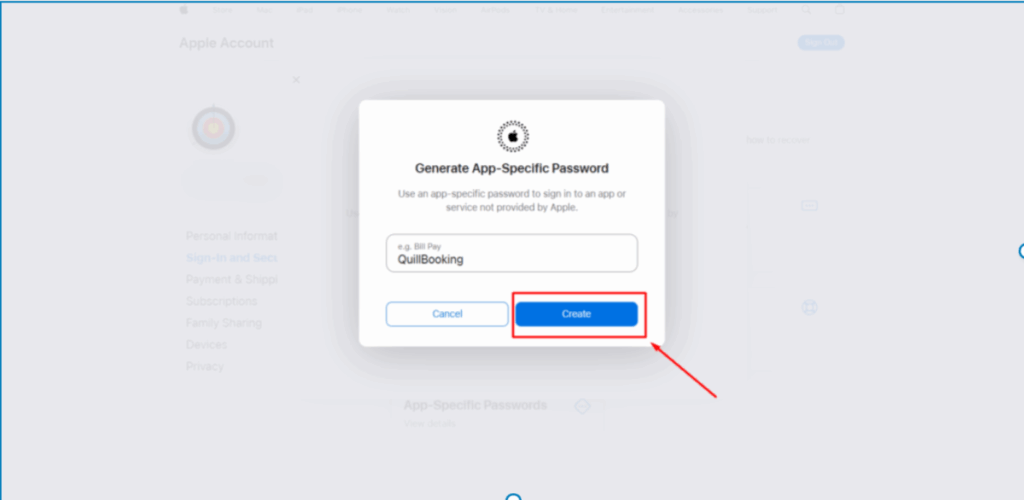
8. Then click the Create button and enter a name for your app.

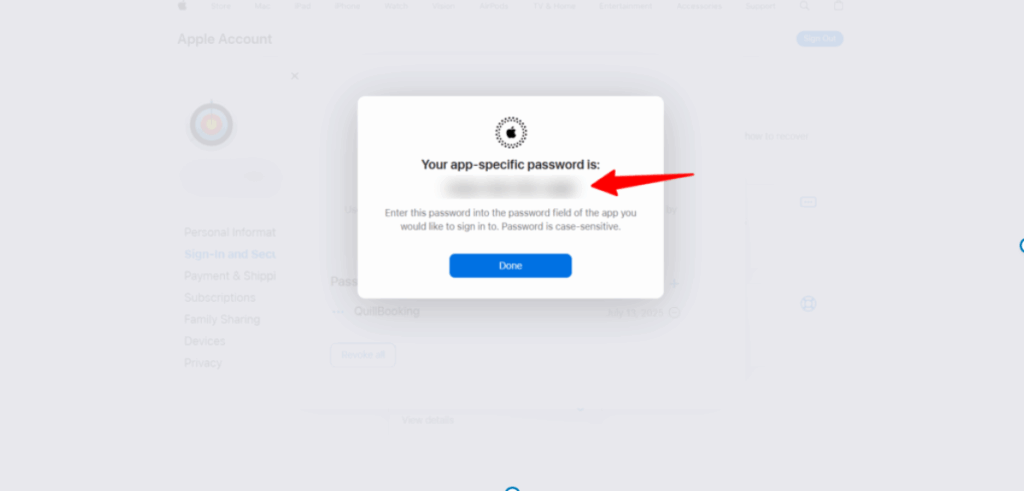
9. Copy the app-specific password and your email (used as your Apple ID), then paste them into the corresponding fields in the form.

Here’s the corrected version of your sentence:

10. Paste this information into the form fields provided.

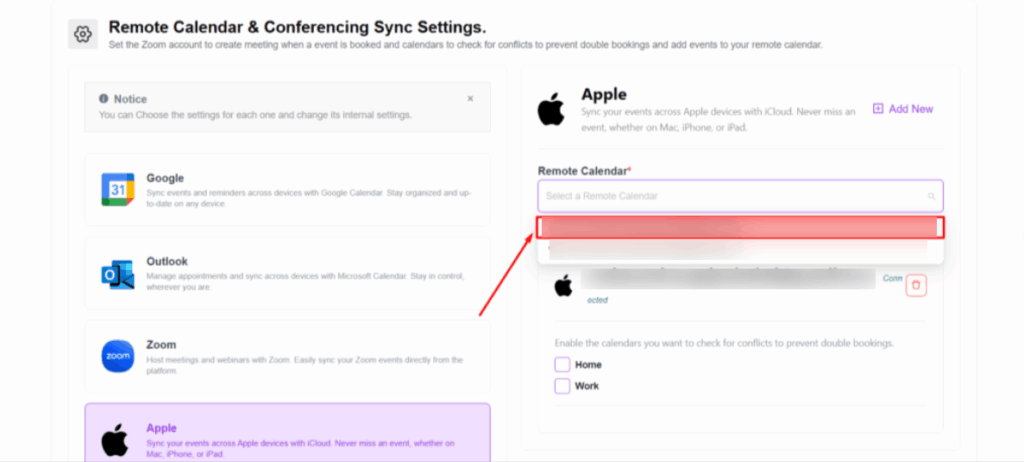
11. From the Remote Calendar dropdown menu, select the calendar where you want to create the event.

12. In the checkbox fields, you can enable the calendars you want to check for conflicts to prevent double bookings.

Conclusion

With the QuillBooking Apple Calendar, managing your schedule becomes effortless and fully integrated across all your Apple devices. By seamlessly connecting your booking forms to Apple Calendar, every appointment is automatically added to your calendar—no more manual entries, double bookings, or missed events. This powerful integration keeps your schedule organized, enhances time management, and ensures a smooth experience for both you and your clients. Stay in sync, reduce no-shows, and keep your workflow running seamlessly—all within the Apple ecosystem you already use and trust.

Google Calendar

Intro

Want to simplify your booking process and keep your schedule perfectly organized? Introducing the QuillBooking Google Calendar, a seamless integration that automatically syncs your bookings from WordPress to Google Calendar. QuillBooking is a modern and flexible booking system built on top of QuillForms, designed to make appointment and event management effortless. Google Calendar, one of the most popular scheduling tools worldwide, helps you stay on top of your time and never miss an appointment.

With the QuillBooking Google Calendar, every new booking is instantly added to your Google Calendar—complete with event details, client information, and time slots. Whether you’re managing coaching sessions, client meetings, or service appointments, this integration ensures your calendar is always up-to-date.

By connecting QuillBooking with Google Calendar, you eliminate manual scheduling, reduce the risk of double bookings, and streamline your entire workflow—giving you more time to focus on what matters.

In this guide, we’ll walk you through how to set up the QuillBooking Google Calendar and show you how to use it to automate your schedule, improve client communication, and boost your overall efficiency.

How to setup

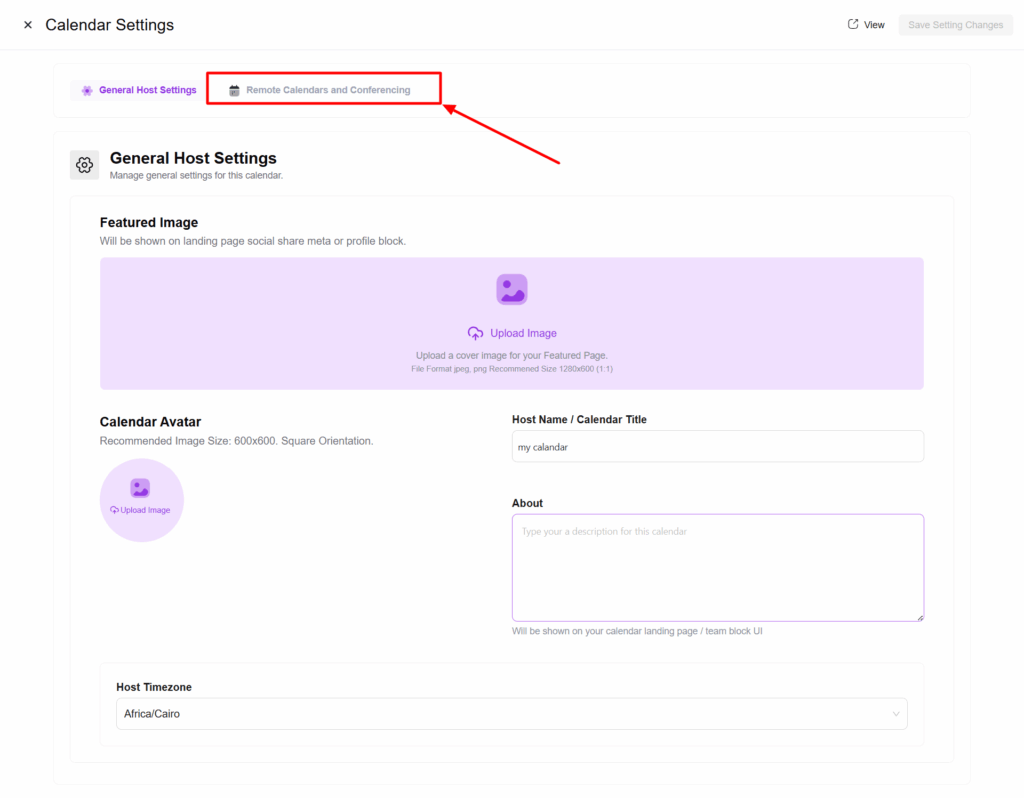
1. Go to the Calendars tab, select the calendar you want to connect to your Google account, and click the Edit button.

2. Select the Remote Calendars and Conferencing tab. A new section will appear showing all the integrations you can connect with.
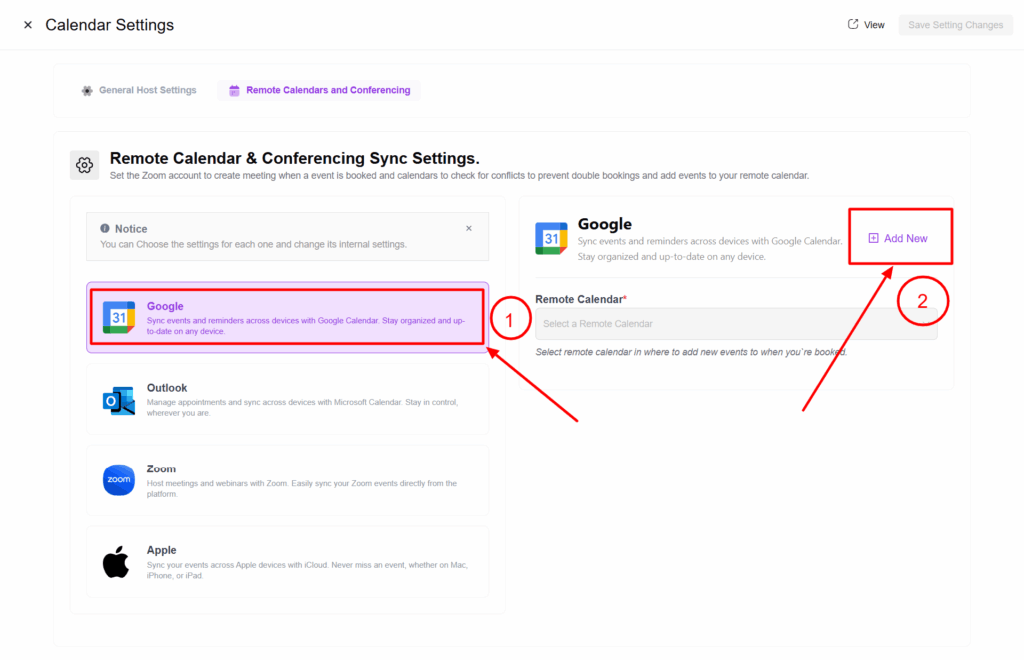
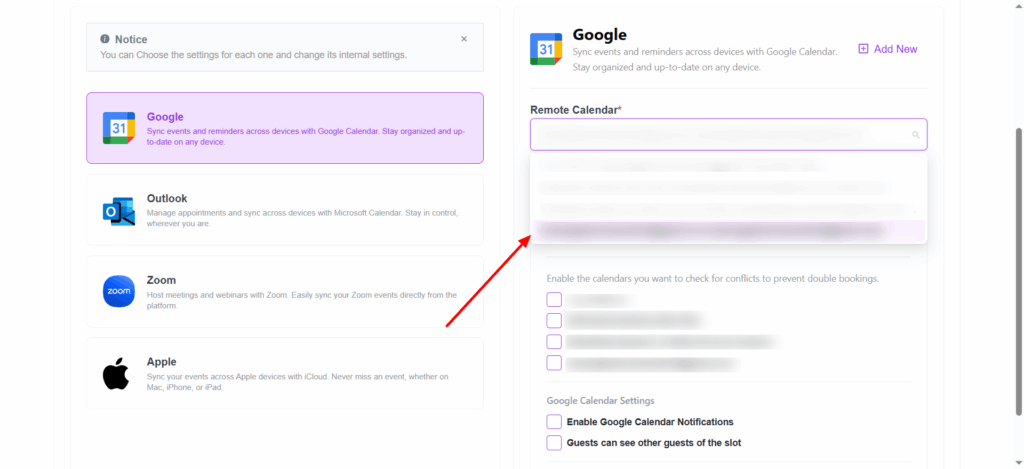
3. Select the Google tab, then click the Add New button. This will take you to the Google authentication page.

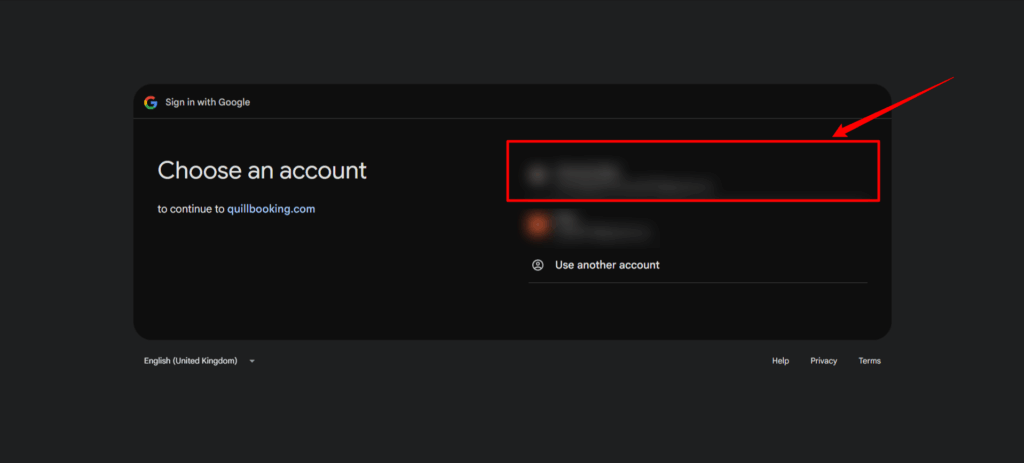
4. Select your email, then allow all permissions so that QuillBooking can create events and meetings.

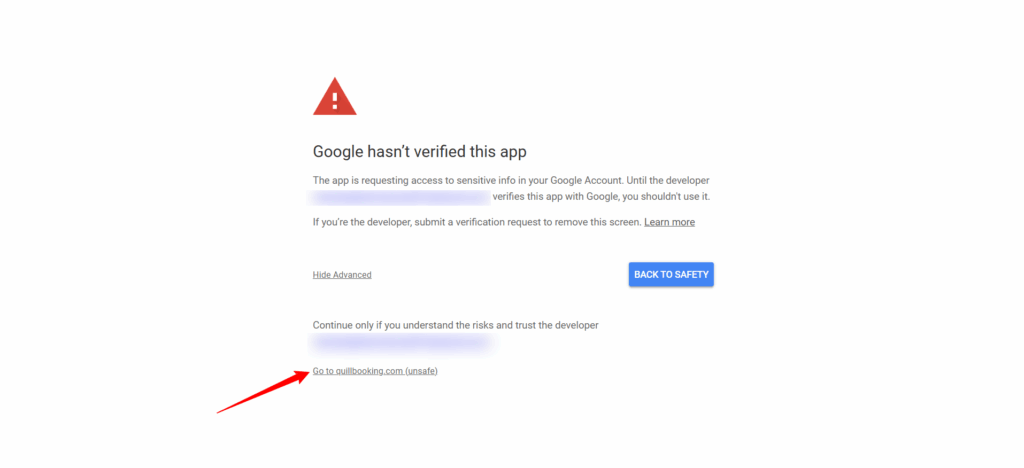
5. Note: If this page appears, click on Advanced, then click Go to quillbooking.com.

6. From the Remote Calendar dropdown menu, select the calendar where you want to create the event.
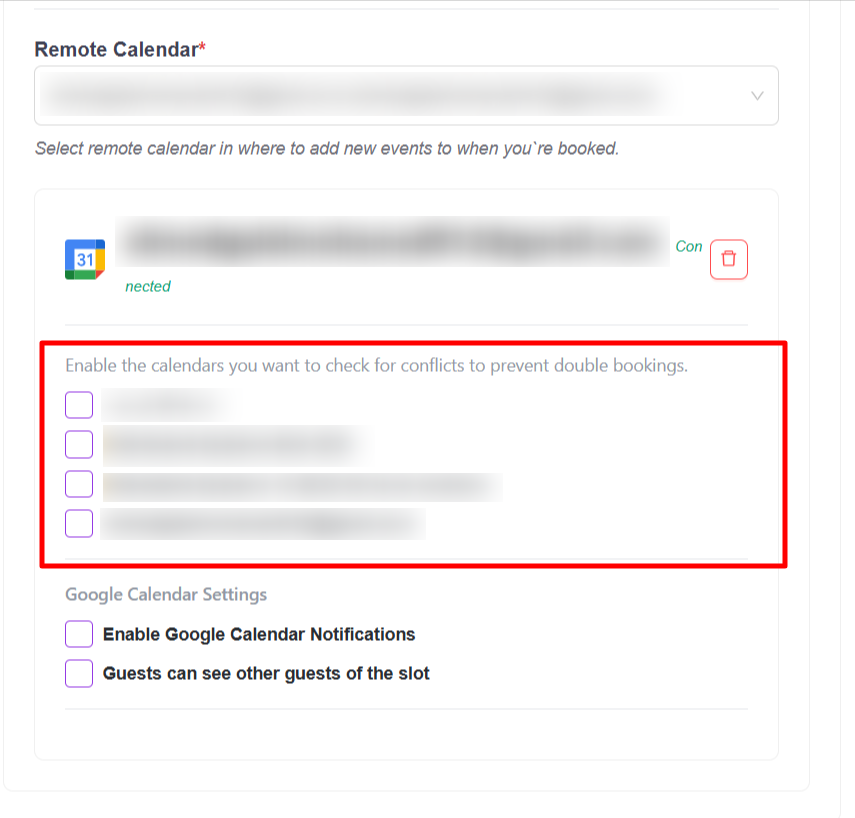
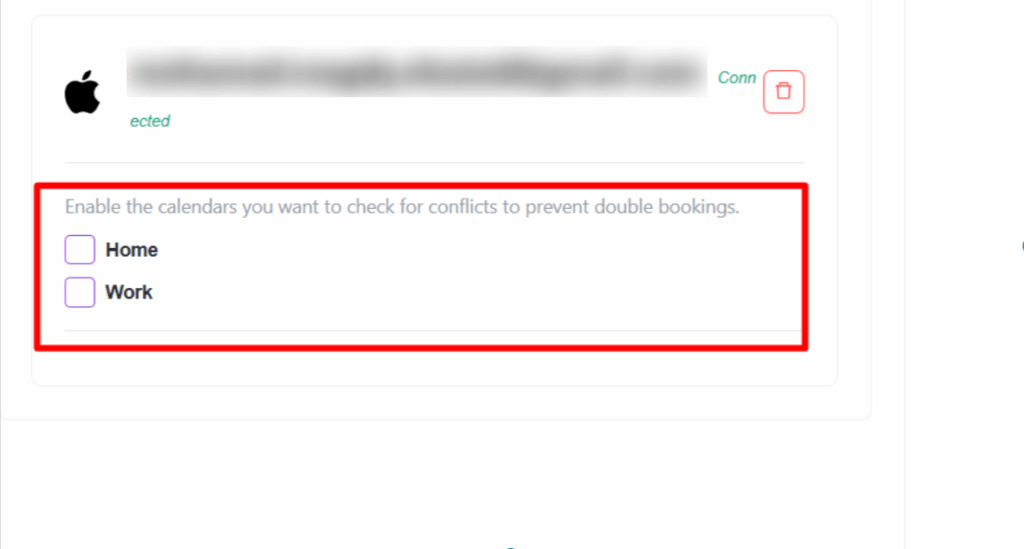
7. In the checkbox fields, you can enable the calendars you want to check for conflicts to prevent double bookings.
Conclusion

With the QuillBooking Google Calendar, managing your schedule becomes effortless and automated. By seamlessly connecting your booking forms to Google Calendar, you ensure that every appointment is instantly added to your calendar—no more missed bookings, double entries, or time-consuming manual updates. This powerful integration keeps your calendar organized, improves time management, and helps you deliver a smoother experience for both you and your clients. Stay on top of your bookings, reduce no-shows, and keep your workflow running seamlessly—all through the tools you already use.

Make

Looking to automate your workflows and save valuable time? Introducing the QuillBooking Make Integration—a powerful way to connect your WordPress-based booking system with thousands of apps and services, without writing a single line of code.

Built on the flexible QuillBooking platform, this integration allows you to streamline scheduling while Make acts as the automation engine that connects everything together—whether it’s Google Sheets, Slack, Gmail, Notion, or any other tool in your workflow.

With QuillBooking + Make, every new booking can instantly trigger customized scenarios—such as sending confirmation emails, adding rows to spreadsheets, updating your CRM, or notifying your team. Whether you’re managing client appointments, interviews, or service calls, this integration ensures every process runs automatically and reliably.

By connecting QuillBooking with Make, you remove repetitive manual tasks, reduce human error, and create a smooth, connected experience across your tools—freeing you to focus on growing your business.

In this guide, we’ll show you how to set up the QuillBooking Make Integration and create automated scenarios that enhance your productivity and keep everything running like clockwork.

How to Setup

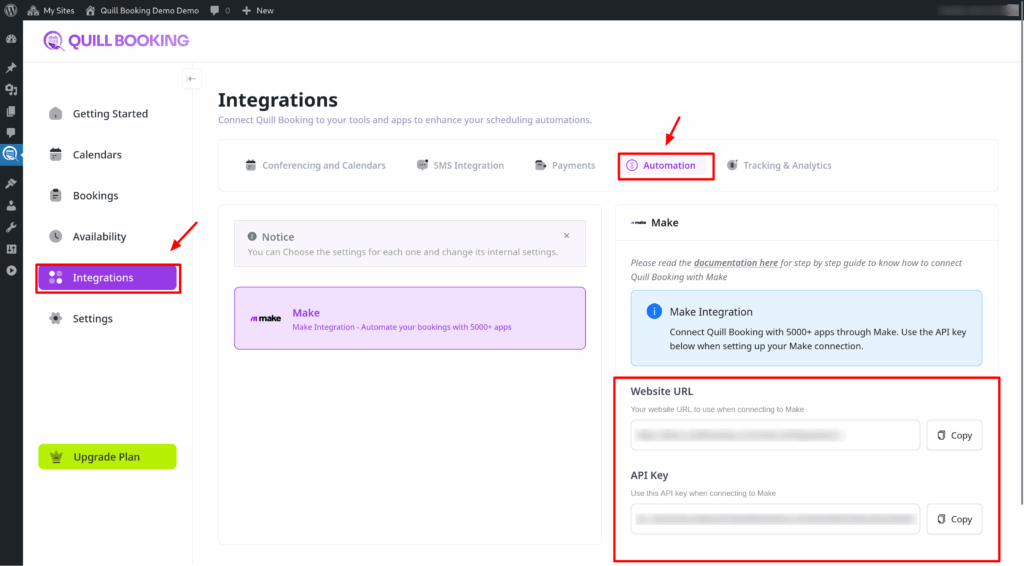
  • Go to the Integrations tab, then select the Automation tab and open the Make section. Copy both the Website URL and the API key.
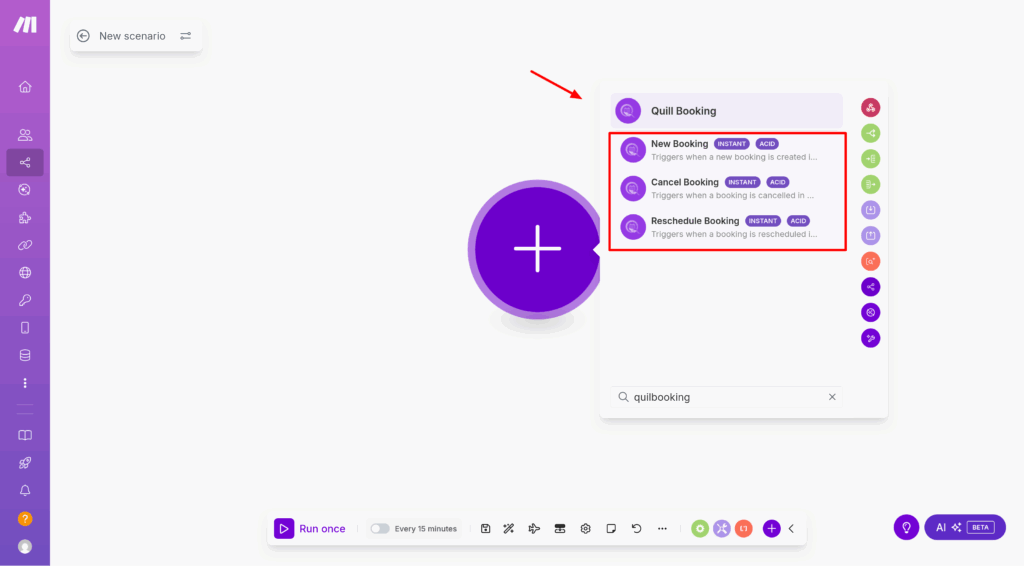
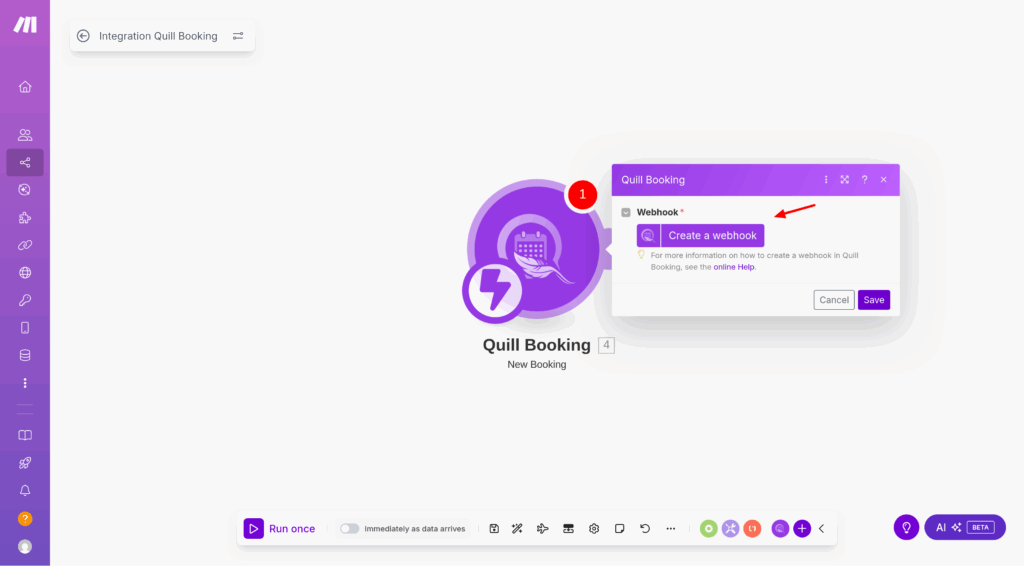
  • Then, go to make and create a new scenario. In the Apps section, search for and select the QuillBooking trigger you need.
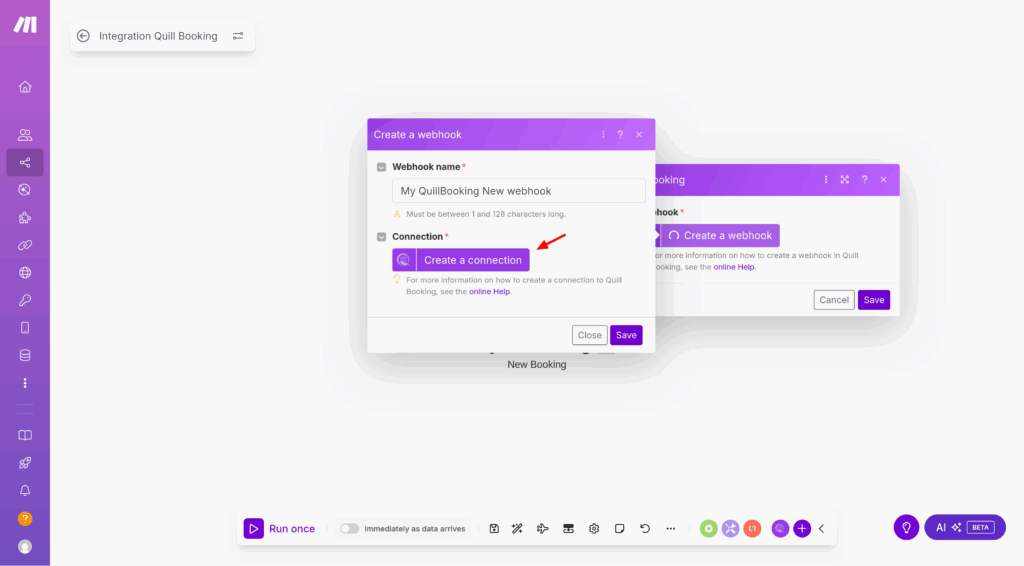
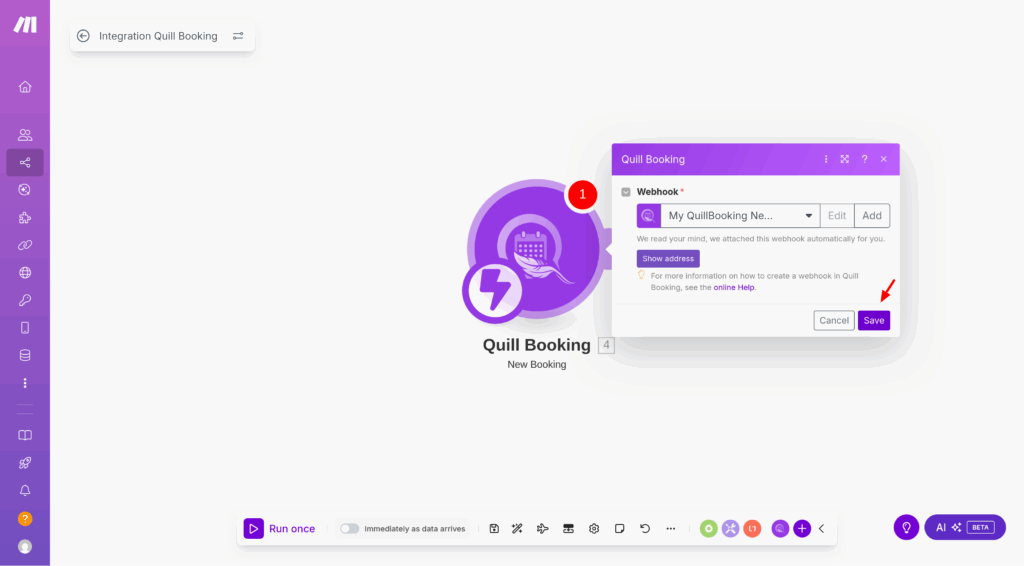
  • Next, add a new webhook.
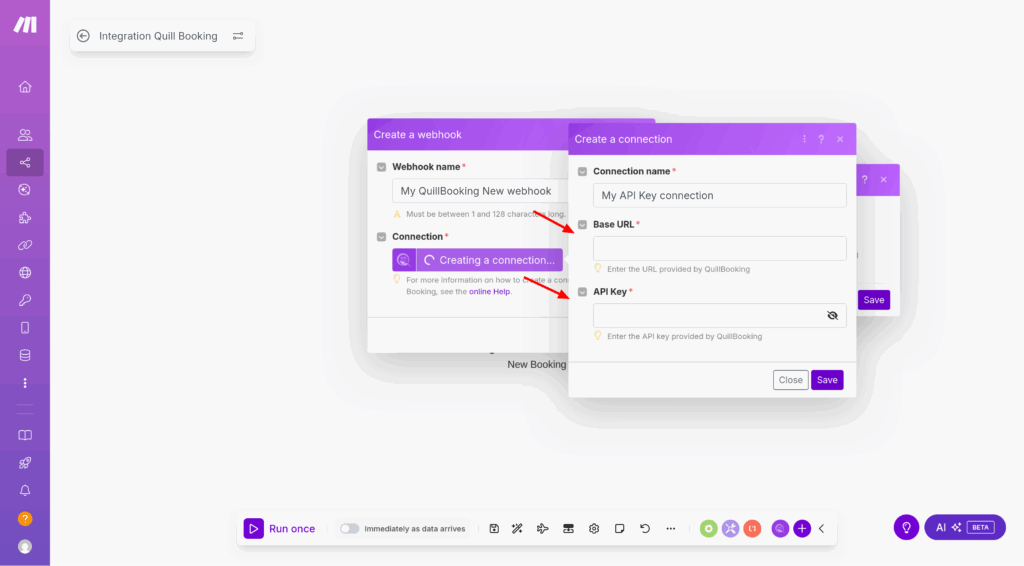
  • Next, Create a connection
  • Paste the Base URL and API Key into the fields provided, then click Save.
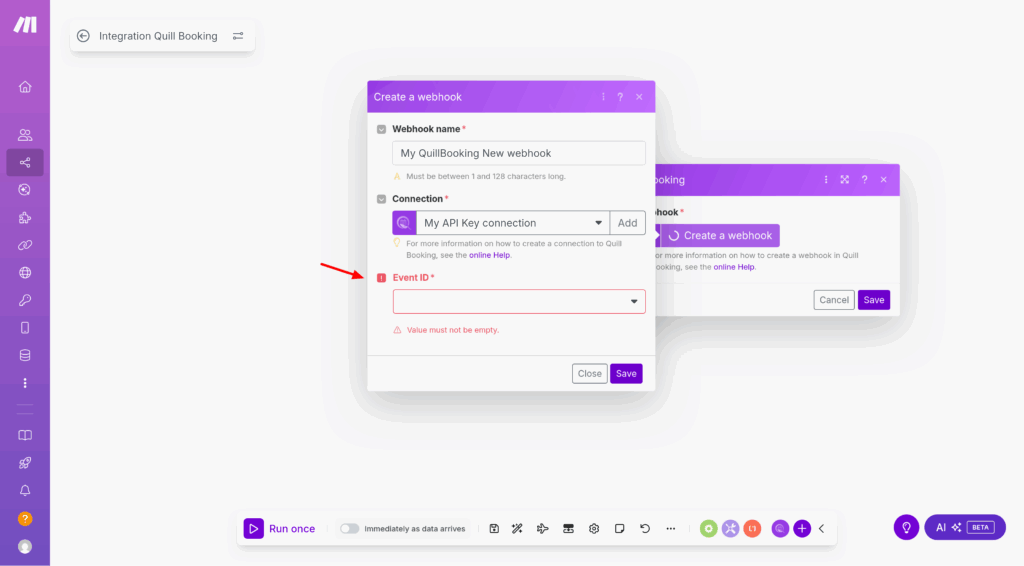
  • From the Event dropdown, select the booking event you want to listen for (e.g., Booking Created, Booking Cancelled, or Booking Rescheduled).
  • Then save
  • Once the webhook is added, click Run once in Make, then perform a test booking in QuillBooking. This will send sample data to Make so you can verify the connection.

Conclusion

With the QuillBooking Make Integration, automating your workflows is simple and powerful. By connecting your booking system to thousands of apps, you eliminate repetitive tasks, reduce errors, and ensure every action happens automatically—from sending emails to updating spreadsheets or notifying your team.

This integration streamlines your booking process, improves efficiency, and helps you deliver a faster, more professional experience for your clients. Save time, stay organized, and let Make handle the heavy lifting—so you can focus on what truly matters.

Outlook

Intro

Want to simplify your booking process and keep your schedule perfectly organized? Introducing the QuillBooking Outlook Calendar, a seamless integration that automatically syncs your bookings from WordPress to Outlook Calendar. QuillBooking is a modern and flexible booking system built on top of QuillForms, designed to make appointment and event management effortless. Outlook Calendar, a trusted tool used by professionals and businesses worldwide, helps you manage your time efficiently and stay on top of every commitment.

With the QuillBooking Outlook Calendar, every new booking is instantly added to your Outlook Calendar—complete with event details, client information, and time slots. Whether you’re managing consultations, meetings, or service appointments, this integration ensures your calendar stays accurate and up-to-date.

By connecting QuillBooking with Outlook Calendar, you eliminate manual scheduling, reduce the risk of double bookings, and streamline your entire workflow—giving you more time to focus on what matters.

In this guide, we’ll walk you through how to set up the QuillBooking Outlook Calendar and show you how to use it to automate your schedule, improve client communication, and boost your overall efficiency.

How to setup

1. Go to the Calendars tab, select the calendar you want to connect to your Outlook account, and click the Edit button.

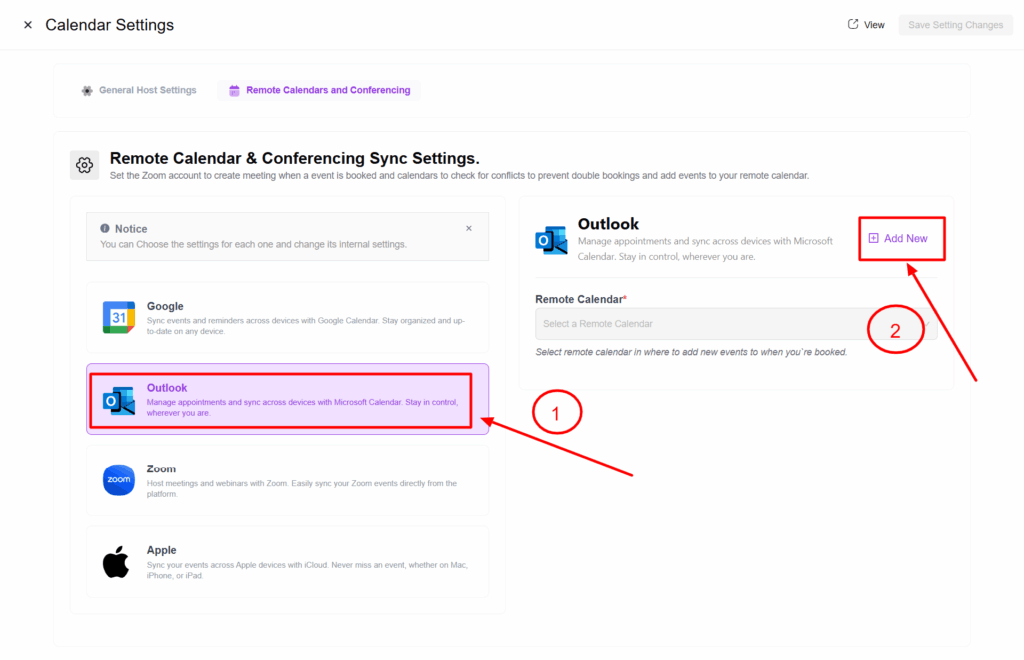
2. Select the Remote Calendars and Conferencing tab. A new section will appear showing all the integrations you can connect with.

3. Select the Outlook tab, then click the Add New button. This will take you to the Outlook authentication page.

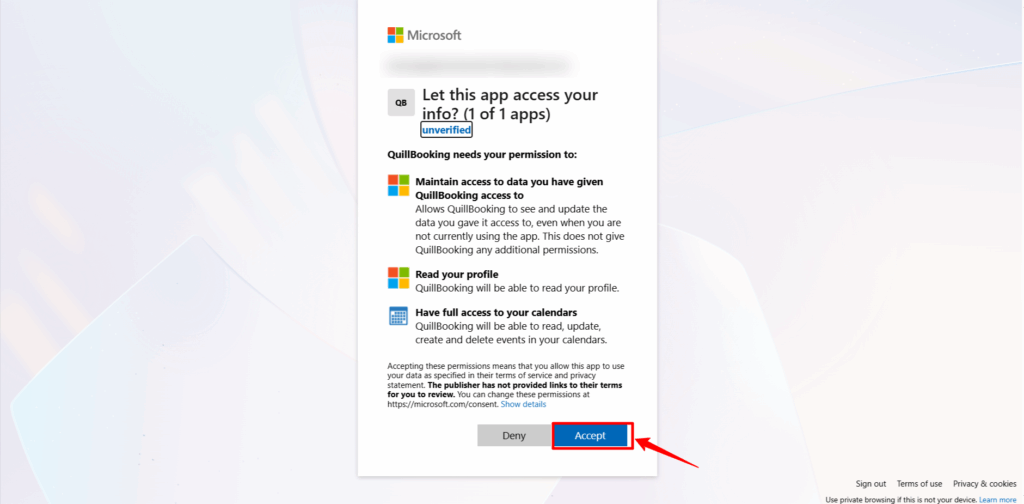
4. Select your email, then allow all permissions so that QuillBooking can create events and meetings.

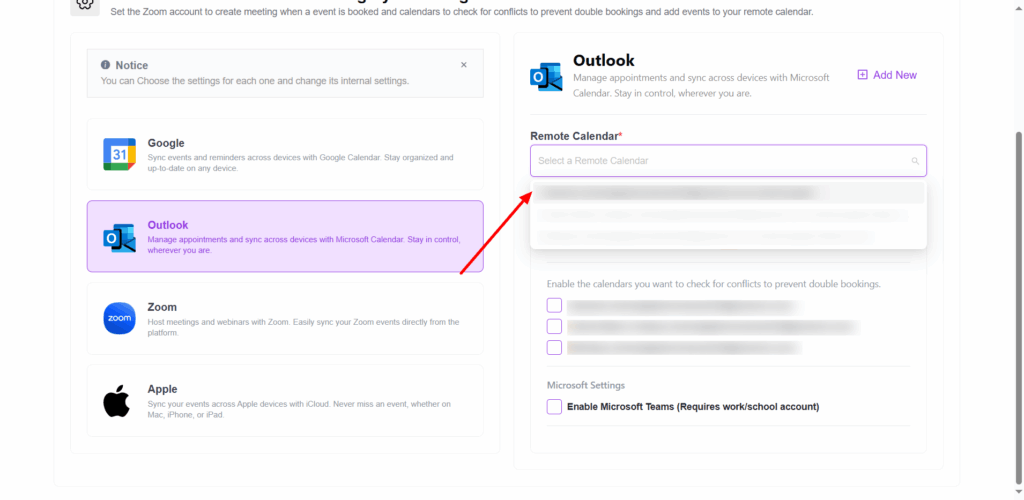
5. From the Remote Calendar dropdown menu, select the calendar where you want to create the event.

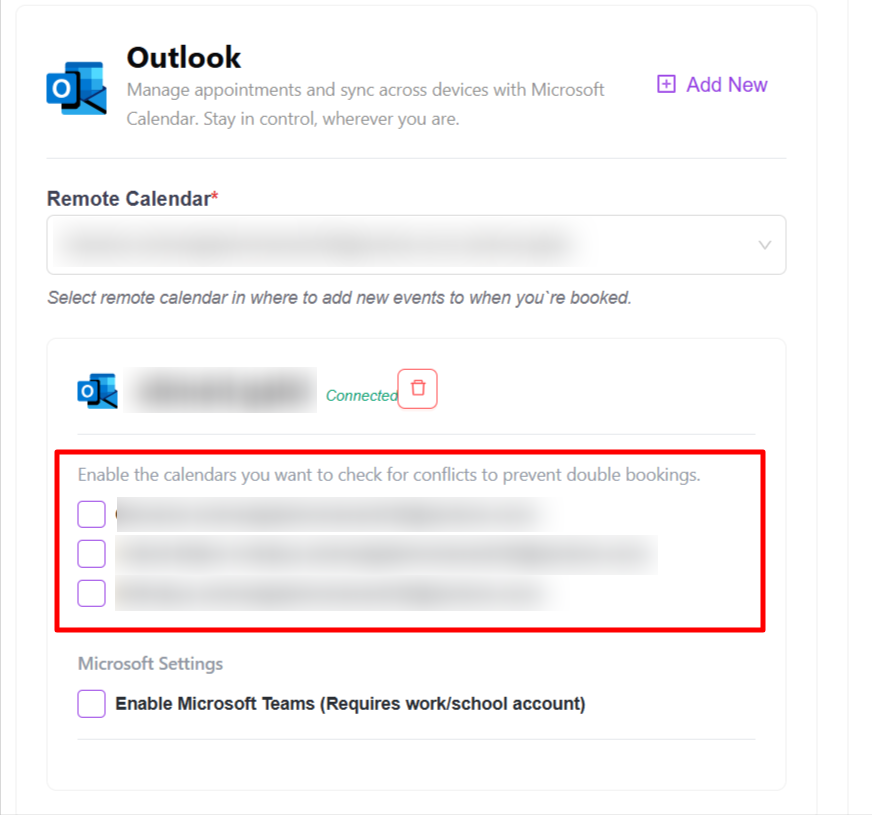
6. In the checkbox fields, you can enable the calendars you want to check for conflicts to prevent double bookings.

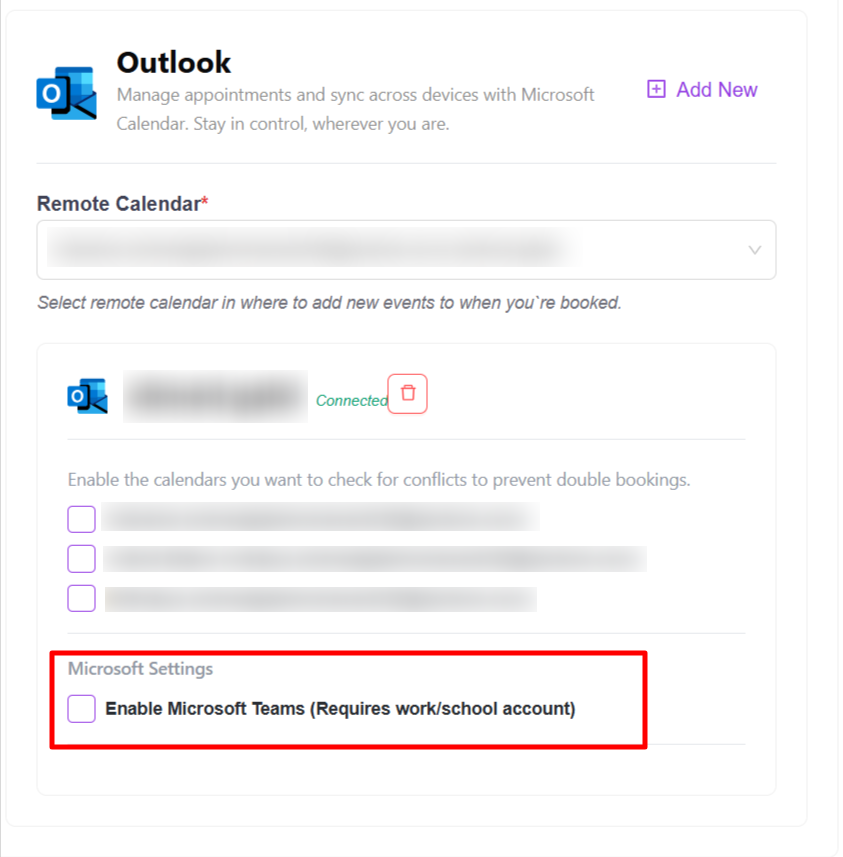
7. For this option, your account must belong to a company or organization in order to create meetings in Microsoft Teams.

Conclusion

With the QuillBooking Outlook Calendar, managing your schedule becomes effortless and automated. By seamlessly connecting your booking forms to Outlook Calendar, you ensure that every appointment is instantly added to your calendar—no more missed bookings, double entries, or time-consuming manual updates. This powerful integration keeps your calendar organized, improves time management, and helps you deliver a smoother experience for both you and your clients. Stay on top of your bookings, reduce no-shows, and keep your workflow running seamlessly—all within the tools you already rely on.

Twilio

Intro

Want to enhance your booking experience with real-time SMS notifications? Introducing the QuillBooking Twilio, a seamless integration that enables automatic SMS alerts for every booking made through your WordPress site. QuillBooking is a modern and flexible booking system built on top of QuillForms, designed to make scheduling simple and efficient. Twilio, a powerful communications platform, allows you to send reliable SMS messages to keep clients informed and engaged.

With the QuillBooking Twilio, you can instantly send SMS confirmations, reminders, and updates to both clients and team members. Whether you’re managing appointments, consultations, or service bookings, this integration ensures that everyone stays in the loop—no missed messages, no confusion.

By connecting QuillBooking with Twilio, you reduce no-shows, improve client communication, and create a more professional and responsive experience. Automate your notifications and build stronger relationships—all with just a few clicks.

In this guide, we’ll walk you through how to set up the QuillBooking Twilio and show you how to use it to send real-time SMS alerts, boost reliability, and enhance your booking workflow.

How to setup

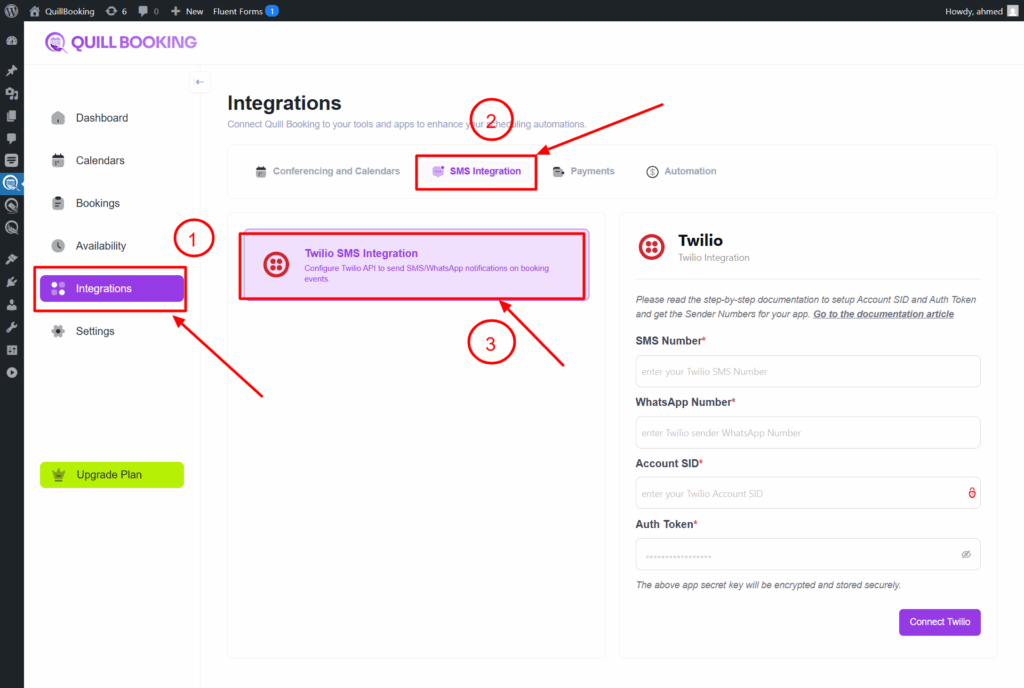
1. Go to the Integrations tab, select the calendar you want to connect to your Twilio account, and click the Edit button.

Here’s the improved version of your sentence:

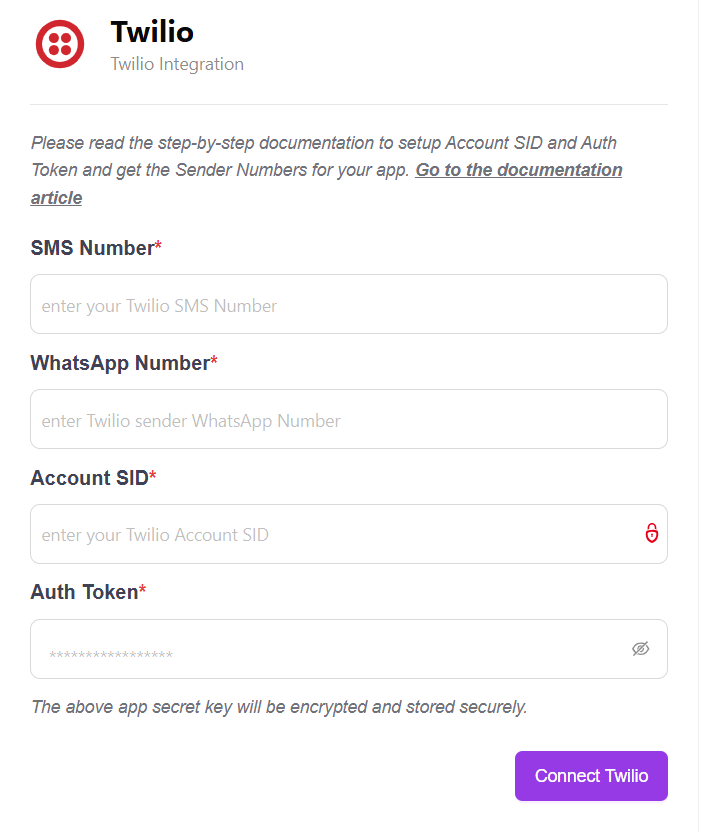
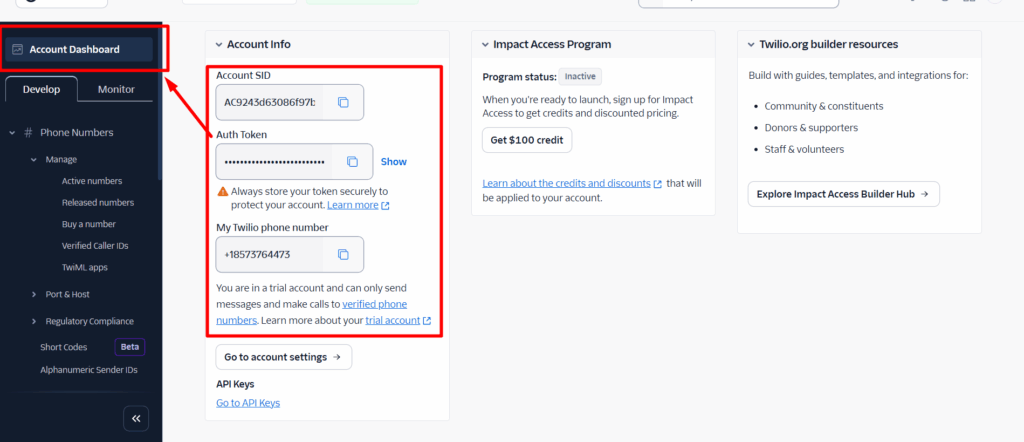
2. To get this information (SMS Number, WhatsApp Number, Account SID, and Auth Token), follow the steps below.

3. Go to this link: https://console.twilio.com/, then copy the required information.

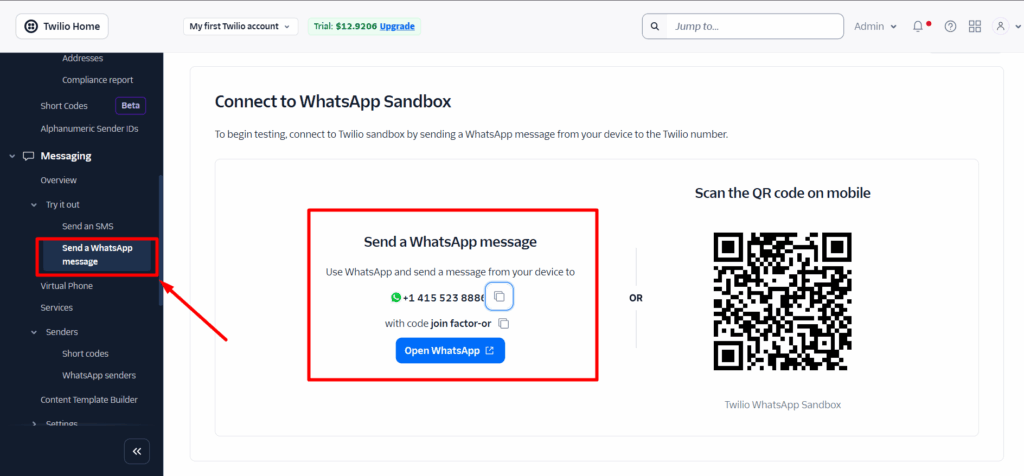
4. to get the WhatsApp number.

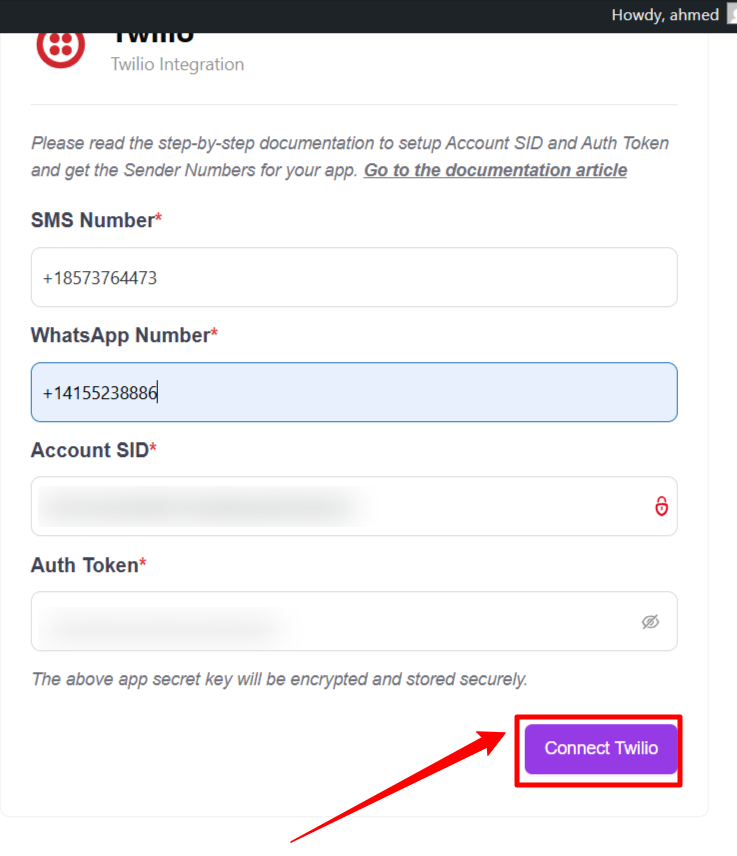
5. Paste the information into the form, then click the Connect Twilio button.

Here’s the corrected version of your sentence:

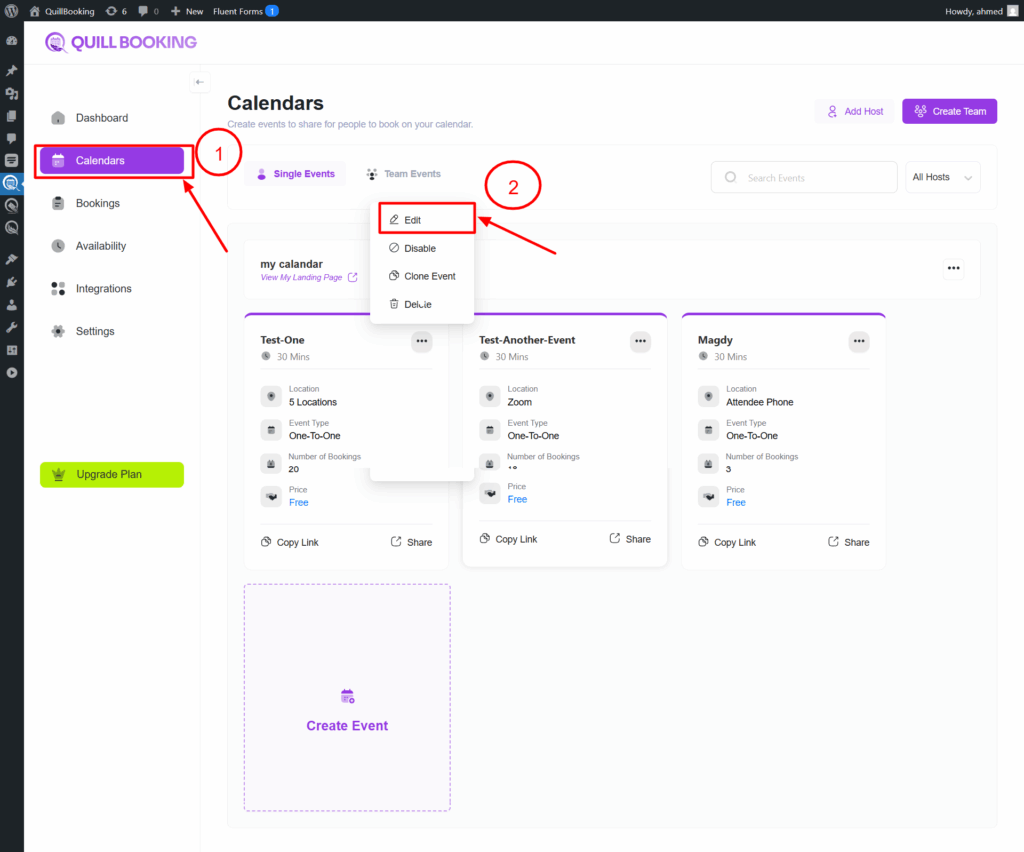
6. To configure Twilio settings for a specific event, go to the Calendars tab, click the three dots next to the event you want to modify, then click the Edit button.

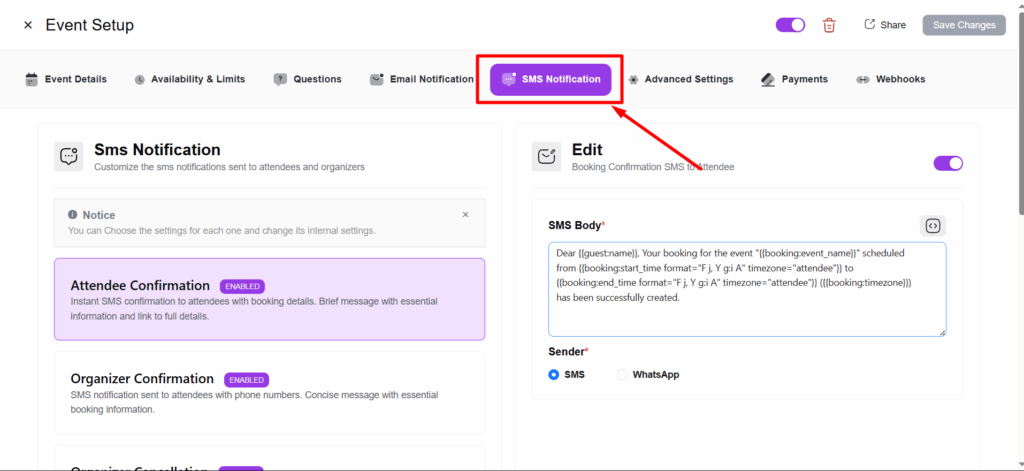
7. Then, go to the SMS Notification tab where you can manage the type of message (SMS or WhatsApp) and customize the message body.

Here’s the corrected version of your sentence:

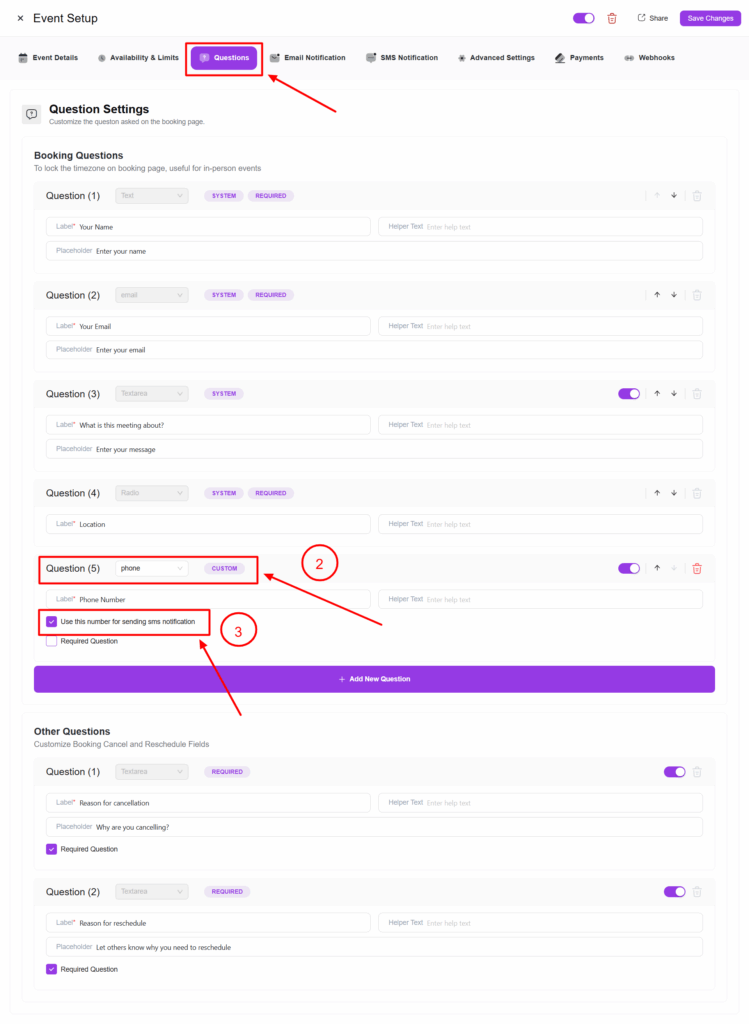
8. Lastly, go to the Questions tab, add a new question, and select the Phone type. Then, check the option “Use this number for sending SMS notifications.”

Conclusion

With the QuillBooking Twilio , communication becomes instant, automated, and more effective. By seamlessly connecting your booking system to Twilio, you can send real-time SMS and WhatsApp notifications for every appointment—no more manual follow-ups, missed messages, or client confusion. This powerful integration improves client communication, reduces no-shows, and ensures your workflow stays on track. Stay connected, enhance your customer experience, and keep everything running smoothly—all through the trusted power of Twilio.

Zapier

Intro

Looking to automate your workflows and save valuable time? Introducing the QuillBooking Zapier Integration—a powerful tool that connects your WordPress-based booking system to thousands of apps without writing a single line of code. Built on the modern and flexible QuillBooking platform, QuillBooking lets you streamline your scheduling, while Zapier acts as the bridge to automate actions across your favorite tools like Google Sheets, Slack, Gmail, Notion, and more.

With the QuillBooking Zapier Integration, every new booking can instantly trigger customized workflows—such as sending confirmation emails, adding rows to spreadsheets, updating your CRM, or notifying your team. Whether you’re handling client appointments, interviews, or service calls, this integration ensures every task is handled automatically and consistently.

By connecting QuillBooking with Zapier, you remove repetitive manual tasks, reduce human error, and create a smooth, connected experience across your digital tools—allowing you to focus more on growing your business.

In this guide, we’ll show you how to set up the QuillBooking Zapier Integration and walk you through creating automated workflows (Zaps) that enhance your productivity and keep everything running like clockwork.

How to setup

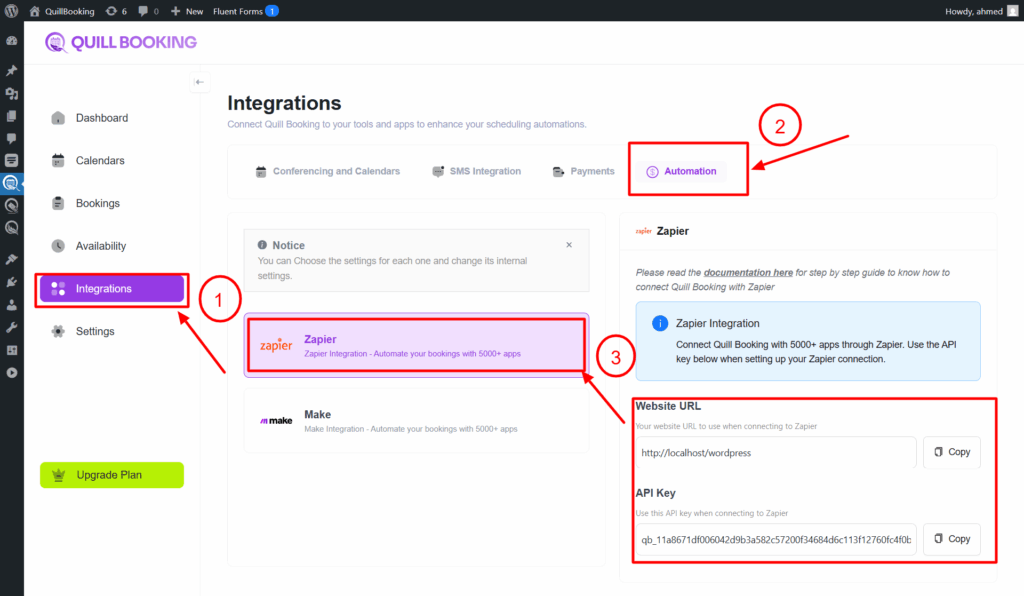
1. Go to the Integrations tab, then select the Automation tab and open the Zapier section. Copy both the Website URL and the API key.

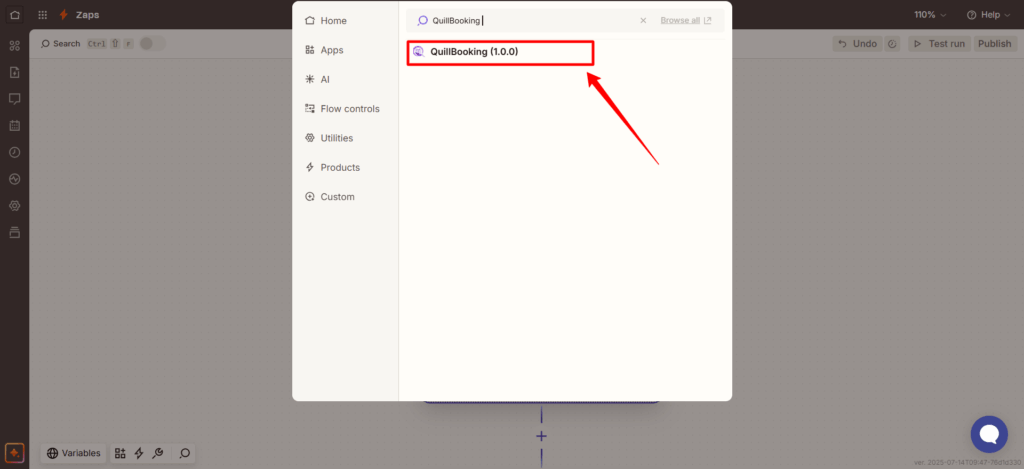
2. Then, go to this link to create a new Zap. In the Trigger section, search for and select QuillBooking as your trigger app.

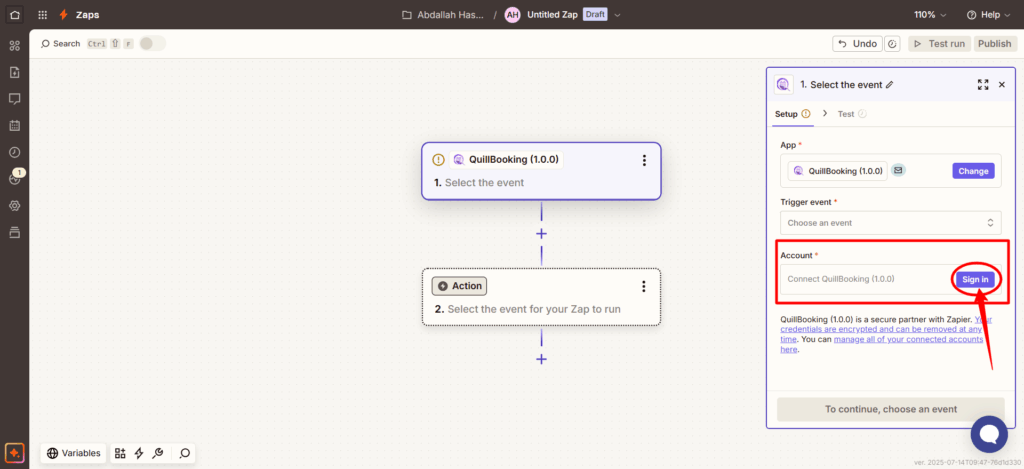
3. Next, in the Account field on the right-hand menu, click Sign In to connect your QuillBooking account.

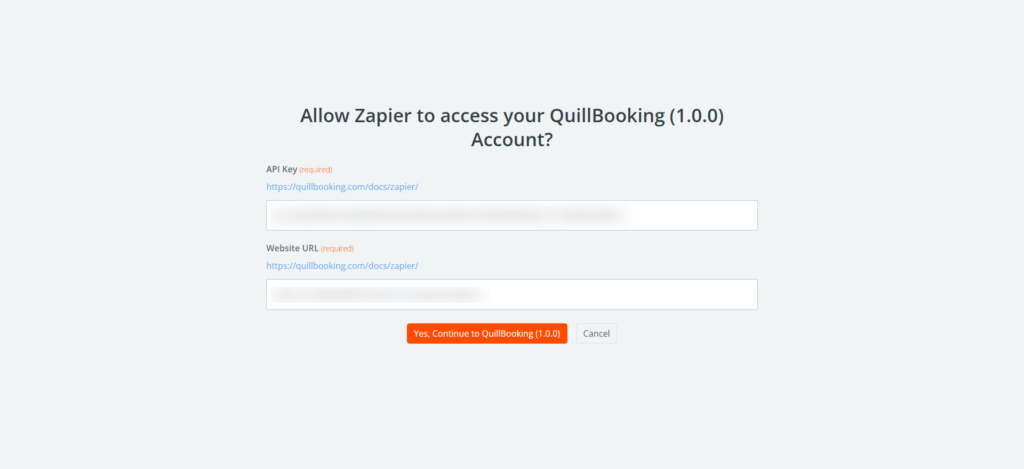
4. Then, paste the information you copied earlier into the Website URL and API Key fields, and click the “Yes, Continue” button.

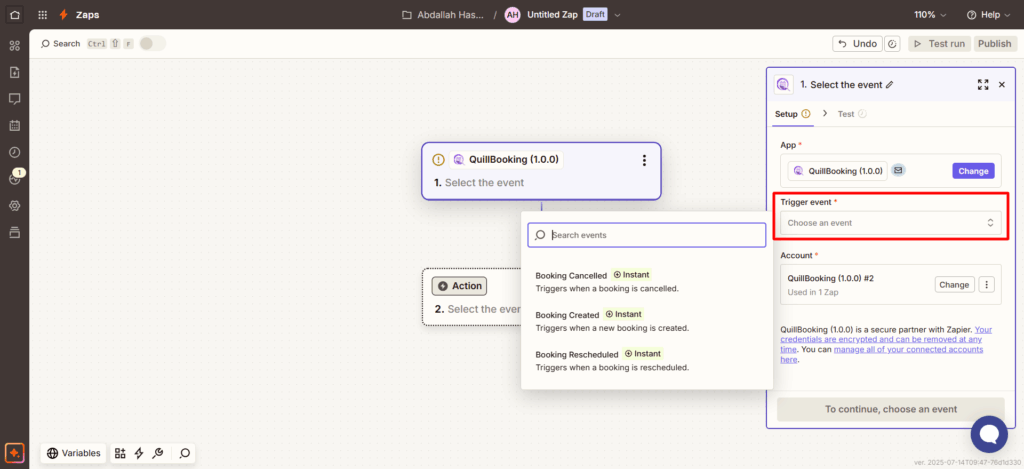
5. Your QuillBooking account has now been successfully connected to Zapier. Next, click on the Trigger Event dropdown menu and select the event you’d like to use—such as Booking Created, Booking Cancelled, or Booking Rescheduled.

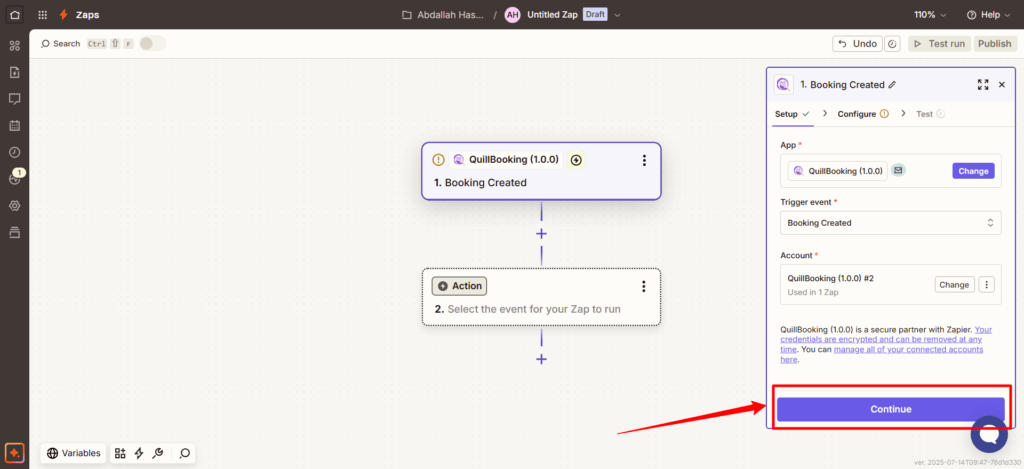
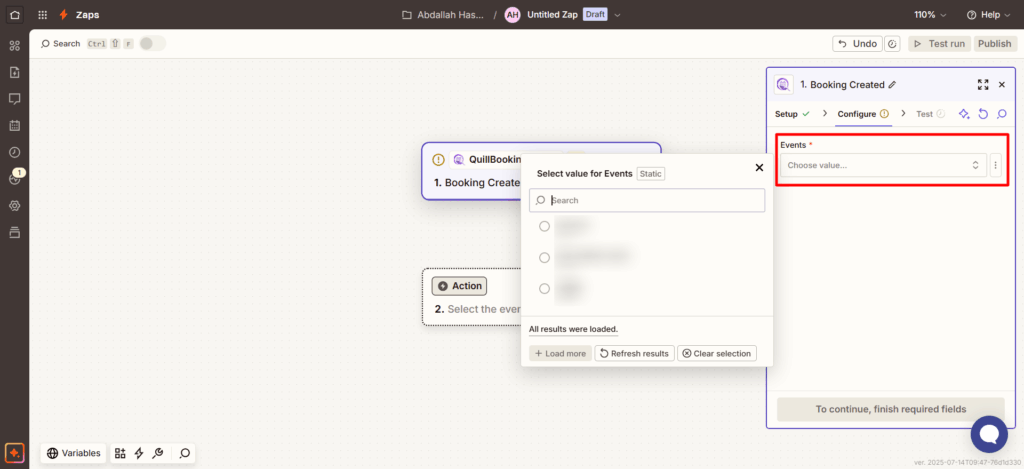
6. After that, click Continue, then choose the specific event you want to listen for by selecting it from the Event Name field.

7. Select your desired event from the list, then click the Continue button to proceed.

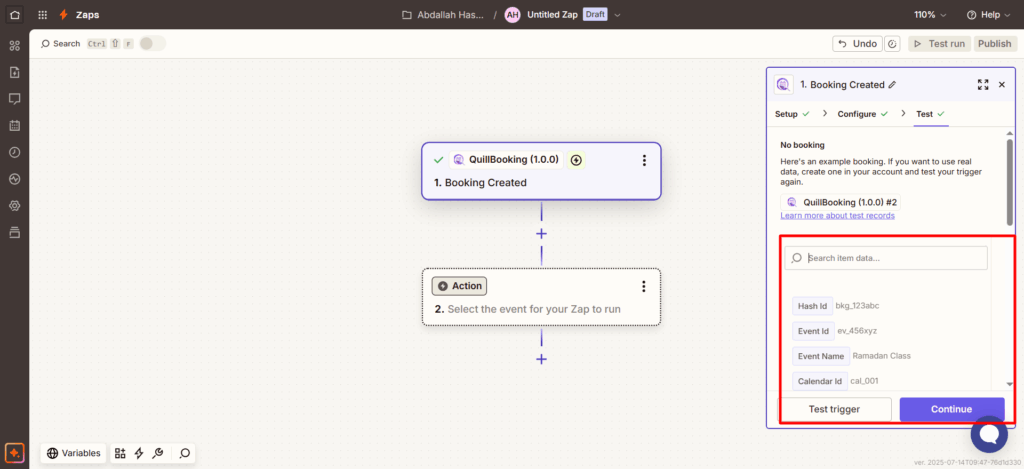
8. In the Test tab, you’ll be able to view the sample response data returned from a recent booking. This allows you to confirm that the trigger is working correctly and to preview the information that will be passed to the next step. Once verified, click the Continue button to proceed.

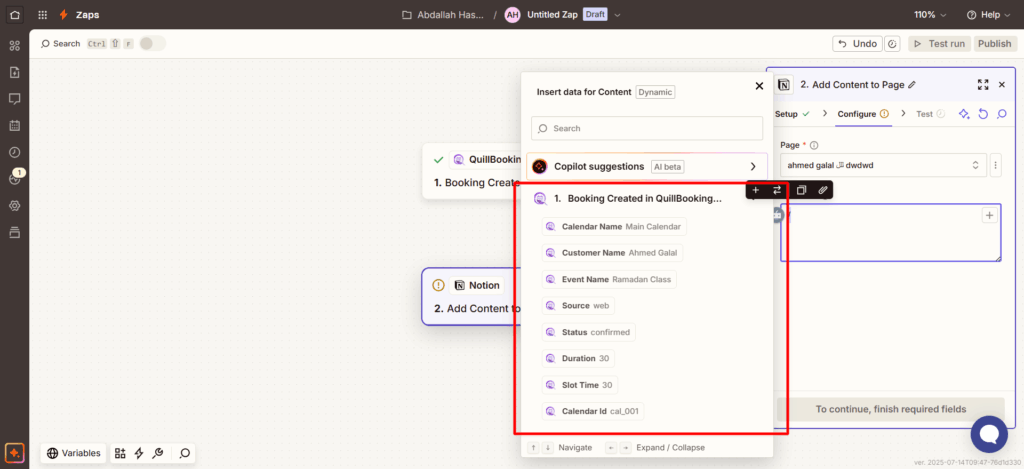
9. After this, you can choose which fields you want to use from the booking data. Select the ones that are relevant to your workflow and will be used in the next action step.

Conclusion

With the QuillBooking Zapier Integration, automating your workflows becomes simple and seamless. By connecting your booking forms to thousands of popular apps through Zapier, you eliminate manual tasks, reduce errors, and ensure every action is triggered automatically—from sending emails to updating spreadsheets or notifying your team. This powerful integration streamlines your entire booking process, improves efficiency, and helps you deliver a faster, more professional experience to your clients. Save time, stay organized, and let Zapier handle the repetitive work—so you can focus on what matters most.
Zoom

Intro

Want to simplify your booking process and streamline your virtual meetings? Introducing the QuillBooking Zoom , a seamless integration that automatically creates Zoom meetings for every booking made through your WordPress site. QuillBooking is a modern and flexible booking system built on top of QuillForms, designed to make appointment and event management effortless. Zoom, one of the most trusted video conferencing platforms worldwide, helps you connect with clients and teams from anywhere.

With the QuillBooking Zoom, every new booking automatically generates a Zoom meeting—complete with meeting links, time slots, and client details. Whether you’re managing coaching calls, consultations, or virtual sessions, this integration ensures you’re always prepared and connected.

By connecting QuillBooking with Zoom, you eliminate the hassle of manually creating meeting links, reduce scheduling errors, and provide a seamless experience for your clients and team. Everything works together—efficiently and automatically.

In this guide, we’ll walk you through how to set up the QuillBooking Zoom and show you how to use it to automate meeting creation, enhance client engagement, and boost your virtual productivity.

How to setup

  • You have two ways to set up your account:
    • The first method is global — it applies to any WordPress user who logs in. If the user has a calendar, it will be added to their account.
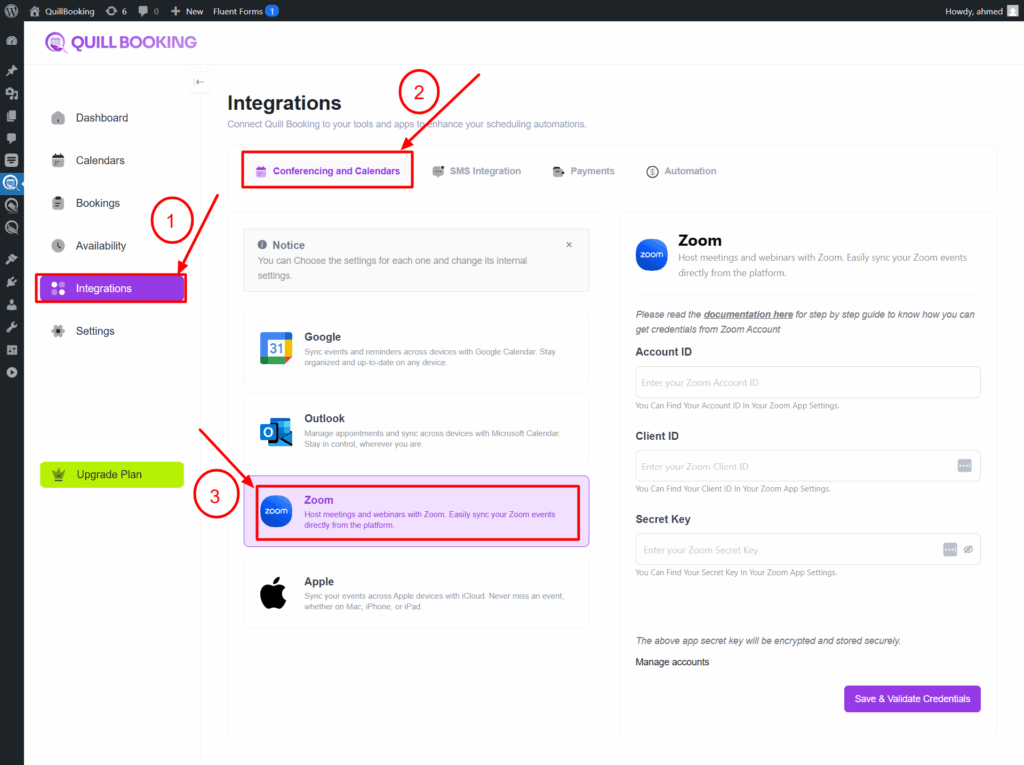
    • The second way is specific—you can set it for individual calendars.
First way:

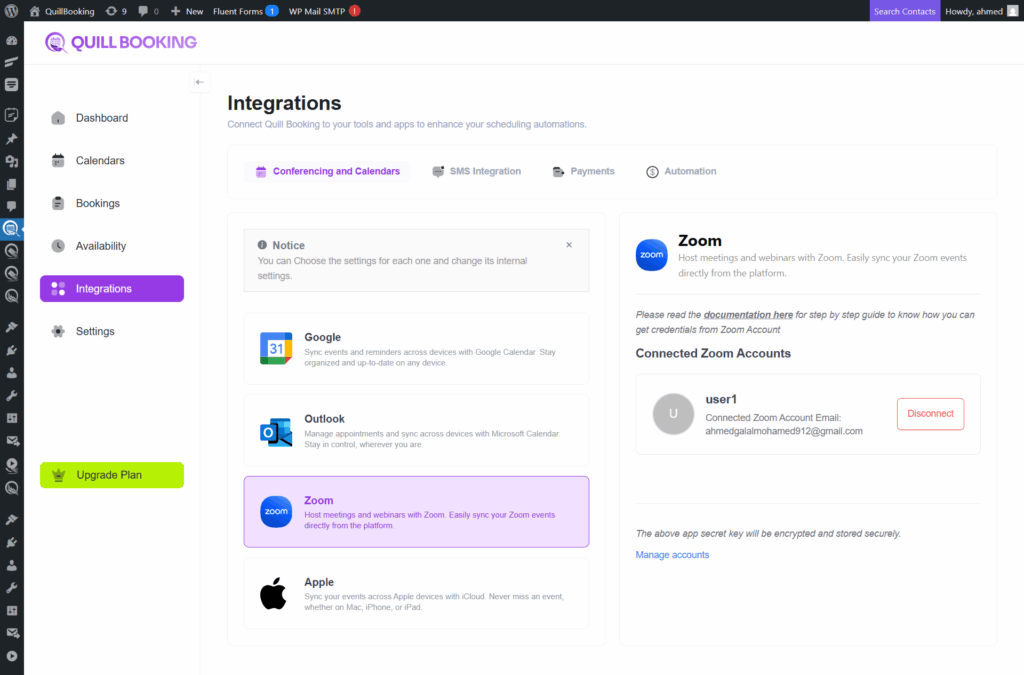
1. Go to the Integration tab and select the Zoom option.

Any zoom account you add to a calendar will be displayed here.

Second way:

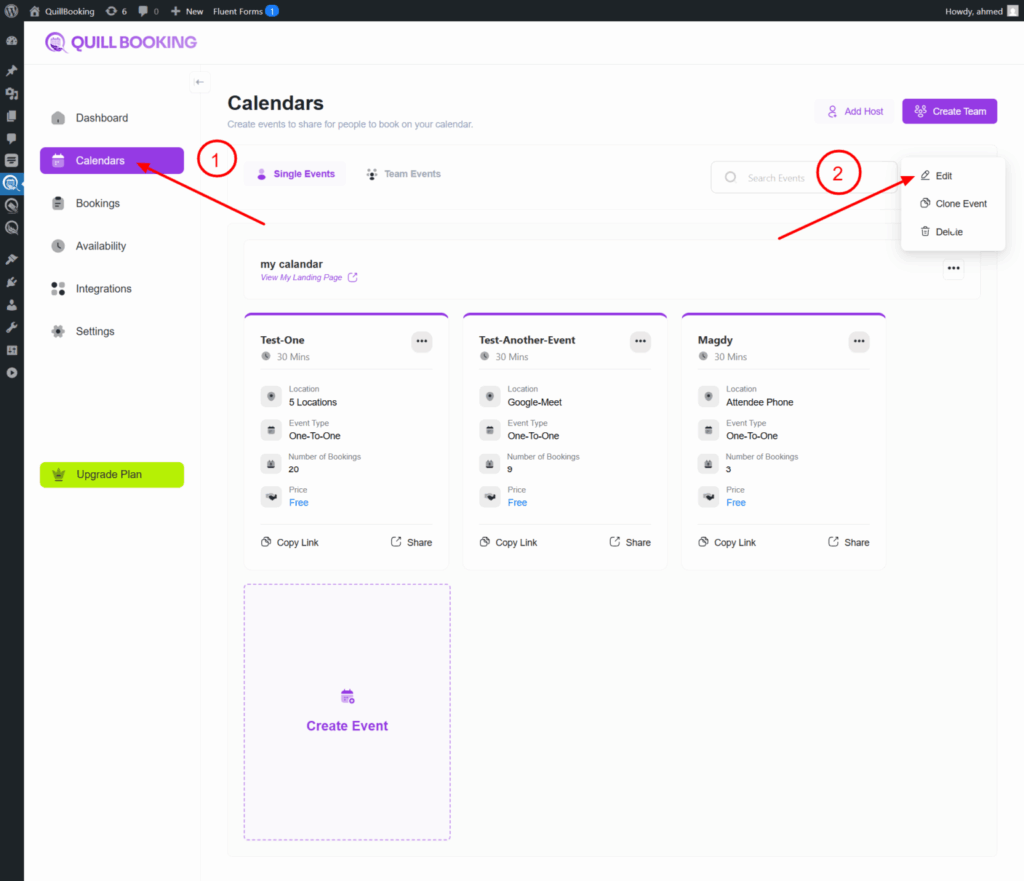
1. Go to the Calendars tab, select the calendar you want to connect to your Zoom account, and click the Edit button.

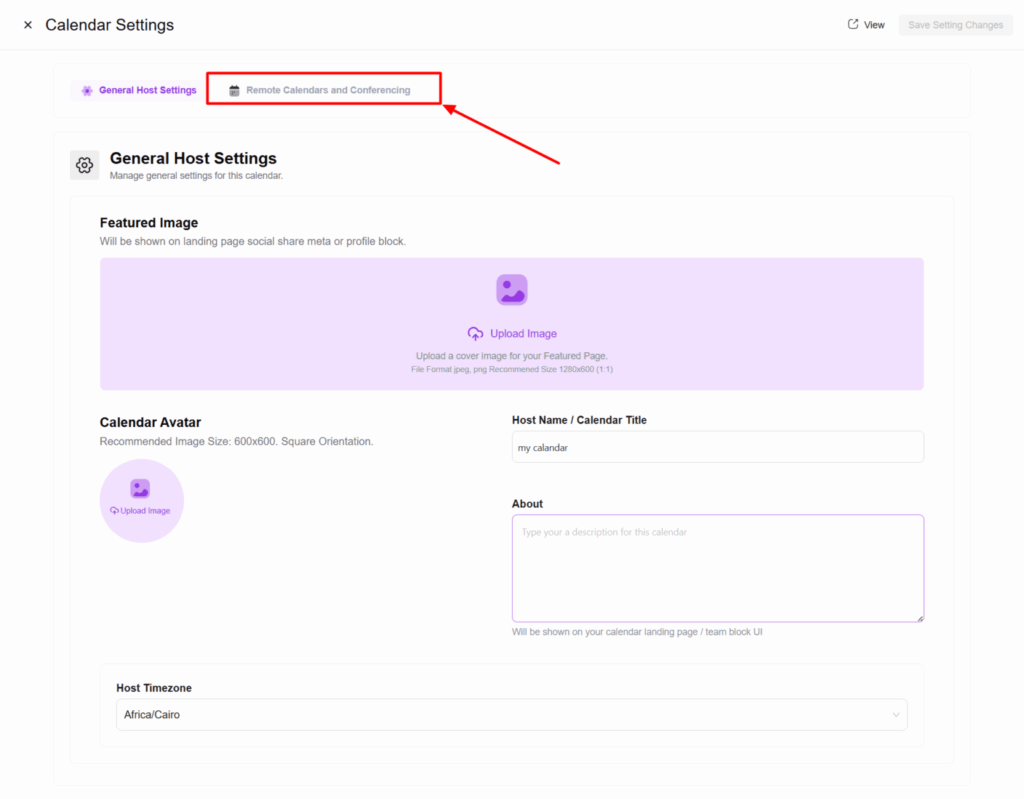
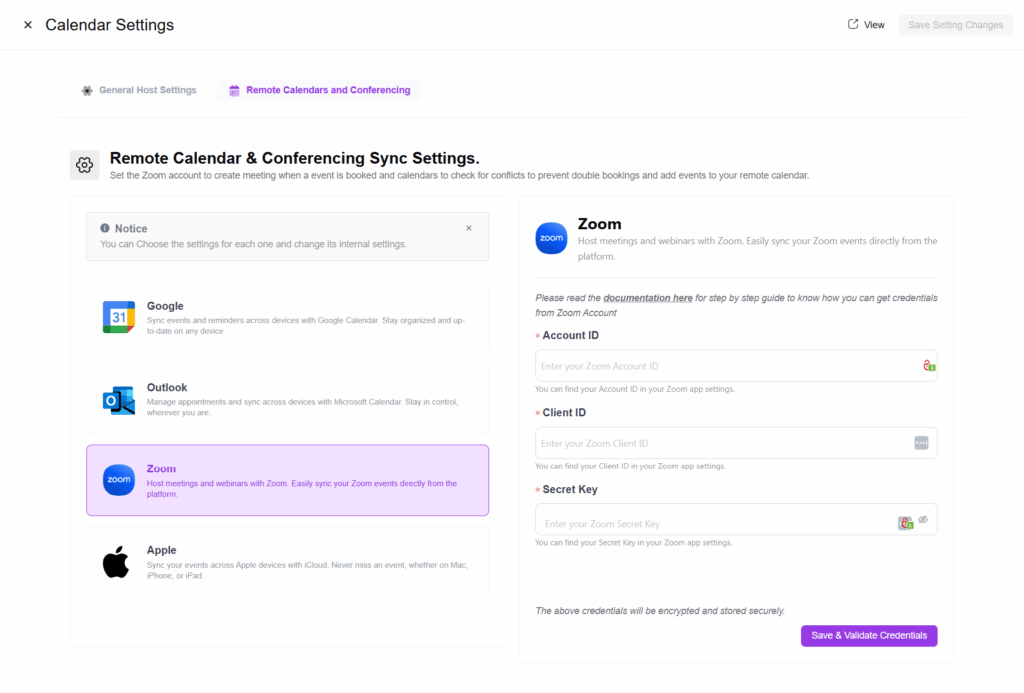
2. Select the Remote Calendars and Conferencing tab. A new section will appear showing all the integrations you can connect with.

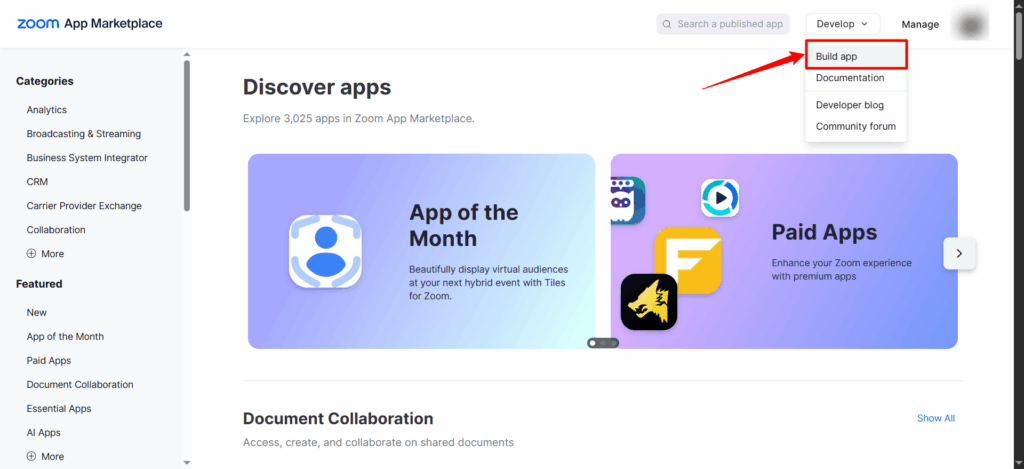
3. Select the Zoom tab, then go to https://marketplace.zoom.us/ to create an app and obtain your Account ID, Client ID, and Secret Key.

4. Then, from the Develop dropdown menu, select Build App.

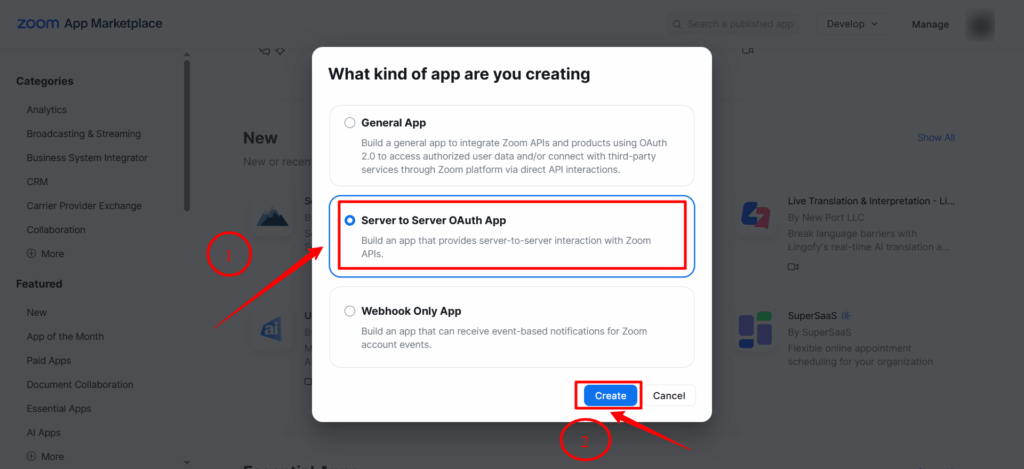
5. Then select Server-to-Server OAuth as the app type and click the Create button.

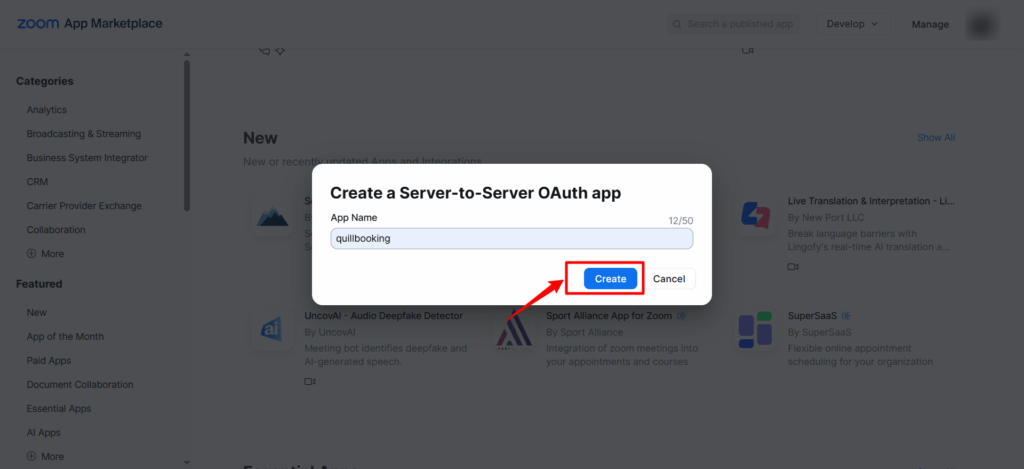
6. Set the app name (e.g., QuillBooking), then click the Create button.

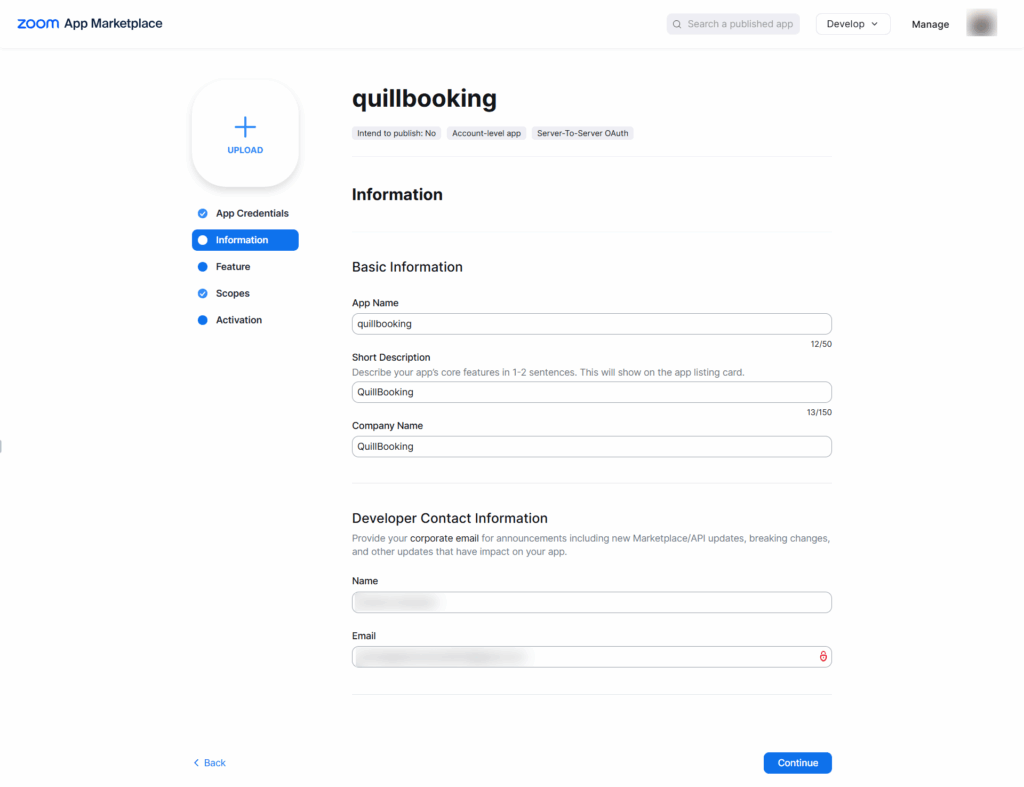
6. Go to the Information tab below, fill in the app name and other required details, then click the Continue button.

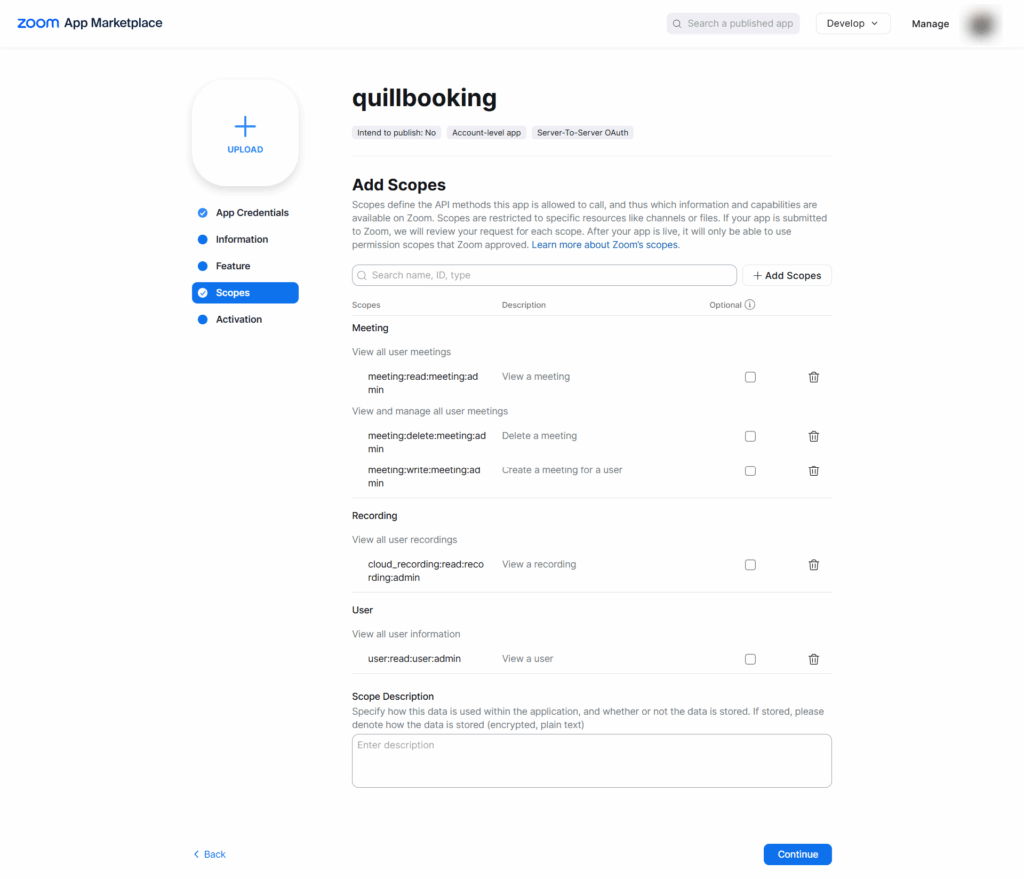
7. In the Scopes tab, add the necessary scopes to give QuillBooking permission to create and delete events and meetings.

  • meeting:read:meeting:admin
  • meeting:delete:meeting:admin
  • meeting:write:meeting:admin
  • cloud_recording:read:recording:admin
  • user:read:user:admin

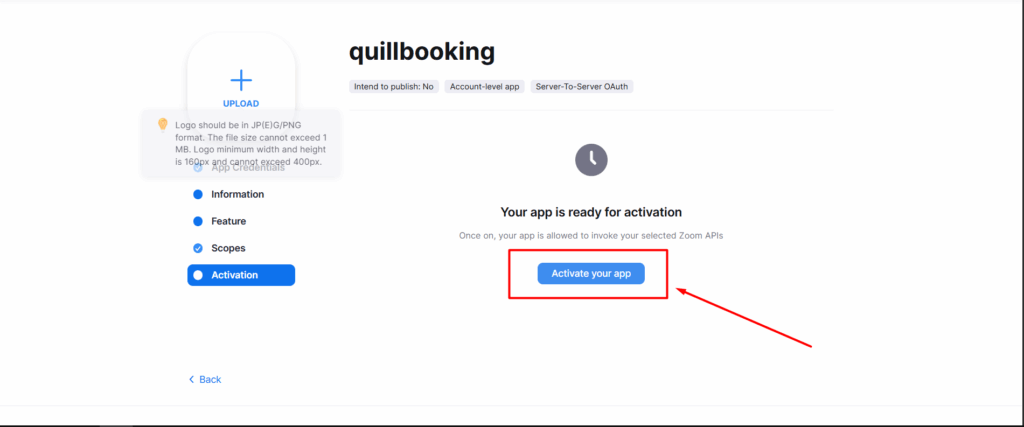
8. Finally, make sure the app is activated.

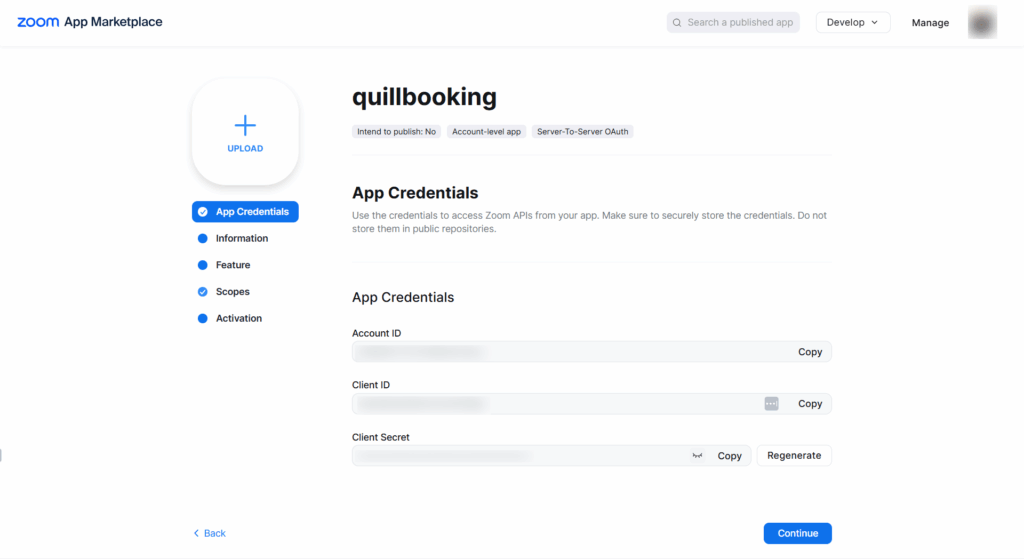
10. Then, go to the App Credentials tab and copy the Account ID, Client ID, and Client Secret.

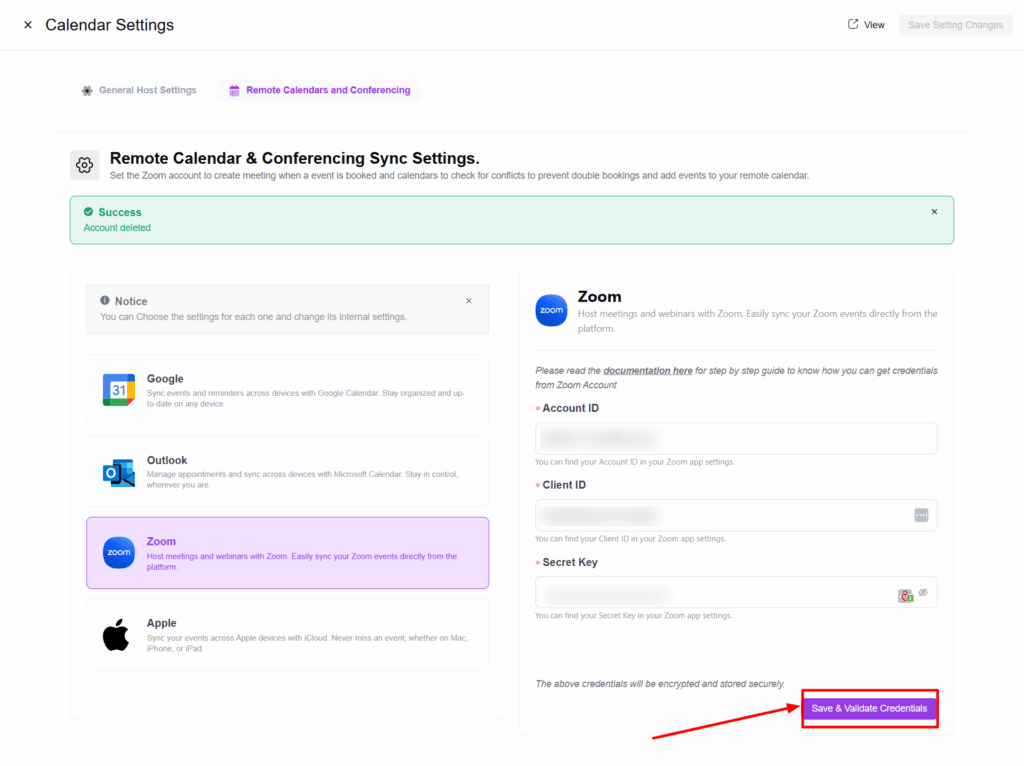
11. Paste all this information into the appropriate input fields, then click Save & Validate Credentials.

Conclusion

With the QuillBooking Zoom, managing your virtual meetings becomes effortless and automated. By seamlessly connecting your booking forms to Zoom, you ensure that every appointment instantly generates a Zoom meeting—no more manual link creation, missed invites, or scheduling confusion. This powerful integration helps you stay organized, improve client communication, and deliver a seamless virtual experience. Stay prepared, reduce no-shows, and keep your workflow running smoothly—all through the video platform you already trust.