Early Bird Launch Special: Save over 70% on our professional scheduling platform • Offer expires in 48 hours View Pricing

QuillBooking Documentation

Get unstuck with our helpful reference material

Availability Management

QuillBooking features a robust Availability Management system designed to simplify scheduling and eliminate overbooking conflicts.

Events Management

With QuillBooking, hosts can create multiple events and assign availability schedules to each one. This removes the hassle of configuring separate schedules for every event, saving time and effort.

Time Slot Flexibility

Events can be customized with different durations—such as 15, 30, or 60 minutes—or even custom lengths. QuillBooking automatically calculates and displays available time slots based on the host’s configured availability.

Configuring Availability

Setting up availability in QuillBooking is intuitive and user-friendly. Step-by-step setup instructions are provided in the documentation to guide users through the process with ease.

Shared Availability

A standout feature in QuillBooking is its shared availability model. This means all events created by a host share the same availability calendar. When a time slot is booked for one event, it becomes unavailable for other events during that same time.

Example Scenario

Imagine a host has the following setup:

  • Event 1 with 60-minute slots
  • Event 2 with 30-minute slots

With a weekly schedule from 9 AM to 5 PM, Monday to Friday, if a booking is made for Event 1 from 9 AM to 10 AM, that time block is also marked unavailable for Event 2.

This ensures hosts never face overlapping bookings, providing a smooth and efficient scheduling experience.
Configure Availability

QuillBooking makes it easy to manage when you’re available for bookings. Instead of adjusting your schedule for each event manually, you can create reusable availability schedules that streamline your workflow and save time.

Availability Settings

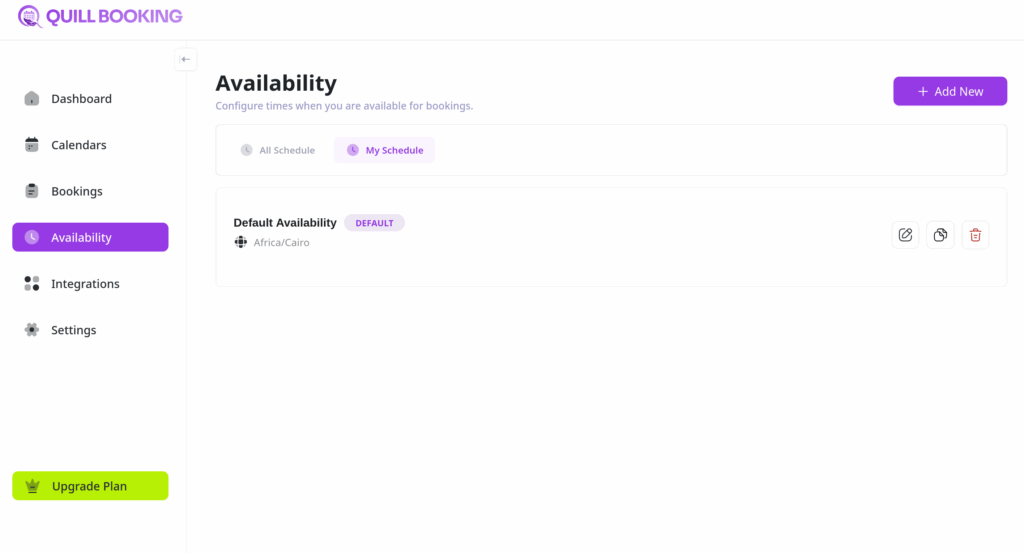
To get started, head to your QuillBooking Dashboard and navigate to the Availability section.

Here, you’ll see a list of your existing availability schedules. Want to view availability across other calendar or host profiles? Just click the “All Schedules” button.

Managing Availability Schedules

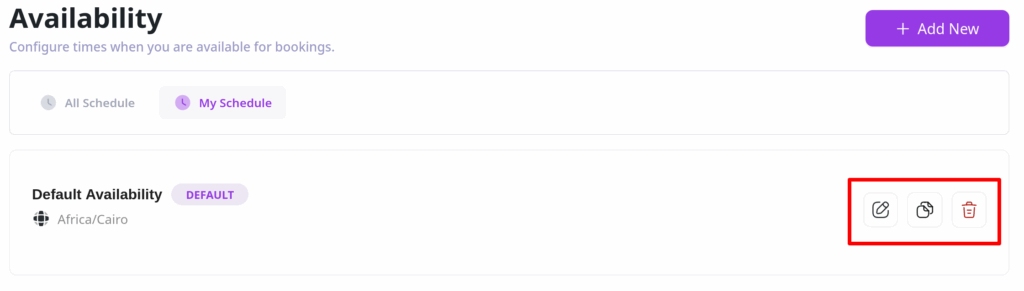
Each availability schedule in QuillBooking comes with a set of management options, accessible via the icons beside each schedule:

  • Edit: Modify the details of your availability schedule.
  • Duplicate: Quickly copy an existing schedule for easy reuse.
  • Delete: Remove schedules that are no longer needed.

Adding a New Availability Schedule

To create a new schedule in QuillBooking:

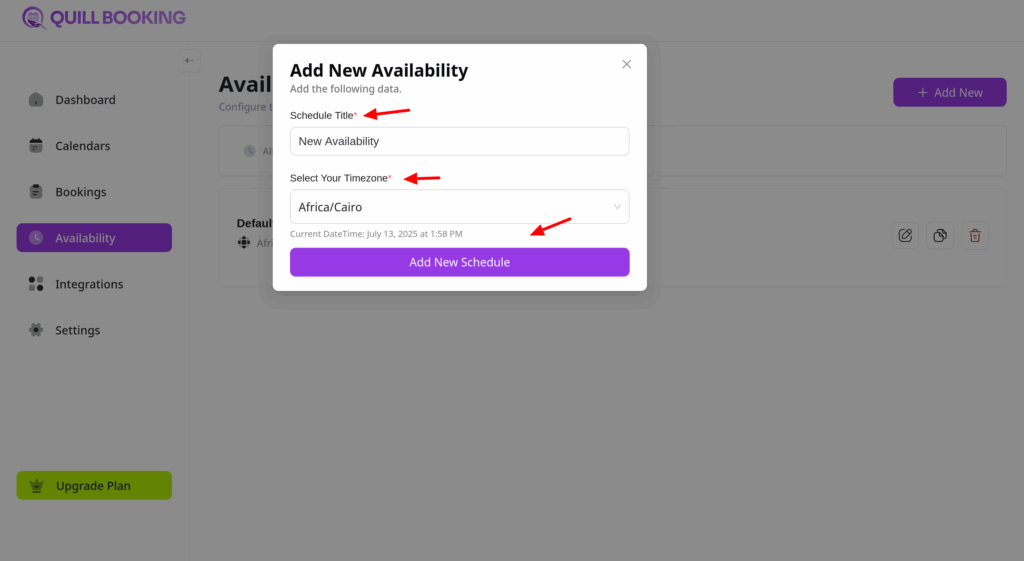
  1. Click the “Add New” button to open the creation popup.
  2. Enter a Schedule Title and select your Timezone.
  3. Click “Add New Schedule” to continue.

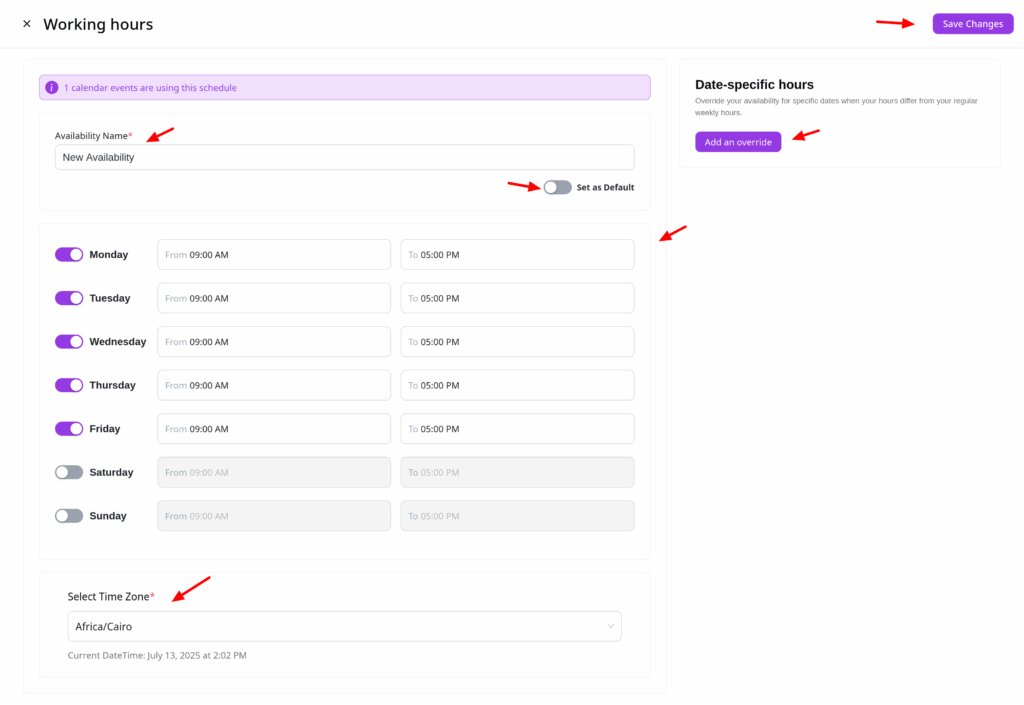
On the schedule configuration page, you can:

  • View Usage List: See which how many events are using this availability.
  • Edit Schedule Name: Rename the schedule and use the settings icon to make it the default or delete it.
  • Set As Default: Every host can have only one default availability.
  • Set Weekly Hours: Define your weekly availability window.
  • Add Date Overrides: Mark specific days as available or unavailable.
  • Timezone: View your set timezone (note: it can’t be changed here).

Once you’re done, click “Save Changes” to apply your new availability settings.

Editing an Existing Schedule

To update an existing schedule, simply click on the edit icon. You’ll be taken to the schedule settings page where you can make and save changes as needed.

Configure Availability for Events

Whether you’re a solo professional or part of a larger team, setting up a clear availability schedule is key to managing your appointments efficiently. In this guide, you’ll learn how to configure a booking availability schedule in QuillBooking.

Schedule Availability

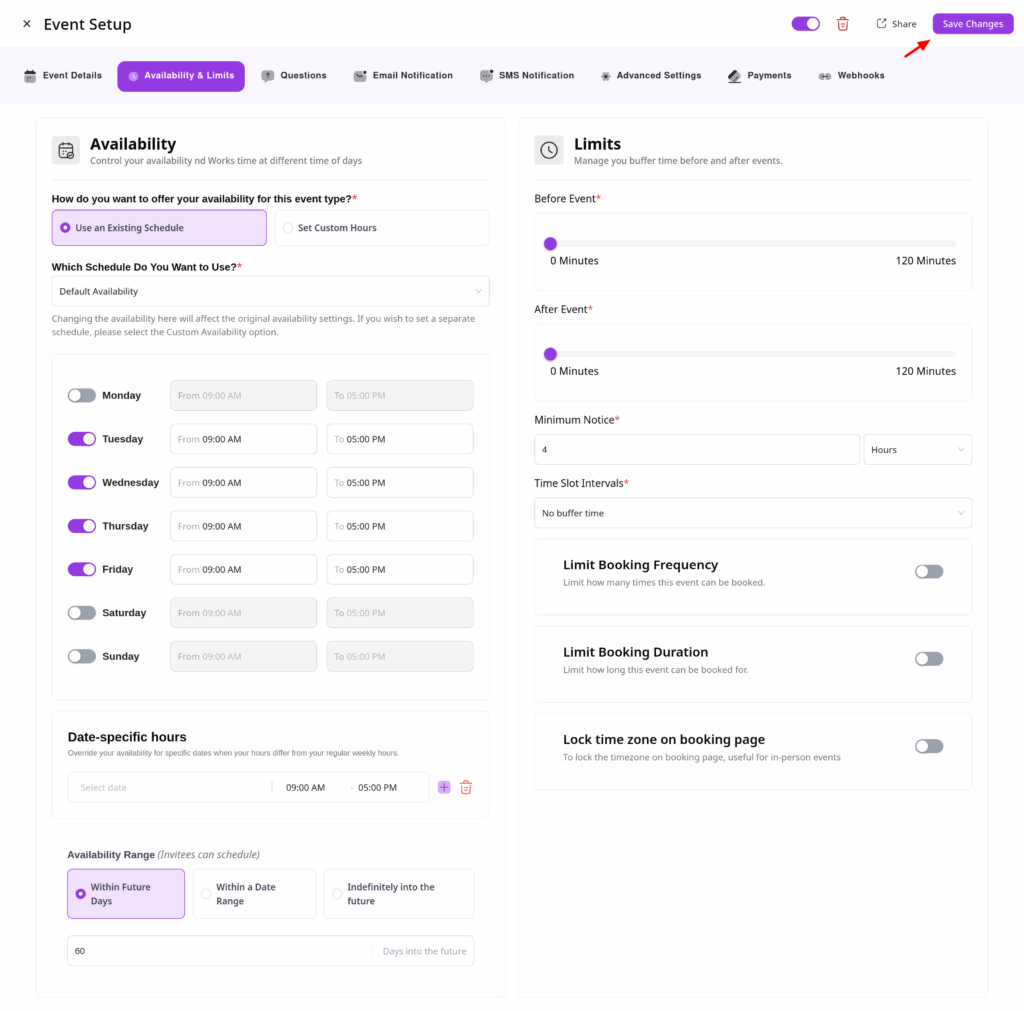
To set up availability for a booking event:

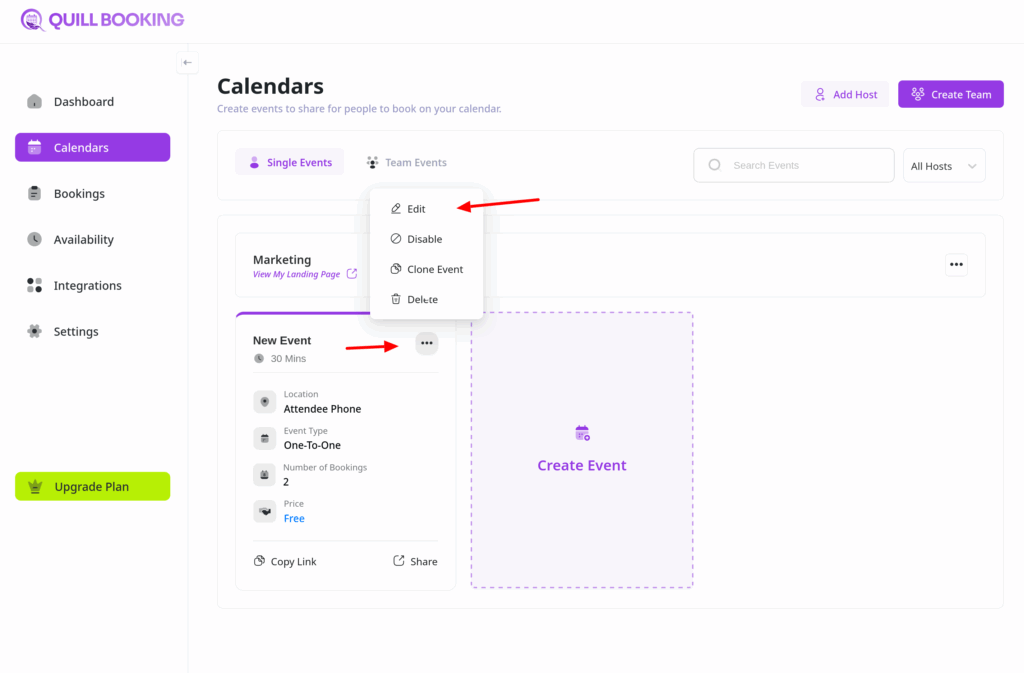
  1. Open the Calendars section from your QuillBooking navigation bar.
  2. Choose the specific event you want to configure and click the Edit button.

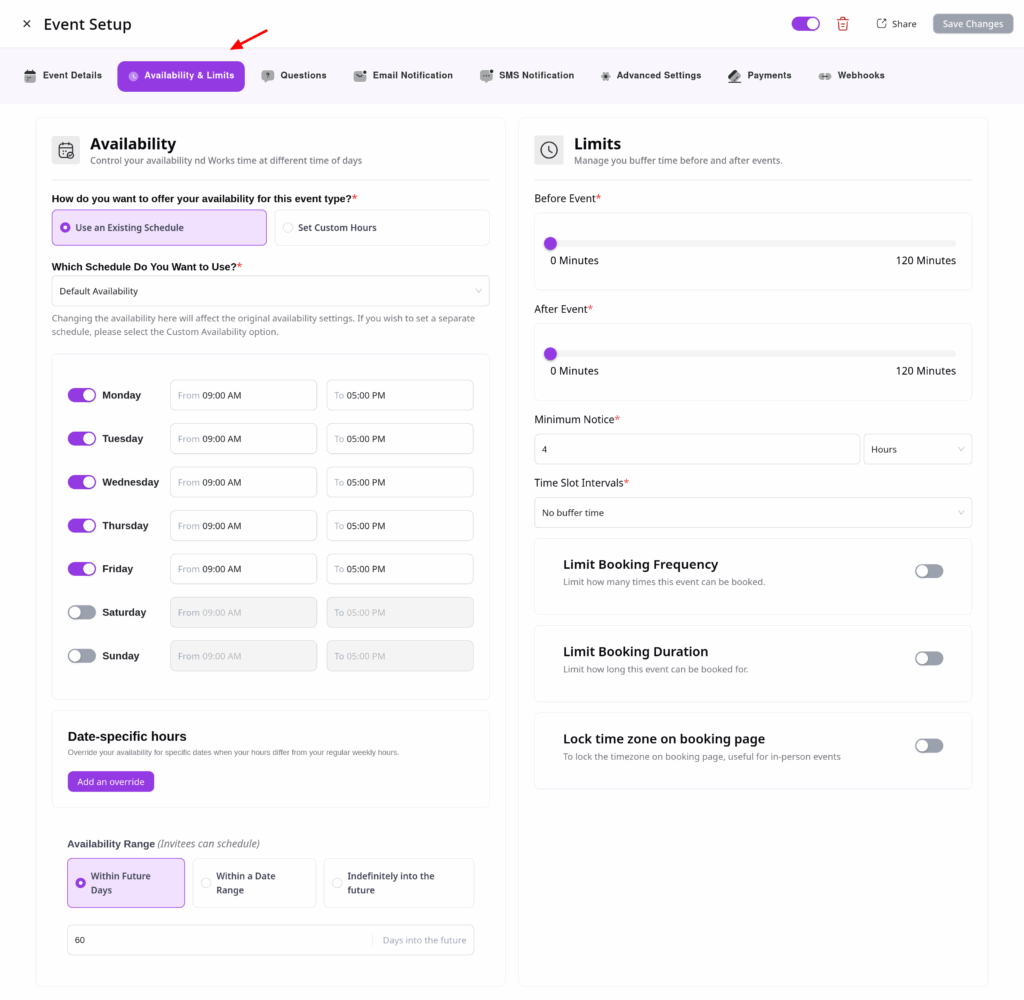
From the tabs, select the Availability & Limits tab.

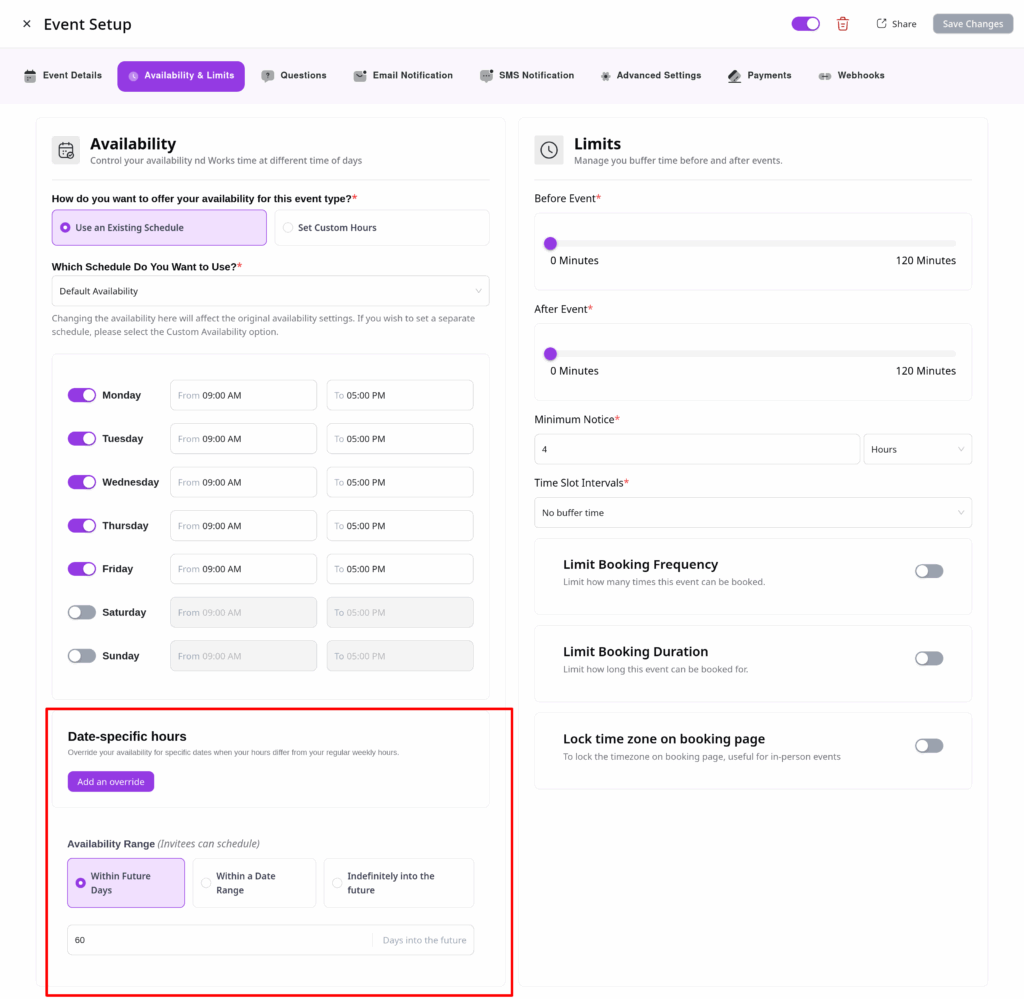
    Availability Range Settings

    In the Availability Range Settings section, choose how far into the future you want to allow bookings:

    • Within Future Days: Set a rolling window (e.g., next 30 days).
    • Within a Date Range: Set a fixed start and end date for availability.
    • Indefinitely into the Future: Keep bookings open with no end date.

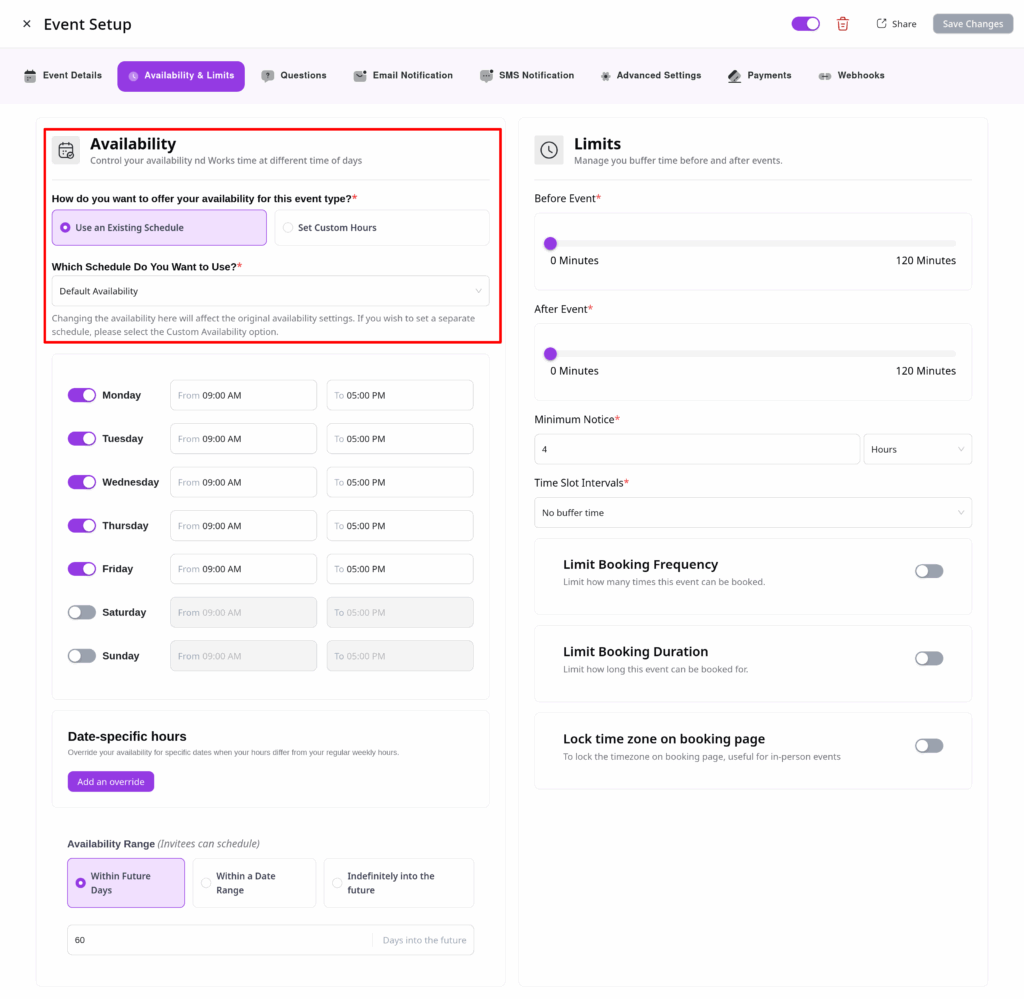
    Configuring Availability Hours

    You can either:

    • Use an Existing Schedule: Apply a prebuilt schedule template.
    • Set Custom Hours: Define unique hours just for this event.

    ✅ Tip: To create reusable schedule templates, visit the Availability section in your dashboard.

    When setting Custom Hours, you can:

    • Specify which days and hours you’re available.
    • Mark certain days or times as unavailable (e.g., for holidays).
    • Fine-tune each weekday individually.

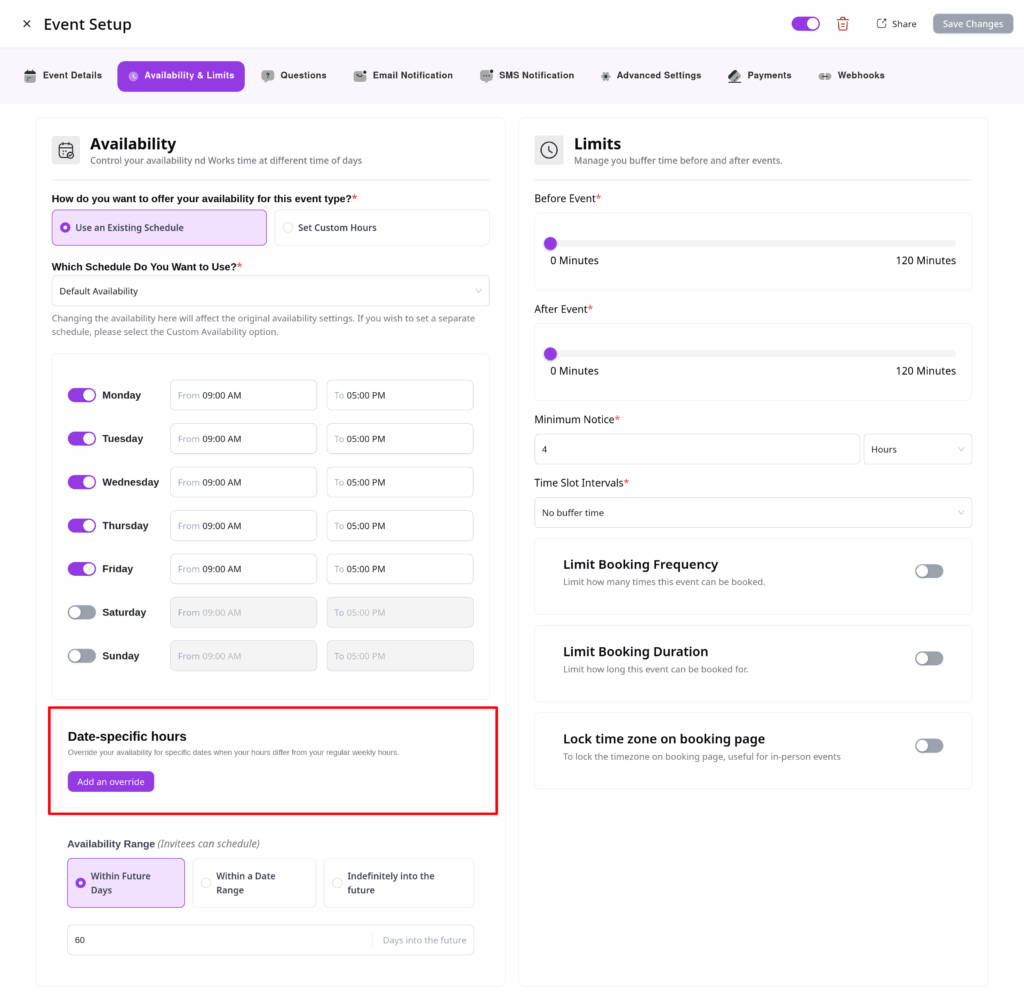
    Add Date Overrides

    Need to make a one-time change?

    Use the Add Date Overrides feature to mark specific dates as available or unavailable—ideal for exceptions to your regular schedule.

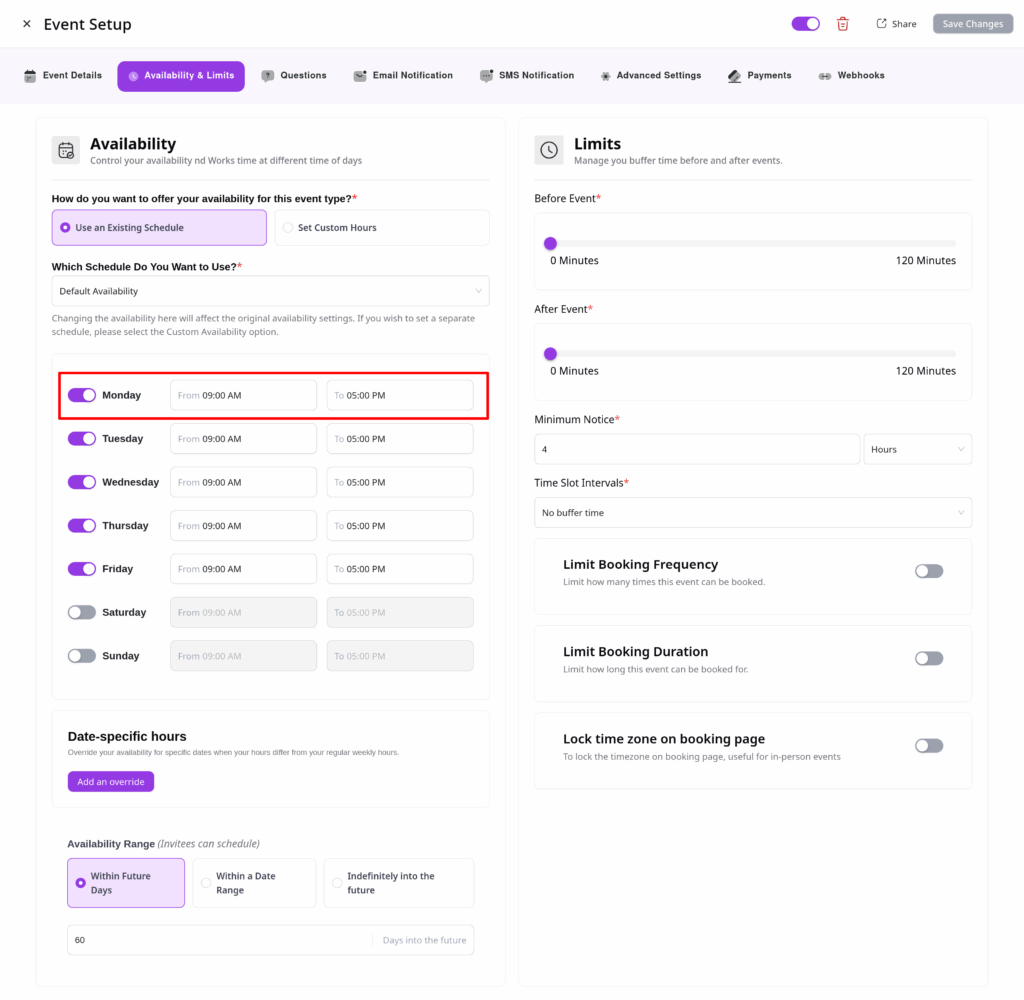
    What Hours Are You Available?

    For each selected day, set your available time range.
    To block availability for the whole day, simply check the “Mark as Unavailable” box.

    Final Step

    Once your availability is set, click Save Changes to apply your configuration.

    By following these steps, you’ll have a reliable and flexible availability schedule in QuillBooking—ensuring your customers and team members can book time with confidence.