
Set Booking Questions
With QuillBooking, you can create custom questions to collect important information from your guests before a meeting. This guide walks you through how to set up and manage booking questions for each event.
Manage Booking Questions
To configure booking questions:
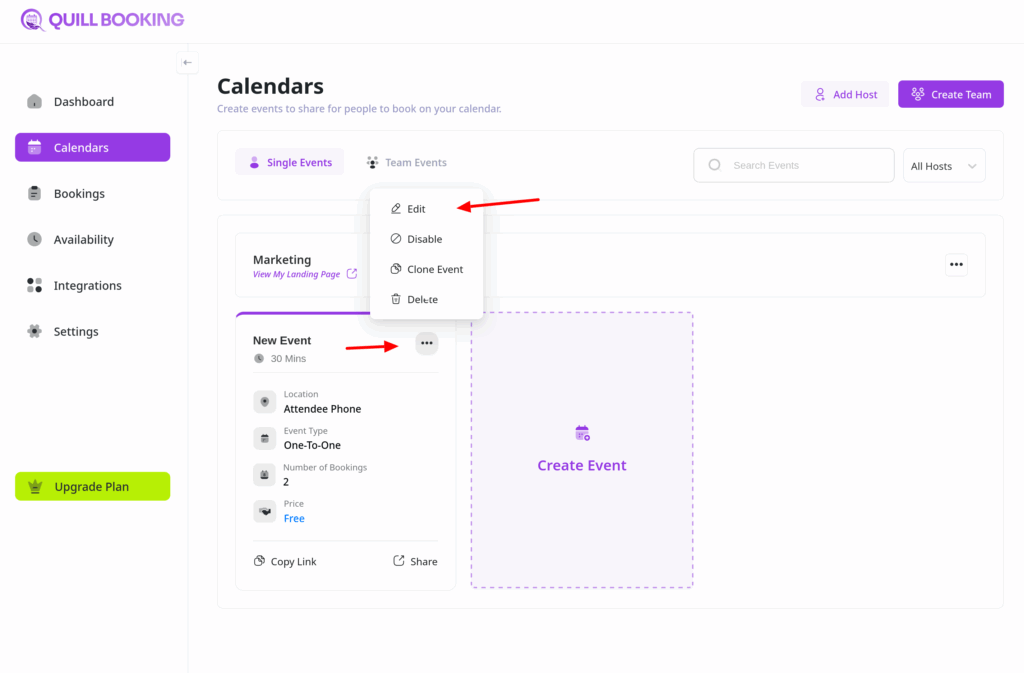
- Go to your QuillBooking navigation bar and click on Calendars.
- Select the booking event you want to customize and click Edit.
In tabs, select the Questions tab.
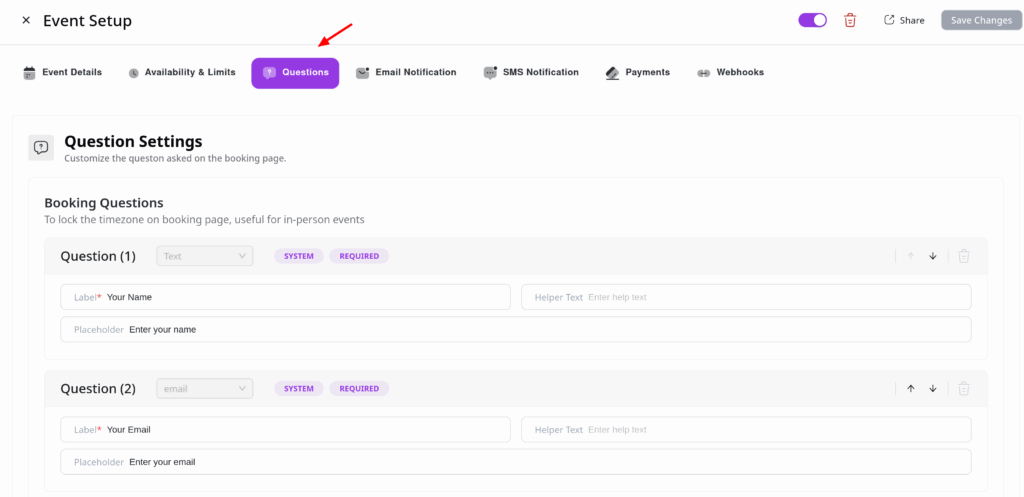
You’ll see some default questions already in place, such as Name and Email—these are required and cannot be removed.
You can:
- ✅ Edit a question
- 🗑️ Delete a question – Click the Delete icon to remove unnecessary questions.
To add a new question, click the “Add more questions for the invitees” button.
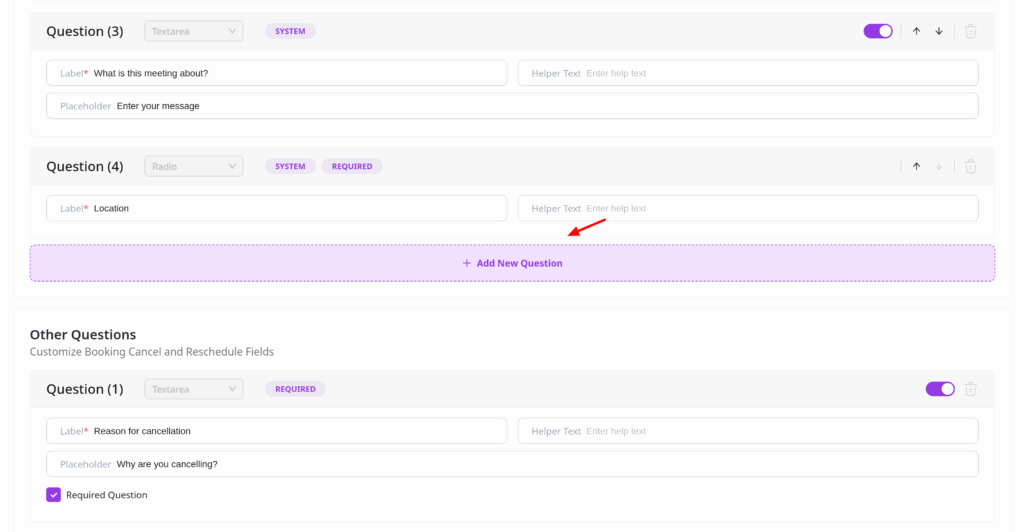
Manage Cancellation & Reschedule Questions
You can also create specific questions to ask attendees why they are canceling or rescheduling a booking—great for gathering feedback and improving your service.
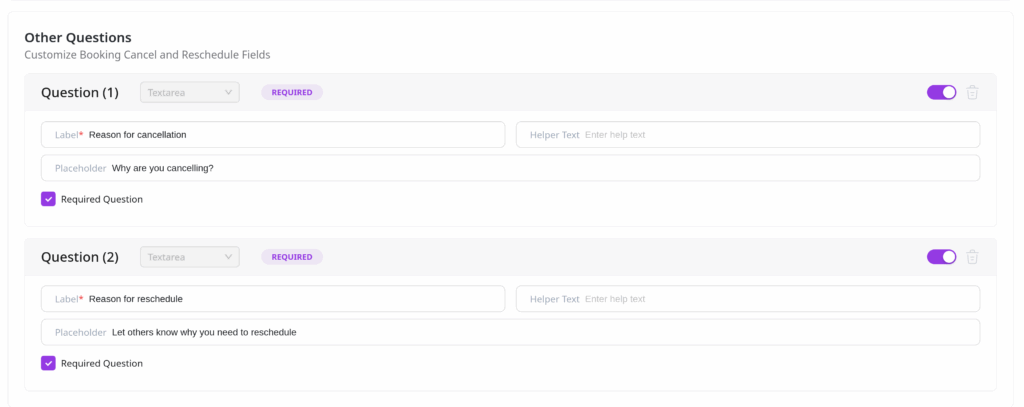
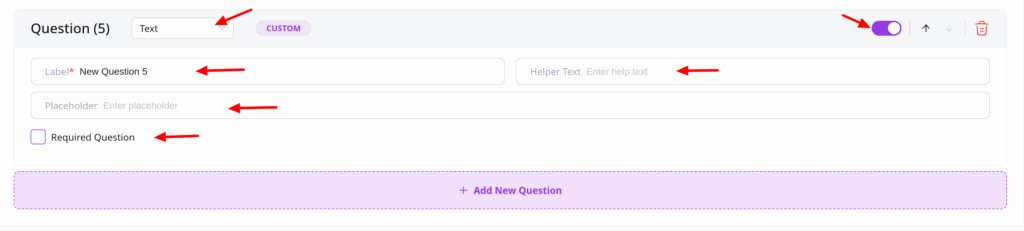
When adding a question, a new field will appear where you can configure:
- Field Type – Choose from:
Text,Textarea,Email,Phone,Number, orDropdown. - Label – The question or prompt shown to the user.
- Placeholder – Optional hint text inside the input field.
- Required – Toggle whether the question must be answered.
- Appearance – Toggle whether this question should appear on the form. Disabling this will hide the question without deleting it—useful for temporary changes.
Final Step
Once you’ve added or edited your questions, click Save Changes to apply them.
Your booking form is now tailored to collect the exact information you need—giving you more control and better insights from every guest.