Quick answer
To embed a booking calendar, copy the event’s shortcode from your booking plugin and paste it into a Shortcode block (Gutenberg) or a Shortcode widget (Elementor). In Quill Booking, click Share on the event, open Short Code, set the width and height, and copy it. For non-WordPress pages, use the Embed Code (iframe) instead.
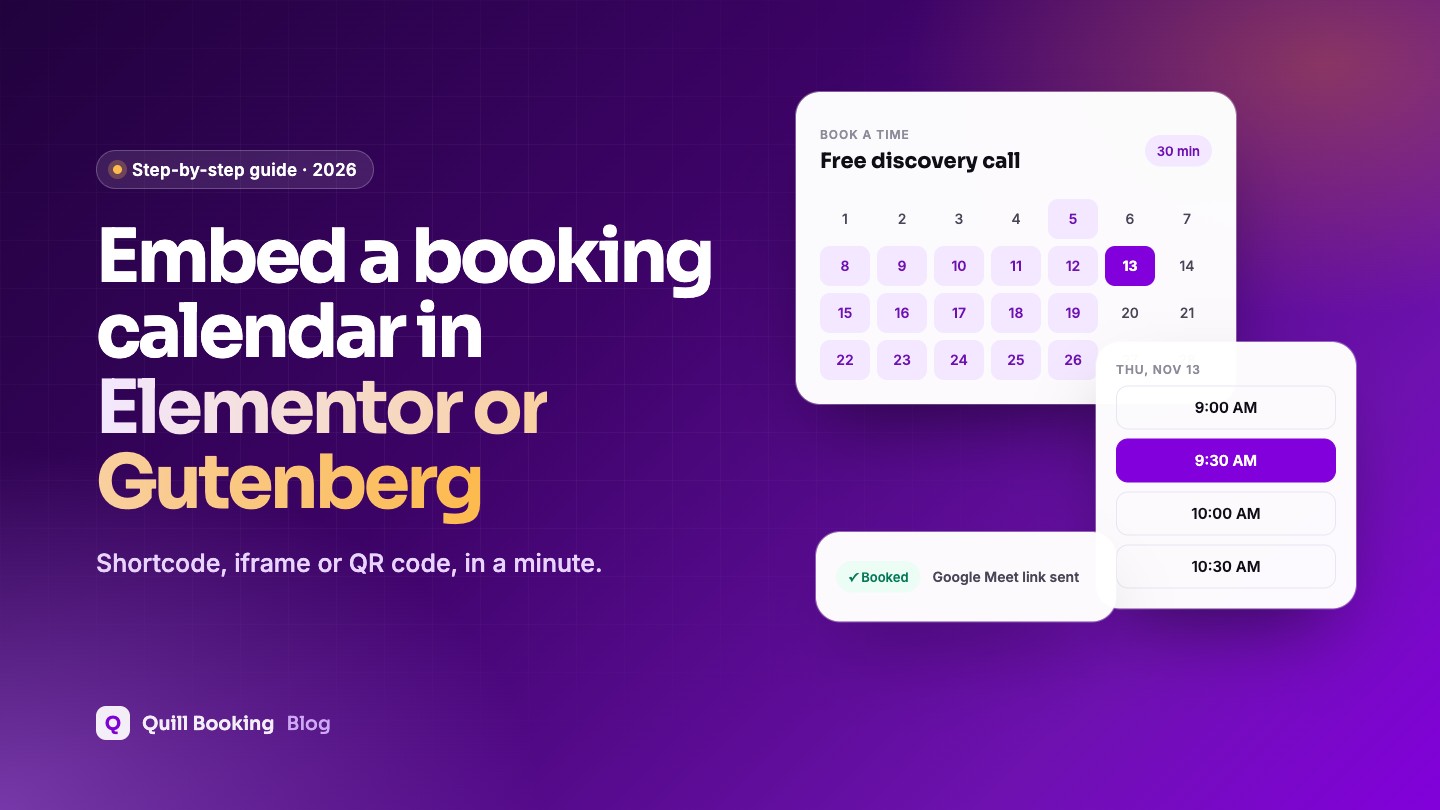
Once your booking event is set up, the next job is to put it where visitors will see it: a “Book a call” page, your contact page, a landing page or a pricing page. Here is how to do it in the block editor, Elementor and other page builders.
Disclosure: We make Quill Booking, so we use it for the screenshots and examples. The advice works with most booking plugins and scheduling tools.
Get the shortcode
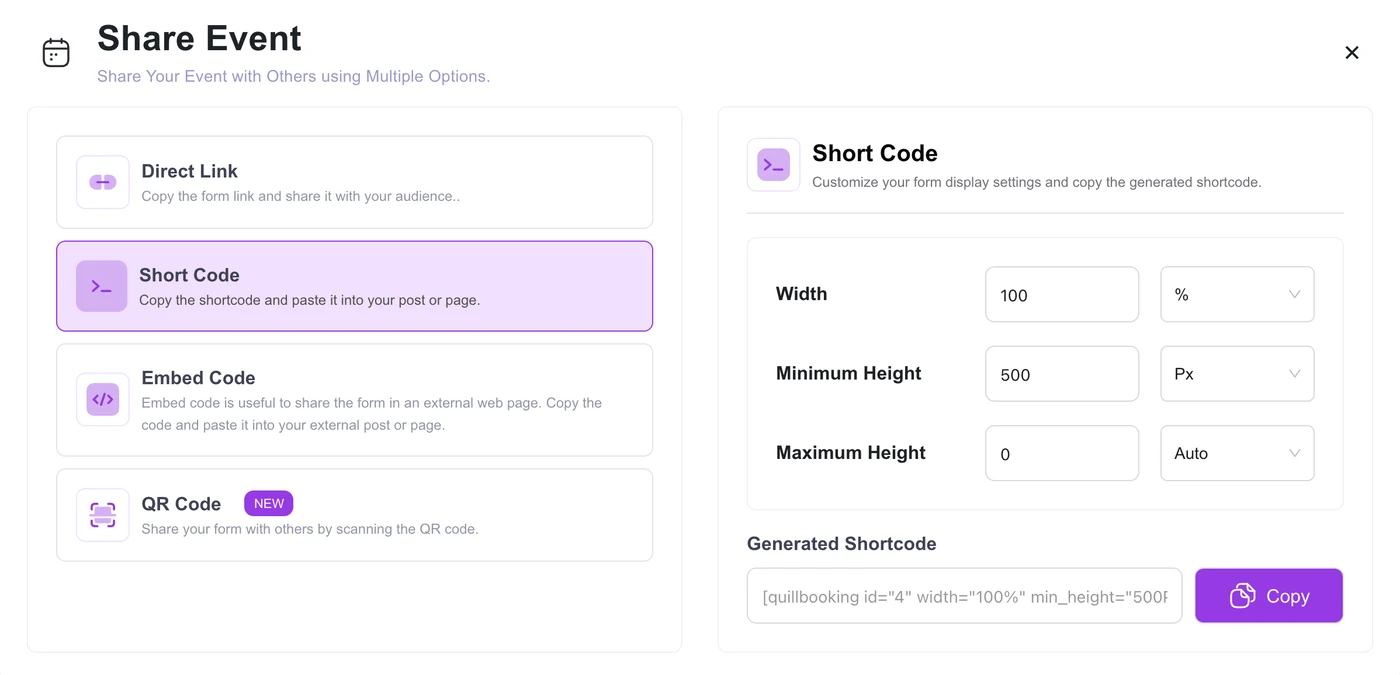
In Quill Booking → Calendars, open the event and click Share. You will see four options: a direct link, a shortcode, an embed code and a QR code. Choose Short Code, set the width (100% fills the column) and the minimum height, then click Copy.
Event not foundGutenberg (block editor)
- Edit the page and click the + button.
- Search for Shortcode and add the block.
- Paste the shortcode and update the page.
Elementor
- Edit the page with Elementor.
- Drag the Shortcode widget into a full-width column.
- Paste the shortcode, click Apply and publish.
The calendar may not render inside the Elementor editor preview; check it on the live page.
Other page builders and themes
Divi, Beaver Builder, Bricks and most themes have a shortcode or text module that works the same way. For a site that is not WordPress, or a landing-page tool, use the Embed Code option, which gives you an iframe.
Layout tips
- Give the calendar a full-width column; three-column layouts are cramped on tablets.
- Put one sentence above it saying what the call is and how long it takes.
- Set a minimum height so the page does not jump while it loads.
- Test on a phone: most bookings happen on mobile.
- Add the direct booking link to buttons elsewhere on your site.
Frequently asked questions
How do I add a booking calendar to an Elementor page?
Copy the event shortcode from your booking plugin, add Elementor’s Shortcode widget, paste it and publish.
Why does the booking calendar not show in the Elementor editor?
Some shortcodes only render on the live page. Preview or view the published page to check it.
Can I embed a WordPress booking calendar on another website?
Yes, with the iframe embed code. In Quill Booking, it is the Embed Code option in the Share window.
Can I use a QR code for bookings?
Yes. Quill Booking generates a QR code for each event, which you can print on flyers, cards or signs.
Related guides
- How to add a booking calendar to WordPress
- How to add an intake form to bookings
- How to book Zoom, Google Meet and Teams meetings in WordPress
Booking pages that fit any layoutQuill Booking works with Gutenberg, Elementor and any theme. Free on WordPress.org.
Get it free